Votre panier est actuellement vide !
Catégorie : Excel VBA Course
Retrieving File Information in Excel VBA
There are several functions to obtain information about files, such as the last modification date, file size, or file attributes. The following program demonstrates how to use these functions:
Sub GetFileInformation()
    Dim fileName As String
    Dim fullFileName As String
    Dim folderPath As String
    Dim i As Integer
    ' Set the folder path correctly
    folderPath = "C:\Users\POPOLY\Desktop\"
    If Right(folderPath, 1) <> "\" Then
        folderPath = folderPath & "\"
    End If
    With ThisWorkbook.Worksheets("Sheet1")
        .Activate
        i = 1
        fileName = Dir(folderPath & "*.*")
        Do While fileName <> ""
            fullFileName = folderPath & fileName
            ' Vérifie que le fichier existe vraiment
            If Dir(fullFileName) <> "" Then
                On Error Resume Next ' Ignore temporairement les erreurs
                ' Write file info
                .Cells(i, 3).Value = fileName
                .Cells(i, 4).Value = FileDateTime(fullFileName)
                .Cells(i, 4).NumberFormatLocal = "dd.mm. hh:mm"
                .Cells(i, 5).Value = FileLen(fullFileName)
                .Cells(i, 5).NumberFormatLocal = "0 ""Byte"""
                .Cells(i, 6).Value = IIf((GetAttr(fullFileName) And vbReadOnly) > 0, "Yes", "No")
                On Error GoTo 0 ' Réactive les erreurs normales
                i = i + 1
            End If
            fileName = Dir ' Next file
        Loop
    End With
End Sub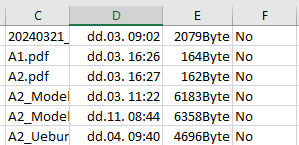
Explanation:
As in the previous example, the code searches for files with the .txt extension.
For the subsequent function calls, the full filename including the path is stored in fullFileName.
- The function FileDateTime() returns the date and time of the last modification of the file.
- The well-known function FileLen() retrieves the file size in bytes.
- The function GetAttr() obtains the file or directory attributes. It returns a number containing all attributes combined as bits. To check for a specific attribute, you perform a bitwise comparison with the And operator.
If the result of the comparison is greater than zero, the attribute is present.
In this example, the code checks whether the file (or directory) is read-only by comparing against the constant vbReadOnly.
Other useful constants include:
- vbHidden: The file is hidden.
- vbSystem: The file is a system file.
- vbDirectory: It is a directory.
- vbArchive: The file has been changed since the last backup.
Searching and Listing Files in Excel VBA
The Dir() function can be used both for searching files and for processing a list of files. In the first example, it is used to check whether a file named test.txt exists in the folder where the application resides:
Sub SearchFile()
    Dim filePath As String
    filePath = "C:\Users\POPOLY\Desktop\Person.txt"
    If Dir(filePath) <> "" Then
        MsgBox "File Person.txt found"
    Else
        MsgBox "File Person.txt not found"
    End If
End Sub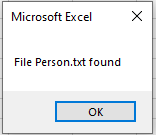
Explanation:
The Dir() function returns the name of a file that matches the specified search pattern. You can use wildcards such as ? (for a single character) or * (for multiple characters).
In this example, a specific filename is searched for without any wildcards. The return value is either the filename (if it exists) or an empty string (if the file does not exist).
The second example demonstrates how to list all files matching a certain pattern:
Sub ListFiles()
    Dim fileName As String
    Dim output As String
    Dim folderPath As String
    folderPath = "C:\Users\POPOLY\Desktop\"
    fileName = Dir(folderPath & "*.txt")
    output = ""
    Do While fileName <> ""
        output = output & vbCrLf & fileName
        fileName = Dir
    Loop
    If output = "" Then
        MsgBox "Aucun fichier .txt trouvé."
    Else
        MsgBox "Fichiers trouvés :" & output
    End If
End Sub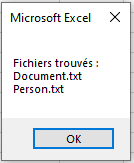
Explanation:
Initially, the Dir() function is called with a parameter specifying the search pattern — here, all files with the .txt extension. The name of the first file matching this pattern is stored in the variable fileName.
Then, a loop begins. If a file was found, the variable fileName is not empty, so the loop executes.
Each found filename is concatenated to an output string variable.
Inside the loop, Dir() is called again without any parameter. This instructs the function to continue searching for the next file matching the original pattern.
The loop continues until all files matching the pattern have been retrieved.
Finally, all collected filenames are displayed in a message box.
Writing a Record at an Arbitrary Position in Excel VBA
The following program stores a record at any specified position within a random access file. You can either overwrite an existing record or append a new one. It is important to ensure that a valid record number is provided:
Sub WriteRandomRecord()
    Dim fullFileName As String
    Dim recordNumber As Integer
    Dim totalRecords As Integer
    Dim Px As Person
    Dim i As Integer
    ThisWorkbook.Worksheets("Sheet1").Activate
    On Error GoTo ErrorHandler
    ' Store data from the worksheet into a variable of user-defined type "Person"
    Px.FirstName = Cells(17, 1).Value
    Px.LastName = Cells(17, 2).Value
    Px.City = Cells(17, 3).Value
    Px.BirthDate = Cells(17, 4).Value
    Px.Salary = Cells(17, 5).Value
    ' Determine the current number of records in the file
    fullFileName = ThisWorkbook.Path & "C:\Users\POPOLY\Desktop\Person.txt"
    totalRecords = FileLen(fullFileName) / Len(Px)
    ' Validate the record number entered by the user
    recordNumber = Cells(16, 1).Value
    If recordNumber < 1 Then recordNumber = 1
    If recordNumber > totalRecords + 1 Then recordNumber = totalRecords + 1
    ' Open the file for random access writing
    Open fullFileName For Random As #1 Len = Len(Px)
    ' Write the record at the specified position
    Put #1, recordNumber, Px
    ' Close the file
    Close #1
    Exit Sub
ErrorHandler:
    MsgBox Err.Description
End Sub
Explanation:
The contents of a record from the Excel worksheet are stored in a variable of the user-defined data type.
The size of the file and the number of existing records are calculated. The maximum valid record number for writing is the current number of records plus one. If the record number equals this maximum, the record will be appended to the end of the file.
The Put statement writes the record into the file at the specified position.
Reading a Record at an Arbitrary Position in Excel VBA
The following program reads a specific record from a random access file. It is important to ensure that only the number of an existing record can be specified:

Type Person
    FirstName As String * 20
    LastName As String * 20
    City As String * 20
    BirthDate As Date
    Salary As Single
End Type
Sub ReadRandomRecord()
    Dim fullFileName As String
    Dim recordNumber As Integer
    Dim totalRecords As Integer
    Dim Px As Person
    Dim i As Integer
    ThisWorkbook.Worksheets("Sheet1").Activate
    On Error GoTo ErrorHandler
    ' Determine the number of records in the file
    fullFileName = ThisWorkbook.Path & "C:\Users\POPOLY\Desktop\Person.txt"
    totalRecords = FileLen(fullFileName) / Len(Px)
    ' Get the desired record number from the worksheet
    recordNumber = Cells(16, 1).Value
    ' Validate the record number within the valid range
    If recordNumber < 1 Then recordNumber = 1
    If recordNumber > totalRecords Then recordNumber = totalRecords
    ' Open the file for random access reading
    Open fullFileName For Random As #1 Len = Len(Px)
    ' Read the specified record into Px
    Get #1, recordNumber, Px
    ' Close the file
    Close #1
    ' Output the record's fields to the worksheet
    Cells(17, 1).Value = Trim(Px.FirstName)
    Cells(17, 2).Value = Trim(Px.LastName)
    Cells(17, 3).Value = Trim(Px.City)
    Cells(17, 4).Value = CDate(Px.BirthDate)
    Cells(17, 5).Value = Round(CDbl(Px.Salary), 2)
    Exit Sub
ErrorHandler:
    MsgBox Err.Description
End Sub
Explanation:
The function FileLen() returns the size of a file in bytes. Using this, the total number of records stored in the file can be calculated by dividing the file size by the length of one record.
The user inputs the number of the desired record in the Excel worksheet (e.g., cell A16). If the specified record number is too large or too small, it is adjusted to the nearest valid value (either the first or the last record).
The Get statement reads a record from the file, similar in operation to the Put statement:
- The first parameter is the file number.
- The second parameter specifies the position of the record in the file to be read.
- The third parameter is the user-defined type variable into which the data is read.
When outputting the data, small adjustments are made:
- For fixed-length strings, the Trim() function removes trailing spaces added during storage.
- The date is converted to a proper date format using CDate().
- The salary value is converted to a double with CDbl() and rounded to two decimal places.
Note that due to the limited precision of floating-point numbers, slight differences may appear in the stored or retrieved values. For example, a stored value of 4620.85 may sometimes read back as 4620.849999.
Creating a File with All Records in Excel VBA
The following program creates a file with random access. Three records are stored in this file. This file will serve as the basis for later reading or writing records at arbitrary positions:

Type Person
    FirstName As String * 20
    LastName As String * 20
    City As String * 20
    BirthDate As Date
    Salary As Single
End Type
Sub WriteAllRandomAccess()
    Dim P(1 To 3) As Person
    Dim i As Integer
    ThisWorkbook.Worksheets("Sheet2").Activate
    On Error GoTo ErrorHandler
    ' Store data in an array of the user-defined type "Person"
    For i = 1 To 3
        P(i).FirstName = Cells(i, 1).Value
        P(i).LastName = Cells(i, 2).Value
        P(i).City = Cells(i, 3).Value
        P(i).BirthDate = Cells(i, 4).Value
        P(i).Salary = Cells(i, 5).Value
    Next i
    ' Open the file for random access writing
    Open ThisWorkbook.Path & "C:\Users\POPOLY\Desktop\Person.txt" For Random As #1 Len = Len(P(1))
    ' Write all records into the file
    For i = 1 To 3
        Put #1, i, P(i)
    Next
    ' Close the file
    Close #1
    Exit Sub
ErrorHandler:
    MsgBox Err.Description
End Sub
Explanation:
The contents of the Excel table are stored in an array of variables of the user-defined data type.
The file randomAccess.txt is opened using the Random mode, which enables random access—both for writing and reading.
When opening a file in Random mode, you must specify the length of a single record after the Len keyword. This length can be determined using the Len() function. Besides string length, this function can also return the memory size of a variable.
The Put statement writes a record into the file:
- The first parameter is the file number.
- The second parameter specifies the record position within the file to write to.
- The third parameter is the user-defined type variable that is written.
You can open the created file in a text editor. You will notice that the fixed-length strings contain trailing spaces used for padding. All records are stored directly one after another continuously on a single line. The components of other data types (e.g., Date, Single) are not stored in a human-readable format (see Figure 9.7). This is normal and sufficient for reading and writing using this program.
Creating a Custom Data Type in Excel VBA
First, a suitable custom data type is created for this data:
Type Person
    FirstName As String * 20
    LastName As String * 20
    City As String * 20
    BirthDate As Date
    Salary As Single
End Type
The * 20 suffix for the String data type ensures that the associated variable is not a variable-length string, as we have seen before, but a fixed-length string. If a shorter value is assigned to such a variable, trailing spaces are automatically appended. If a longer value is assigned, excess characters at the end are truncated.
Fixed-length strings are now rarely used but are introduced here for this specific purpose.
All data types inside a user-defined data type must have a fixed memory size. The total length of a record of this type is 72 bytes, calculated as follows:
- Three fixed-length strings of 20 bytes each (total 60 bytes),
- One Single type of 4 bytes,
- One Date type of 8 bytes.
When opening a file with random access, the length of each record must be specified. For three records, the total file size would be 216 bytes (3 × 72 bytes).
Knowing the file size allows you to determine the number of records contained within the file.
Reading CSV Files in Excel VBA
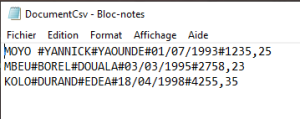
The following example demonstrates how to read all lines from a CSV file. In this case, the file linesCsv.txt is read. Each line is split into parts using the Split() function and each part is individually written into Excel cells:
Sub ReadCsv()
    Dim lineContent As String
    Dim parts() As String
    Dim i As Integer, k As Integer
    Dim numberValue As Double
    Dim dateValue As Date
    ThisWorkbook.Worksheets("Sheet2").Activate
    On Error GoTo ErrorHandler
    ' Open the file for reading
    Open ThisWorkbook.Path & "C:\Users\POPOLY\Desktop\DocumentCsv.txt" For Input As #1
    i = 6
    ' Loop until the end of the file is reached
    Do Until EOF(1)
        ' Read one line from the file
        Line Input #1, lineContent
        ' Split the line into parts using "#" as delimiter
        parts = Split(lineContent, "#")
        ' Process each part of the line
        For k = 0 To UBound(parts)
            If IsNumeric(parts(k)) Then
                If InStr(parts(k), ".") > 0 Then
                    ' Convert to Date type
                    dateValue = CDate(parts(k))
                    Cells(i, k + 1).Value = dateValue
                Else
                    ' Convert to Double type (number)
                    numberValue = CDbl(parts(k))
                    Cells(i, k + 1).Value = numberValue
                End If
            Else
                ' Treat as a text string
                Cells(i, k + 1).Value = parts(k)
            End If
        Next k
        i = i + 1
    Loop
    ' Close the file
    Close #1
    Exit Sub
ErrorHandler:
    MsgBox Err.Description
End Sub
Explanation:
A dynamic array variable is declared to store the result of the Split() function. The delimiter # is used to split the line into its individual components.
The number of elements in a record, and thus the upper bound of the dynamic array, is determined with the UBound() function.
Each element of the array is checked to determine if it represents a date, number, or string. After converting to the appropriate data type, the value is stored in the corresponding Excel cell horizontally (side by side).
Writing CSV Files in Excel VBA
When writing CSV files, the individual parts of each record are combined into a single string with delimiters using the Join() function.
Sub WriteCsv()
    Dim i As Integer, k As Integer
    Dim T(1 To 5) As String
    ThisWorkbook.Worksheets("Sheet2").Activate
    On Error GoTo ErrorHandler
    ' Open the file for writing
    Open ThisWorkbook.Path & "C:\Users\POPOLY\Desktop\DocumentCsv.txt" For Output As #1
    For i = 1 To 3
        ' Collect each cell value of the row into array T
        For k = 1 To 5
            T(k) = Cells(i, k).Value
        Next k
        ' Write the concatenated line with "#" as delimiter
        Print #1, Join(T, "#")
    Next i
    ' Close the file
    Close #1
    Exit Sub
ErrorHandler:
    MsgBox Err.Description
End Sub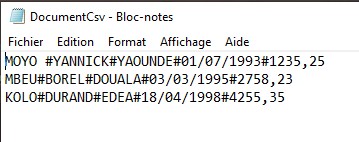
Explanation:
All parts of a record are stored within an array. Using the Join() function along with a delimiter character—in this example, the # symbol—a single string is created for each record.
This concatenated string is then output as a line in the CSV file named linesCsv.txt.
This process is repeated for all records in the Excel table.
Reading Simple Text Files in Excel VBA
The following example demonstrates how to read all lines from a text file. In this case, the file document.txt is read. Each value is recognized as a date, number, or string and written into Excel cells.

Sub ReadLines()
    Dim lineContent As String
    Dim i As Integer
    Dim numberValue As Double
    Dim dateValue As Date
    ThisWorkbook.Worksheets("Sheet1").Activate
    On Error GoTo ErrorHandler
    ' Open the file for reading
    Open ThisWorkbook.Path & "C:\Users\POPOLY\Desktop\Document.txt" For Input As #1
    i = 7
    ' Loop until end of file is reached
    Do Until EOF(1)
        ' Read one line from the file
        Line Input #1, lineContent
        ' Check if the line content is numeric
        If IsNumeric(lineContent) Then
            ' Check if the numeric string contains a decimal point
            If InStr(lineContent, ".") > 0 Then
                ' Convert to Date type
                dateValue = CDate(lineContent)
                Cells(i, 1).Value = dateValue
                Cells(i, 2).Value = "Date"
            Else
                ' Convert to Double type (number)
                numberValue = CDbl(lineContent)
                Cells(i, 1).Value = numberValue
                Cells(i, 2).Value = "Number"
            End If
        Else
            ' Treat as a text string
            Cells(i, 1).Value = lineContent
            Cells(i, 2).Value = "String"
        End If
        i = i + 1
    Loop
    ' Close the file
    Close #1
    Exit Sub
ErrorHandler:
    MsgBox Err.Description
End Sub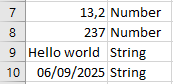
Explanation:
The file is opened for reading using the Open statement with the Input mode.
A Do Until loop runs repeatedly until the EOF() function returns True. EOF stands for « End Of File, » and the function detects when the end of the file is reached. This approach is crucial because the number of lines in the file is typically unknown in advance. Therefore, the loop processes all lines in the file dynamically.
Within the loop, the Line Input statement reads one entire line from the file (file number 1) and stores it as a string in the variable lineContent.
The IsNumeric() function checks whether the string represents a numeric value. If it does, the InStr() function determines if the string contains a decimal point:
- If a decimal point is found, the string is interpreted as a date. It is converted to the Date data type using the CDate() function and stored in the dateValue variable. This date value is then output to the worksheet.
- If no decimal point is present, the string is treated as a numeric value without decimals and converted to a Double using CDbl(). The numeric value is stored in numberValue and output accordingly.
If the string does not represent a numeric value, it is treated as plain text and written as-is to the worksheet.
The variable i is incremented in each loop iteration to write each line to the next row in Excel, ensuring the data appears in successive cells vertically.
Finally, the file is closed using the Close statement to free the resource.
Writing Simple Text Files in Excel VBA
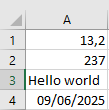
The Excel table data are written into a text file using the following program:
Sub WriteLines()
    Dim i As Integer
    ThisWorkbook.Worksheets("Sheet1").Activate
    On Error GoTo ErrorHandler
    ' Open the file for writing
    Open ThisWorkbook.Path & "C:\Users\POPOLY\Desktop\Document.txt" For Output As #1
    ' Alternative paths commented out:
    ' Open ThisWorkbook.Path & "C:\Users\POPOLY\Desktop\Document.txt" For Output As #1
    ' Open ThisWorkbook.Path & "C:\Users\POPOLY\Desktop\Document.txt" For Output As #1
    ' Open "C:\Users\POPOLY\Desktop\Document.txt" For Output As #1
    For i = 1 To 4
        ' Write each line
        Print #1, Cells(i, 1).Value
    Next i
    ' Close the file
    Close #1
    Exit Sub
ErrorHandler:
    MsgBox Err.Description
End Sub
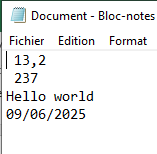
The result in the text file is illustrated in Figure.
Explanation:
The Open statement is used to open files. In this example, the file lines.txt is opened. Both the Excel workbook containing this export program and the text file with the data reside in the same directory.
Following the keyword For is the mode in which the file is opened. For text files, some common modes include:
- Input (for reading),
- Output (for overwriting),
- Append (for adding content to the end),
- Random (for random access).
After the keyword As, a file number is specified, which you can assign arbitrarily. In the rest of the program, the opened file is referenced by this unique file number prefixed with the symbol #.
Whether or not the file already exists, the new content will be written to the file. Existing contents are completely overwritten without any warning.
If you use the mode Append instead of Output, new content would be added to the end of the file rather than replacing the existing content.
The Print statement outputs a line to the file. Its first argument is the file number preceded by #, and the second argument is an expression whose value is written to the file. After writing, Print automatically adds a newline.
After writing, the file is closed with the Close statement.
In the three commented-out lines, the file is alternatively opened in different directories:
- In a subfolder named Additional within the directory containing the export program,
- In the directory above the one containing the export program,
- In the absolute path C:\Temp.