Votre panier est actuellement vide !
Catégorie : Excel VBA Course
Overview in Excel VBA
First, several methods for accessing text files are introduced:
Accessing simple text files where each line can vary in length. Each line contains a single piece of information—for example, a single cell value in an Excel worksheet. These lines can only be written or read sequentially, meaning it is not possible to directly access an arbitrary line within the file.
Accessing CSV (Comma-Separated Values) files, where each line also varies in length. Each line represents a related group of information, commonly known as a record or dataset. In an Excel worksheet, such a record might span multiple cells within the same row. Like simple text files, CSV files are accessed sequentially; direct random access to a specific record is not available.
Random access to files with lines of uniform length is also discussed. Each line corresponds to a record based on a user-defined data type and fixed-length strings. This structure allows both reading and writing access to any record in the file directly, without the need to process the file sequentially.
Following this, the process of retrieving information about files and directories is explained, along with performing various file operations.
Next, the creation of paragraphs and tables within Microsoft Word documents is covered. Similarly, methods for reading the contents of paragraphs and tables from Word files are presented.
Subsequently, the text addresses the creation and sending of emails in different formats, including their integration with Microsoft Outlook. It also describes how to retrieve the contents of email folders, individual emails, and attachments.
The management of contacts, appointments, and recurring appointment series is also incluexternal_dataded, with instructions on how to create and read these items.
Finally, accessing Microsoft Access databases through queries is explored, covering both reading and modifying records within individual tables.
In practical scenarios, runtime errors frequently occur when reading from or writing to external data sources. For instance, an incorrect file path might be specified, or write permissions may be lacking for the targeted directory. Therefore, special attention is given in the programs throughout this chapter to effectively handle and prevent such runtime errors.
Converting Between Roman and Arabic Numerals in VBA Excel
The worksheet functions Roman() and Arabic() are used to convert between conventional Arabic numbers and Roman numerals. Note that the Arabic() function was introduced only in Excel 2013.
The following example converts the number 1984 to the Roman numeral text « MCMLXXXIV » and then converts it back:
Sub RomanArabic() MsgBox WorksheetFunction.Roman(1984) MsgBox WorksheetFunction.Arabic("MCMLXXXIV") End SubRounding Numbers in Excel VBA
Numbers can be rounded in various ways. Using the worksheet functions Round(), RoundDown(), and RoundUp(), you can round, round down, or round up to any specified number of decimal places or digits before the decimal point. You can also perform traditional rounding to whole numbers.
The worksheet function MRound() allows rounding to the nearest multiple of any number. For example, rounding to the nearest multiple of 5 will produce a number ending in 0 or 5.
Below is an example demonstrating different ways to round a number:
Sub RoundingExamples()
    Dim num As Double
    num = 300000 / 7
    With WorksheetFunction
        MsgBox "Number: " & num & vbCrLf & _
               "Rounded to 3 decimal places: " & .Round(num, 3) & vbCrLf & _
               "Rounded down to 3 decimal places: " & .RoundDown(num, 3) & vbCrLf & _
               "Rounded up to 3 decimal places: " & .RoundUp(num, 3) & vbCrLf & _
               "Rounded to 3 digits before the decimal point: " & .Round(num, -3) & vbCrLf & _
               "Rounded to nearest multiple of 5: " & .MRound(num, 5)
    End With
End Sub
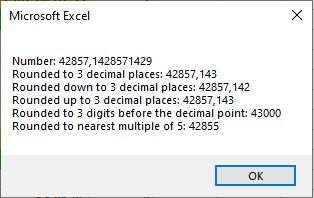
Explanation:
For Round(), RoundDown(), and RoundUp(), the second parameter specifies the number of decimal places to round to. If the value is negative, the rounding applies to digits before the decimal point. If the value is zero, the number is rounded to the nearest whole number.For MRound(), the second parameter specifies the multiple to which the number is rounded.
Finding Largest and Smallest Values in Excel VBA
In addition to the well-known worksheet functions Max() and Min(), which find the largest and smallest values in a range, there are also the functions Large() and Small(). These allow you to find the k-th largest or k-th smallest value in a range — for example, when k = 2, the second largest or second smallest value.
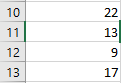
Below is an example demonstrating all four functions. The range contains the numbers 5, 8, 3, and 16:
Sub FindValues()
    ThisWorkbook.Worksheets("Sheet1").Activate
    With WorksheetFunction
        MsgBox "Largest value: " & .Max(Range("A10:A13")) & vbCrLf & _
               "Second largest value: " & .Large(Range("A10:A13"), 2) & vbCrLf & _
               "Smallest value: " & .Min(Range("A10:A13")) & vbCrLf & _
               "Second smallest value: " & .Small(Range("A10:A13"), 2)
    End With
End Sub
Explanation:
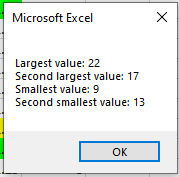
For the functions Large() and Small(), the parameter k is specified as the second argument.The program output is shown in Figure.
Counting Cells in Excel VBA
The worksheet functions Count() and CountBlank() are useful when you want to determine how many cells in a range contain numbers (including dates) or are empty.
Sub CountCells()
    ThisWorkbook.Worksheets("Sheet1").Activate
    Range("B6").Value = Application.WorksheetFunction.Count(Range("B1:B5"))
    Range("B7").Value = Application.WorksheetFunction.CountBlank(Range("B1:B5"))
End Sub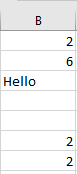
Explanation:
The Count() function returns how many cells in the range B1 to B5 contain numbers or dates; in this example, it returns 3.The CountBlank() function counts the number of empty cells in the range B1 to B5; here, it returns the count of blank cells.
Converting Between Number Systems in Excel VBA
A variety of worksheet functions assist in converting between different number systems (decimal, hexadecimal, binary, and octal). Their operation is demonstrated here with the functions Dec2Bin() and Dec2Hex():
Sub BinaryHexadecimal()
    Dim i As Integer
    ThisWorkbook.Worksheets("Sheet2").Activate
    For i = 1 To 10
        Cells(i, 3).Value = Application.WorksheetFunction.Dec2Bin(Cells(i, 2).Value)
        Cells(i, 4).Value = Application.WorksheetFunction.Dec2Hex(Cells(i, 2).Value)
    Next i
    Range("D1:D10").NumberFormat = "x@"
    Range("D1:D10").HorizontalAlignment = xlRight
End Sub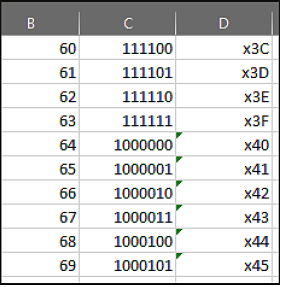
Explanation:
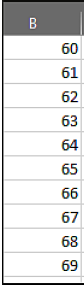
Decimal numbers from 60 to 69, previously entered in column B, are converted.Within a loop, the results of the conversion function Dec2Bin() are written into column C, and the results of Dec2Hex() are written into column D.
The function Dec2Bin() can only convert decimal values up to 511.
Hexadecimal digits are treated as text in Excel. For clearer identification as hexadecimal numbers, the values in column D are prefixed with “x” and right-aligned.
Using the property NumberFormatLocal, the format @ is applied. This format represents the cell’s text value. Thus, the displayed format shows an “x” followed by the cell’s value.
Unit Conversion in Excel VBA
The worksheet function Convert() offers a wide range of possibilities for converting physical units. It supports units with prefixes such as “k” for kilo (factor 1,000), for example in “km”.
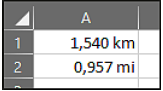
The four numeric values shown in Figure 8.37 (representing distance, energy, temperature, and pressure) are each converted into different units. At the same time, they are formatted for clearer display along with their converted results.
Sub Conversions()
    ThisWorkbook.Worksheets("Sheet2").Activate
    ' Distance
    Range("A2").Value = WorksheetFunction.Convert(Range("A1").Value, "km", "mi")
    Range("A1").NumberFormat = "0,000 ""km"""
    Range("A2").NumberFormat = "0,000 ""mi"""
    ' Energy
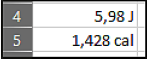
    Range("A5").Value = WorksheetFunction.Convert(Range("A4").Value, "J", "cal")
    Range("A4").NumberFormat = "0,00 ""J"""
    Range("A5").NumberFormat = "0,000 ""cal"""
    ' Temperature
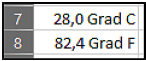
    Range("A8").Value = WorksheetFunction.Convert(Range("A7").Value, "C", "F")
    Range("A7").NumberFormat = "0,0 ""°C"""
    Range("A8").NumberFormat = "0,0 ""°F"""
    ' Pressure
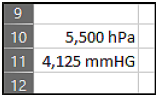
    Range("A11").Value = WorksheetFunction.Convert(Range("A10").Value, "hPa", "mmHg")
    Range("A10").NumberFormat = "0,000 ""hPa"""
    Range("A11").NumberFormat = "0,000 ""mmHg"""
End Sub
Explanation:
- In the first case, a distance value is converted from kilometers to miles. The parameters « km » and « mi » specify the units. The prefix k indicates kilometers, as shown in Figure.
- In the second case, an energy value is converted from joules to calories. The parameters « J » and « cal » specify the units, as shown in Figure .
- In the third case, a temperature is converted from degrees Celsius (C) to degrees Fahrenheit (F), as shown in Figure.
- The last conversion calculates pressure in millimeters of mercury (mmHg) from hectopascals (hPa), as shown in Figure 8.41. The prefix h stands for hecto, meaning one hundred.
All cells have been formatted appropriately. Remember: text within a number format string must be enclosed in double quotation marks (« »).
Pausing the Application in Excel VBA
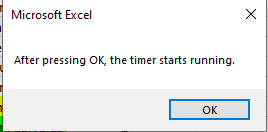
The VBA function Timer() returns the number of seconds elapsed since midnight. You can use this function to pause or delay the execution of your program, as shown in the following example:
Sub TimeDelay()
    Dim startTime As Single
    MsgBox "After pressing OK, the timer starts running."
    startTime = Timer
    Do
        DoEvents
    Loop Until Timer > startTime + 5
    MsgBox "Five seconds have passed."
End Sub
Explanation:
The Timer() function returns the seconds elapsed since midnight as a Single value. This value is stored in the variable startTime.After the user confirms the first message box, the program enters a Do…Loop that continues until the current time (from Timer()) is greater than startTime + 5, i.e., 5 seconds later.
Inside the loop, DoEvents() is called. This function allows other system events to be processed while the loop runs, such as user interactions or background processes. You can use DoEvents() to keep your application responsive during delays or long calculations.
Calculating Workdaysin Excel VBA
The worksheet function NetworkDays() calculates the number of workdays within a specified period. Workdays exclude weekends — Saturdays and Sundays — and can also exclude a user-defined list of holidays or vacation days.
Since Excel 2010, an international version called NetworkDays_Intl() is available. This allows you to define which days of the week count as weekends. These can be Saturdays and Sundays, or any other days you specify.
The worksheet function WorkDay() calculates the date of a workday based on a given start date. You can specify how many workdays in the future or past you want to move, e.g., the fourth next workday or the third last workday. Like NetworkDays(), weekends, holidays, and vacation days are excluded.
Since Excel 2010, the international counterpart WorkDay_Intl() lets you define weekend days similarly to NetworkDays_Intl().
The following procedure, Workdays(), calculates the number of workdays in the period from January 1, 2025, to January 31, 2025. It also calculates the fourth next workday starting from January 3, 2025. The holidays are assumed to be from January 6 to January 8, 2025, inclusive. Additionally, January 1, 2025, is considered a workday.
Sub Workdays()
    Dim count As Integer
    Dim dt As Date
    Dim msg As String
    ThisWorkbook.Worksheets("Sheet1").Activate
    count = WorksheetFunction.NetworkDays( _
        Range("G1").Value, Range("G31").Value, Range("G6:G8"))
    msg = msg & "Number of workdays: " & count & vbCrLf
    count = WorksheetFunction.NetworkDays_Intl( _
        Range("G1").Value, Range("G31").Value, 11, Range("G6:G8"))
    msg = msg & "Number of workdays (Intl): " & count & vbCrLf
    dt = WorksheetFunction.WorkDay( _
        Range("G3").Value, 4, Range("G6:G8"))
    msg = msg & "Fourth next workday: " & dt & vbCrLf
    dt = WorksheetFunction.WorkDay_Intl( _
        Range("G3").Value, 4, 11, Range("G6:G8"))
    msg = msg & "Fourth next workday (Intl): " & dt & vbCrLf
    MsgBox msg
End Sub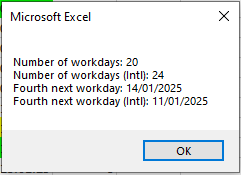
Explanation of Calculation and Result:
The first two parameters of NetworkDays() are the start and end dates. The third parameter is the range containing holidays and vacation days.
In this example, cells G1 to G31 contain dates for January (31 days). Subtracting four Saturdays, four Sundays, and three vacation days results in 20 workdays.
In the international version NetworkDays_Intl(), the third parameter (11) defines weekend days — here, only Sundays. The four Saturdays are counted as workdays, resulting in 24 workdays.
The first two parameters of WorkDay() specify the start date and the number of workdays to offset (positive or negative). The third parameter lists holidays and vacation days.
Starting from January 3, 2025, the next workdays are: January 9, 10, 13, and 14.
In WorkDay_Intl(), the third parameter (11) similarly defines Sunday as the only weekend day. Starting from January 3, 2025, the next workdays are: January 4, 9, 10, and 11.
Annual Calendar in Excel VBA
The previous example can be easily extended into a full annual calendar by adding two functions:
- The VBA function Day() to determine the day of the month
- The worksheet function EoMonth() to find the last day of a given month
Here is the code for the annual calendar:
Sub AnnualCalendar()
    Dim dayNum As Integer, monthNum As Integer, yearNum As Integer
    Dim currentDate As Date, firstOfMonth As Date
    Dim daysInMonth As Integer
    yearNum = Application.InputBox("Please enter a year:", Type:=1)
    ' Application.ScreenUpdating = False
    Workbooks.Add
    For monthNum = 1 To 12
        firstOfMonth = DateSerial(yearNum, monthNum, 1)
        daysInMonth = Day(WorksheetFunction.EoMonth(firstOfMonth, 0))
        For dayNum = 1 To daysInMonth
            currentDate = DateSerial(yearNum, monthNum, dayNum)
            Cells(dayNum, monthNum).Value = currentDate
            Cells(dayNum, monthNum).NumberFormat = "DD.MM.YY"
            If Weekday(currentDate) = 7 Then
                Cells(dayNum, monthNum).Interior.Color = vbYellow
            ElseIf Weekday(currentDate) = 1 Then
                Cells(dayNum, monthNum).Interior.Color = vbGreen
            End If
        Next dayNum
    Next monthNum
    ' Application.ScreenUpdating = True
End Sub
Explanation:
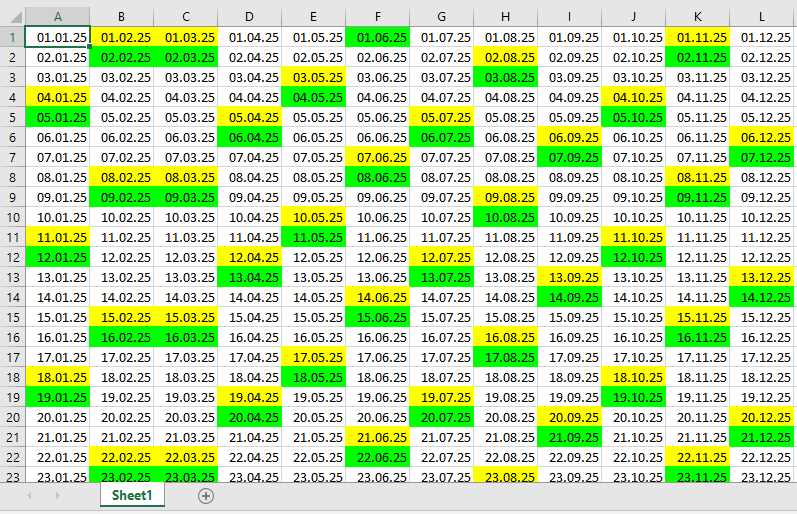
First, the user is prompted to enter a year, as shown in Figure.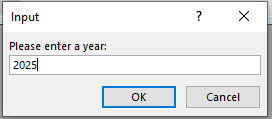
The construction of the annual calendar may take a moment. You can speed up the process by turning off screen updating using Application.ScreenUpdating = False. For normal operation, remember to turn it back on (= True) at the end.
A new workbook is created to hold the annual calendar, which the user can save later in the desired location.
The outer loop cycles through all twelve months of the year.
For each month, DateSerial() generates the date of the first day of the month. This date is passed to the worksheet function EoMonth(), which returns the date of the last day of that month.
The Day() function extracts the day number from the last day of the month, which tells how many days that month contains. Similarly, Month() and Year() return the month and year components of a date.
The inner loop iterates over every day of the current month. Each date is created with DateSerial() and formatted into the corresponding cell.
As in the previous example, weekends are highlighted using the Weekday() function — Saturdays in yellow, Sundays in green.