Votre panier est actuellement vide !
Catégorie : Excel VBA Course
Recursive Procedures and Functions with Excel VBA
Functions or procedures can call other functions or procedures at any time. This is known as nested calls. After finishing their execution, control returns back to the calling procedure or function, no matter how deep the nesting goes.
When a function or procedure calls itself, this is called recursion. Recursive calls must always include a condition to terminate the recursion; otherwise, it will result in an infinite chain of self-calls causing the program to hang or crash.
Recursion is an elegant way to solve certain problems programmatically.
Example of Basic Recursion
Sub RecursiveStart()
    Dim Output As String
    Dim Nr As Integer
    Nr = 1
    MsgBox Nr
    RecursiveRun Nr
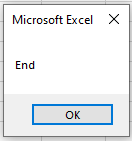
    MsgBox "End"
End Sub

Sub RecursiveRun(Nr As Integer)
    Nr = Nr + 1
    MsgBox Nr
    If Nr < 5 Then RecursiveRun Nr
End Sub

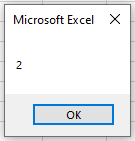
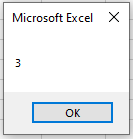
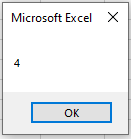
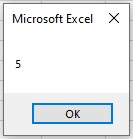
Explanation:
- In the procedure RecursiveStart(), the variable Nr is initialized with the value 1 and displayed.
- Then, RecursiveRun() is called with the current value of Nr.
- Inside RecursiveRun(), the value of Nr is incremented by 1 and displayed again.
- The procedure then calls itself recursively as long as Nr is less than 5.
- This recursive self-call happens a total of 4 times, incrementing Nr from 2 up to 5.
- When Nr reaches 5, the recursive calls stop, and the procedure begins to exit.
- Control returns back step-by-step through all previous recursive calls until returning to RecursiveStart().
- Finally, RecursiveStart() displays the message « End ».
Without the terminating condition If Nr < 5 Then …, the procedure would call itself indefinitely, causing an infinite loop.
Passing Arrays as Parameters with Excel VBA
Arrays can also be passed as parameters to procedures or functions. When declaring such parameters, neither the number of elements nor the dimensions need to be specified. This makes the procedure or function more flexible, as it can handle arrays of different sizes and dimensions.
Example:
Sub PassArray()
    Dim x(1 To 5, 1 To 3) As Integer
    FillArray x()
    OutputArray x()
End Sub

Sub FillArray(z() As Integer)
    Dim i As Integer, k As Integer
    For i = LBound(z, 1) To UBound(z, 1)
        For k = LBound(z, 2) To UBound(z, 2)
            z(i, k) = i * k
        Next k
    Next i
End Sub

Sub OutputArray(z() As Integer)
    Dim i As Integer, k As Integer
    ThisWorkbook.Worksheets("Sheet1").Activate
    For i = LBound(z, 1) To UBound(z, 1)
        For k = LBound(z, 2) To UBound(z, 2)
            Cells(i, k).Value = z(i, k)
        Next k
    Next i
End Sub
Explanation:
- In the procedure PassArray(), a two-dimensional array with 5 rows and 3 columns is declared.
- The empty array is passed to the procedure FillArray(), where it is filled with values.
- Because arrays are passed by reference by default, the changes made inside FillArray() persist outside the procedure.
- The filled array is then passed to the procedure OutputArray(), where its contents are output into an Excel worksheet.
- Both procedures use the functions LBound() and UBound() to determine the lower and upper bounds of each dimension of the array.
- This ensures that all elements of the array, regardless of size, are processed correctly.
Passing Any Number of Parameters with ParamArray with Excel VBA
Using the keyword ParamArray, you can create a procedure or function that accepts an arbitrary number of parameters. Note that ParamArray cannot be combined with Optional parameters, so you must choose one approach.
Example:
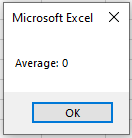
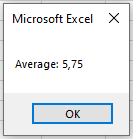
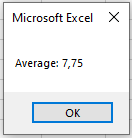
The function Average() is called three times:
- once with no parameters,
- once with two parameters,
- and once with four parameters.
It calculates the average of the passed parameters and returns the result.
Sub AnyNumberOfParameters()
    Dim a As Double, b As Double, c As Double, d As Double
    a = 4
    b = 7.5
    c = 10.5
    d = 9
    MsgBox "Average: " & Average()
    MsgBox "Average: " & Average(a, b)
    MsgBox "Average: " & Average(a, b, c, d)
End Sub
Function Average(ParamArray x() As Variant) As Double
    Dim i As Integer
    Dim Sum As Double
    Dim Count As Integer
    Sum = 0
    For i = 0 To UBound(x)
        Sum = Sum + x(i)
    Next
    Count = UBound(x) + 1
    If Count > 0 Then
        Average = Sum / Count
    Else
        Average = 0
    End If
End Function
Explanation:
- The function Average() is called with different numbers of arguments: 0, 2, and 4.
- The parameters are received as an array named x declared with ParamArray.
- This array can hold any number of elements, so its size is dynamic.
- The data type of the ParamArray must be Variant, which is flexible but has some trade-offs in terms of control and memory.
- Inside the function, a loop sums all parameters using UBound(x) to determine the upper boundary (highest index) of the array.
- The count of elements is UBound(x) + 1 because VBA arrays are zero-based by default.
- The average is calculated as the sum divided by the count.
- If the function is called without any parameters, UBound(x) returns -1, so Count becomes 0. This case is handled to avoid division by zero by returning 0.
- As good programming style, variables and functions should always be initialized with a value, as done here.
Additional Notes:
- The function LBound() can be used to get the lowest index of an array (usually 0).
- Both UBound() and LBound() can handle multi-dimensional arrays by specifying a second argument for the dimension number.
- If the second argument is omitted, the functions operate on the first dimension by default.
Named Parameters with Excel VBA
When working with optional parameters, it’s important to understand named parameters as well. You can pass arguments to object methods or your own procedures in three ways:
- Passing all parameters in the correct order.
- Passing only the first few parameters, also in correct order.
- Passing only the desired parameters by name, in any order.
This section shows how to write your own procedures that accept named parameters.
Advantages of Named Parameters
- You can clearly specify which parameter you are assigning a value to.
- You do not have to specify all possible parameters.
- Your code becomes more readable.
Example:
The procedure Address() is called five times with different parameter combinations. It concatenates and displays a formatted address string based on the parameters received.
Sub NamedParameters()
    Address "Smith", City:="London"
    Address "Smith", City:="London", ZIP:="WC2N 5DU"
    Address "Smith", FirstName:="John", City:="London", ZIP:="WC2N 5DU"
    Address Name:="Smith", ZIP:="WC2N 5DU", FirstName:="John"
    Address "Smith"
End Sub
Sub Address(Name As String, Optional FirstName As String, _
Optional ZIP As String, Optional City As String)
    Dim Output As String
    If FirstName <> "" Then
        Output = Name & ", " & FirstName
    Else
        Output = Name
    End If
    If ZIP <> "" Then
        If City <> "" Then
            Output = Output & vbCrLf & ZIP & " " & City
        Else
            Output = Output & vbCrLf & ZIP
        End If
    Else
        If City <> "" Then
            Output = Output & vbCrLf & City
        End If
    End If
    MsgBox Output
End Sub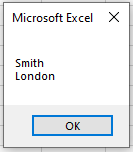
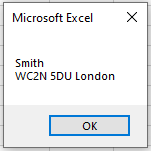
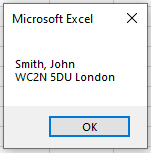
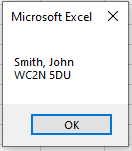
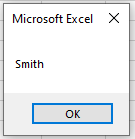
Explanation:
The
Address()procedure expects four string parameters:Name(required), and optionalFirstName,ZIP, andCity.The optional parameters can be passed by name using the syntax
ParameterName:=Value, which allows you to pass them in any order.The procedure checks each parameter. If a parameter is not provided or is empty, it simply omits that part from the output.
The fourth call demonstrates that even the required parameter
Namecan be passed by name, improving readability and clarity.This flexibility is useful when working with procedures that have many optional parameters, as it makes the calls easier to read and maintain.
Optional Parameters with Excel VBA
Normally, the number and order of parameters in a procedure or function call must exactly match the declaration. However, optional parameters allow you to omit arguments when calling the procedure or function.
- Optional parameters are marked with the keyword Optional in the parameter list.
- They must always be at the end of the parameter list.
- Optional parameters can be assigned a default value.
Example:
The function AddNumbers() is called three times:
- once with four parameters,
- once with three parameters,
- and once with two parameters.
It calculates the sum of the passed parameters and returns the result.
Sub OptionalParametersExample()
    Dim a As Double, b As Double, c As Double, d As Double
    a = 4
    b = 7.5
    c = 10.5
    d = 9
    MsgBox "Sum of four values: " & AddNumbers(a, b, c, d)
    MsgBox "Sum of three values: " & AddNumbers(a, b, c)
    MsgBox "Sum of two values: " & AddNumbers(a, b)
    ' MsgBox "Sum of one value: " & AddNumbers(a)  ' This would cause an error
End Sub
Function AddNumbers(x As Double, y As Double, Optional z As Double = 0, Optional q As Double = 0) As Double
    AddNumbers = x + y + z + q
End Function


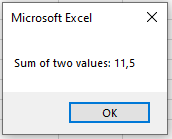
Explanation:
- The function AddNumbers() expects four parameters of type Double.
- The last two parameters (z and q) are optional with default values of 0.
- When the function is called with fewer than four arguments, the missing optional parameters take the default value 0.
- This ensures the sum calculation is correct without needing all parameters.
- Calling the function with only one parameter would cause an error because y is not optional.
Error Example:
If you attempt to call the function with only one parameter, VBA will generate an error similar to:
« At least two parameters are required. »

Functions in VBA Excel
Functions in VBA have the following simplified structure:
Function FunctionName(ParameterList) As Type
    [ InstructionBlock ]
    [ Exit Function ]
    [ InstructionBlock ]
End Function
- Like procedures, a function name is followed by a parameter list in parentheses.
- Every function has a specific data type declared after As.
- Functions are generally used to calculate a value and return it by assigning that value to the function’s name inside the code.
- The returned value can be stored in a variable or used directly.
- The statement Exit Function can be used to leave the function immediately under special conditions.
- When using the return value of a function, parentheses are required around the parameter list, for example:
Variable = FunctionName(ParameterList)
- If the return value is not used, parentheses are omitted:
FunctionName ParameterList
Note:
Custom functions can be used both inside VBA and directly in Excel worksheets using
=FUNCTIONNAME()
They appear in the User Defined category in Excel.
Example: Maximum Value Function
The function MaxValue() is called to calculate the maximum of two parameters and return the result to the calling procedure:
Sub FunctionsExample()
    Dim a As Integer, b As Integer, c As Integer
    a = 12
    b = 17
    c = MaxValue(a, b)
    MsgBox "Maximum: " & c
End Sub
Function MaxValue(x As Integer, y As Integer) As Integer
    If x > y Then
        MaxValue = x
    Else
        MaxValue = y
    End If
End Function
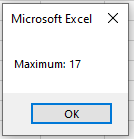
Explanation:
- When c = MaxValue(a, b) is executed:
- The function MaxValue() is called with two numbers.
- Inside the function, a conditional checks which of the two is larger.
- The function assigns the maximum to its own name, which becomes the return value.
- Control returns to the caller, where the returned value is assigned to c.
- Finally, c is displayed.
- If you only called MaxValue(a, b) without assigning its return value, all calculations would still happen but the result would be discarded — a common beginner mistake.
- This function can also be used directly in an Excel worksheet, for example entering =MaxValue(A1;B1) in a cell will return the maximum of those cells.
Additional Example: Operator Precedence in a Function
The function LastDayInMonth() calculates the last day of a given month in a given year, taking leap years into account:
Sub TestLastDayInMonth()
    ThisWorkbook.Worksheets("Sheet2").Activate
    Range("D3").Value = LastDayInMonth(Range("D1").Value, Range("D2").Value)
End Sub
Function LastDayInMonth(J As Integer, M As Integer) As Integer
    If M = 2 Then
        If J Mod 4 = 0 And J Mod 100 <> 0 Or J Mod 400 = 0 Then
            LastDayInMonth = 29
        Else
            LastDayInMonth = 28
        End If
    ElseIf M = 4 Or M = 6 Or M = 9 Or M = 11 Then
        LastDayInMonth = 30
    Else
        LastDayInMonth = 31
    End If
End Function
Explanation:
- The function takes the year J and month M as parameters.
- For February (M = 2), it checks for leap years using the Mod operator and logical operators And and Or.
- Leap year rules:
- Divisible by 4 but not by 100, or divisible by 400.
- For April, June, September, November, it returns 30.
- For all other months, it returns 31.
Operator Precedence in the Expression:
J Mod 4 = 0 And J Mod 100 <> 0 Or J Mod 400 = 0
The order of operations is:
- Arithmetic Mod
- Comparison =, <>
- Logical And
- Logical Or
No parentheses are needed due to this precedence.
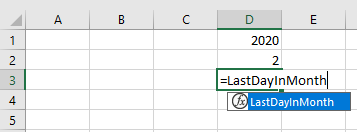
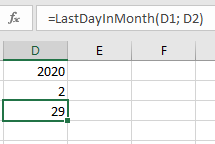
Usage in Excel:
- The function LastDayInMonth() can also be used in an Excel worksheet.
- As you type, Excel suggests the function.
- The formula bar shows the function formula after input.
Passing Parameters In Excel VBA
In VBA, parameters are passed by reference by default. This means that if a parameter is changed inside a procedure or function, the original variable used as an argument is also affected.
If you want to prevent such side effects, you must use the keyword ByVal before the parameter declaration. This passes the variable by value — that is, a copy of the variable is passed, and changes inside the procedure do not affect the original variable.
Example Comparing ByVal and ByRef
Sub PassingExample()
    Dim x As Integer, y As Integer
    ThisWorkbook.Worksheets("Sheet2").Activat
    x = 5
    y = 12
    Cells(1, 1).Value = x
    Cells(1, 2).Value = y
    SwapCopy x, y
    Cells(2, 1).Value = x
    Cells(2, 2).Value = y
    SwapReference x, y
    Cells(3, 1).Value = x
    Cells(3, 2).Value = y
End Sub
Sub SwapCopy(ByVal a As Integer, ByVal b As Integer)
    Dim c As Integer
    c = a
    a = b
    b = c
End Sub
Sub SwapReference(ByRef a As Integer, ByRef b As Integer)
    Dim c As Integer
    c = a
    a = b
    b = c
End Sub
Explanation:
- The procedure PassingExample() assigns initial values 5 and 12 to variables x and y.
- It then calls two swap procedures: SwapCopy() and SwapReference().
- The values of x and y are output after each swap to observe the effect.
- In SwapCopy(), parameters are declared with ByVal. The swap happens only within the procedure’s local copies, so the original variables remain unchanged.
- In SwapReference(), parameters are declared with ByRef (the default). The swap affects the original variables permanently, so the values of x and y are exchanged.
Procedures In Excel VBA
A procedure is a block of instructions grouped together to be executed as a logical unit. By clearly dividing tasks into procedures, your module’s code becomes more organized and easier to maintain.
You have already encountered both general procedures and event procedures.
Structure of a General Procedure:
Sub ProcedureName(ParameterList)
    [ InstructionBlock ]
    [ Exit Sub ]
    [ InstructionBlock ]
End Sub
- After the procedure name, a parameter list enclosed in parentheses can be given.
- If there are multiple parameters, they are separated by commas.
- The statement Exit Sub can be used to immediately exit the procedure based on a special condition, rather than waiting until the end of the procedure.
- When calling a procedure, parentheses around the parameter list are not used:
ProcedureName ParameterList
Example:
The procedure ShowMaximum() is called from two different places. It calculates the maximum of two passed parameters and displays the result:
Sub Procedure1()
    Dim a As Double, b As Double
    a = 4.5
    b = 7.2
    ShowMaximum a, b
End Sub
Sub Procedure2()
    Dim c As Double
    c = 23.9
    ShowMaximum c, 5.6
End Sub
Sub ShowMaximum(x As Double, y As Double)
    If x > y Then
        MsgBox "Maximum: " & x
    Else
        MsgBox "Maximum: " & y
    End If
End Sub
Explanation:
- ShowMaximum() expects two parameters of type Double: variables x and y.
- In Procedure1(), it is called with variables a and b.
- In Procedure2(), it is called with variable c and the constant 5.6.
- Both calls pass two numbers to ShowMaximum(), which uses a conditional statement to find and display the maximum.
- After finishing, control returns to the calling procedure.
- Variables or constants passed as arguments do not need to have the same names as parameters in the procedure.
- Procedures can be called repeatedly from any part of the program with different arguments.
- It is important that the number, order, and data types of parameters match.
Variable Scope Reminder:
- Local variables a and b exist only within Procedure1().
- Local variable c exists only within Procedure2().
- Parameters x and y exist only within ShowMaximum().
- Even if variable names repeat in different procedures, scope ensures there is no confusion or conflict.
Tips:
- Pressing Shift + F2 on a procedure or function name jumps to its definition.
- Pressing Ctrl + Shift + F2 returns to where you came from.
- Pressing Shift + F2 on a variable name jumps to its declaration.
Procedures and Functions In Excel VBA
You have already learned about and created numerous procedures. These can be executed either as macros from within Excel or directly started from the VBA editor (VBE).
In addition, you can write procedures and functions that are called by other procedures or functions.
Advantages of Functions:
- Reuse: Common or similar operations need to be programmed only once and can be executed repeatedly.
- Modularity: Large programs can be modularized into smaller, clearer parts that are easier to maintain.
- Extended functionality: Custom functions can provide capabilities beyond Excel’s built-in functions.
They can be used directly in worksheet cells just like built-in functions by entering =FUNCTIONNAME(). These appear in the User Defined category in Excel.
Main Differences Between Functions and Procedures:
- Functions execute a set of instructions and return a value, e.g., the result of a calculation.
- Procedures perform actions but do not return a value.
Parameters:
- Both procedures and functions can accept parameters, making them more flexible.
- The handling of parameters (passed by reference or by value, optional parameters, or variable numbers of parameters) is the same for both.
- For details on parameter passing, see Section 5.3.2, Passing Parameters.
Additional Note:
In the context of Excel objects, the term method is often used. Methods are also functions but are specifically related to a particular object.
Clearing or Releasing Arrays In Excel VBA
The Erase statement in VBA serves the following purposes:
- For static arrays, it resets all elements to their default values, but the array itself still exists in memory and continues to occupy space.
- For dynamic arrays, it releases the entire memory allocated for the array, making the memory available for other variables or arrays.
Example: Clearing a Static Array
Sub ClearStaticArray()
    Dim T(1 To 5) As Integer
    T(1) = 10
    MsgBox T(1)       ' Displays 10
    Erase T           ' Resets all elements to default values
    MsgBox T(1)       ' Displays 0 (default for Integer)
End Sub
Explanation:
- The static array T has 5 elements.
- The first element is assigned and displayed as 10.
- After the Erase T statement, the array elements are reset to their default values.
- The first element now displays 0, the default initial value for an Integer.
Note:
Elements of string arrays are reset to « » (empty string).Example: Releasing a Dynamic Array
Sub ReleaseDynamicArray()
    Dim T() As Integer
    On Error GoTo ErrorHandler
    ReDim T(1 To 5)
    T(1) = 10
    MsgBox T(1)       ' Displays 10
    Erase T           ' Releases the dynamic array's memory
    MsgBox T(1)       ' Causes a runtime error since array no longer exists
    ReDim T(1 To 5)   ' Re-dimension array to reuse it
    T(1) = 10
    MsgBox T(1)       ' Displays 10
    Exit Sub
ErrorHandler:
    MsgBox Err.Description
    Resume Next
End Sub
Explanation:
- The dynamic array T is declared without size.
- ReDim sets its size to 5.
- The first element is assigned and displayed as 10.
- The Erase T statement releases the array’s memory.
- Attempting to access T(1) after Erase causes a runtime error, caught by the error handler.
- Later, the array is resized again with ReDim and can be reused normally.