Votre panier est actuellement vide !
Catégorie : Practical Excel
Converting a Formula to a Value in Excel
If a cell contains a formula whose result will never change, you can convert the formula into its static value.
This not only speeds up recalculations in large worksheets but also frees up memory, since values use less memory than formulas.
For example, you might have formulas in part of your worksheet that use values from a previous fiscal year.
Since those numbers are unlikely to change, you can safely convert the formulas to their values.To do this, follow these steps:
- Select the cell containing the formula you want to convert.
- Double-click the cell or press F2 to enter Edit mode.
- Press F9. The formula is replaced with its result.
- Press Enter or click the Enter button. Excel replaces the formula with the calculated value.
You will often need to use the result of a formula in multiple locations.
For example, if a formula is in cell C5, you can display its result in other cells by entering=C5in each of them.This is the best method if the formula result might change, since Excel automatically updates the dependent cells.
However, if you are sure the result will not change, you can copy only the value of the formula into the other cells.To do this, follow these steps:
- Select the cell that contains the formula.
- Copy the cell.
- Select the cell or cells where you want to paste the value.
- On the Home tab, open the Paste dropdown list and select Paste Values.
Excel pastes the value of the original cell into each selected cell.
An alternative method (available since Excel 2003) is to copy the cell, paste it into the destination, click the Paste Options dropdown, and then select Values Only.
Moving Formulas in a Worksheet in Excel
Unlike copying a formula, Excel does not adjust cell references when a formula is moved.
There are two ways to move a formula in Excel: using the Cut and Paste commands, or by dragging and dropping the formula to its new location.To drag and drop a formula:
- Select the range D4:D10.
- Position your mouse pointer on the edge of the selected range; when it turns into a four-headed arrow, click and drag the selection to cell E4.
- Release the mouse button to drop the range in its new location.
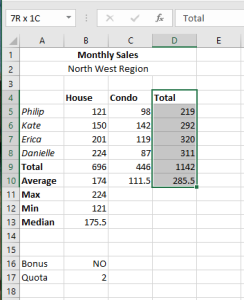
Quickly move a range of cells to a new location with a simple click and drag-and-drop.To move a formula using Cut and Paste:
- Select the range E4:E10.
- On the Home tab, click Cut. A blinking dashed border will appear around the selected range.
- Click cell D4, then on the Home tab, click Paste.
Excel pastes the selected range in the new location.
Copying Formulas in Excel
After creating a formula in Excel, you can use the Copy and Paste commands to duplicate or move the formula to other areas of your worksheet.
When you copy formulas that contain cell references, Excel automatically adjusts those references relative to their new location—unless you specify otherwise.Using Absolute and Relative Cell References
When you use cell references in your formulas, Excel uses the data stored in those locations for calculations.
The benefit is that if you change the source data, the formula result also updates.If you copy a formula from one place to another, Excel adjusts the cell references based on the new location.
For example, the formula=B2*B3entered in cell B5 would become=C2*C3when copied to cell C5.However, you can change a reference so that it always points to the original location.
An absolute cell reference remains fixed even when copied or moved.
A relative cell reference adjusts to its new location.
The dollar sign ($) is used to indicate that part of a reference should remain fixed.
Use the dollar sign to specify whether the row, column, or both should be locked.Examples of Absolute and Relative References in Excel:
Cell Reference Meaning $A6Column A stays fixed, row 6 adjusts A$6Row 6 stays fixed, column A adjusts $A$6Both column A and row 6 stay fixed A6Both column and row adjust to the new position Making a Cell Reference Absolute in Excel
The following example shows how to make a cell reference absolute:
- Type
=in cell D5. - Point to cell B5, then press the F4 key on your keyboard.
Excel inserts dollar signs ($) in the reference to make it absolute. - Type
+, then point to cell C5. - Press Enter.
The resulting formula in cell D5 will now be:=$B$5+C5.
Copying Formulas with AutoFill
The AutoFill feature allows you to quickly copy a formula to adjacent cells.
Follow these steps to practice using AutoFill:- Click in cell D5.
- On the Formulas tab, choose AutoSum.
Excel adds the values from the adjacent cells, which in this case are B5:C5.
Press Enter. - Click cell D5, then drag the AutoFill handle down to cell D9 and release.
Excel copies the formula from D5 and adjusts the cell references accordingly.
NOTE:
When you use a named range in a formula, Excel automatically treats the reference as absolute.
In other words, when you copy a formula that uses a named range, the reference does not change based on location.
The AutoFill feature allows you to quickly copy a formula into adjacent cells.Copying Formulas with Copy and Paste
When you use the Copy command, Excel stores a copy of the selection in the clipboard, allowing you to paste the data multiple times.
Follow these steps to practice copying and pasting formulas:- Click cell B10.
- On the Home tab, in the Clipboard group, click Copy.
- Select the range C10:D10.
- In the Clipboard group, click Paste.
Excel pastes the formula from cell B10 and adjusts the references accordingly.
Pasting Formula Results in Excel
With the Paste Values command, you can copy a formula and paste only its result into another cell.
Follow these steps to practice pasting formula results:- Select cell H8 and choose Copy from the Home tab.
NOTE:
You can also press the Enter key to paste into a worksheet cell,
but doing so removes the item from the clipboard.- Click cell I8, then on the Home tab, choose Paste and select Paste Special.
The Paste Special dialog box appears. - In the dialog box, select Values and click OK.
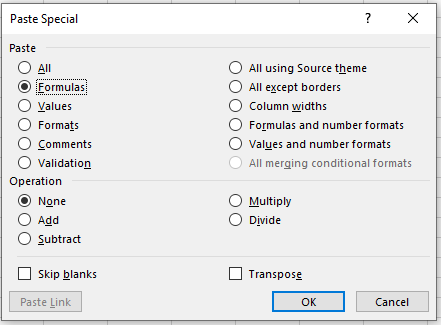
Paste the results of formulas into a separate cell.- Type
Entering and Editing Formulas in Excel
Entering a new formula in a worksheet seems like a simple process:
- Select the cell where you want to enter the formula.
- Type an equal sign (=) to tell Excel you’re entering a formula.
- Enter the operands and operators for the formula.
- Press Enter to confirm the formula.
After entering a formula, you may need to go back and make changes. Excel offers three methods to enter Edit mode and modify a formula in the selected cell:
■ Press F2
■ Double-click the cell
■ Use the Formula Bar to click anywhere within the formula textExcel categorizes formulas into four groups: arithmetic, comparison, text, and reference. Each group has its own set of operators, and each is used in different ways. The following sections explain how to use each type of formula.
Using Arithmetic Formulas
Arithmetic formulas are by far the most common type. These formulas combine numbers, cell addresses, and function results with mathematical operators to perform calculations.
Table 4.1-a summarizes the mathematical operators used in arithmetic formulas:Table: Arithmetic Formula Operations
Operator Name Example Result +Addition =5 + 1116 -Subtraction =11 - 56 -Negation =-5 - 11-16 *Multiplication =10 * 5505500 /Division =15 / 35 %Percentage =15%0.15 ^Exponentiation =10^31000 Using Comparison Formulas
A comparison formula is a statement that compares two or more numbers, text strings, cell contents, or function results.
If the statement is true, the formula result is the logical value TRUE, which is equivalent to any non-zero value.
If the statement is false, the formula returns FALSE, which is equivalent to zero.Table: Comparison Formula Operations
Operator Name Example Result =Equal to =11=6FALSE >Greater than =11>6TRUE <Less than =10<5FALSE >=Greater or equal to ="a">="b"FALSE <=Less or equal to ="a"<= "b"TRUE <>Not equal to ="a"<> "b"TRUE Comparison formulas have many uses. For example, you can determine whether to pay a sales bonus by comparing actual sales to a predefined quota. If sales exceed the quota, the bonus is awarded.
Using Text Formulas
The arithmetic and comparison formulas discussed earlier calculate or compare values and return results.
However, a text formula is one that returns a text value.
Text formulas use the ampersand operator (&) to work with text cells, quoted text strings, and text function results.One way to use text formulas is to concatenate text strings. For example, if you enter the formula:
="excel" & "corpo"
Excel will display: excelcorpo.
Note that the quotes and the ampersand do not appear in the result.Using Reference Formulas
Reference operators combine two cell or range references to create a single reference.
The following table summarizes the operators you can use in reference formulas:Table: Reference Formula Operations
Operator Name Description :Range Creates a range from two cell references, such as A1:D10(space) Intersection Returns a range that is the intersection of two ranges, e.g. A1:D10 B4:F20,Union Returns a range that is the union of two ranges, e.g. A1:D10, B4:F20Apply Conditional Formatting in Excel
Conditional formatting is a powerful feature when it comes to applying different formats to data that meets certain conditions. It helps highlight key information in your worksheets and quickly spot discrepancies in cell values at a glance.
At the same time, conditional formatting is often seen as one of the most complex and obscure Excel functions, especially by beginners. If you feel intimidated by this feature—don’t be! In reality, conditional formatting in Excel is quite simple and easy to use, and you’ll be convinced of that in just 5 minutes after reading this short tutorial.
Basics of Excel Conditional Formatting
Just like standard cell formatting, you use conditional formatting in Excel to style your data by changing fill color, font color, and cell border styles. The difference is that conditional formatting is more flexible—it lets you format only the data that meets specific criteria or conditions.
You can apply conditional formatting to one or more cells, rows, columns, or entire tables based on the content of the cell itself or based on the value of another cell. To do this, you create rules, which define when and how the selected cells should be formatted.
To get started, here’s where to find the conditional formatting feature in various versions of Excel. The good news is that in all modern versions of Excel, it’s located in the same place: Home tab > Styles group.

Now that you know where to find the feature, let’s move on and look at the formatting options and how to create your own rules.
Creating Conditional Formatting Rules
To take full advantage of conditional formatting, you’ll need to learn how to create different types of rules. These rules determine:
- Which cells the formatting should apply to
- What condition(s) must be met
Let’s walk through how to apply conditional formatting in Excel 2010 (features are similar across all versions):
- In your worksheet, select the cells to format.
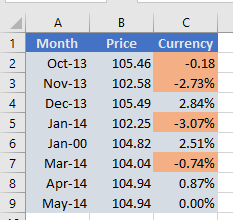
In this example, we’ll highlight all negative values (price drops) in the “Change” column. So, we select cells C2:C9.
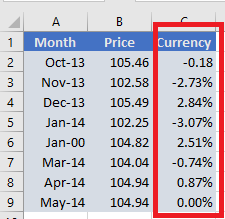
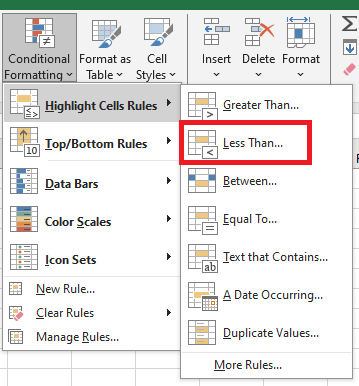
- Go to the Home tab > Styles group, then click Conditional Formatting.
You’ll see options like Data Bars, Color Scales, and Icon Sets. - Since we want to highlight numbers less than 0, choose Highlight Cells Rules > Less Than…
- Other useful rule types include:
- Format values greater than, less than, or equal to a certain number
- Highlight cells containing specific text or characters
- Highlight duplicates
- Format specific dates
- In the dialog box that appears, enter the value 0 under Format cells that are LESS THAN. Excel will instantly highlight all cells in the selected range that meet the condition.
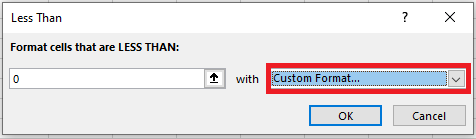
- Select the desired format from the dropdown, or click Custom Format…
- In the Format Cells window, use the Font, Border, and Fill tabs to define your style.
You’ll see a live preview. - Click OK to apply the rule.
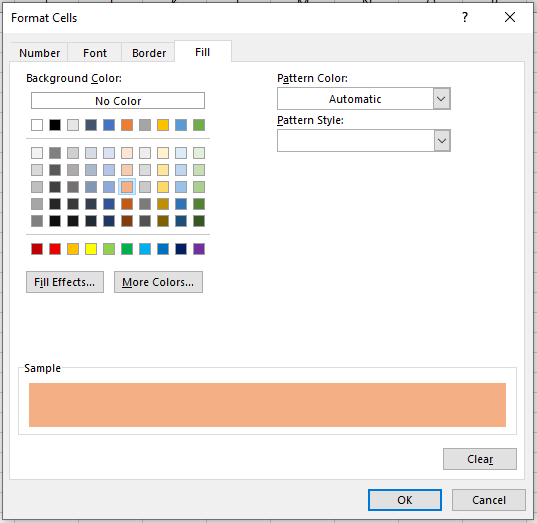
Tip: To access more fill or font colors, click More Colors… in the Font or Fill tab. To apply a gradient background, use Fill Effects.
Create a Custom Rule from Scratch
If none of the default rules meet your needs, you can create one from scratch:
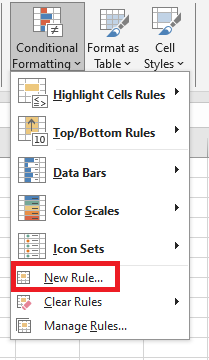
- Select the cells, click Conditional Formatting > New Rule.
- In the dialog, choose a rule type. For example, “Format only cells that contain” and select between 103 and 104.9.
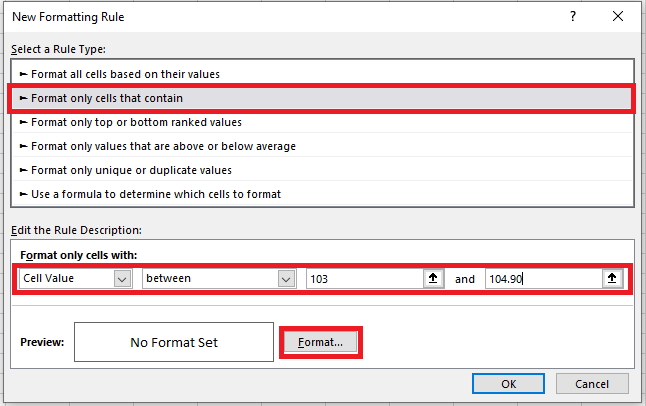
- Click Format… to choose styles.
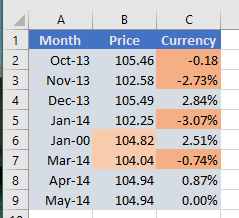
- Click OK twice to apply the rule.
Format Based on Another Cell’s Value
Instead of typing a number in the rule, you can base it on another cell’s value. This is dynamic—when the referenced cell changes, the formatting updates automatically.
Example: In the “Oil Prices” table, highlight all prices in column B that are higher than the price in B5 (February).
Use Conditional Formatting > Highlight Cell Rules > Greater Than…, and select B5 instead of entering a number.
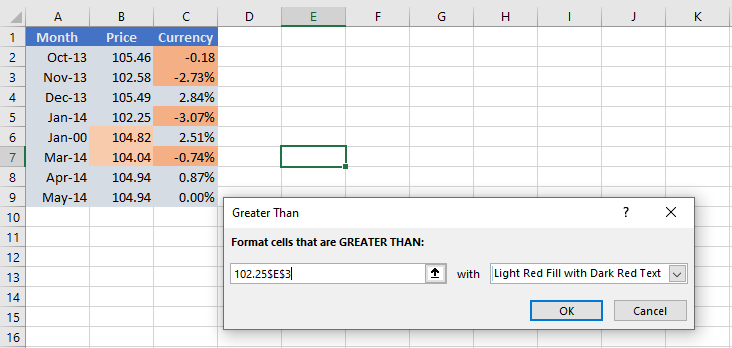
This is a simple example. For more complex scenarios, use formulas—explained in the article: How to change a cell color based on another cell’s value.
Apply Multiple Conditional Formatting Rules
You’re not limited to one rule per cell. You can apply several rules to the same cell/table.
Example: In a weather table, shade temperatures:
- Above 102 in yellow
- Above 104 in orange
- Above 105 in red
Steps:
- Create the rules with Highlight Cell Rules > Greater Than…
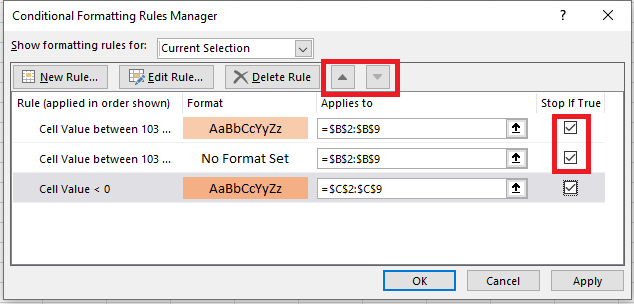
- Go to Conditional Formatting > Manage Rules
- Use the arrows to set rule order (priority)
- Check Stop If True for the first two rules to prevent overlap
Use « Stop If True » in Rules
We used Stop If True above to stop lower-priority rules once a condition is met.
Two useful examples:
Example 1: Show Only Down Arrows in Icon Set
Suppose you apply an icon set (arrows) to your sales report:
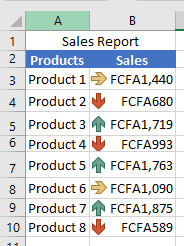
You want to keep only red down arrows for underperformers.
Steps:
- Create a rule: New Rule > Format only cells that contain
- Use the formula
=A2>AVERAGE($A$2:$A$10)(adjust cell refs)
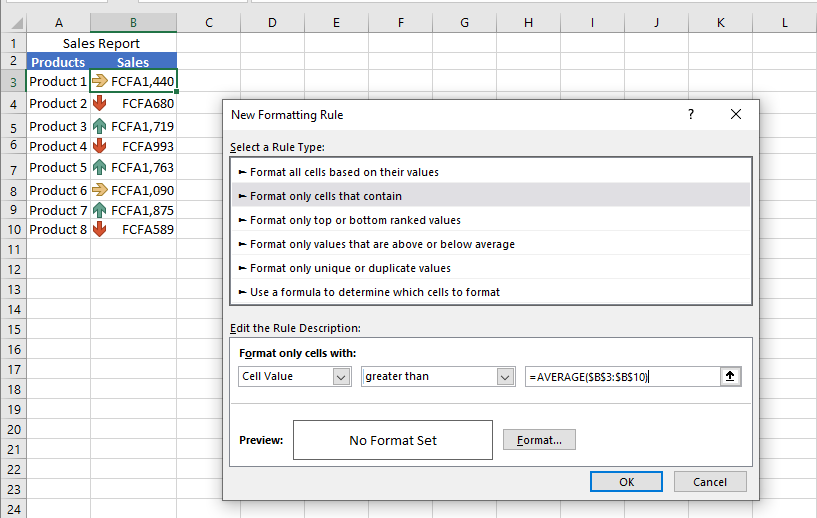
- Leave formatting blank.
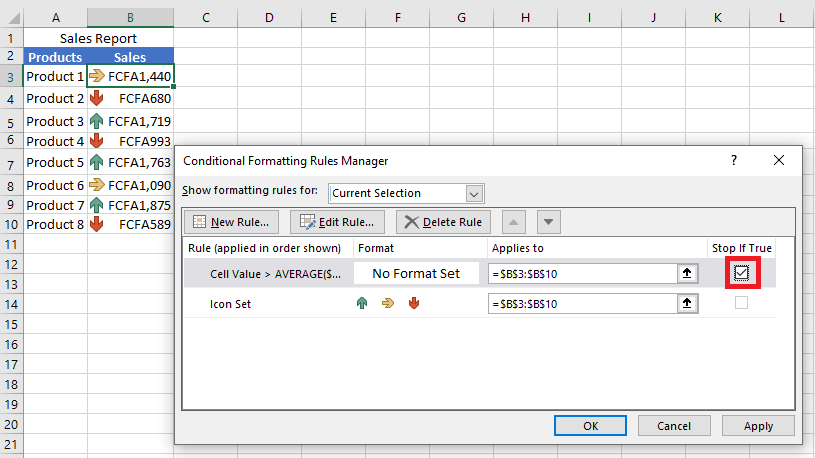
- Go to Manage Rules, and check Stop If True for the new rule.
Example 2: Exclude Blank Cells from Formatting
You create a rule like “Between $0 and $1,000”, but empty cells also get highlighted.
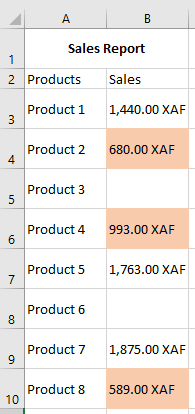
Fix it by:
- Creating a new rule: Format only cells that contain
- Choose Blanks
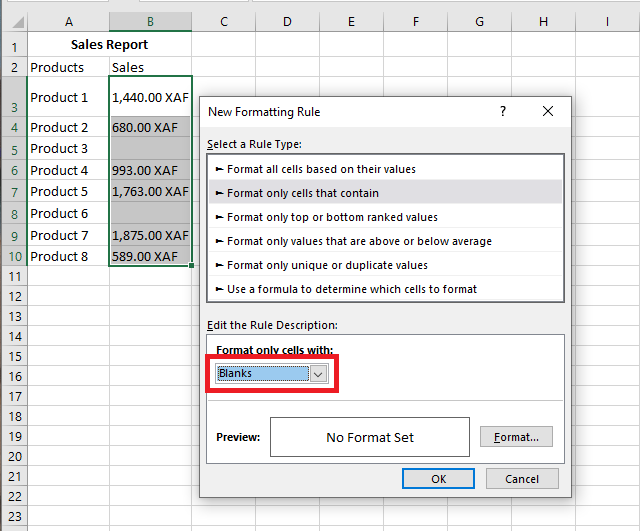
- Leave formatting blank, click OK
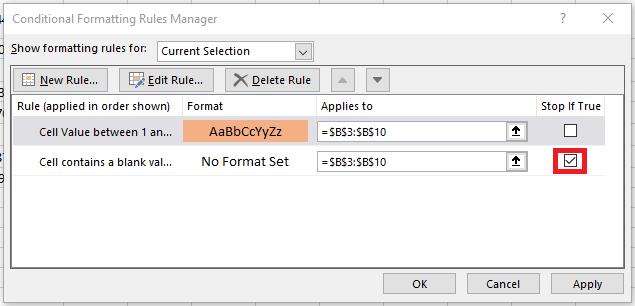
- In Manage Rules, check Stop If True next to the blank rule
Edit Conditional Formatting Rules
To edit an existing rule:
- Select a cell with the rule
- Click Conditional Formatting > Manage Rules
- In the Rules Manager, select the rule and click Edit Rule
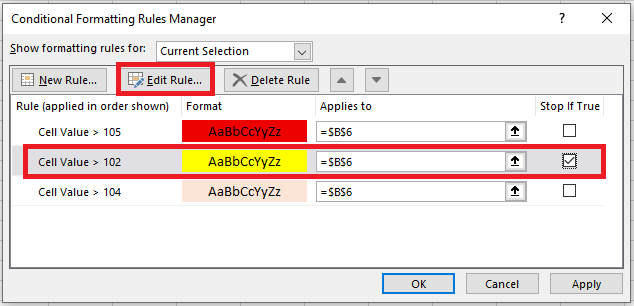
- Make changes and click OK
If you don’t see your rule, select This Worksheet in the dropdown at the top of the Rules Manager.
Copy Conditional Formatting
To apply a rule from one range to another:
- Click a cell with the rule
- Click Home > Format Painter (mouse turns into a brush)
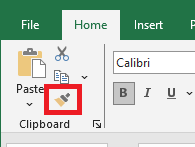
- Drag across the new range to apply formatting
- Press Esc to exit the tool
Note: If your rule uses formulas, you may need to adjust cell references afterward.
Delete Conditional Formatting Rules
Easiest part
To delete a rule:
- Open Conditional Formatting > Manage Rules, select the rule, click Delete Rule
- Or select the range, go to Conditional Formatting > Clear Rules, and pick from the options
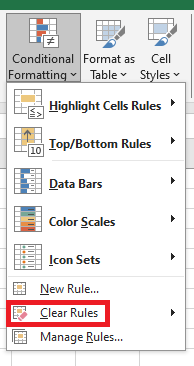
You now have a solid understanding of basic Excel conditional formatting. In the next article, we’ll cover advanced features to push conditional formatting even further in your spreadsheets.
Inserting Subtotals in Excel
Worksheets with a large amount of data can often appear cluttered and difficult to understand. Fortunately, Microsoft Excel provides a powerful Subtotal feature that allows you to quickly summarize different groups of data and create an outline for your worksheets.
What Is a Subtotal in Excel?
Generally speaking, a subtotal is the sum of a set of numbers, which is then added to one or more other sets to form a grand total. In Microsoft Excel, the Subtotal feature is not limited to summing subsets of values in a dataset. It lets you group and summarize your data using SUM, COUNT, AVERAGE, MIN, MAX, and other functions.
In addition, it creates a hierarchy of groups, known as an outline, which enables you to show or hide details for each subtotal, or just view a summary of the subtotals and grand totals.
For example, here’s what Excel subtotals might look like:
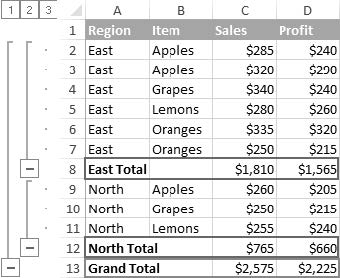
To quickly insert subtotals in Excel, follow these steps:
Organize the Source Data
The Excel Subtotal feature requires the source data to be properly sorted and free of blank rows.
So before adding subtotals, make sure to sort the column by which you want to group your data. The easiest way is to click the Filter button on the Data tab, then click the filter arrow and choose Sort A to Z or Sort Z to A: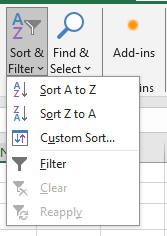
Add Subtotals
Select any cell in your dataset, go to the Data tab > Outline group, then click Subtotal.
Tip: To subtotal only part of your data, select the desired range before clicking the Subtotal button.
Define Subtotal Options
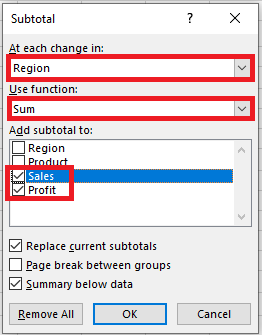
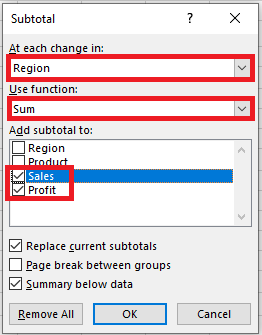
In the Subtotal dialog box, specify the three main elements — which column to group by, which summary function to use, and which columns to subtotal:- In the At each change in box, select the column that contains the group data.
- In the Use function box, select one of the following:
- Sum – Adds the numbers
- Count – Counts non-empty cells (uses COUNTA)
- Average – Calculates the mean
- Max – Returns the largest value
- Min – Returns the smallest value
- Product – Multiplies the numbers
- Count Numbers – Counts only numeric cells (uses COUNT)
- StDev – Estimates standard deviation (sample)
- StDevP – Standard deviation (population)
- Var – Estimates variance (sample)
- VarP – Variance (population)
- Under Add subtotal to, check the columns you want to subtotal.
In this example, we group by the Region column and use the SUM function to total the Sales and Profit columns:
You can also choose:
- Page break between groups – Inserts a page break after each subtotal.
- Summary below data – Uncheck to show the summary row above the data.
- Replace current subtotals – Leave checked to overwrite existing ones.
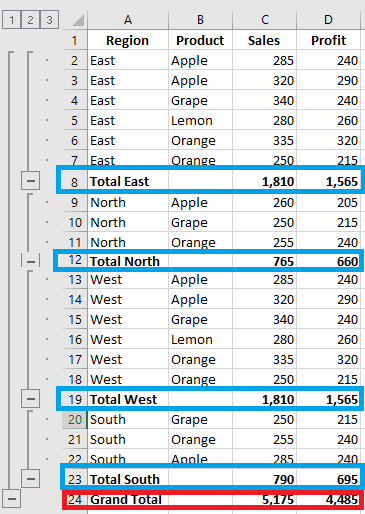
Click OK. Subtotals will appear below each group and a grand total at the bottom.
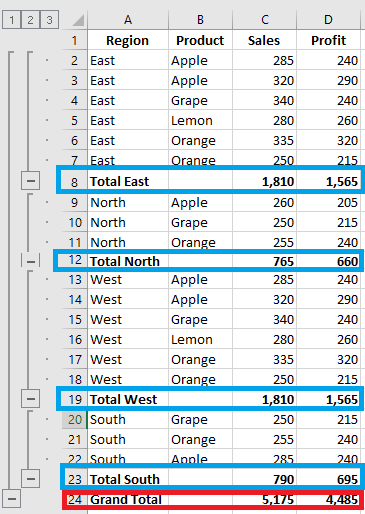
Once inserted, subtotals are recalculated automatically when source data changes.
Tip: If subtotals are not updating, check File > Options > Formulas > Workbook Calculation and make sure it’s set to Automatic.
Things to Know About Excel Subtotals
The Excel Subtotal feature is powerful and flexible, but also has specific behaviors. Here’s what you need to know:
Only Visible Rows Are Subtotaled
Excel Subtotal only calculates visible cells and ignores filtered-out rows. However, it does include manually hidden rows (e.g., hidden via Home > Format > Hide & Unhide, or right-click > Hide).It uses the SUBTOTAL function, which includes a function number as its first argument. There are two sets:
- 1–11: Ignores filtered-out cells but includes manually hidden rows.
- 101–111: Ignores both filtered and manually hidden rows.
By default, Excel uses 1–11. For example, using SUM, it will insert:
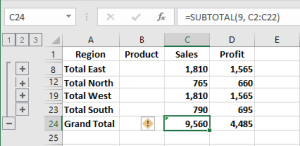
=SUBTOTAL(9, C2:C7), where 9 means SUM.To ignore manually hidden rows, change the formula to:
=SUBTOTAL(109, C2:C7), where 109 means SUM (ignoring all hidden rows).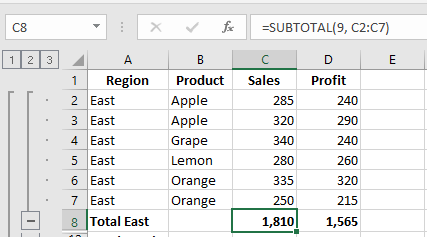
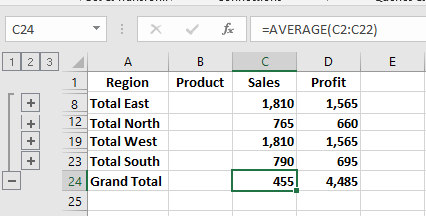
Grand Totals Are Based on Original Data
Grand totals are calculated from raw data, not from subtotal values.For example, if you use AVERAGE, Excel calculates the grand average from all values in
C2:C19, not the subtotal rows.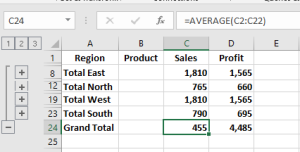
Subtotals Aren’t Available in Excel Tables
If the Subtotal button is grayed out, you’re likely working with an Excel Table. Subtotals don’t work with tables — convert it to a normal range first.Adding Multiple (Nested) Subtotals
Let’s now add nested subtotals — for instance, grouping first by Region, then by Item.
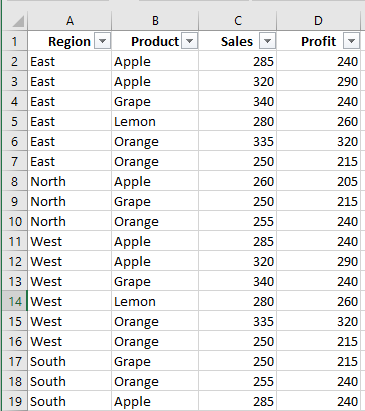
Sort Data by Multiple Columns
Go to Data > Sort, and add multiple sort levels (e.g., by Region, then Item).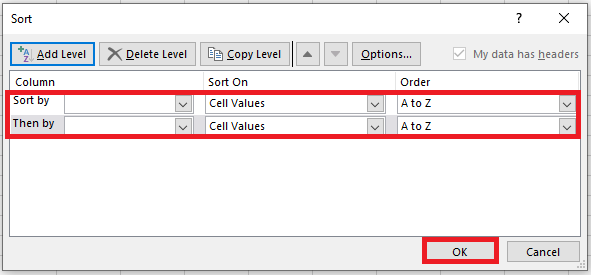
Insert First-Level Subtotals
Select a cell and add the outer subtotal (e.g., by Region as done before).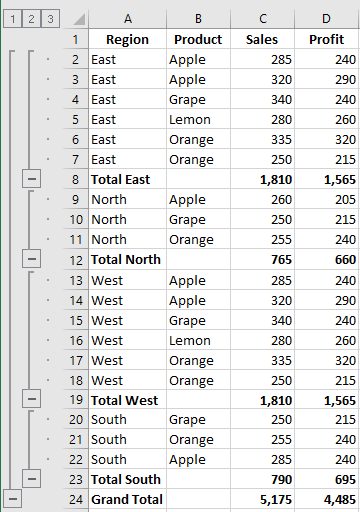
Add Nested Subtotals
Click Data > Subtotal again:- In At each change in, select the second column (e.g., Item)
- Select a function (e.g., SUM)
- Choose the same or different subtotal columns
- Important: Uncheck Replace current subtotals
Repeat to add more nested subtotals.
Add Different Subtotals for the Same Column
You can apply more than one function to the same column. For example, in addition to the SUM, add AVERAGE for Sales and Profit:
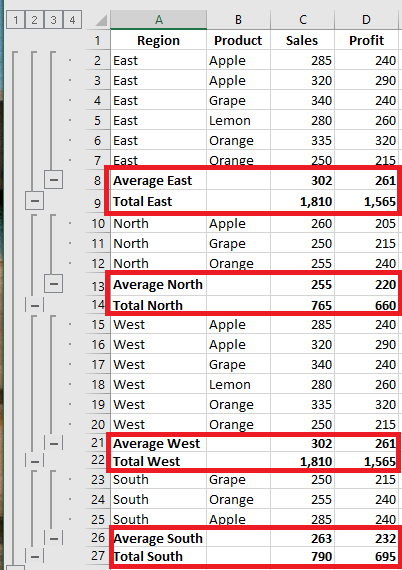
Just follow the steps for adding multiple subtotals and uncheck Replace current subtotals each time.
How to Use Excel Subtotals Effectively
Show or Hide Subtotal Details
Click the outline symbols in the upper-left corner:
- 1 shows only grand totals
- Highest number shows all details
- Intermediate numbers show partial groupings
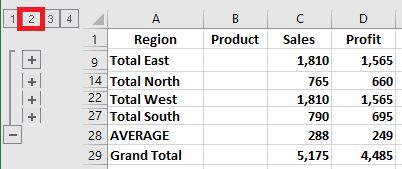
E.g., click 2 to show grouping by Region:
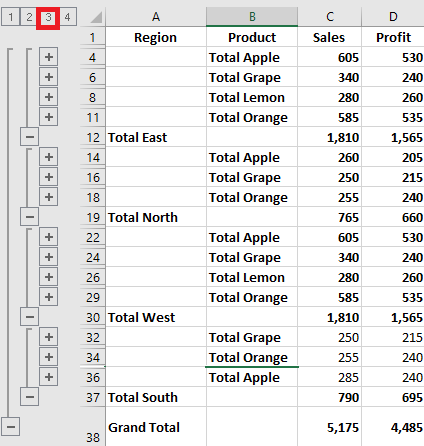
Click 3 to show nested subtotals by Item:
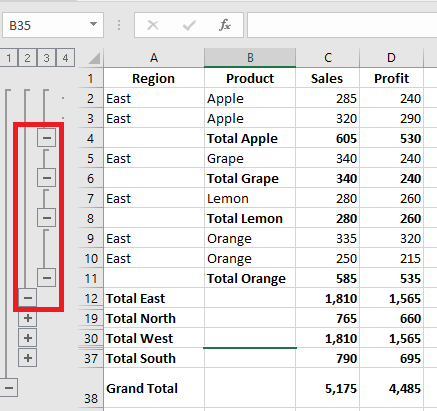
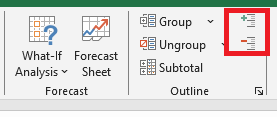
To expand/collapse individual groups, click + / – or use Show/Hide Detail on the Data tab:
Copy Only Subtotal Rows
To copy just the visible subtotal rows (not all rows):
- Collapse the outline to display only subtotals
- Select any subtotal cell and press Ctrl + A
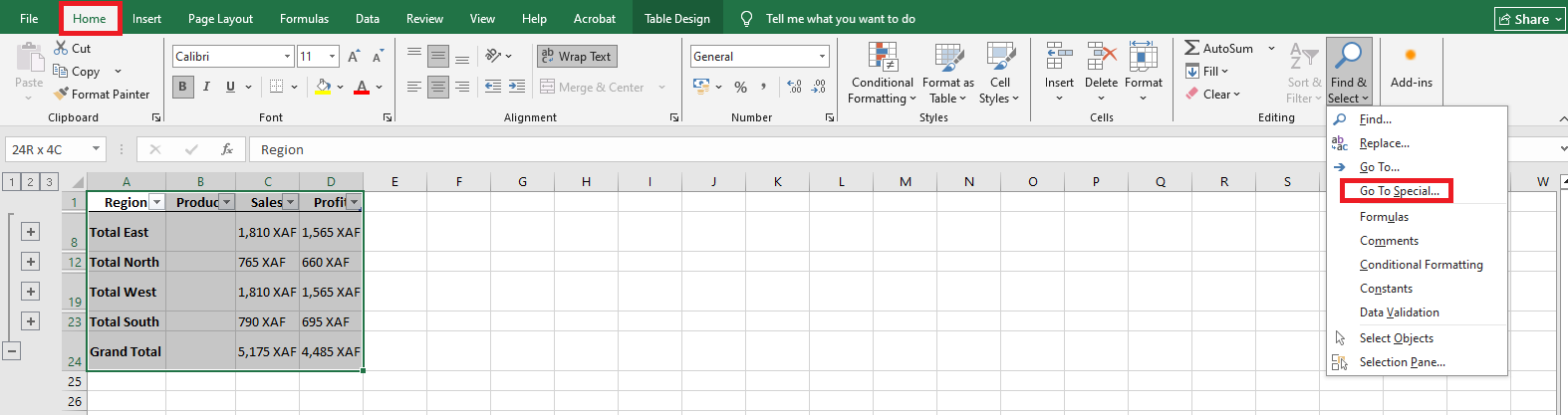
- Go to Home > Find & Select > Go To Special
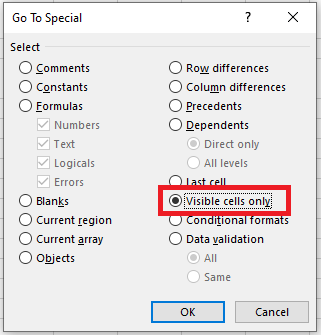
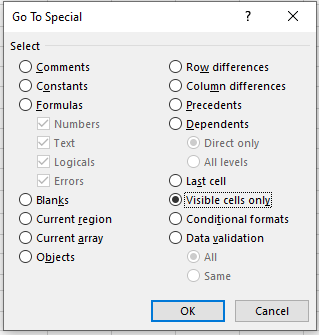
- In the dialog, choose Visible cells only
- Press Ctrl + C to copy, then Ctrl + V to paste elsewhere
This will paste only the subtotal values, not the formulas.
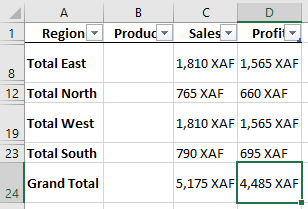
Tip: Use the same method to format all subtotal rows at once.
Modify Existing Subtotals
To quickly change existing subtotals:
- Select a subtotal cell
- Go to Data > Subtotal
- Change the grouping column, summary function, or subtotal columns
- Ensure Replace current subtotals is checked
- Click OK
Note: If multiple subtotals exist for the same data, you must first remove all subtotals and recreate them.
How to Remove Subtotals in Excel
To remove all subtotals:
- Select any cell in the subtotal range
- Go to Data > Outline > Subtotal
- In the dialog box, click Remove All
Besides Excel’s built-in Subtotal tool, there’s also a manual way to add subtotals — by using the
SUBTOTAL()function directly. This method offers even more flexibility, and we’ll show you some helpful tricks in the next tutorialGrouping Data in Excel
Worksheets containing a lot of complex and detailed information can be difficult to read and analyze. Fortunately, Microsoft Excel provides a simple way to organize data into groups, allowing you to collapse and expand rows with similar content to create more compact and understandable views.
How to Group Rows
Grouping in Excel works best with well-structured worksheets that have column headers, no empty rows or columns, and a summary (subtotal) row for each subset of rows. Once your data is properly organized, use one of the following methods to group it.
Automatically Grouping Rows
If your dataset contains only one level of information, the quickest way is to let Excel group the rows for you. Here’s how:
- Select any cell in one of the rows you want to group.
- Go to the Data tab, in the Outline group, click the arrow under Group, and select Auto Outline.
Here is an example of the type of rows Excel can group:

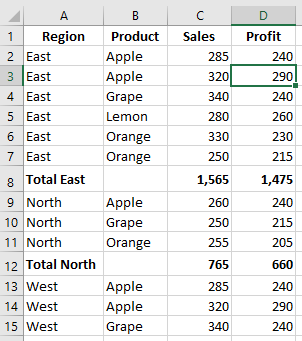
As shown in the screenshot below, the rows are neatly grouped, and outline bars representing different organization levels are added to the left of column A.
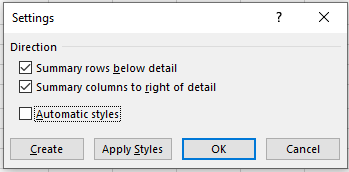
Note: If your summary rows are located above the group of detail rows, go to the Data tab > Outline group, click the Outline Settings dialog launcher, and uncheck Summary rows below detail.
Once the outline is created, you can quickly collapse or expand the details of any group by clicking the minus or plus sign of that group. You can also collapse or expand all rows at a certain level by clicking the level buttons in the upper-left corner of the worksheet.
Manually Grouping Rows
If your worksheet contains at least two levels of information, Excel’s Auto Outline may not group your data correctly. In that case, you can manually group rows by doing the following.
Note: When manually outlining, make sure your dataset does not contain any hidden rows, or your data may be grouped incorrectly.
Create Outer Groups (Level 1)
Select one of the largest subsets of data, including all intermediate summary rows and their detail rows. In the example below, to group all data under row 9 (« East Total »), we select rows 2 to 8.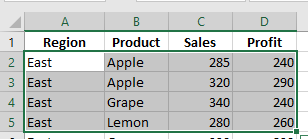
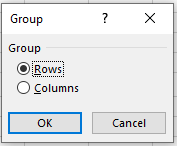
On the Data tab, in the Outline group, click the Group button, select Rows, then click OK.
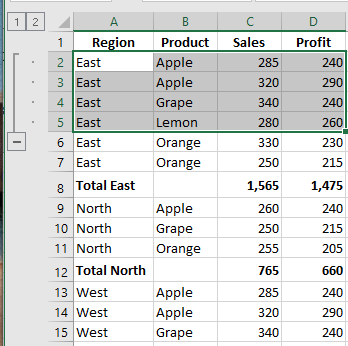
Do the same to create as many outer groups as needed. In this example, we create another outer group for the North region by selecting rows 9 to 12 and clicking Data > Group > Rows:
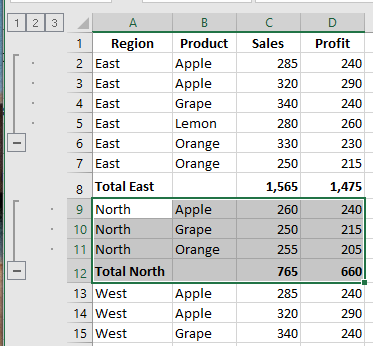
Tip: To create a new group faster, press Shift + Alt + Right Arrow instead of clicking the Group button on the ribbon.
Create Nested Groups (Level 2)
To create an inner group, select all the detail rows above the related summary row, then click the Group button. For example, to group “Apples” in the East region, select rows 2 and 3 and press Group. Then group “Oranges” by selecting rows 5 to 7. Do the same for the North region: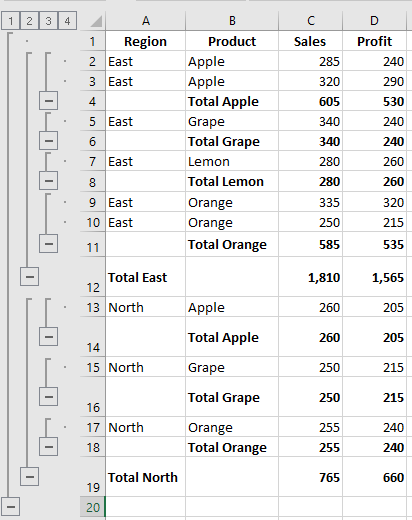
Add More Grouping Levels If Needed
Datasets are rarely final. If you add more data, you may want to insert more outline levels. For instance, after inserting a Grand Total row, select all rows except the Grand Total row (rows 2 to 17), and then click Data > Group > Rows. Now your data has 4 levels:- Level 1: Grand Total
- Level 2: Region totals
- Level 3: Item subtotals
- Level 4: Detail rows
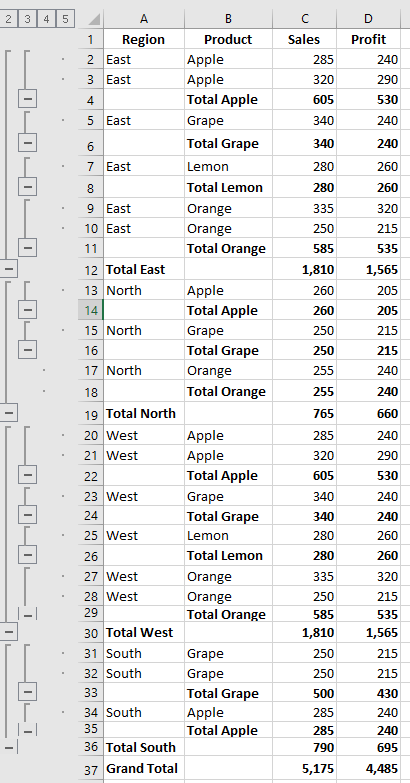
Now that we’ve outlined the rows, let’s see how this helps with data visualization.
How to Collapse Rows
One of the most useful features of Excel grouping is the ability to hide or show detail rows for a specific group, or collapse/expand the entire outline to a particular level with a single mouse click.
Collapse Rows Within a Group
To collapse the rows of a particular group, simply click the minus sign at the bottom of the group’s outline bar. For example, to hide all detail rows for the East region and show only the « East Total » row:
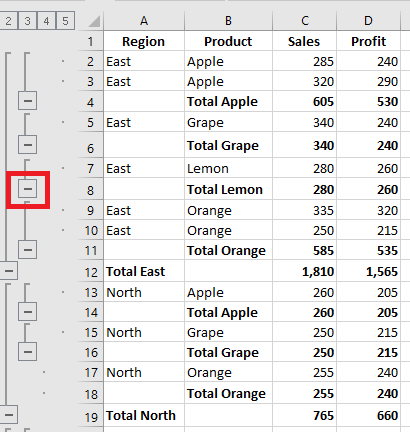
Another way is to select any cell in the group and click Hide Detail on the Data tab in the Outline group:
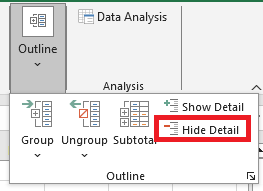
In either case, the group will collapse to just the summary row, and all detail rows will be hidden.
Collapse or Expand the Entire Outline at a Specific Level
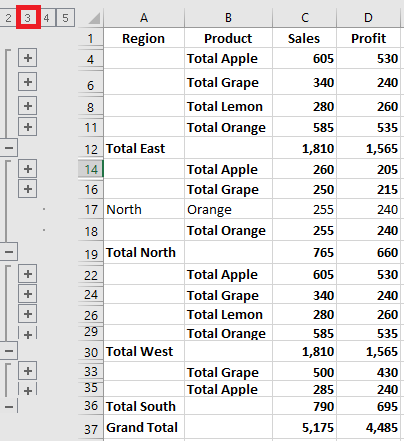
To collapse or expand all groups to a specific level, click the corresponding level number in the upper-left corner of your worksheet. Level 1 shows the least data, while higher numbers expand more rows.
In our dataset with 4 outline levels:
- Level 1: Shows only the Grand Total (row 18)
- Level 2: Grand Total + Regional Totals (rows 9, 17, 18)
- Level 3: Adds Item Subtotals (rows 4, 8, 13, 16)
- Level 4: Shows all detail rows
The screenshot below shows the outline collapsed to level 3:
How to Expand Rows in Excel
To expand a specific group, click any cell in the summary row and then click Show Detail on the Data tab in the Outline group:
Or click the plus sign for the collapsed group you want to expand:
How to Remove the Outline
If you want to remove all grouped rows at once, clear the outline. If you want to remove only specific groups (like nested ones), ungroup the selected rows.
To remove the entire outline:
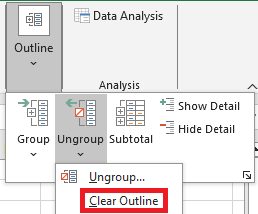
- Go to the Data tab > Outline group
- Click the arrow under Ungroup, then click Clear Outline
Notes:
- Removing an outline does not delete any data.
- If you clear an outline with collapsed rows, those rows may remain hidden.
- Once the outline is removed, you cannot undo it with Undo (Ctrl + Z). You must recreate the outline from scratch.
How to Ungroup Specific Rows
To remove grouping from certain rows without deleting the entire outline:
- Select the rows you want to ungroup.
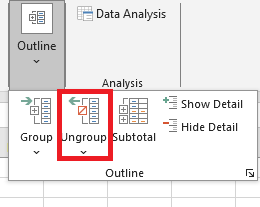
- Go to Data > Outline, click Ungroup or press Shift + Alt + Left Arrow (Excel’s Ungroup shortcut).
- In the Ungroup dialog box, select Rows and click OK.
For example, here’s how to ungroup two nested groups (Apples Subtotal and Oranges Subtotal) while keeping the outer « East Total » group:
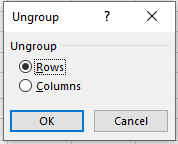
Note: You cannot ungroup non-adjacent row groups at once. Repeat the steps for each group individually.
How to Automatically Calculate Group Subtotals
In the above examples, we inserted our own subtotal rows with SUM formulas. To have Excel calculate subtotals automatically, use the Subtotal command with a summary function such as SUM, COUNT, AVERAGE, MIN, MAX, etc.
The Subtotal command will insert summary rows and create an outline with collapsible/expandable rows — two tasks in one!
Applying Excel’s Default Styles to Summary Rows
Microsoft Excel provides predefined styles for two levels of summary rows:
RowLevel_1(bold) andRowLevel_2(italic). You can apply these styles either before or after grouping the rows.To automatically apply styles to a new outline:
- Go to Data > Outline
- Click the Outline Settings dialog launcher
- Check the Automatic Styles box and click OK
To apply styles to an existing outline, check the same box and click Apply Styles instead of OK.
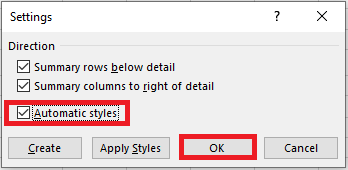
Here’s what an outlined sheet looks like with default summary row styles:
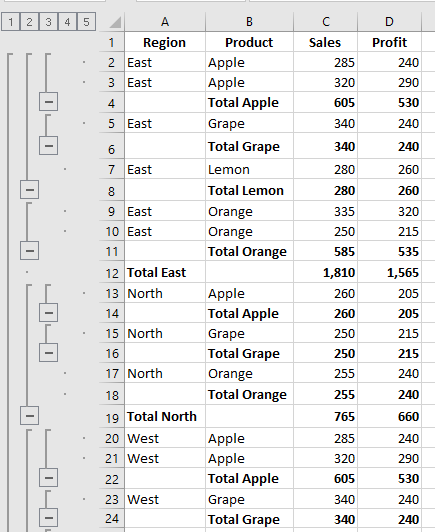
How to Select and Copy Only Visible Rows
After collapsing unnecessary rows, you may want to copy only the visible (relevant) data. However, selecting rows the usual way with the mouse also selects hidden rows.
To select only visible rows:
- Select the visible rows using the mouse (e.g., only summary rows).
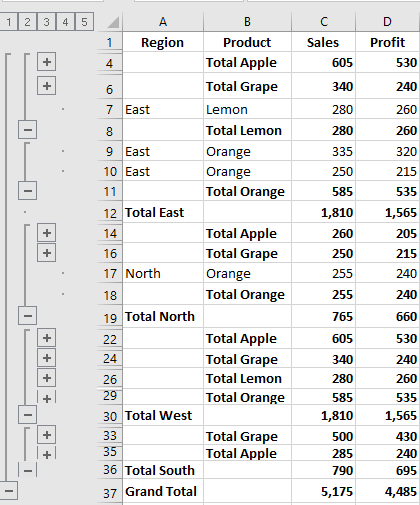
- Go to Home > Editing > Find & Select > Go To Special
Or press Ctrl + G, then click Special… - In the Go To Special dialog box, select Visible cells only and click OK.
Only visible rows are now selected (adjacent to hidden ones marked with white borders):
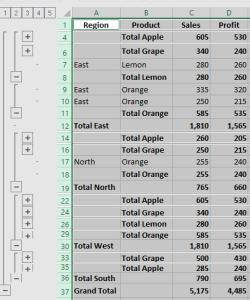
Now press Ctrl + C to copy and Ctrl + V to paste wherever you want.
How to Show or Hide Outline Symbols
To toggle the display of outline symbols and level numbers, use the shortcut Ctrl + 8. Press once to hide the symbols, press again to show them.
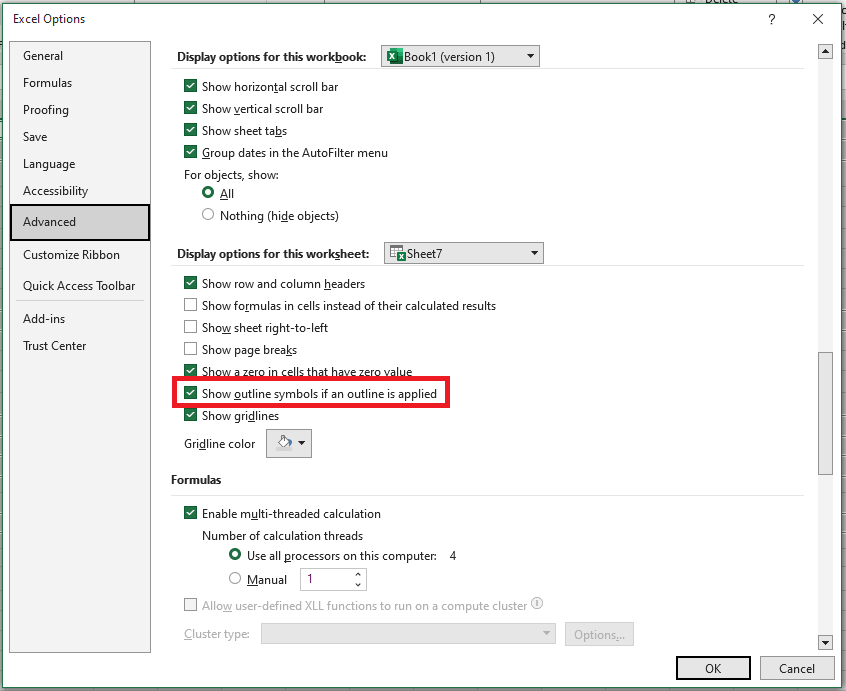
If you do not see the plus/minus symbols or level numbers, check this setting:
- Go to File > Options > Advanced
- Scroll to Display options for this worksheet
- Select your worksheet and ensure Show outline symbols if an outline is applied is checked.
This is how you group rows in Excel to collapse or expand sections of your dataset. Likewise, you can group columns in your worksheets.
Inserting Sparklines in Excel
Are you looking for a way to visualize a large volume of data in a small space? Sparklines are a quick and elegant solution. These mini-charts are specifically designed to show data trends inside a single cell.
Creating a Sparkline Chart
A sparkline chart is a small chart that resides in a single cell. The idea is to place a visual next to the original data without taking up too much space, which is why sparklines are sometimes called “inline charts.” Sparklines can be used with any numerical data in a tabular format. Typical uses include visualizing temperature fluctuations, stock prices, periodic sales figures, and any other time-based variation.
You insert sparklines next to rows or columns of data and get a clear graphical presentation of a trend in each individual row or column.
Sparklines were introduced in Excel 2010 and are available in all later versions: Excel 2013, Excel 2016, Excel 2019, and Excel for Microsoft 365.
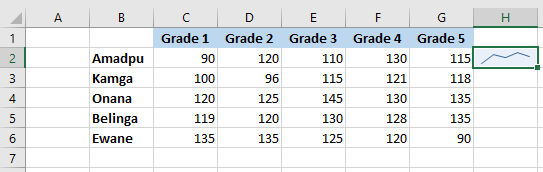
To create a sparkline in Excel, follow these steps:
- Select a blank cell where you want to insert a sparkline, typically at the end of a data row.
- On the Insert tab, in the Sparklines group, choose the desired type: Line, Column, or Win/Loss.

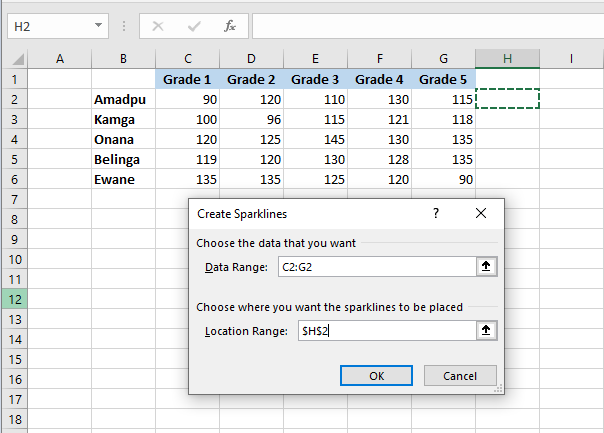
- In the Create Sparklines dialog box, place your cursor in the Data Range box and select the range of cells to include in the sparkline.
- Click OK.
And there you have it – your very first mini-chart appears in the selected cell. Want to see how the data evolves in other rows? Simply drag the fill handle to instantly create a similar sparkline for each row in your table.
Adding Sparklines to Multiple Cells
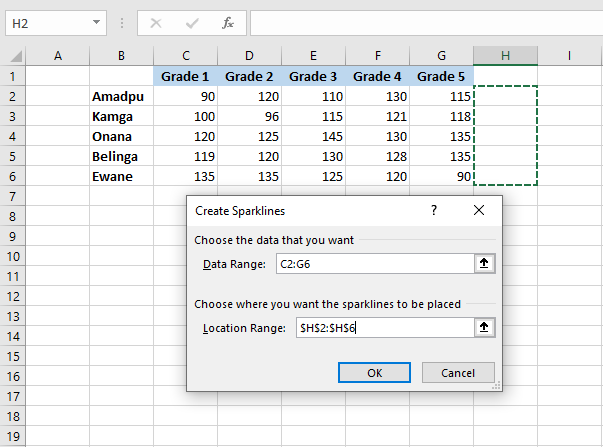
In the previous example, you learned one way to insert sparklines into multiple cells: add it to the first cell and copy it. Alternatively, you can create sparklines for all the cells at once. The steps are exactly the same as described above, except you select the full range instead of a single cell. Here are the detailed instructions:
- Select all the cells where you want to insert mini-charts.
- Go to the Insert tab and choose the desired sparkline type.
- In the Create Sparklines dialog box, select all the source cells for the Data Range.
- Make sure Excel displays the correct location range where your sparklines should appear.
- Click OK.
Types of Sparklines
Microsoft Excel provides three types of sparklines: Line, Column, and Win/Loss.
Line Sparklines
These sparklines look very similar to tiny line charts. Like traditional line charts in Excel, they can be drawn with or without markers. You are free to modify the line style as well as the line and marker colors. We’ll cover how to do that later. For now, here’s an example of line sparklines with markers: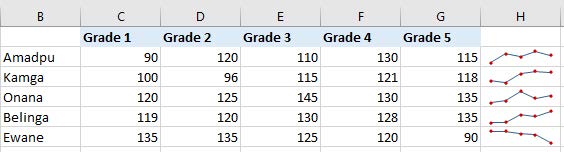
Column Sparklines
These tiny charts appear as vertical bars. Just like a standard column chart, positive data points are above the x-axis and negative ones are below. Zero values are not shown – a blank space is left for a zero data point. You can set the color of your choice for positive and negative mini-columns, and highlight the highest and lowest points.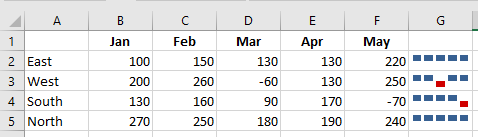
Win/Loss Sparklines
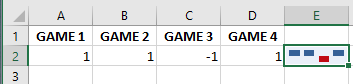
This type resembles a column sparkline but does not show the magnitude of a data point – all bars are the same size regardless of the original value. Positive values (wins) are plotted above the x-axis and negative values (losses) below. A Win/Loss sparkline can be thought of as a binary micro-chart, best used with values that have only two states such as True/False or 1/-1. For example, it works perfectly to display game results where 1s represent wins and -1s losses: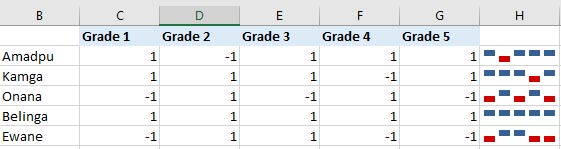
Editing Sparklines
After creating a sparkline in Excel, what’s the next thing you’d usually want to do? Customize it to your liking! All customization is done via the Design tab that appears once you select an existing sparkline in a sheet.
Changing the Sparkline Type
To quickly change the type of an existing sparkline:
- Select one or more sparklines in your worksheet.
- Go to the Design tab.
- In the Type group, choose the desired type.

Showing Markers and Highlighting Specific Data Points
To make the most important points in your sparklines more visible, you can highlight them in a different color. You can also add markers for each data point. Just select the desired options on the Sparkline tab, in the Show group:
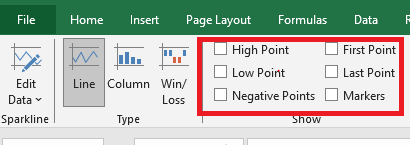
Available options include:
- High Point – highlights the maximum value.
- Low Point – highlights the minimum value.
- Negative Points – highlights all negative values.
- First Point – highlights the first data point.
- Last Point – changes the color of the last data point.
- Markers – adds markers to each data point (available only for line sparklines).
Changing Sparkline Color, Style, and Line Width
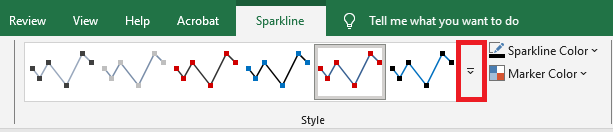
To change the appearance of your sparklines, use the style and color options on the Design tab in the Style group:
- To apply a built-in sparkline style, select it from the gallery. To see all styles, click the More button in the lower-right corner.
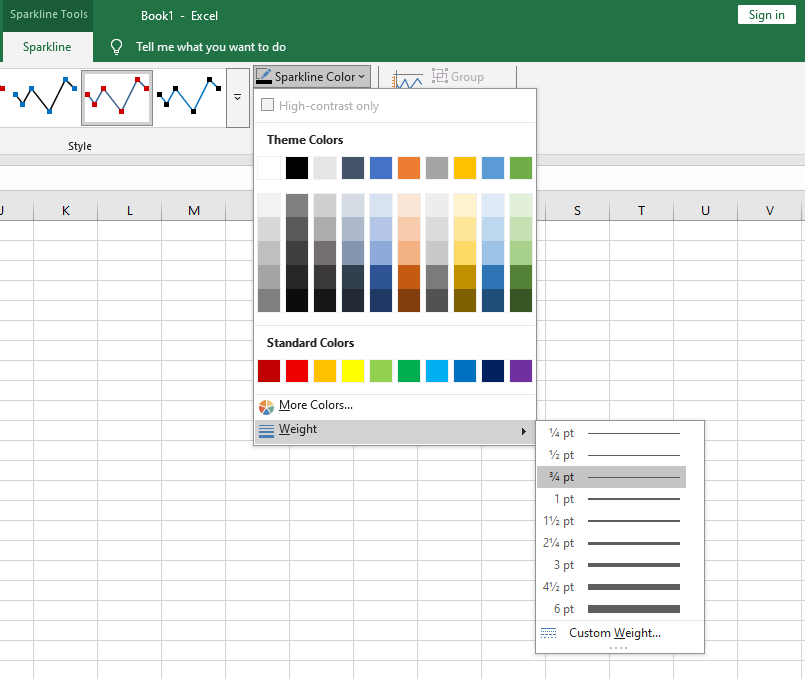
- To change the default color, click the arrow next to Sparkline Color and pick your preferred color.
- To adjust line thickness, click the Weight option and choose from preset widths or set a custom thickness (available only for line sparklines).
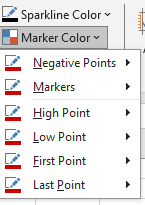
- To change marker color or specific data point colors, click the arrow next to Marker Color and select the desired item:
Customizing the Sparkline Axis
By default, Excel sparklines are drawn without axes or coordinates. However, you can display a horizontal axis if needed and perform a few other customizations. Details are provided below.
How to Change the Axis Starting Point
By default, Excel draws a sparkline so that the smallest data point appears at the bottom, and all other points are scaled relative to it.
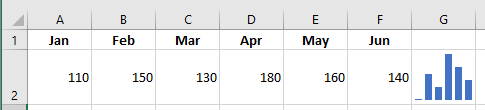
In some situations, this can be misleading — it may give the impression that the lowest data point is near zero and that the variation among data points is greater than it actually is. To fix this, you can make the vertical axis start at 0 or at any value you consider appropriate.
To do so, follow these steps:
- Select your sparklines.
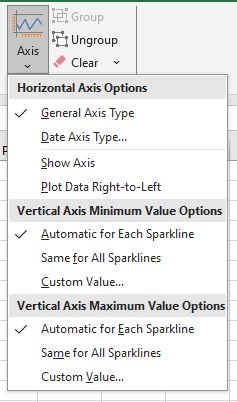
- On the Design tab, click the Axis button.
- Under Vertical Axis Minimum Value Options, select Custom Value…
- In the dialog box that appears, enter 0 or another minimum axis value you prefer.
- Click OK.
The image below shows the result — by forcing the sparkline to start at 0, we now get a more realistic picture of the variation between data points:
Note: Be very careful with axis customizations when your data contains negative numbers — if you set the vertical axis minimum to 0, all negative values will disappear from the sparkline chart.
How to Show the X-Axis in a Sparkline
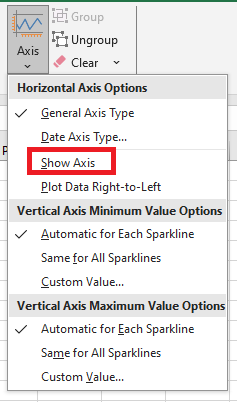
To display a horizontal axis in your micro-chart, select it, then click Axis > Show Axis on the Sparkline tab.
This works best when data points fall on both sides of the x-axis — that is, when you have both positive and negative numbers:
How to Group and Ungroup Sparklines
When you insert multiple sparklines in Excel, grouping them gives you a major advantage: you can change the entire group at once.
To group sparklines, do the following:
- Select two or more mini-charts.
- On the Design tab, click the Group button.
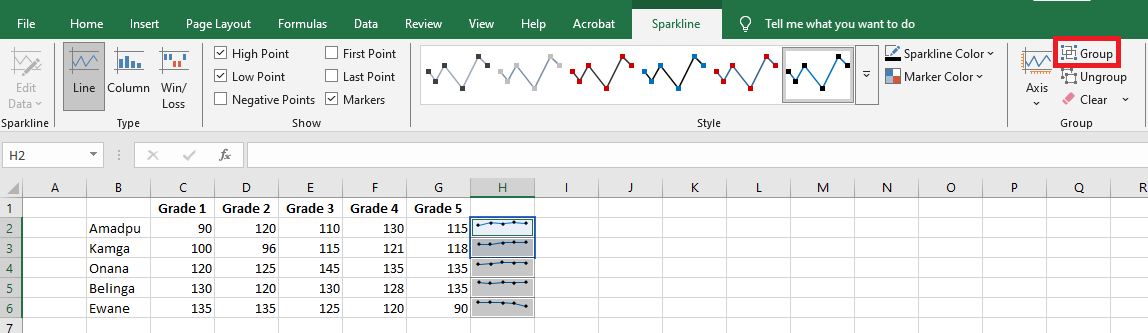
To ungroup sparklines, select them and click the Ungroup button.
Note: When you insert sparklines into multiple cells, Excel automatically groups them.
How to Resize Sparklines
Because Excel sparklines are background images inside cells, they resize automatically to fit the cell.
- To change the width of sparklines, make the column wider or narrower.
- To change the height, increase or decrease the row height.
How to Delete a Sparkline
When you decide to remove a sparkline that you no longer need, you may be surprised to find that pressing the Delete key does nothing.
Here are the steps to delete a sparkline in Excel:
- Select the sparkline(s) you want to remove.
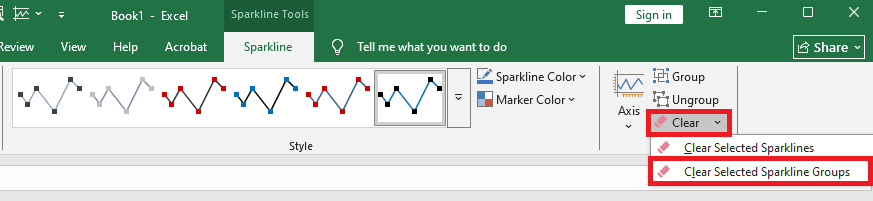
- On the Design tab, do one of the following:
- To delete only the selected sparkline(s), click the Clear button.
- To delete the entire group, click Clear > Clear Selected Sparkline Groups.
Tip: If you accidentally deleted the wrong sparkline, press Ctrl + Z to undo the action.
Applying Cell Styles in Excel
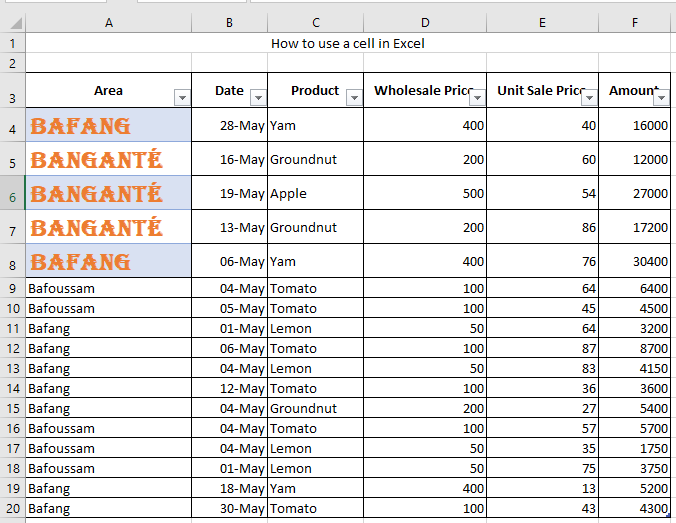
To apply multiple formatting attributes in a single step and ensure consistency across your cells, you can use a cell style. A cell style is a predefined set of formatting characteristics, such as font and font size, number formats, cell borders, and shading.
To prevent changes to specific cells, you can also use a cell style that locks the cells.
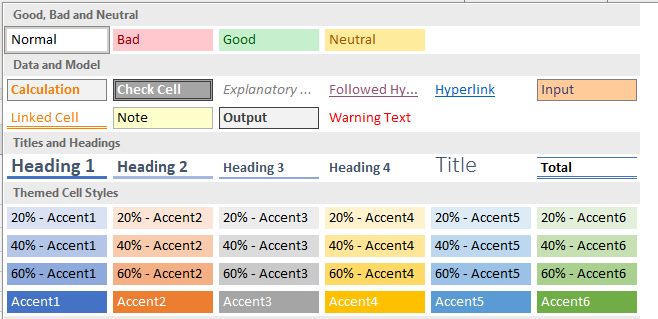
Microsoft Excel includes several built-in cell styles that you can apply or modify. You can also edit or duplicate a cell style to create your own custom style.
NOTE
Cell styles are based on the document theme applied to the entire workbook. When you change the document theme, the cell styles are automatically updated to match the new theme.
We use cell styles to apply consistent formatting such as fonts, font sizes, cell borders, cell shading, and number formats. In this tutorial, we’ll learn how to apply, create, and delete a cell style.
How to Apply a Cell Style
We can apply a Title or Total cell style using the following steps:
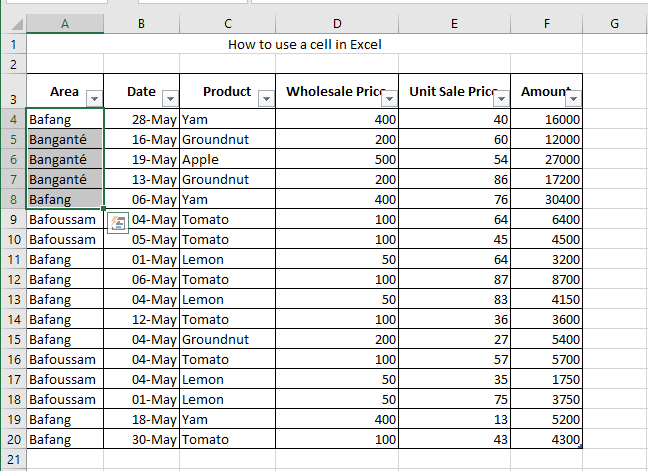
■ Select the cells, rows, or columns you want to format.
In this case, we select A4:A8 from our data.
■ Go to the Home tab and click More in the Styles group.
■ In the drop-down list, choose the style you want and click Apply.
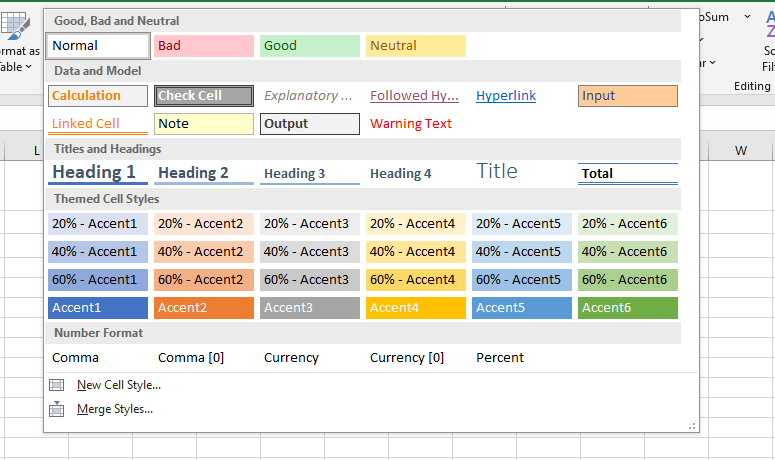
■ We will apply the Bad cell style, and the result will look like this:
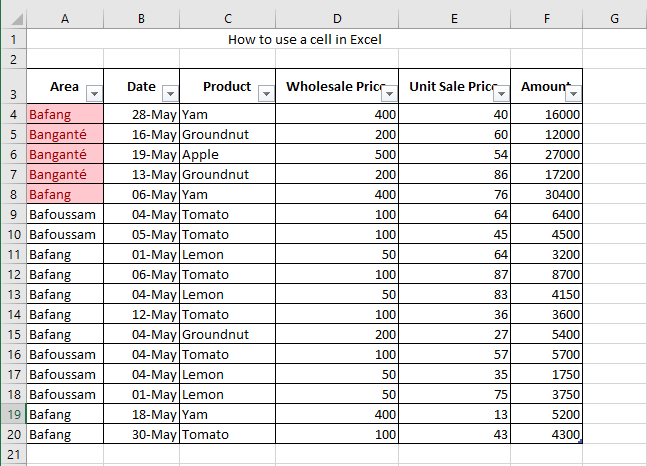
How to Create a Custom Cell Style
■ Select the cells where you want to apply the custom style.
In this case, we select A3:A8.
■ Go to the Home tab and click the More drop-down arrow in the Styles group.
■ At the bottom, click New Cell Style.
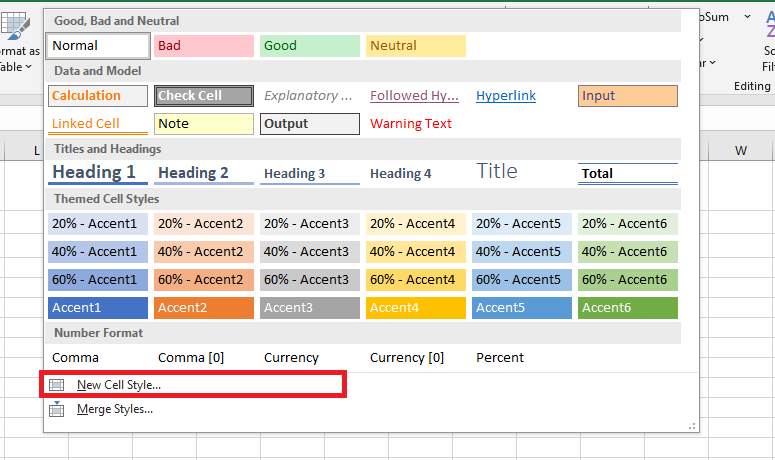
■ In the Style name box, enter an appropriate name for the new style.
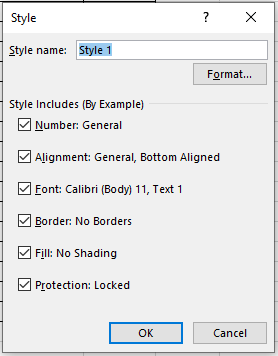
■ Then, under the style name, click Format.
In the Format Cells dialog box, choose the font and colors you want, then click OK.
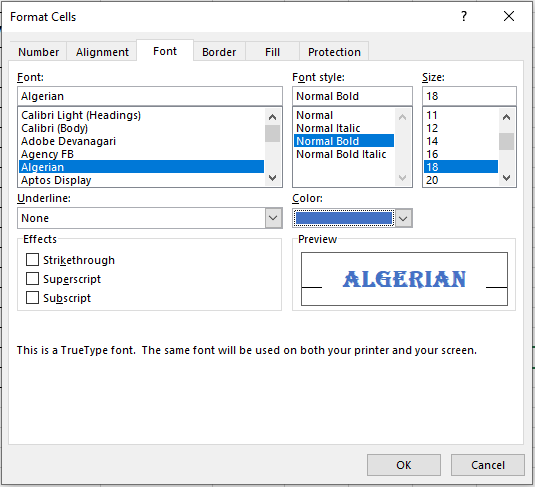
■ In the Style dialog box, under Style includes (example), uncheck any formatting you don’t want included.
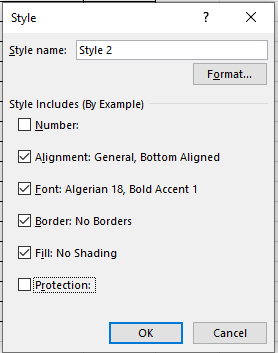
■ Click OK.
You can now apply your new custom cell style, just like any other built-in style.
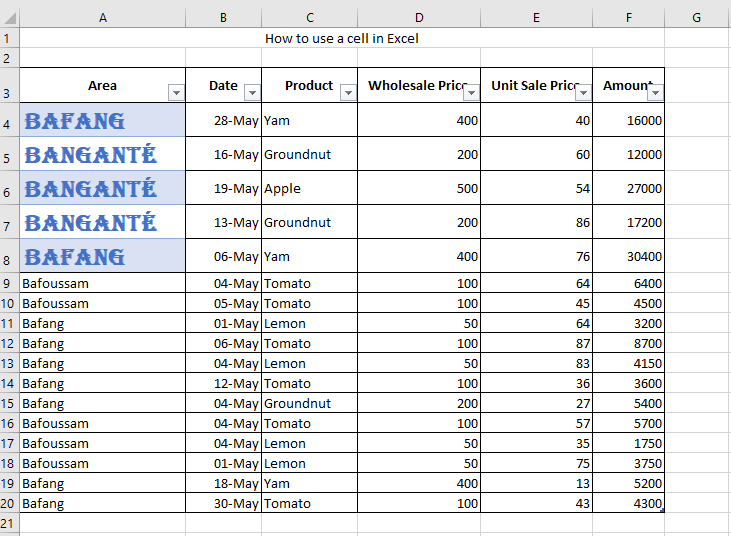
How to Create a Cell Style by Modifying an Existing One
■ In the Home tab, click the More drop-down arrow in the Styles group.
■ Then do one of the following:- Right-click on an existing cell style and choose Modify.
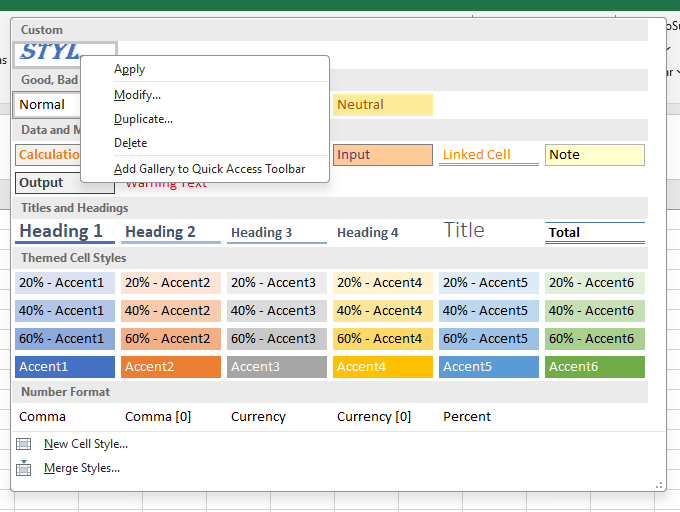
- Or right-click on a style and select Duplicate to create a copy.
■ In the Modify Cell Style dialog box, click Format.
In the various tabs of the Format Cells dialog box, choose the desired formatting and click OK.
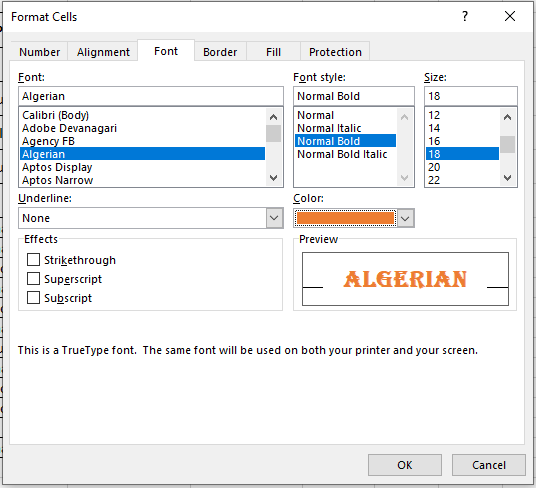
■ In the Style dialog box under Style includes, check or uncheck the boxes for any formatting you want to include or exclude.
Applying Cell Formats in Excel
All cell contents initially use the same default formatting, which can make it difficult to read a workbook with a lot of information. Basic formatting helps personalize the appearance of your workbook, allowing you to draw attention to specific sections and make your content easier to read and understand.
You can also apply number formatting to tell Excel exactly what type of data you’re using in your workbook, such as percentages (%), currency ($), and more.
Changing the Font
By default, the font in every new workbook is set to Calibri. However, Excel offers many other fonts to help you customize the text in your cells.
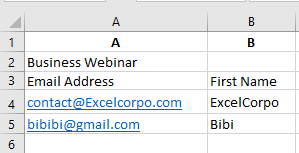
In the example below, we’ll format the title cell to distinguish it from the rest of the worksheet.
- Select the cell(s) you want to modify.
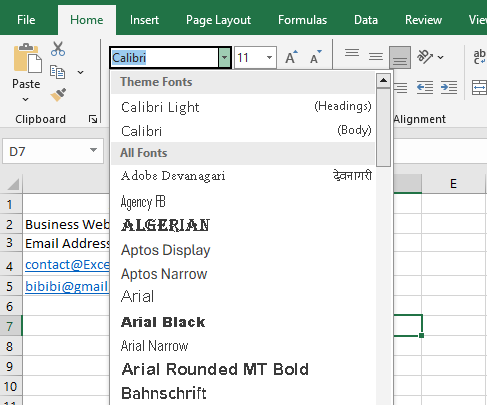
- Click the drop-down arrow next to the Font command on the Home tab.
The font menu will appear. - Select the desired font. A live preview will appear as you hover over different options.
In our example, we’ll choose Georgia.
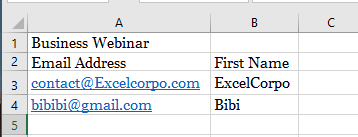
- The text will update to the selected font.
For professional workbooks, choose an easy-to-read font. Besides Calibri, good options include Cambria, Times New Roman, and Arial.
Changing the Font Size
- Select the cell(s) you want to modify.
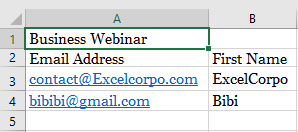
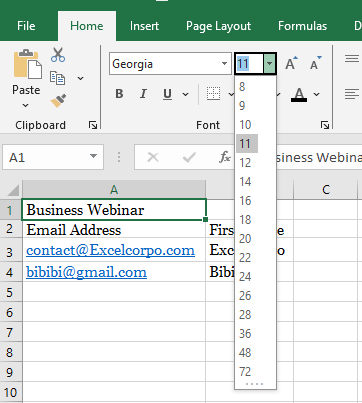
- Click the drop-down arrow next to the Font Size command on the Home tab.
The font size menu will appear. - Select the desired font size. A live preview will appear as you hover.
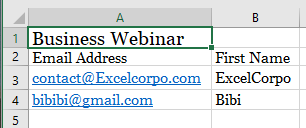
In our example, we’ll choose 16 to enlarge the text.
- The text will update to the selected size.
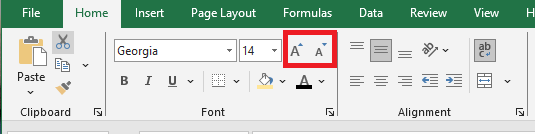
You can also use the Increase Font Size and Decrease Font Size buttons or type a custom size using your keyboard.
Changing the Font Color
In Excel, you can add visual interest by changing the font color. While spreadsheets are often used to display specific data, that doesn’t mean they have to look plain. Adding a touch of color can make your sheets more appealing and easier to read.
You can choose a theme color, a standard Excel palette color, or create a custom one.
- Select the cell(s) you want to modify.
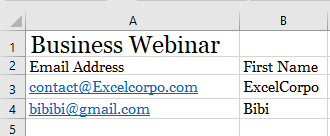
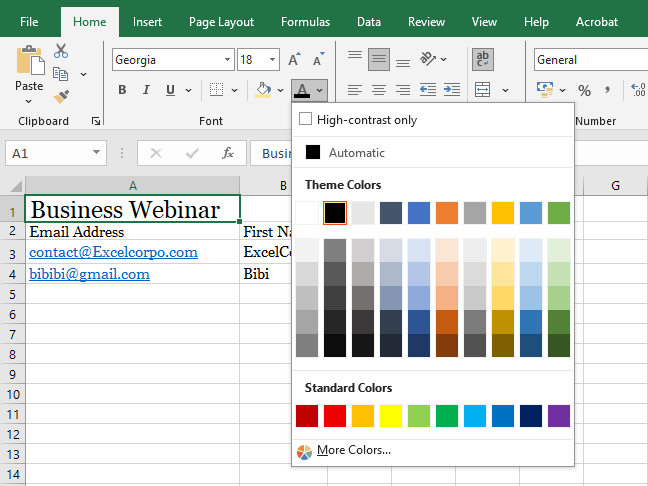
- Click the drop-down arrow next to the Font Color command on the Home tab.
The color menu will appear. - Select the desired color. A live preview appears as you hover.
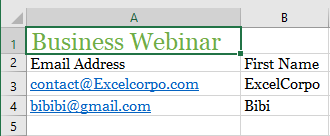
In our example, we’ll choose Green.
- The text will update to the selected color.
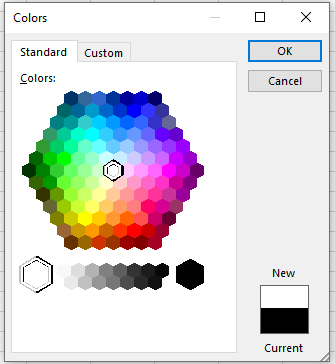
To access more color options, click More Colors at the bottom of the menu.
Adding a Background Color to a Cell Range
You can make a range stand out by applying a background color.
If you want to change the background color based on cell values (e.g., red for negative, green for positive), conditional formatting is more suitable.
You can use a theme color, a standard color, or a custom one.
- Select the range you want to format.
- Click the Home tab.
- Click the Fill Color drop-down list.
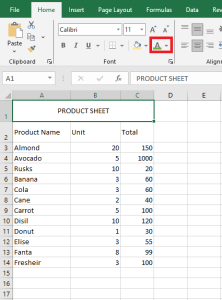
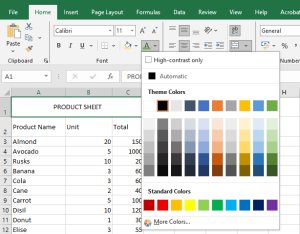
- Click a theme color or a standard color.
Excel applies the fill color to the selected range.
To remove the background color, select No Fill.
To use a custom color:
- Select the range.
- Go to Home > Fill Color > More Colors.
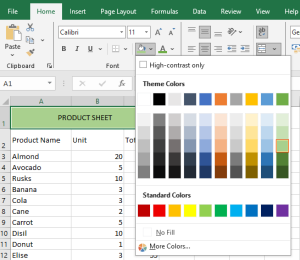
- Choose a color or click the Custom tab to adjust RGB values.
- Click OK.
Using Bold, Italic, and Underline Commands
To enhance appearance and impact, apply text effects like:
- Bold: to highlight labels
- Italic: to emphasize text
- Underline: for titles and headers
- Select the cell(s) you want to modify.
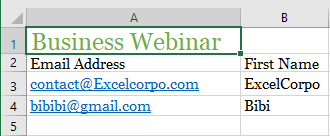
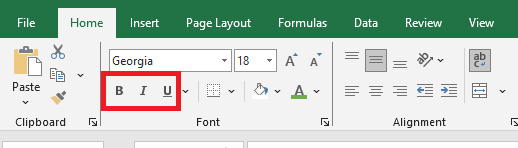
- Click the Bold (B), Italic (I), or Underline (U) button on the Home tab.
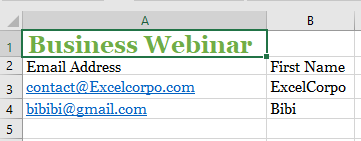
In our example, we’ll bold the selected cells.
- The selected effect will apply to the text.
You can also use keyboard shortcuts:
- Ctrl+B = Bold
- Ctrl+I = Italic
- Ctrl+U = Underline
Text Alignment
By default:
- Text is bottom-left aligned
- Numbers are bottom-right aligned
You can change alignment to improve readability.
Horizontal alignment:
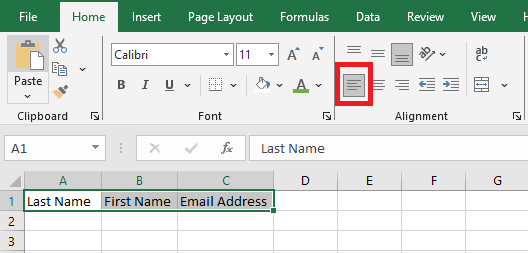
- Left Align: aligns content to the cell’s left edge
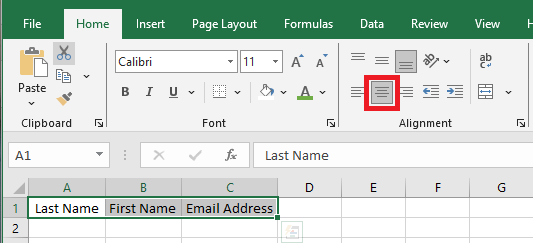
- Center Align: centers content horizontally
- Right Align: aligns content to the right
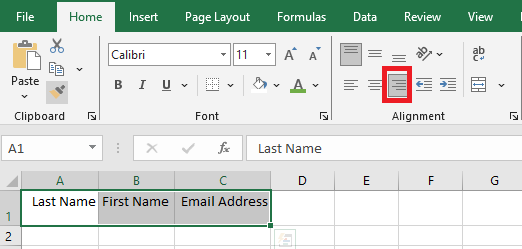
Vertical alignment:- Top Align: aligns content to the top
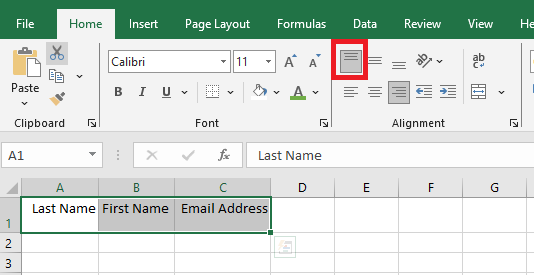
- Middle Align: centers content vertically
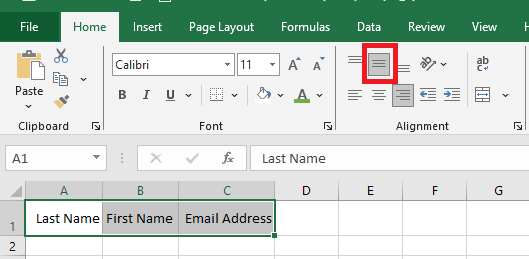
- Bottom Align: aligns content to the bottom
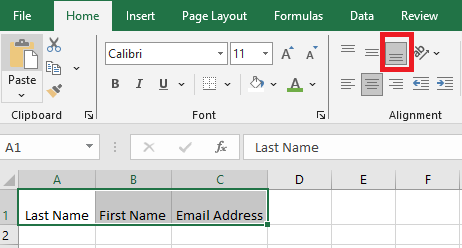
To apply horizontal alignment:
- Select the cell(s).
- On the Home tab, click one of the three horizontal alignment buttons.
In our example, we select Center Align.
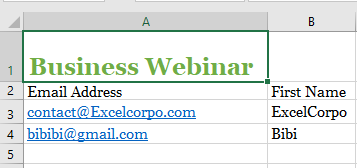
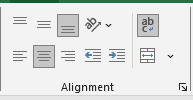
- The text realigns accordingly.
To apply vertical alignment:
- Select the cell(s).
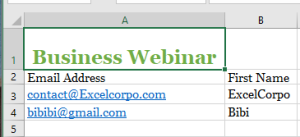
- Choose one of the three vertical alignment options.
In our example, we choose Middle Align.
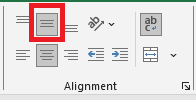
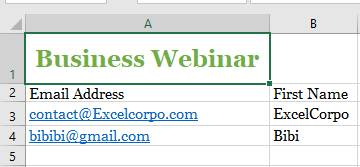
- The text is realigned.
You can combine both vertical and horizontal alignment.
Cell Borders and Fill Colors
Cell borders and fill colors help define clear boundaries in your spreadsheet. Below, we’ll apply both to header cells.
To add a border:
- Select the cell(s).
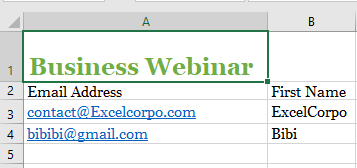
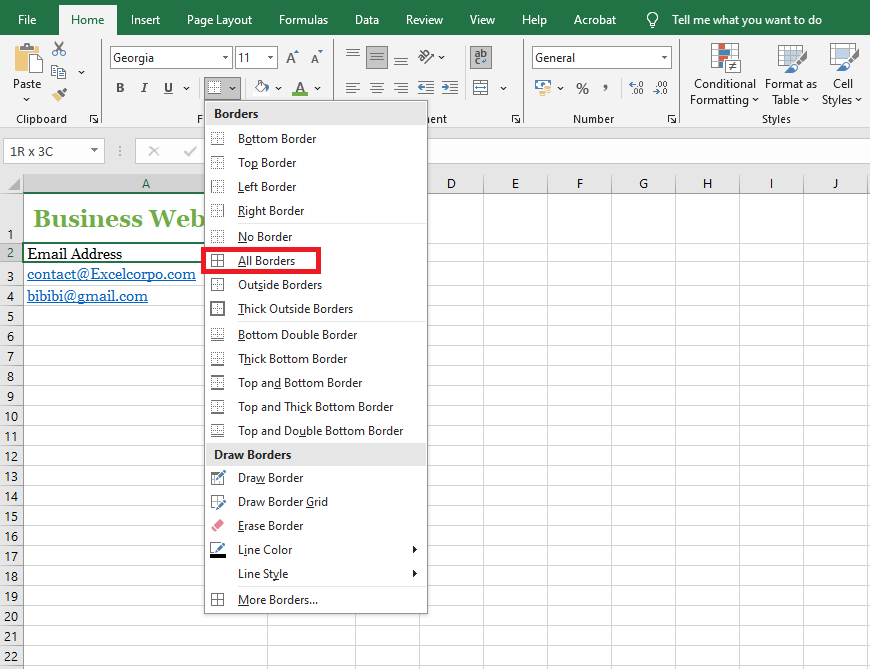
- Click the Borders drop-down arrow on the Home tab.
The border menu appears. - Select a border style (e.g., All Borders).
- The selected border appears.
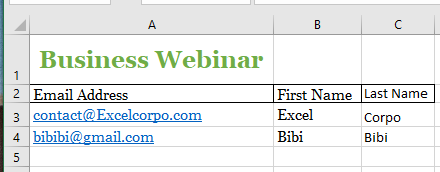
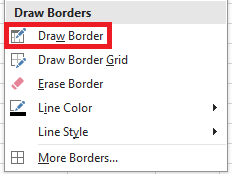
To customize line style and color, use the Draw Borders tools at the bottom of the menu.
To add a fill color:
- Select the cell(s).
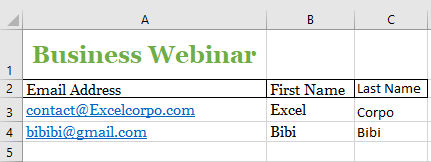
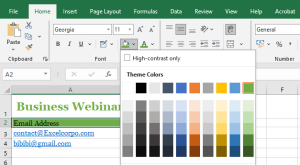
- Click the Fill Color drop-down on the Home tab.
- Choose a color. Live preview is available.
In our example, we select Light Green.
The fill color is applied.