Votre panier est actuellement vide !
Catégorie : Practical Excel
Applying Number Formats in Excel
When you enter a number in a cell, you can display that number in a variety of different formats. Excel has quite a few built-in number formats, but sometimes none of them are exactly what you need. This chapter explains how to create custom number formats and provides many examples that you can use as-is or adapt to your needs.
About Number Format
By default, all cells use the General number format (what you type is what you get). But if the cell is not wide enough to display the entire number, the General format rounds decimal numbers and uses scientific notation for large numbers. In many cases, the General number format works just fine, but most people prefer to specify a different number format for better consistency.
Excel automatically applies a built-in number format to a cell based on the following criteria:
■ If a number contains a slash (/), it may be converted to a date or fraction format.
■ If a number contains a dash (-), it may be converted to a date format.
■ If a number contains a colon (:) or is followed by a space and the letter A or P (uppercase or lowercase), it may be converted to a time format.
■ If a number contains the letter E (uppercase or lowercase), it may be converted to scientific notation (also called exponential format). If the number doesn’t fit the column width, it may also be converted to this format.Formatting Numbers Using the Ribbon
The Number group on the Home tab of the Ribbon contains several commands for quickly applying common number formats. The Number Format drop-down menu gives you quick access to 11 common number formats.
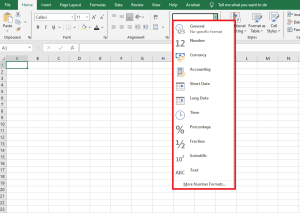
Additionally, the Number group contains a few buttons. When you click one of these buttons, the selected cells adopt the specified number format. The table below summarizes the formats these buttons apply.
Shortcut Applied Formatting Ctrl+Shift+~ General format (unformatted values) Ctrl+Shift+$ Currency format with two decimal places (negative numbers appear in parentheses) Ctrl+Shift+% Percentage format with no decimals Ctrl+Shift+^ Scientific notation format with two decimal places Ctrl+Shift+# Date format with day, month, and year Ctrl+Shift+@ Time format with hour, minute, and AM/PM Ctrl+Shift+! Two decimals, thousand separator, dash for negative values Using the Format Cells Dialog Box to Format Numbers
For maximum control over number formatting, use the Number tab in the Format Cells dialog box. You can access this dialog box in several ways:
■ Click the dialog box launcher in the lower-right corner of the Number group on the Home tab.
■ Choose Home / Number / Number Format / More Number Formats.
■ Press Ctrl+1.
The Number tab of the Format Cells dialog box contains 12 number format categories to choose from. When you select a category in the list box, the right side of the dialog updates to display the appropriate options.
Here are the number format categories, along with some general comments:
■ General: Default format; displays numbers as integers, decimals, or scientific notation if the value is too wide for the cell.
■ Number: Specify decimal places, whether to use the system’s thousands separator (e.g., a comma), and how to display negative numbers.
■ Currency: Specify decimal places, choose a currency symbol, and display negative numbers. This format always uses the system’s thousands separator.
■ Accounting: Similar to Currency but aligns currency symbols vertically, regardless of the number of digits.
■ Date: Choose from a variety of date formats and select regional settings for date formatting.
■ Time: Choose from a variety of time formats and select regional settings for time formatting.
■ Percentage: Choose the number of decimals; always displays a percent sign.
■ Fraction: Choose from nine fraction formats.
■ Scientific: Displays numbers in exponential notation (with an E): e.g., 2.00E+05 = 200,000. You can choose the number of decimal places to show before the E.
■ Text: When applied, Excel treats the value as text (even if it looks like a number). Useful for things like numeric part numbers or credit card numbers.
■ Special: Contains additional formats. The list varies based on the selected locale. For U.S. English, formatting options include ZIP Code, ZIP+4, phone number, and Social Security number.
■ Custom: Define number formats not included in the other categories.NOTE
If a cell displays a series of hash marks (such as #########) after you apply a number format, this usually means the column is not wide enough to display the value using the selected format. Widen the column (by dragging the right border of the column header) or change the number format. A series of hash marks can also mean the cell contains an invalid date or time.
Creating a Custom Number Format
When you create a custom number format, it can be used to format any cell in the workbook.
You can create about 200 custom number formats per workbook. The following figure shows the Custom category in the Number tab of the Format Cells dialog box.
You can create number formats not included in the other categories. Excel gives you great flexibility in defining custom number formats.
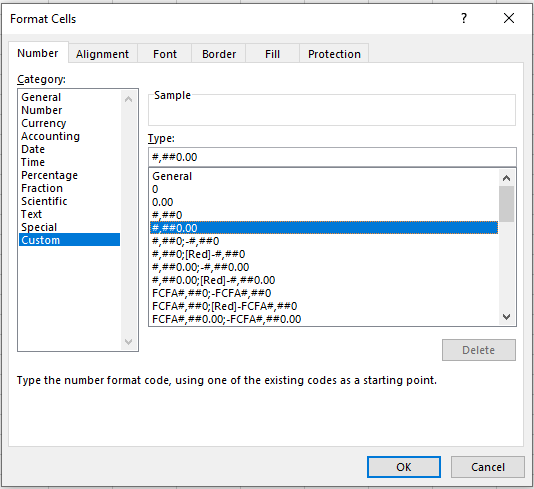
Custom number formats are stored in the workbook in which they are defined. To make a custom format available in another workbook, simply copy a cell using the custom format to the other workbook.
Parts of a Numeric Format String
Number format codes are strings of symbols that define how Excel displays the data stored in cells. We’ll explain how to write formats, but first we need to clarify how Excel interprets these symbols.
Each numeric format code can contain up to four sections, separated by semicolons (;), allowing you to specify different format codes for positive numbers, negative numbers, zero values, and text. The codes follow this order:
Positive Format ; Negative Format ; Zero Format ; Text Format
If you don’t use all four sections in a format string, Excel interprets it as follows:
■ If you use only one section: it applies to all numeric values.
■ If you use two sections: the first applies to positive values and zeros, the second to negative values.
■ If you use three sections: the first applies to positives, the second to negatives, and the third to zeros.
■ If you use all four sections: the last applies to text stored in the cell.You can choose to skip formatting for any section by entering
General. For example, if you only want to format positive numbers and text, you could use a format string like:Section1; General; General; Section4
Note that
Generalremoves any special formatting from the data entered—so be careful. Negative numbers usingGeneralwill not display a minus sign.Custom Number Format Codes
The table below lists formatting codes for custom formats, along with brief descriptions.
Code Description General Displays the number in General format. # Placeholder for optional digits. If not needed, the digit is not shown. Used for more readable numbers. 0 Placeholder for mandatory digits. Even if a digit is not significant, it will display. Example: 0.00always shows two decimals., (comma) Indicates the location of the decimal or thousands separator. % Percentage format. (space) Thousand separator placeholder. Helps define behavior for thousands/millions. E-, E+, e-, e+ Scientific notation. \ Displays the character following the backslash as-is. ? Placeholder that aligns decimals by spacing insignificant zeros. Useful in fractions. * Repetition modifier. Used with a character to fill the cell with that character. _ (underscore) Space modifier. Inserts a space equal to the width of the specified character. Useful for aligning parentheses. « text » Displays the text within double quotes. @ Text placeholder. [Color] Displays characters in a specified color. [Color n] Displays the corresponding color from the palette (n = 0 to 56). [Condition] Sets your own condition for each section of a number format.
Example 1: Changing Font Color
One of the simplest things you can do with number format codes is change the font color. The syntax is:
[ColorName]For example, you can assign a different color for each section of the format string:
[Red]General;[Blue]General;[Magenta]General;[Cyan]General
This results in:

Note that the negative number in line 3 no longer displays a minus sign. Also, color formatting does not affect decimal places or text alignment.
Example 2: Adding Text with Format Codes
You can add text to numbers using format codes in two ways:
Single characters: To prefix a symbol like
@, type a backslash (\) followed by the symbol.Example:
\@General
Results in output: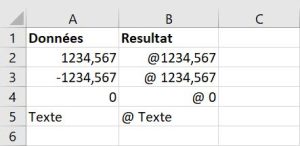
Full text strings: To append text like « units », enclose the string in double quotes:
Example:
General" units"
Results in output:
If extended to all four sections like this:
General" units"; General" units"; General" units"; General" units"Then the output looks like:
Example 3: Zero (0)
Here is an example using the zero placeholder. The following format:
0.00Ensures that numbers always display with two decimal places, even if the decimal part is zero.
Merci pour la suite du texte. Je vais maintenant te fournir la traduction complète en anglais de cette nouvelle section, en conservant le style technique du guide Excel.
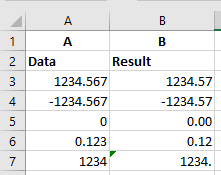
Zeros in a number format code represent mandatory digits.
Example 4: Question Mark (?)
Here is an example of the question mark code in action. The following format code is used:
0,??
A question mark is a placeholder for a digit. It adds space for insignificant zeros on either side of the decimal point so that decimals align properly when using a fixed-width font.
Example 5: Hash Symbol (#)
Here is an example of the hash symbol code in action. The following format code is used:
#, ##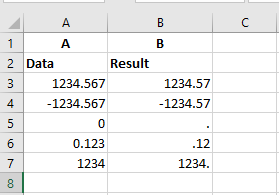
The hash symbol represents an optional digit. If the digit is not needed, it will not be displayed in the formatted number.
Example 6: Space
Here is an example of the space code in action. The following format is used:
$??? ???,00
The space character in number format codes acts as a placeholder for thousands separators.
Example 7: Asterisk (*)
Here is an example of the asterisk code in action. The following format is used:
*=0.##
The asterisk is a repeating character modifier. It repeats the character to fill the remaining width of the cell.
Example 8: Underscore (_)
Here is an example using the underscore code. Format used:
_(#,##_);(#,##)
The underscore creates a blank space equal to the width of the character following it. It is useful for aligning positive and negative numbers, especially when negative values use parentheses.
Example 9: Fractions ( / )
Excel supports several built-in fraction formats (found under the « Fraction » category in the Format Cells dialog box). For example, to display 0.125 as an eighth, select As eighths (4/8) from the Type list.
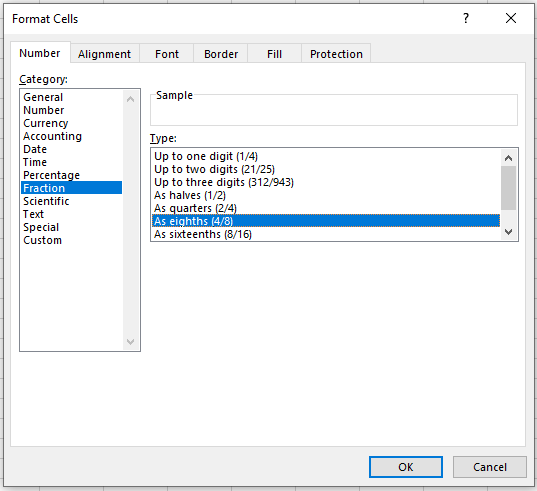
Fractions are special because they involve unit conversion. For example:
- 0.23 is shown as 23/100,
- 0.25 can be simplified to 1/4,
- 1.25 can be shown as 1 1/4 or 5/4.
Excel rounds to the closest fraction based on the format code and follows the same rules as the hash and question mark symbols.
Mixed Fractions (Integer with Reduced Fraction)
A typical format separates the integer part from the fractional part. Use question marks for better alignment:
#???/???
This preserves the alignment of the fraction bar regardless of digit count. For example:
#??/??
Displays 0.23 as 3/13 instead of 23/100.Improper Fractions
If you prefer to merge the whole number into the fraction:
###/###This creates an improper fraction format with up to three digits.
Fixed-Base Fractions
To force Excel to round to a fixed denominator, include it in the format code:
###/15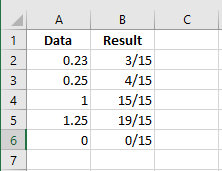
The value is rounded to the nearest 15th.
Example 10: Percentages (%)
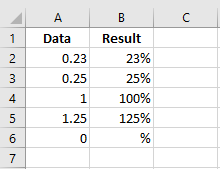
Like fractions, percentages are controlled by format codes. A simple format might be:
#%
You can also specify fractional percentages:
##/#%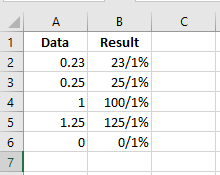
This shows percentages as simplified fractions.
You can also include decimals:
#,0%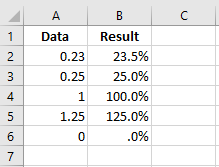
Example 11: Scientific Notation (E)
Large or tiny numbers are difficult to read with standard notation. Scientific notation shifts the decimal point for clarity:
- 0.0000001 becomes 1 × 10⁻⁷
- Excel shows this as
1E-07
The capital letter E signals scientific notation.
A format like
#E+#shows the base and exponent, while:0.00E+00
forces both parts to show two digits.

This provides consistent display with predictable string length.
Scaling Values
Custom formats can also scale numbers. For instance, you might want to display numbers in thousands or millions, while preserving the actual value for calculations.
Displaying Thousands
Format:
# ###(space at the end)This removes the last three digits and rounds to the nearest integer.
Format:
# ###,00
Rounds to two decimals.Value Format Display 123456 # ###123 1234565 # ###1,235 -323434 # ###–323 123123.123 # ###123 499 # ###1 123456 # ###,00123.46 499 # ###,000.50
Displaying Hundreds
Format:
0","00
Divides by 100 and displays two decimals.Value Format Display 546 0","005.46 500 0","005.00 -500 0","00–5.00
Displaying Millions
Format:
# ###(two spaces)
or# ###,00
or# ### "M"
or complex format:
# ###,0 "M"_);(# ###,0 "M)";0,0"M"_Value Format Display 123456789 # ###123 1.23457E+11 # ###123,457 5000000 # ###,005.00 -5000000 # ###,00–5.00 0 # ###,000.00 1000000 # ### "M"1M 0 # ###,0 "M"_);(# ###,0 "M)";0,0"M"_0.0M –5000000 same complex format (5.0M)
Custom Date and Time Format Codes
Code Description m Month (1–12, no leading zero) mm Month (01–12) mmm Abbreviated month (Jan, Feb) mmmm Full month name d Day (1–31, no leading zero) dd Day (01–31) ddd Abbreviated weekday (Mon, Tue) dddd Full weekday (Monday, Tuesday) yy Year (2 digits) yyyy Year (4 digits) h Hour (0–23, no leading zero) hh Hour (00–23) s Second (0–59) ss Second (00–59) [ ] Display times above 24h or minutes >60 AM/PM 12-hour clock \ Escapes next character . Decimal point « text » Displays quoted text Dates entered are formatted based on the system’s short date. This can be adjusted in Windows settings.
Value Format Display 42552 mmmm d, yyyy (dddd)July 1, 2016 (Friday) 42552 "Today is" dddd!Today is Friday! 42552 dddd, mm/dd/yyyyFriday, 07/01/2016 0.345 h:mm "hours"8:16 hours 0.78 h:mm a/p".m."6:43 p.m. Conditional Format Specification
The following format displays different text depending on the cell’s value:
[<10]"Too Low";[>10]"Too High";"Just Right"- If value < 10 → displays “Too Low”
- If value > 10 → displays “Too High”
- If value = 10 → displays “Just Right”
Note: Only one or two conditions are allowed, plus a default fallback.
In most cases, Excel’s built-in Conditional Formatting feature is a better solution for value-based styling.
Wrapping Text Automatically in Cells in Excel
If you have text that is too wide to fit within the column but you don’t want it to spill over into adjacent cells, you can use the Wrap Text option to fit the text within the cell.
The Wrap Text option displays the content across multiple lines within the same cell, if necessary. Use this option to display long headings without having to widen columns or reduce text size.
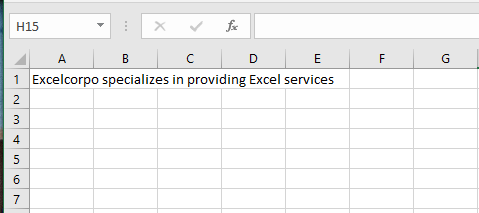
- For example, look at the long string of text in cell A1 below. Cell B1 is empty.
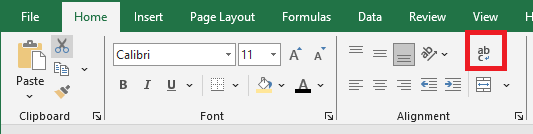
- On the Home tab, in the Alignment group, click Wrap Text.
Result:
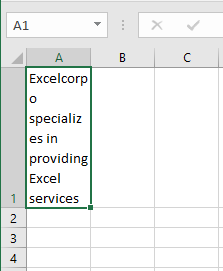
- Click the right border of column header A and drag the separator to increase the column width.
- Double-click the bottom border of row header 1 to automatically adjust the row height.
To insert a manual line break, follow these steps:
- For example, double-click in cell A1.
- Place your cursor at the position where you want the line to break.

- Press Alt + Enter.
Formatting Cells Using the Format Painter Tool in Excel
When it comes to copying formatting in Excel, Format Painter is one of the most useful — yet often underused — features. This tool copies the formatting from one cell and applies it to other cells. In just a few clicks, it can help you reproduce most, if not all, formatting settings, including:
- Number formats (General, Percentage, Currency, etc.)
- Font, size, and color
- Font attributes such as bold, italic, and underline
- Fill color (background color of the cell)
- Text alignment, direction, and orientation
- Cell borders
To use the Format Painter tool, follow these steps:
- Select the text or graphic that has the formatting you want to copy.
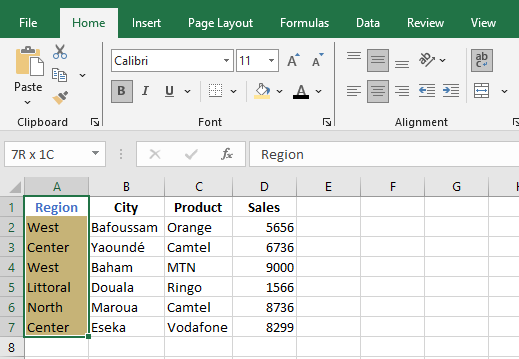
- On the Home tab, click Format Painter.
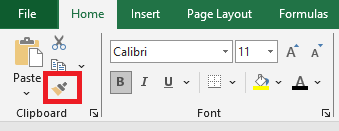
The pointer changes to a paintbrush icon.- Use the brush to « paint » over a selection of text or graphics to apply the formatting. This works only once.
If you want to apply the formatting to multiple selections, first double-click the Format Painter button.
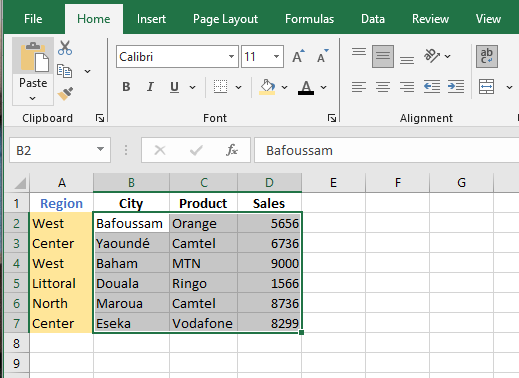
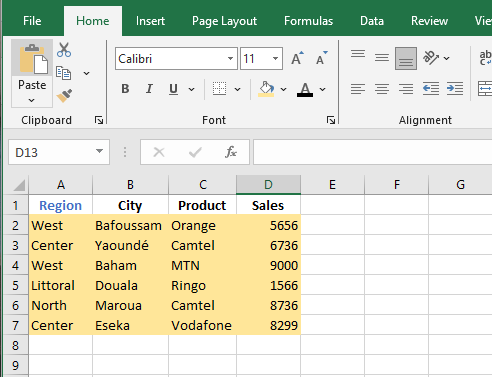
- To stop formatting, press ESC.
Changing Cell Alignment and Orientation in Excel
The content of a cell can be aligned both horizontally and vertically. By default, Excel aligns numbers to the right and text to the left. All cells use bottom alignment by default.
The most commonly used alignment commands are located in the Alignment group on the Home tab of the ribbon.
To change text alignment:
- Select the relevant cells and activate the Home tab. Then go to the Alignment group.

- To change the vertical alignment of the cell content relative to the row height, click one of the following tools in the Alignment group:
- Top Align
- Middle Align
- Bottom Align
- To change the horizontal alignment of the cell content relative to the column width, click one of the following tools:
- Align Left
- Center
- Align Right
If you want to change how the data appears in a cell, you can rotate the font angle or modify the text alignment. To do this:
- Select a cell, row, column, or range.
- Go to Home > Orientation, then choose an option.
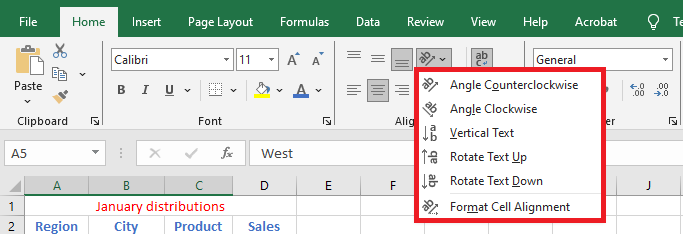
You can rotate your text up, down, left, or right, or align it vertically:
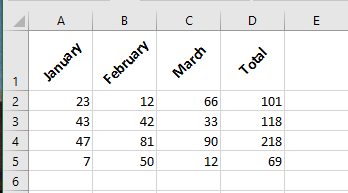
To rotate text to a specific angle:
- Select a cell, row, column, or range.
- Go to Home > Orientation > Format Cell Alignment.
- Under Orientation on the right-hand side, in the Degrees box, use the up or down arrow to set the exact number of degrees to rotate the cell’s text.
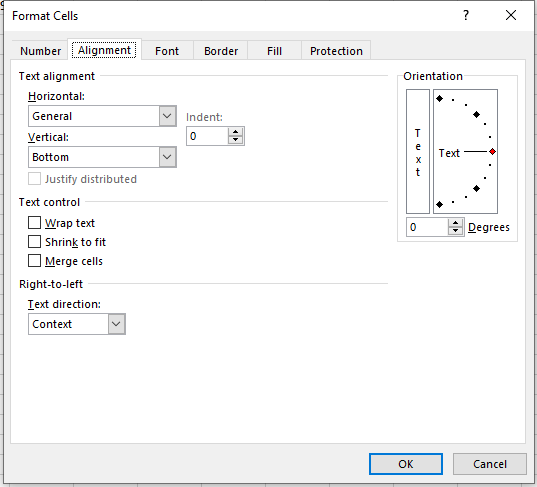
- Positive numbers rotate the text upward.
- Negative numbers rotate the text downward.
Horizontal Alignment Options
Horizontal alignment options control how the content is distributed across the width of the cell (or cells). They are available in the Format Cells dialog box:
- General: Aligns numbers to the right, text to the left, and centers logical and error values. This is the default setting.
- Left (Indent): Aligns content to the left side of the cell. If the text is wider than the cell, it overflows into the cell on the right. If the right cell isn’t empty, the text is cut off. Also available on the ribbon.
- Center: Centers the content within the cell. If the text is too wide, it overflows into adjacent empty cells; otherwise, it is truncated. Also available on the ribbon.
- Right (Indent): Aligns content to the right side. If the text is too wide, it overflows to the left if the adjacent cell is empty. Also available on the ribbon.
- Fill: Repeats the content to fill the width of the cell. If adjacent cells to the right are also set to Fill, they will also be filled.
- Justify: Justifies the text left and right across the cell. Applies only if the cell is set to wrap text and spans multiple lines.
- Center Across Selection: Centers the text across selected columns. Useful for centering a title across multiple columns.
- Distributed: Distributes the text evenly across the selected column.
Vertical Alignment Options
Vertical alignment options are not used as often as horizontal ones. They are mostly useful when row height has been increased significantly.
Here are the vertical alignment options available in the Format Cells dialog box:
NOTE:
If you choose Left, Right, or Distributed, you can also adjust the Indent setting, which adds horizontal spacing between the cell border and the text.
- Top: Aligns cell content at the top of the cell. Also available on the ribbon.
- Center: Vertically centers the content in the cell. Also available on the ribbon.
- Bottom: Aligns content to the bottom of the cell. Also available on the ribbon.
- Justify: Justifies the text vertically within the cell; this applies only when the cell uses wrap text and multiple lines. This setting can increase line spacing.
- Distributed: Distributes the text evenly vertically in the cell.
Merging Cells in Excel
Excel allows you to merge cells, columns, and rows to combine numbers, text, or other data to effectively organize your information. Merging cells helps structure your data, making it easier to read and understand.
To merge a cell in Excel, use the drop-down list located in the Alignment group on the Home tab, as shown in the figure below.
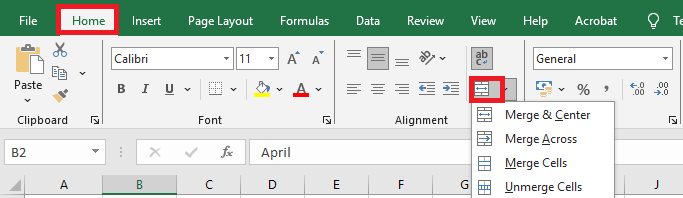
The merge drop-down list contains various merge options that allow you to combine multiple cells into a single one.
The different options in the Merge & Center drop-down list are explained as follows:
- Merge & Center: This merges the selected cells and centers the data string in the new merged cell. During the merge, only the content of the leftmost cell is preserved; the contents of the other merged cells are deleted.
- Merge Across: This merges the selected cells in each row individually (across columns). It keeps only the content of the leftmost cell in each row.
- Merge Cells: This merges all the selected cells into a single cell. The selected range can be horizontal, vertical, or both. Only the content of the upper-left cell is retained.
- Unmerge Cells: This reverses the merge operation, splitting the merged cells back into individual cells.
NOTE:
The difference between Merge & Center and Merge Cells lies in the alignment: the former centers the content, the latter does not.
One of the main reasons to merge multiple cells is to create a title row in your worksheet.
To merge and center multiple cells:
- Select all the cells you want to merge and center so they span the width of your data table.
- Then, go to the Home tab, click on the Merge & Center drop-down, and select the first option: Merge & Center.
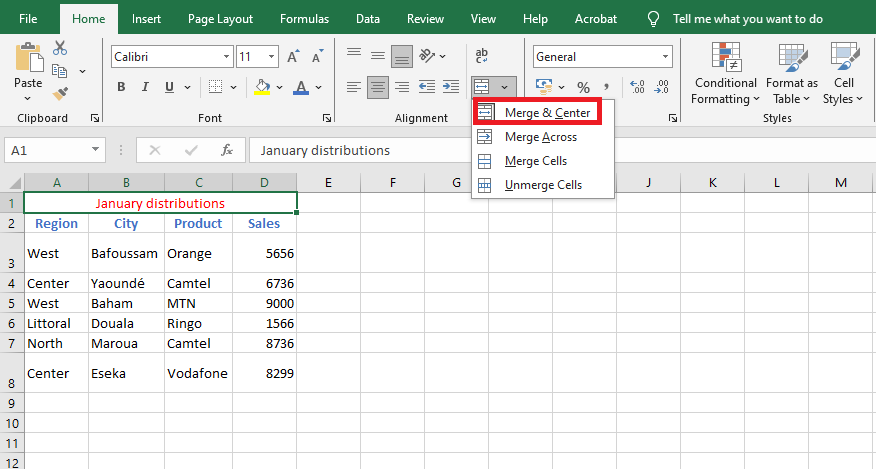
As shown, all your cells are merged, and the heading “January Distributions” is centered at the top of the table. You can also merge cells vertically.
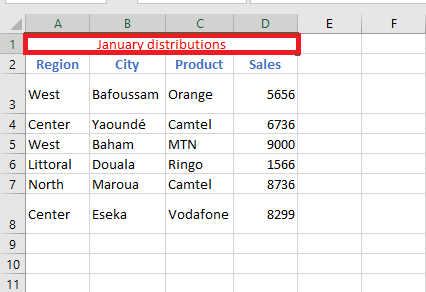
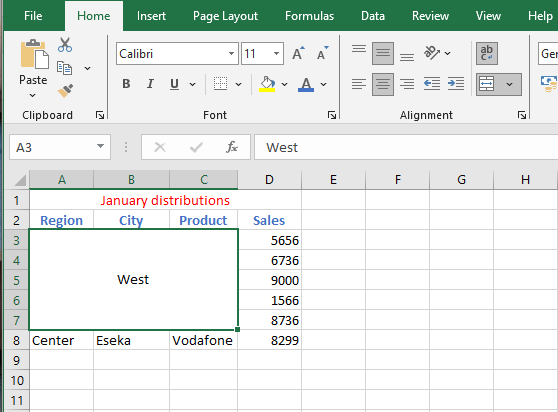
If you try to merge multiple rows, multiple columns, or both rows and columns, only the content from the top-left cell of the selection will be kept; all others will be discarded.
To merge several rows and columns:
- Select the cells, open the Merge & Center drop-down menu, then click on the Merge & Center option.
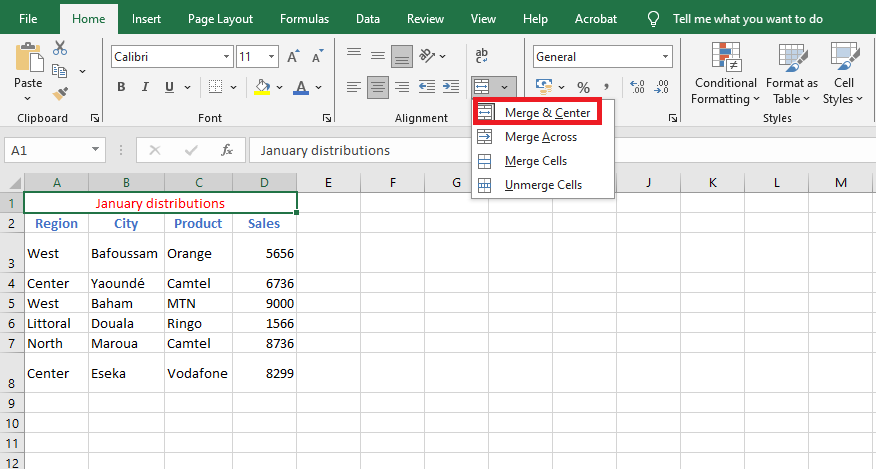
All the selected cells will then be merged into a single cell, and the value from the top-left cell will be centered in the resulting merged cell.
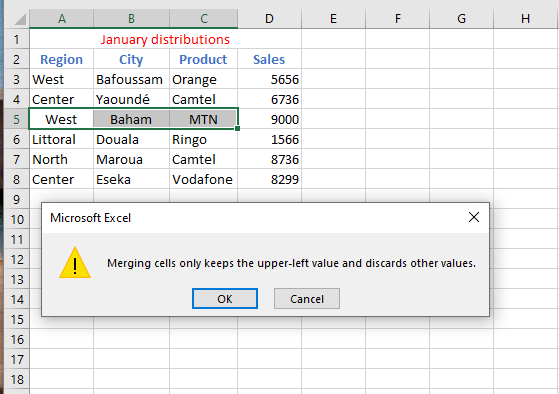
If you select multiple columns and choose Merge Cells from the Merge & Center menu, all values except those in the leftmost cells will be lost. Excel will display a warning before proceeding.
As you can see, all the columns are now combined into a single cell, without centering the text.
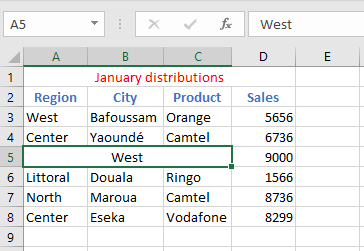
The second option in the drop-down list, Merge Across, works similarly to the third option, Merge Cells, but it merges the selected cells in each row separately. This only works on horizontal (row-wise) cell selections.
Inserting and Deleting Cells in Excel
Inserting Cells
When working in an Excel worksheet, you may need to insert or delete cells without inserting or deleting entire rows or columns.
To insert cells:
- Select the location where the new cells will be inserted. This can be a single cell or a range of cells.
- Right-click and choose Insert.
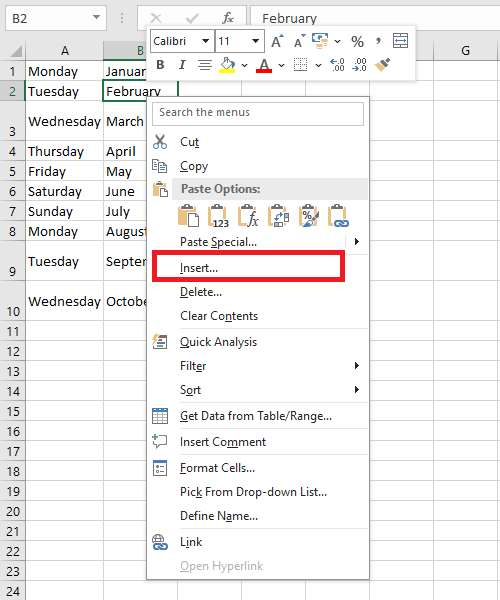
- The Insert dialog box opens. Select either:
- Shift cells right to move the cells in the same row to the right.
- Shift cells down to move the selected cells and all cells below in the column downward.
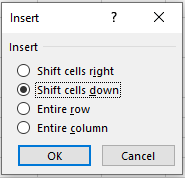
- Choose an option, then click OK.
- Your result appears in the worksheet.
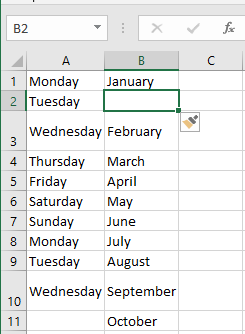
Note: You can also use the Insert dialog box to insert or delete entire rows and columns.
Deleting Cells
To delete a cell from the worksheet:
- Right-click and choose Delete.
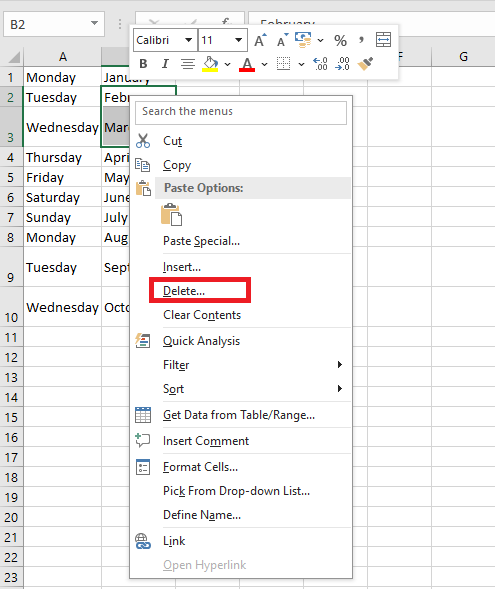
- The Delete dialog box opens. Select either:
- Shift cells left to move the cells in the same row to the left.
- Shift cells up to move the selected cells and all cells below upward.
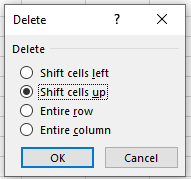
- Choose an option, then click OK.
- Your result is displayed in your worksheet.
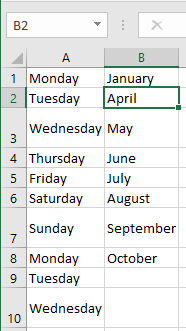
NOTE
You can also Insert or Delete a cell from the Cells group items on the Home tab.Deleting the Contents of a Cell Range
Deleting a range actually removes the cells from the worksheet.
NOTE
You can also insert or delete a cell using the Cells group on the Home tab.
However, if you want the cells to remain but want to remove their contents or formatting, you can use Excel’s Clear command, as described in the following steps:
- Select the range you want to clear.
- Select Home > Clear. Excel displays a submenu with clear options.
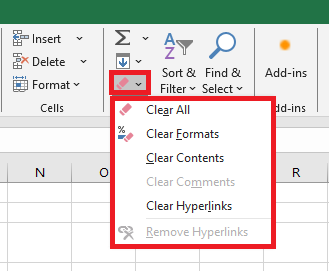
- Select Clear All, Clear Formats, Clear Contents, Clear Comments, or Clear Hyperlinks, as appropriate.
To clear values and formulas from a range using the fill handle, you can use either of the following two methods:
- If you want to clear only the values and formulas from a range, select the range, then click and drag the fill handle across the range and over the cells you want to clear. Excel shades the cells as you select them. When you release the mouse button, Excel clears the values and formulas from the cells.
- If you want to clear everything in the range — such as values, formulas, formats, and comments — select the range, then hold down the Ctrl key. Next, click and drag the fill handle across the range and over each cell you want to clear. Excel clears the cells when you release the mouse button.
Filling Cells Using AutoFill in Excel
The fill handle is the small black square in the lower-right corner of the active cell or range. This small, versatile tool can do many useful things, including creating a series of text or numeric values and filling, clearing, inserting, and deleting ranges. The following sections show you how to use the fill handle to perform each of these tasks.
Using AutoFill to Create Text and Number Series
Worksheets often use text series (such as January, February, March, or Sunday, Monday, Tuesday) and numeric series (such as 1, 3, 5 or 2009, 2010, 2011). Instead of entering these series manually, you can use the fill handle to create them automatically. This handy feature is called AutoFill. The following steps show how it works:
- For a text series, select the first cell of the range you want to use and enter the initial value. For a numeric series, enter the first two values, then select both cells.
- Position your mouse pointer over the fill handle. The pointer changes to a plus sign (+).
- Click and drag the mouse pointer until the gray border surrounds the range you want to fill. If you’re unsure where to stop, watch the tooltip near the mouse pointer showing the value of the last selected cell.
- Release the mouse button. Excel fills the range with the series.
When you release the mouse button after using AutoFill, Excel not only fills the series but also displays the Auto Fill Options smart tag. To view the options, move your cursor over the smart tag and click the down arrow to open the list. The options you see depend on the type of series you created. However, you will typically see at least the following four:
- Copy Cells: Click this option to fill the range by copying the original cell(s).
- Fill Series: Click this option for the default series fill.
- Fill Formatting Only: Click this to apply only the formatting from the original cell to the selected range.
- Fill Without Formatting: Click this to fill the range with series data but without copying the formatting.
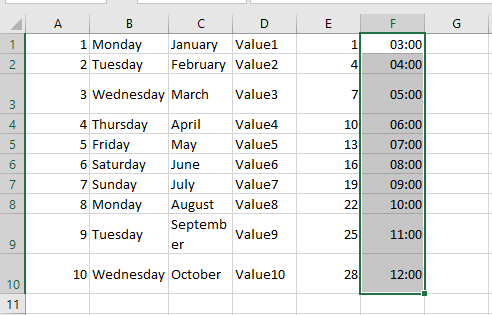
Keep the following guidelines in mind when using the fill handle to create series:
- Dragging the fill handle down or to the right increments values. Dragging it up or to the left decrements values.
- The fill handle recognizes standard abbreviations like Jan (January) and Sun (Sunday).
- To change the series interval for a text series, enter the first two values, then select both before dragging. For example, entering 1st and 3rd produces the series 1st, 3rd, 5th, and so on.
Creating a Custom AutoFill List
As you saw in the previous sections, Excel recognizes some values such as January, Sunday, or Qtr1 as part of larger predefined lists. When you drag AutoFill from a cell containing one of these values, Excel fills the cells with the appropriate series. However, you are not limited to Excel’s built-in lists. You are free to define your own AutoFill lists as described in the following steps:
- Select File > Options to open the Excel Options dialog box.
- Click Advanced, then click Edit Custom Lists to open the Custom Lists dialog box.
- In the Custom lists box, click New List. A cursor appears in the List entries box.
- Type an item for your list in the List entries box and press Enter. Repeat this step for each item. (Make sure to enter the items in the order you want them to appear in the series.)
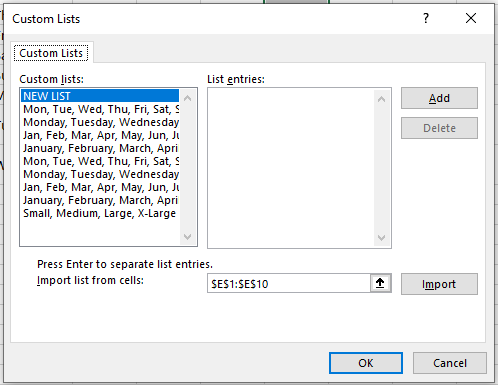
If you need to delete a custom list, select it in the Custom Lists box and click Delete.
If you already have the list in a worksheet range, don’t bother entering each item manually. Instead, open the Import list from cells dialog and enter a reference to the range. You can type the reference or select the cells directly in the worksheet. Click the Import button to add the list to the Custom Lists box.
Using the Series Command
Instead of using the fill handle to create a series, you can use Excel’s Series command to gain a bit more control over the entire process. Follow these steps:
- Select the first cell you want to use for the series and enter the starting value. If you want to create a pattern-based series (like 2, 4, 6, etc.), fill in enough cells to define the pattern.
- Select the full range you want to fill.
- On the Home tab, choose Fill > Series in the Editing group. Excel displays the Series dialog box.
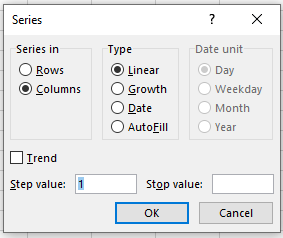
- Click Rows to create the series across rows from the active cell or click Columns to create the series down columns.
- Use the Type group to click your desired series type. You have the following options:
- Linear: This finds the next value in the series by adding the step value (see step 6) to the previous value.
- Growth: This finds the next value by multiplying the previous one by the step value.
- Date: This creates a date series based on the option you select in the Date unit group, such as Day, Weekday, Month, or Year.
- AutoFill: This works similarly to the fill handle. You can use it to extend a numeric pattern or a text series like Qtr1, Qtr2, Qtr3.
If you want to extend a trend, check the Trend box. You can only use this option with Linear or Growth series types.
- If you chose a Linear, Growth, or Date series type, enter a number in the Step value box. Excel uses this number to increment each value in the series.
- To set a limit on the series, enter the appropriate number in the Stop value box.
- Click OK. Excel fills the series and returns you to the worksheet.
Pasting Data Using Paste Special Options in Excel
Copy-pasting in Excel is easy. But did you know that in addition to pasting an entire cell, you can also paste only a specific attribute such as a value, a formula, formatting, or a comment? That’s where Paste Special comes in.
Excel Paste Special makes the paste operation more flexible by allowing you to choose whether to keep the formatting (from the source or the destination), or to strip all formatting and paste only values or formulas.
What is Paste Special?
In situations where a standard copy/paste is not appropriate, Excel’s Paste Special offers a wide range of options to paste only specific elements from the copied cells, or to perform a mathematical operation with the copied data.
For example, you can copy data containing formulas and paste only the calculated values into the same or different cells. You can also copy a column’s width and apply it to other columns in your dataset. Or, you can transpose the copied range, meaning you convert rows into columns and vice versa.
The following screenshot shows all available Paste Special options:
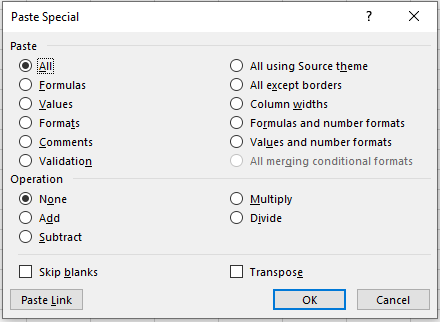
All Paste Special commands work within the same worksheet, across different sheets, and even between different workbooks.
Using Paste Special in Excel boils down to the following steps:
- Copy the source cell or range of cells (the fastest way is to select the cell(s) and press the Ctrl + C shortcut).
- Select the destination cell(s).
- Open the Paste Special dialog box using one of the methods described below (the fastest way is to use the Paste Special shortcut).
- Select the desired paste option and click OK, or press the Enter key.
Ways to Access Paste Special in Excel
As usual, Microsoft Excel offers multiple ways to use the same feature, and Paste Special is no exception. You can access its functions via the ribbon, the context menu, or keyboard shortcuts.
Paste Special Command on the Ribbon
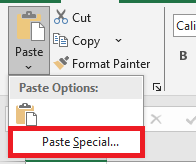
The most obvious way to open the Paste Special dialog box is to click on Paste → Paste Special from the Home tab, in the Clipboard group:
Paste Special in the Context Menu
You can also right-click on a cell where you want to paste the copied data, then click Paste Special from the context menu.
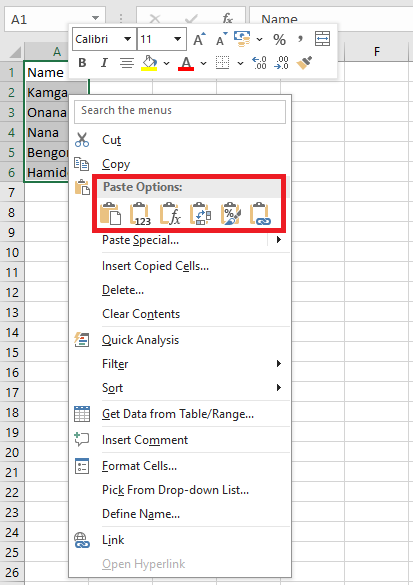
As you may have noticed, the six most popular paste options appear directly in the context menu under Paste Options: Paste All, Paste Values, Paste Formulas, Transpose, Paste Formatting, and Paste Link.
If you hover over the Paste Special… item in the context menu, a dropdown will appear offering 14 additional paste options:

Paste Special Keyboard Shortcut
The fastest way to paste a specific aspect of the copied data in Excel is to use one of the following shortcuts:
■ Paste Special shortcut for Excel 2019 – 2007:
Ctrl + Alt + V
■ Paste Special shortcut for all versions of Excel:Alt + E, thenSBoth of the shortcuts above open the Excel Paste Special dialog box, where you can either select an option using your mouse or press a corresponding shortcut key.
Cutting, Copying, or Pasting Data in Excel
When working with large amounts of data in Excel, you may need to copy and paste something you’ve already written or perhaps move an entire selection. Whether you’re working with data in a single worksheet, across multiple sheets, or even in different workbooks, there are simple shortcuts you can use to cut, copy, and paste.
Copying Data in Microsoft Excel
Copying data in Excel is useful when you need to duplicate functions, formulas, charts, and other data. The new location can be on the same worksheet, a different worksheet, or even a completely different workbook. As in all Microsoft programs, there are several ways to accomplish a task. In Excel, you can copy and move data in three ways:
■ Using a keyboard shortcut
■ Using the right-click context menu
■ Using menu options on the Home tab of the ribbonWhen the copy command is activated, the clipboard temporarily stores a duplicate of the selected data until you paste it into the destination cell(s). Other methods of copying data that do not involve using the clipboard include using the fill handle and dragging and dropping with the mouse.
Copying and Pasting Data in Excel Using Keyboard Shortcuts
The easiest way to cut, copy, and paste data is to use keyboard shortcuts. The keyboard key combinations for copying and pasting data are:
■ Ctrl + C: activates the copy command
■ Ctrl + V: activates the paste commandThe arrow keys on the keyboard can be used instead of the mouse pointer to select both the source and destination cells when copying and pasting data.
■ To select multiple adjacent cells using the arrow keys, press and hold the Shift key.
■ To select multiple non-adjacent cells using the arrow keys, use the Ctrl key.Copying Data in Excel Using the Context Menu
While the options in the context menu generally change depending on the selected object, the cut, copy, and paste commands are always available.
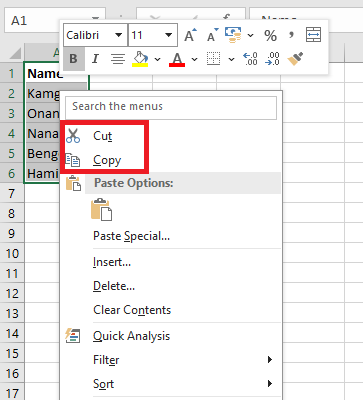
- Click one or more cells to highlight them.
- Right-click the selected cell(s) to open the context menu.
- Choose Copy from the available menu options.
- A moving black border will appear around the selected cell(s).
- Click the destination cell – when copying multiple data cells, click the cell in the top-left corner of the destination range.
- Right-click the selected destination cell(s) to open the context menu.
- Choose Paste from the available menu options.
- The duplicated data should now appear in both the original and destination locations.
Copying Data Using the Ribbon
The Copy and Paste commands are located in the Clipboard section on the left side of the Home tab on the ribbon.
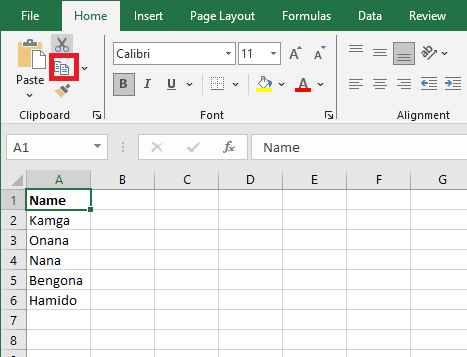
- Click one or more cells to highlight them.
- Click the Copy icon on the ribbon.
- A moving black border will appear around the selected cell(s).
- Click the destination cell – when copying multiple data cells, click the cell in the top-left corner of the destination range.
- Click the Paste icon on the ribbon.
- The duplicated data should now appear in both the original and destination locations.
Moving Data in Excel
There is no specific Move command in Excel. To move data, you must cut and paste it from one location to the new one. You can use cut/paste in Excel to move functions, formulas, charts, and other data. The new location can be on the same worksheet, another worksheet, or even in a completely different workbook.
As with copying, there are three ways to cut data in Excel:
■ Using a keyboard shortcut
■ Using the right-click context menu
■ Using the menu options on the Home tab of the ribbonWhen you cut data in Excel, the clipboard temporarily stores it, just as it does when you copy data.
Moving Data Using Keyboard Shortcuts
The keyboard combinations used to move data are:
■ Ctrl + X: activates the cut command
■ Ctrl + V: activates the paste commandThe arrow keys on the keyboard can be used instead of the mouse pointer to select both the source and destination cells during cut/paste operations.
■ To select multiple adjacent cells using the arrow keys, press and hold the Shift key.
■ To select multiple non-adjacent cells using the arrow keys, use the Ctrl key.Moving Data in Excel Using the Context Menu
When you right-click on a cell, the context menu always includes the cut, copy, and paste commands.
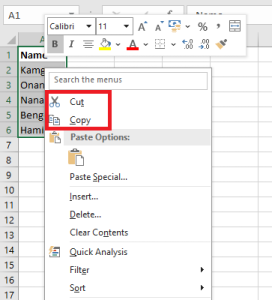
- Click one or more cells to highlight them.
- Right-click the selected cell(s) to open the context menu.
- Choose Cut from the available menu options.
- A moving border (sometimes called « marching ants ») will appear around the selected cell(s).
- Click the destination cell – when moving multiple data cells, click the cell in the top-left corner of the destination range.
- Right-click the selected destination cell(s) to open the context menu.
- Choose Paste from the available menu options.
- The selected data should now appear only in the destination location.
Moving Data in Excel Using the Ribbon
The Cut and Paste commands are located in the Clipboard section of the Home tab on the ribbon.
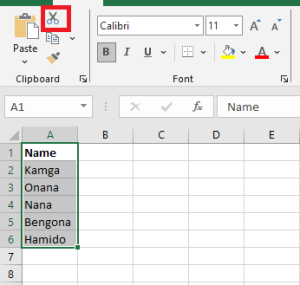
- Click one or more cells to highlight them.
- Click the Cut icon on the ribbon.
- A moving black border will appear around the selected cell(s).
- Click the destination cell – when moving multiple data cells, click the cell in the top-left corner of the destination range.
- Click the Paste icon on the ribbon.
- The selected data should now appear only in the destination location.
Inspect a Workbook for Compatibility Issues in Excel
You can check for compatibility between different versions of your Microsoft Office files to see whether the features in a file are supported in earlier versions of Office using the Compatibility Checker.
To check compatibility with an earlier version of Office:
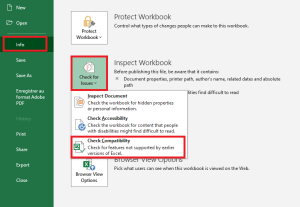
- Click the File tab, then select Info.
- Click Check for Issues, then Check Compatibility.
Selecting Check Compatibility when saving documents in the Compatibility Checker window prompts the Office application to automatically verify compatibility issues when saving your file in an earlier version format.
Important:
■ Before saving an Excel 2007 or later workbook in an earlier file format, you must fix any issues that could result in significant loss of functionality in order to prevent permanent data loss or incorrect behavior. Excel’s Compatibility Checker can help identify potential problems.
■ Issues that cause minor fidelity loss may or may not be addressed before proceeding with the file save. These do not result in data or feature loss, but the file may look or behave differently when opened in an earlier version of Microsoft Excel.The Compatibility Checker automatically launches when you attempt to save a file in the Excel 97-2003
.xlsformat. If potential issues do not concern you, you can disable compatibility checking.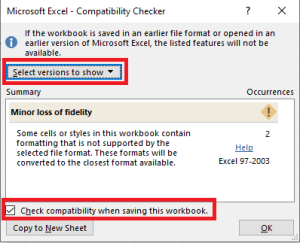
If you have upgraded to a new version of Excel and realize you will be sharing workbooks with people who haven’t yet upgraded, running the Compatibility Checker helps you identify features or content that may not be supported in older versions, allowing you to address these issues before sharing your workbook. Save the file in
.xlsformat and review any issues detected by the Compatibility Checker.Proceed as follows:
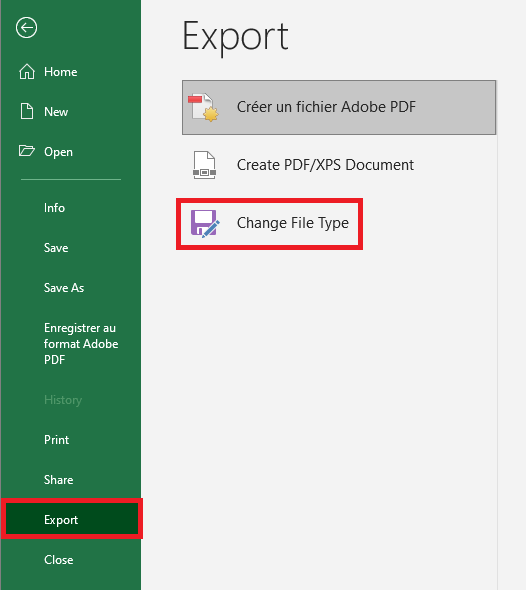
- Click File > Export > Change File Type.
- Under Workbook File Types, double-click Excel 97-2003 Workbook (*.xls).
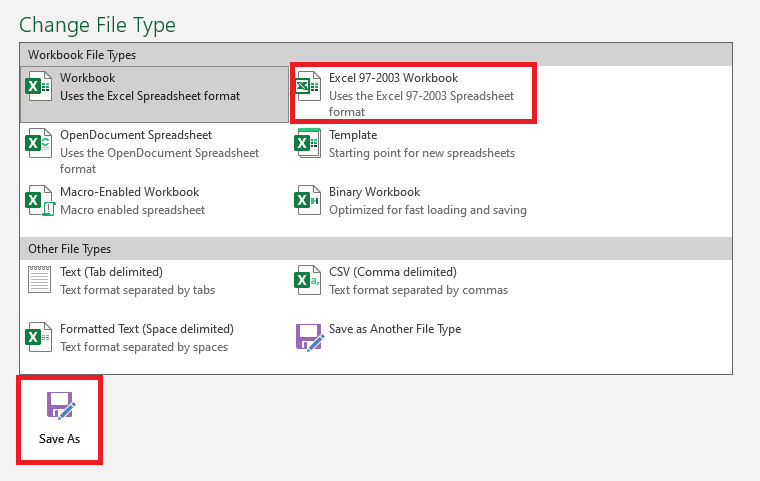
- In the pop-up Save As window, choose a folder location for the workbook.
- In the File Name box, type a new file name (or use the existing one).
- Click Save.
- If the Compatibility Checker appears, review the compatibility issues that were found.
Figure 1.5.8-c: Accessibility Issues
The Find link lets you jump to the relevant location in your worksheet, and the Help link provides more information on the issue and possible solutions.
Notes:
■ In your newer version of Excel, any file opened in.xlsformat opens in Compatibility Mode. Continue working in this mode if you intend to send the workbook repeatedly to people using an older version of Excel.
■ When backward compatibility is no longer needed, click File > Info > Convert to upgrade the workbook to the current file format and take advantage of new Excel features.