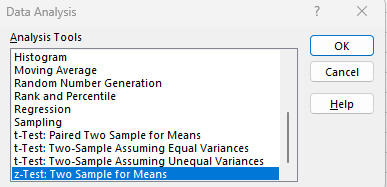
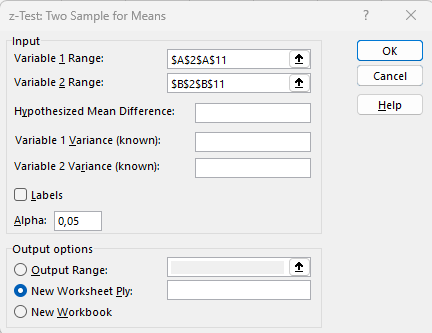
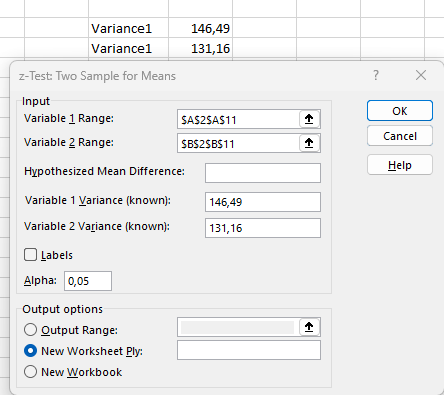
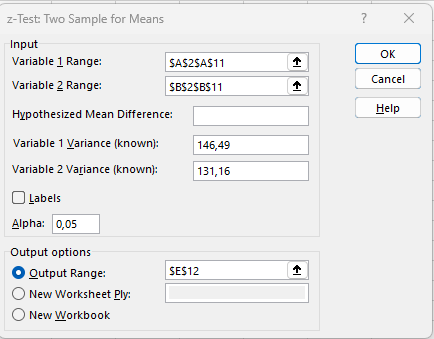
Étiquette : data_analysis

  • Normal Distribution Chart in Excel

    A normal distribution chart in Excel visually represents the phenomenon of normal distribution within a dataset. This type of chart is created by first calculating the mean (average) and the standard deviation of the data, and then computing the normal distribution values based on these parameters. Although this explanation applies to Excel 2013 versions and later, creating a normal distribution chart is straightforward because Excel includes built-in functions specifically designed to calculate normal distribution values and standard deviation. The resulting chart closely resembles the well-known bell-shaped curve.

    Definition

    A normal distribution chart represents a continuous probability function. To clarify, probability is a mathematical technique used to quantify the likelihood or chance of the occurrence of a particular event or variable. A probability distribution is a function that assigns probabilities to the possible values of a variable. There are two main types of probability distributions: discrete and continuous.

    The fundamental concept behind a normal distribution, as outlined above, is that it describes how data values are uniformly spread around a central mean value. More formally, a normal distribution measures the extent to which data is symmetrically distributed around the average.

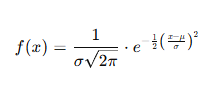
    Mathematically, the probability density function (PDF) of a normal distribution is given by the formula:

    where:

    • x is the variable value,

    • μ is the mean (expected value) of the distribution,

    • σ is the standard deviation (a positive number representing data dispersion),

    • e is the base of the natural logarithm.

    While this formula may seem complex, Excel simplifies the process by providing a built-in NORM.DIST function that calculates the normal distribution for a specified value. In any Excel cell, the formula can be entered as:

    =NORM.DIST(x, mean, standard_dev, cumulative)

    where:

    • x is the specific value for which you want to calculate the normal distribution,

    • mean is the average of your dataset,

    • standard_dev is the standard deviation of the dataset,

    • cumulative is a logical value (TRUE or FALSE) indicating whether to compute the cumulative distribution function or the probability density function.

    The three fundamental parameters for calculating normal distribution in Excel are:

    • x: The value at which the distribution is evaluated.

    • Mean (Expectation): The arithmetic average of the data.

    • Standard Deviation: A measure of the amount of variation or dispersion in the data set. It must be a positive number.

    The chart generated from these values is called a normal distribution chart, commonly known as the bell curve. But what exactly is a bell curve? It is a typical shape that describes how values of a variable are distributed in a symmetric, uniform manner around the mean. The peak of the curve represents the mean value, while the spread is determined by the standard deviation, illustrating how data tends to cluster near the average.

    How to Create a Normal Distribution Chart in Excel?

    Below are examples of normal distribution charts in Excel (bell curve).

    Example 1

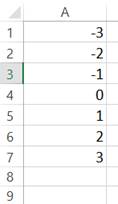
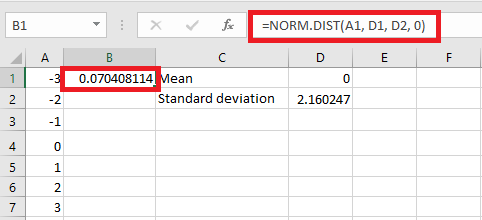
    First, we will take some random data. For example, in column A, take values from -3 to 3. Then, we need to calculate the mean and standard deviation in Excel before calculating the normal distribution. After that, we can create the normal distribution chart in Excel.

    So, take a look at the data below.

    Follow the steps below:

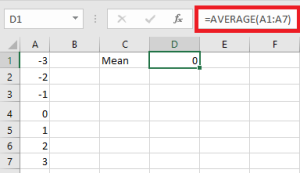
    First, calculate the mean of the data, that is, the average. Then, in cell D1, enter the following formula.

    Press the « Enter » key to get the result.

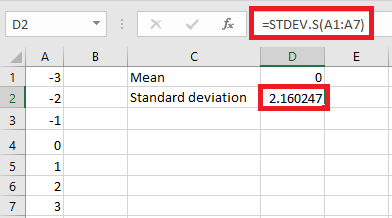
    Now, we will calculate the standard deviation for the given data. So, in cell D2, enter the following formula.

    Press the « Enter » key to get the result.

    Now, in cell B2, we will calculate the normal distribution using Excel’s built-in formula. Note the following formula in cell B2.

    The formula returns the result, as shown below:

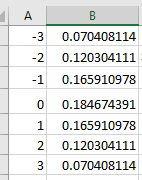
    Now, drag the formula down to cell B7.

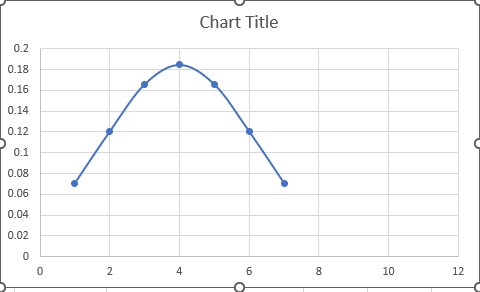
    In cell B2, we have the normal distribution for the chosen data. To create a normal distribution chart, go to the « Insert » tab and under « Charts, » select a « Scatter plot » chart with smooth lines and markers.

    When we insert the chart, we see that our bell curve or normal distribution chart is created.

    The above chart is the normal distribution chart of the random data we took. We now need to understand something before moving to a real data example. The Standard Deviation « S » means Standard Deviation Sample because we have a huge amount of data in real data analysis, and we select a sample of data to analyze.

  • Normal distribution in Excel

    A normal distribution, also known as a Gaussian distribution, is a type of probability distribution in which the values of a random variable are distributed symmetrically around the central tendency—typically the mean. In this distribution, data points are equally spread on both sides of the mean, creating a characteristic bell-shaped curve when graphed.

    This curve illustrates that most values cluster around the mean, while the frequency of extreme values (either very high or very low) decreases progressively as one moves away from the center. The peak of the curve corresponds to the mean, median, and mode, which are all equal in a perfect normal distribution.

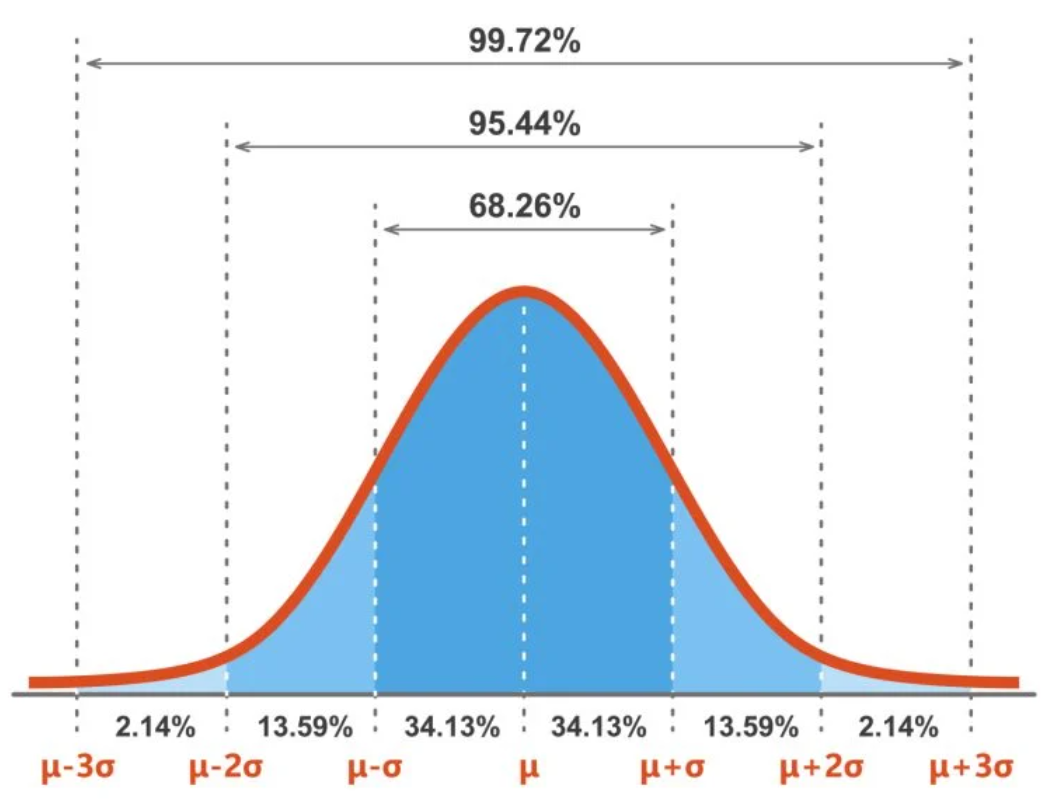
    Furthermore, the empirical rule (or 68-95-99.7 rule) applies to normal distributions. According to this rule:

    • Approximately 68% of the data values fall within one standard deviation from the mean.

    • Around 95% lie within two standard deviations.

    • And about 99.7% of the data is contained within three standard deviations of the mean.

    This predictable pattern makes the normal distribution a fundamental concept in statistics, widely used in natural and social sciences to model real-world phenomena.

    Explanation of the Normal Distribution

    A normal distribution, also known as a Gaussian distribution, represents a symmetrical probability distribution where most data points are concentrated around the mean, forming a bell-shaped curve. This distribution is defined by two fundamental parameters:

    • Mean (µ): Determines the center or location of the distribution.

    • Standard deviation (σ): Measures the spread or dispersion of data around the mean.

    This probabilistic model plays a crucial role in various statistical applications, including asset return estimation, risk management, and decision-making strategies. The bell-shaped curve that characterizes the normal distribution aligns with the empirical rule (also called the 68-95-99.7 rule), which governs the spread of observations:

    • Approximately 68% of all data points lie within ±1 standard deviation from the mean.

    • Around 95% fall within ±2 standard deviations.

    • Nearly 99.7% are found within ±3 standard deviations.

    The curve theoretically extends infinitely in both directions, meaning that the tails of the curve approach but never touch the horizontal axis. This indicates that extreme values are possible, although they occur with low probability.

    Skewness and Kurtosis

    • Skewness measures the symmetry of the distribution.

      • A skewness of 0 indicates perfect symmetry (i.e., a true normal distribution).

      • A positive skew (skewness > 0) means the right tail is longer or fatter than the left.

      • A negative skew (skewness < 0) means the left tail is longer or fatter than the right.

    • Kurtosis measures the tailedness or peak sharpness of the distribution.

      • A kurtosis of 3 corresponds to a normal distribution (also called mesokurtic).

      • A kurtosis greater than 3 indicates a leptokurtic distribution (sharper peak and fatter tails).

      • A kurtosis less than 3 indicates a platykurtic distribution (flatter peak and thinner tails).

    Key Characteristics of the Normal Distribution

    • Empirical Rule:
      The distribution adheres to the 68-95-99.7 principle regarding standard deviations from the mean.

    • Bell-Shaped Curve:
      Most values are concentrated around the center, with fewer observations as one moves toward the tails.

    • Defined by Mean and Standard Deviation:
      The shape and spread of the distribution are entirely determined by these two parameters.

    • Equality of Central Tendencies:
      The mean, median, and mode are all equal in a perfectly normal distribution.

    • Perfect Symmetry:
      The curve is symmetrical about the mean. This implies that half of the data lies to the left of the mean and the other half to the right.

    • Zero Skewness and Standard Kurtosis:

      • Skewness = 0 → Perfect symmetry.

      • Kurtosis = 3 → Normal level of peak and tail thickness.

    Conditions for a Normal Distribution

    To determine whether a dataset follows a normal distribution, the following conditions should be satisfied:

    • The histogram or graph of the data should show a symmetrical bell-shaped curve.

    • Mean = Median = Mode.

    • The mean of the distribution is 0 (for a standardized normal distribution).

    • The standard deviation is 1 (again, for the standardized version).

    • Skewness is 0.

    • Kurtosis is 3.

    Applications and Relevance

    The Gaussian (normal) distribution is one of the most widely used probability distributions in both theoretical and applied statistics. It models numerous real-world phenomena due to its mathematical properties and interpretability. Its applications span across disciplines, including but not limited to:

    • Economics and finance (e.g., modeling asset returns)

    • Investment analysis and risk assessment

    • Psychology and social sciences

    • Natural sciences

    • Healthcare and medicine

    • Business intelligence and market research

    Its widespread usage is largely attributed to the Central Limit Theorem, which states that the distribution of sample means approaches a normal distribution as the sample size increases, regardless of the original data distribution.

    Normal Distribution Formula

    The probability density function (PDF) of a normally distributed random variable XX is given by the following formula:

    Where:

    • x = Random variable

    • μ = Mean of the distribution

    • σ = Standard deviation of the distribution (must be > 0)

    • π≈ 3.14159 (mathematical constant)

    • e ≈ 2.71828 (base of the natural logarithm)

    • The domain of x, μ, and σa is:

      • −∞<x<∞

      • −∞<μ<∞

      • σ>0

    This function describes the likelihood of a given value xx occurring in a normal distribution. The curve peaks at x=μx = \mu, and its shape is governed by the standard deviation σ. The wider the standard deviation, the flatter the curve; the smaller the standard deviation, the steeper and narrower the curve.

    Z-Score Transformation (Standardization)

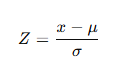
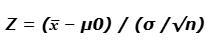
    When comparing different datasets or conducting inferential statistics, it is often necessary to standardize values from different normal distributions. This is done using the Z-score transformation, which converts a raw score into a standardized score indicating how many standard deviations the value is from the mean.

    Where:

    • Z= Standardized score (Z-score)

    • x = Original value or raw score

    • μ= Mean of the distribution

    • σ= Standard deviation of the distribution

    The Z-score allows us to compare scores across different normal distributions and to determine the relative position of a value within a distribution.

    Standard Normal Distribution Table (Z-Table)

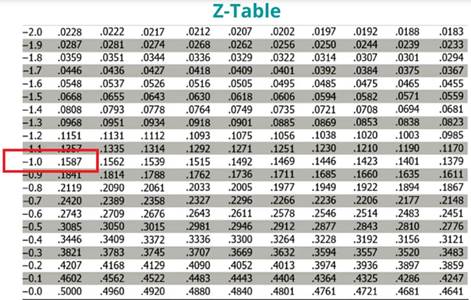
    The Z-table, or standard normal table, is used to find the cumulative probability associated with a given Z-score in the standard normal distribution (where μ=0 and σ=1). It tells us the probability that a random variable XX is less than or equal to a given Z value.

    Example:

    If Z=1.96, the Z-table shows that approximately 97.5% of the data lies below that value in a standard normal distribution.

    The steps to use the Z-table are:

    • Standardize the raw value using the Z-score formula.

    • Locate the Z value in the Z-table.

    • Interpret the cumulative probability, often expressed as a percentage.

    This process is essential in hypothesis testing, confidence interval estimation, and many other applications in inferential statistics.

    Example 1

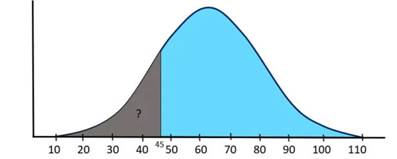
    Suppose a company has 10,000 employees and several salary structures based on specific job functions. Salaries are generally distributed with a mean of μ = $60,000 and a population standard deviation σ = $15,000. What is the probability that a randomly selected employee earns less than $45,000 per year?

    Solution:

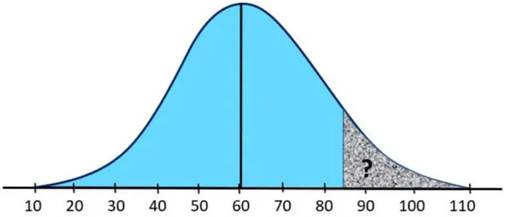
    As shown in the figure above, we need to determine the area under the normal curve from $45,000 to the left tail in order to answer this question. Additionally, we must use the z-table value to obtain the correct answer.

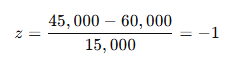
    First, we need to convert the given mean and standard deviation into a standard normal distribution with a mean (μ) = 0 and a standard deviation (σ) = 1 by using the transformation formula.

    After the conversion, we consult the z-table to find the corresponding value, which will give us the correct result.

    Given:

    • Mean (μ) = $60,000

    • Standard deviation (σ) = $15,000

    • Random variable (x) = $45,000

    Transformation (z):

    The value corresponding to z = -1 in the z-table is 0.1587, representing the area under the curve from $45,000 to the left. This indicates that when an employee is randomly selected, the probability of earning less than $45,000 per year is 15.87%.

    It is important to note that we converted the z-score value 0.1587 into a percentage by multiplying it by 100, resulting in 15.87%.

    Example No. 2
    For the same scenario above, now find the probability that a randomly selected employee earns more than $85,000 per year.

    Solution:

    In this case, we need to find the shaded area from $85,000 to the right tail using the same formula.

    Given:

    • Mean (μ) = $60,000

    • Standard deviation (σ) = $15,000

    • Random variable (X) = $85,000

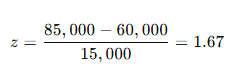
    Transformation (z):

    According to the z-table, the value corresponding to z = 1.67 is 0.9525 or 95.25%, which shows the probability that a randomly selected employee earns less than $85,000 per year.

    However, since the question asks for the probability that a randomly selected employee earns more than $85,000, we need to subtract the calculated value from 100%.

    Probability=100%−95.25%=4.75%

    Therefore, the probability that an employee earns more than $85,000 per year is 4.75%.

    Normal Distribution in Excel

    Excel provides a built-in statistical function that allows users to calculate the normal distribution of a dataset based on a given mean and standard deviation. This is done using the NORM.DIST() function (known in French as LOI.NORMALE.N()), which was introduced in Excel 2010 as an improved version of the older NORMDIST() function.

    The NORM.DIST() function can be used to return either the probability density function (PDF) or the cumulative distribution function (CDF) of a normal distribution, depending on the specified argument.

    Syntax:

    NORM.DIST(x, mean, standard_dev, cumulative)

    Arguments:

    • x (Required):
      The value at which you want to evaluate the distribution. This is the random variable X.

    • mean (Required):
      The arithmetic mean (µ) of the distribution.

    • standard_dev (Required):
      The standard deviation (σ) of the distribution. It must be a positive number.

    • cumulative (Required):
      A logical value (TRUE or FALSE) that determines the form of the function:

      • If TRUE, the function returns the cumulative distribution function (CDF), i.e., the probability that the variable is less than or equal to x.

      • If FALSE, the function returns the probability density function (PDF) at the given x.

    Example Usage in Excel:

    To calculate the cumulative probability that a value x=70x = 70 or less occurs in a normal distribution with a mean of 65 and a standard deviation of 10, use:

    =NORM.DIST(70, 65, 10, TRUE)

    This returns the area under the normal curve to the left of x = 70.

    To calculate the probability density at the exact value of 70, use:

    =NORM.DIST(70, 65, 10, FALSE)

    This returns the height of the normal curve at x=70x = 70, rather than a cumulative probability.

    This function is widely used in data analysis, hypothesis testing, and simulations to model and interpret normally distributed data. It is especially useful for evaluating statistical probabilities and making informed business or scientific decisions directly within Excel.

    Example 1

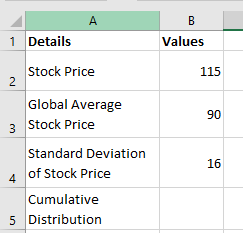
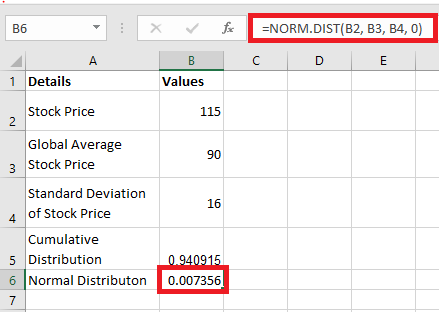
    We have stock data from an organization. The given stock price is 115, the overall average stock price is 90, and the standard deviation is 16.

    We need to calculate the probability that the stock price is equal to or less than 115.

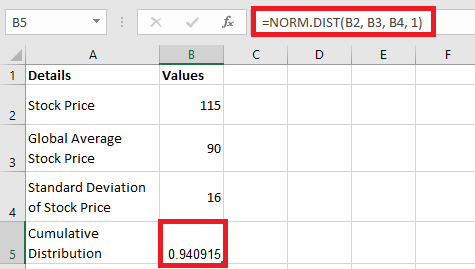
    Let’s apply the NORM.DIST() function in Excel.

    • X is the given stock price.

    • Mean is the overall average price.

    • Standard deviation is given in cell B4.

    • The distribution type is set to “1”, which means TRUE (for cumulative distribution).

    The result is 0.9409, which means that approximately 94% of the stock prices are less than 115.
    In other words, the probability that the stock price is greater than 115 is less than 6%.

    Now, let’s change the distribution type to FALSE (0) to apply the normal probability density function. We get the following result:

    The NORM.DIST function returns the value 0.0074, indicating that 0.74% of the stocks have a price exactly equal to 115.

    Example 2

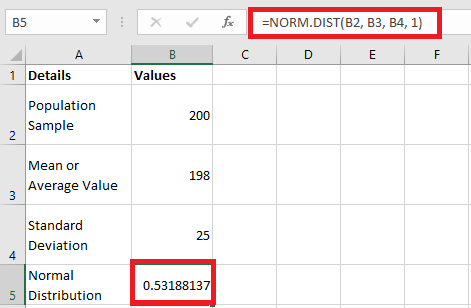
    Let’s consider the following data for a normal distribution in Excel:

    • Population sample (X) = 200

    • Mean or average value = 198

    • Standard deviation = 25

    Let’s apply the cumulative normal distribution in Excel.

    The value of the normal distribution is 0.53188, which means the probability is 53.18%.

    The NORM.INV Function (LOI.NORMALE.INVERSE.N in French Excel)

    In practice, you will often need the NORM.INV function, especially when you have collected data and know the mean and standard deviation of a sample or population, but want to determine where a specific value lies within a normal distribution.

    For example, the value might be a sample mean you want to compare to the population mean, or an individual observation you want to evaluate relative to a larger group.

    When you input the information into NORM.DIST() (LOI.NORMALE.N()), it returns the relative probability of observing up to a certain value — either as a cumulative probability (if cumulative is TRUE) or as the probability density at that value (if cumulative is FALSE). You might compare this probability with the alpha level (false positive rate) or beta level (false negative rate) predefined for your experiment.

    The NORM.INV() function complements NORM.DIST() by providing a different perspective:

    • NORM.DIST() returns a probability value (area under the curve).

    • NORM.INV() returns the value on the horizontal axis (the x-value) corresponding to a given cumulative probability.

    In other words, the point returned by NORM.INV() is the inverse of the probability obtained from NORM.DIST().

    Example:

    =NORM.DIST(60, 54.3, 15, TRUE)

    returns 0.648, this means the value 60 is equal to or greater than 64.8% of the observations in a normal distribution with mean 54.3 and standard deviation 15.

    Conversely,

    =NORM.INV(0.648, 54.3, 15)

    returns 60 — meaning 64.8% of the distribution lies at or below the value 60.

    Practical Usage Scenario:

    Suppose in a research project you decide to conclude that a treatment effect is reliable only if the experimental group’s mean lies in the top 5% of the population of possible group means (which are normally distributed). This approach aligns with traditional hypothesis testing.

    To find the cutoff score separating the top 5% from the bottom 95%, you use:

    =NORM.INV(0.95, 54.3, 15)

    This returns 78.97, meaning that 5% of the normal distribution (mean 54.3, sd 15) lies above 78.97.

    Note:

    • The first argument to NORM.INV() is the cumulative probability (e.g., 0.95).

    • Unlike NORM.DIST(), NORM.INV() does not require a cumulative argument because it always assumes cumulative probability.

    Choosing Between NORM.DIST() and NORM.INV()

    • Use NORM.DIST() if you want the probability that a value XX is less than or equal to a certain number.

    • Use NORM.INV() if you want to know the value corresponding to a specific cumulative probability.

    In both cases, you must provide the mean and standard deviation.

    Standard Normal Functions: NORM.S.DIST() and NORM.S.INV()

    Sometimes, you want to work with the standard normal distribution — a normal distribution with mean 0 and standard deviation 1.

    • Use NORM.S.DIST(z, cumulative) to calculate the cumulative probability or probability density at a z-score zz. For example,
    =NORM.S.DIST(1.5, TRUE)

    returns approximately 0.933, meaning 93.3% of the area under the curve lies to the left of z=1.5z = 1.5.

    • Use NORM.S.INV(probability) to find the z-score that corresponds to a given cumulative probability. For example,

    =NORM.S.INV(0.95)

    returns approximately 1.64, meaning 95% of the distribution lies below z=1.64z = 1.64.

    These numbers are well-known in inferential statistics, commonly used in hypothesis testing (e.g., critical values corresponding to p<0.05p < 0.05).

    Applications of the Normal Distribution

    This mathematical function is applied across many fields, such as:

    • Stock market technical analysis, where bell curves help investors assess expected returns and risks.

    • Operations management, to optimize resource allocation and product efficiency.

    • Population studies, for example, modeling heights where most individuals cluster around an average height.

    • Education, to determine average student performance and rank individual scores.

    • Data science and artificial intelligence, where normal density functions enhance machine learning and predictive models.

    Summary of Excel Normal Distribution Functions

    Function Purpose Key Arguments Notes
    NORM.DIST(x, µ, σ, cumulative) Returns PDF or CDF at x x, mean, standard_dev, TRUE/FALSE TRUE for cumulative, FALSE for PDF
    NORM.INV(probability, µ, σ) Returns the x-value corresponding to a cumulative probability probability, mean, standard_dev No cumulative argument needed
    NORM.S.DIST(z, cumulative) Standard normal CDF or PDF at z z, TRUE/FALSE Mean = 0, sd = 1
    NORM.S.INV(probability) Z-score for given cumulative probability probability Inverse of NORM.S.DIST
  • Sampling Formula in Excel

    Population sampling is the process of selecting a representative subset of individuals from an entire population. This subset, known as a sample, must be sufficiently large to allow for meaningful and statistically valid analysis. Sampling is typically employed because it is often impractical or impossible to test every member of the population due to constraints such as time, cost, and logistical challenges. The primary objective of sampling is to save resources while still obtaining data that accurately reflects the characteristics of the whole population. However, researchers must always keep in mind that the ideal scenario is to assess every individual within the population to achieve results that are as reliable, valid, and precise as possible. Only when testing the entire population is not feasible do researchers resort to sampling techniques, carefully designed to minimize bias and maximize representativeness.

    Sampling Distribution Formula

    A sampling distribution is defined as the probability distribution of a given statistic based on repeated samples drawn from a population. This distribution enables the calculation (or estimation) of key sample statistics such as the mean, range, standard deviation, and variance.

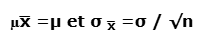
    For a sample size greater than 30, the sampling distribution formulas are as follows:

    Where:

    • μˉx represents the mean of the sample, which estimates the population mean μ

    • σxˉ is the standard deviation of the sampling distribution (also called the standard error of the mean), while σ is the population standard deviation.

    • n is the sample size, which is assumed to be greater than 30 in this context.

    Many professionals—including analysts, researchers, and statisticians—utilize the concept of sampling distribution for their investigations. When dealing with a large population, this approach allows the selection of a smaller, manageable sample that can be used to estimate population parameters such as the mean and standard deviation.

    The process for calculating the sampling distribution typically involves the following steps:

    1. Identify multiple samples of size nn drawn from the larger population of size NN.

    2. List these samples and compute the mean of each individual sample.

    3. Construct a frequency distribution of these sample means obtained in step 2.

    4. Determine the probability distribution of the sample means based on the frequency distribution, which represents the sampling distribution.

    This methodology provides insight into how sample statistics vary from sample to sample and forms the foundation for inferential statistics.

    Example

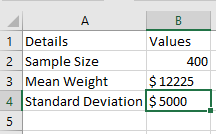
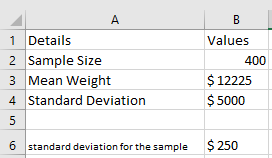
    Let’s take the example of taxes paid by vehicles. In California, the average tax paid is $12,225, with a standard deviation of $5,000. Observations were made on a sample of 400 trucks and trailers combined. Help the Department of Transportation determine the sample mean and the sample standard deviation.

    Solution

    Use the data below to calculate the sampling distribution.

    The calculation of the standard deviation for the sample size is as follows:

    = $5,000 / √400

    The standard deviation of the sample size will be –

    σₓ̄ = $250

    Therefore, the sample standard deviation, as estimated by the Department of Transportation, is $250, and the sample mean is $12,225.

    Sample Size Formula

    The sample size formula helps calculate or determine the minimum sample size required to accurately estimate the true proportion of a population, considering the desired confidence level and margin of error.

    A sample refers to a subset of the population that allows us to make inferences about the entire population. Therefore, the sample size must be adequate to produce meaningful and statistically significant conclusions. In other words, it is the minimum number of observations needed to estimate the population proportion within a specified margin of error and confidence level. Consequently, determining the appropriate sample size is a common and critical challenge in statistical analysis. This formula is derived using the population size, the critical value from the normal distribution, the sample proportion, and the margin of error.

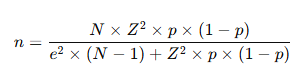
    The formula for sample size n is:

    Where:

    • N= Population size

    • Z= Critical value from the normal distribution corresponding to the desired confidence level

    • p = Sample proportion (estimated proportion of the attribute present in the population)

    • e = Margin of error (the allowable error tolerance)

    As the sample size increases, the sampling distribution approaches a normal distribution. Meanwhile, the standard deviation (standard error) of the sampling distribution decreases as nn increases.

    If the sample size is too small, the results may not be reliable. Conversely, an excessively large sample size can lead to unnecessary expenditure of time and resources. Therefore, it is important to choose a reasonable sample size for fields such as market research, healthcare studies, and educational surveys.

    How to Calculate Sample Size? (Step-by-step)

    • Determine the population size (NN): This is the total number of distinct entities in your population.

    • Identify the critical value (ZZ): Find the critical value from the normal distribution associated with your desired confidence level. For example, for a 95% confidence level, the critical value is 1.96.

    • Estimate the sample proportion (pp): This can be derived from previous surveys or small pilot studies. Note: If unknown, use 0.5 as a conservative estimate, which will yield the largest required sample size.

    • Set the margin of error (ee): This is the range within which the true population parameter is expected to fall. Note: A smaller margin of error indicates higher precision and requires a larger sample size.

    • Apply the formula using the values from steps 1 to 4 to calculate the minimum sample size required.

    Additional Practical Note:

    When the population size is less than 1,000, an ideal sample size is often around 10% of the population. For example, if the population is 10,000 individuals, a 10% sample corresponds to 1,000 individuals.

    Example

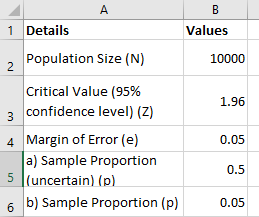
    Let’s take the example of a retailer who wants to know how many of their customers purchased an item from them after visiting their website on a particular day. Given that their website has, on average, 10,000 views per day, determine the sample size of customers they need to monitor at a 95% confidence level with a 5% margin of error if:

    ■ They are uncertain about the current conversion rate.

    ■ They know from previous surveys that the conversion rate is 5%.

    Data

    ■ Population size, N = 10,000

    ■ Critical value at 95% confidence level, Z = 1.96

    ■ Margin of error, e = 5% or 0.05

    Since the current conversion rate is unknown, assume p = 0.5

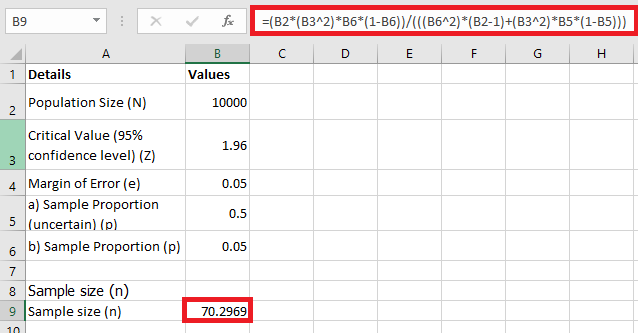
    Therefore, the sample size can be calculated using the formula:

    Substituting the values:

    Example 2

    Gautam is currently taking accounting courses and has passed his entry exam. He is now enrolled at the intermediate level and will also join a senior accountant as an intern. Additionally, he will be working on an audit of manufacturing companies.

    One of the companies he visited for the first time requested verification that invoices for all purchase transactions were reasonably available. Gautam selected a sample size of 50, and the population standard deviation for this audit variable is 0.50.

    Based on the information available, you are asked to calculate the sampling error at both 95% and 99% confidence intervals.

    Solution

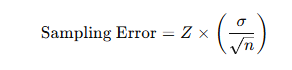
    We are given the population standard deviation and the sample size. Therefore, we can use the sampling error formula:

    Data for calculation:

    • Sample size, n=50n = 50

    • Population standard deviation, σ=0.50\sigma = 0.50

    At 95% confidence level:

    • Z-score value = 1.96

    At 99% confidence level:

    • Z-score value = 2.576 (from Z-score tables)

    Conclusion:

    The sampling error is approximately 0.1386 at the 95% confidence level and 0.1820 at the 99% confidence level.

    Eliminating Sampling Errors

    Understanding the concept of sampling error is essential, as it indicates how accurately the results of a survey are expected to reflect the overall views of the population. It’s important to remember that surveys typically rely on a smaller group, known as the sample size (or survey respondents), to represent a much larger population.

    Sampling error can also be viewed as a measure of the effectiveness and precision of the survey. A larger margin of error implies that the survey results may significantly deviate from the true characteristics of the population. Conversely, a smaller margin of error or sampling error indicates that the results more closely approximate the true population values, thereby increasing the reliability and confidence level of the ongoing survey.

    Strategies to Reduce Sampling Error:

    • Increase the Sample Size
      As the sample size increases, the sample more closely resembles the actual population, thereby reducing the risk of deviation from population parameters. For example, the mean of a sample of 10 individuals is likely to fluctuate more than that of a sample of 100 individuals. A larger sample reduces variability and leads to more precise estimates.

    • Ensure Representativeness of the Sample
      Researchers should take proactive steps to ensure that the sample reflects the diversity and characteristics of the entire population. This includes avoiding over-representation or under-representation of specific subgroups.

    • Replicate the Study
      One effective way to reduce sampling error is to replicate the research. This can be done by:

      • Repeating measurements multiple times.

      • Using more than one subject or group in the study.

      • Conducting multiple independent studies on the same topic.

      Replication helps verify consistency and increases the reliability of the results.

    • Use Random Sampling Methods
      Random sampling is a powerful technique to minimize sampling errors. It involves using a systematic and unbiased method to select participants from the population. For instance, instead of randomly selecting participants without a plan, a researcher might adopt systematic random sampling by selecting every 10th, 20th, or 30th individual on a list.

    Conclusion:

    Reducing sampling error is crucial for improving the accuracy and trustworthiness of survey results. Through increasing sample size, ensuring representativeness, replicating studies, and applying random sampling techniques, researchers can minimize bias and better reflect the true characteristics of the population being studied.

  • ANOVA in Excel

    ANOVA (Analysis of Variance) is a collection of statistical models and procedures used to assess whether there are any statistically significant differences between the means of two or more independent groups. It works by partitioning the observed variance into components attributable to different sources—systematic factors (which are controlled or known influences) and random factors (which arise from natural variability). This helps in evaluating the influence of an independent variable on a dependent variable.

    In practical applications, ANOVA is a powerful statistical test available in Excel that enables users to compare the variances among multiple datasets. For instance, when deciding between various alternatives—such as selecting the best product among several options—ANOVA helps identify which option differs significantly from the rest based on quantitative data. By applying ANOVA in Excel, users can conduct comparative analysis across different groups to determine which dataset stands out as statistically superior.

    Furthermore, ANOVA is particularly useful in fields like finance and economics. It can be applied to assess how different factors influence stock price fluctuations or market trends. Analysts, economists, and statisticians often use ANOVA to conduct in-depth studies on the stability and performance of financial indices under various market conditions. Additionally, the ANOVA test helps determine whether the results of an experiment are statistically significant or merely due to chance, thereby enhancing the reliability of conclusions drawn from empirical research.

    Data Requirements for ANOVA

    Before applying an ANOVA test, it is essential to ensure that your data meets the following assumptions and requirements. These conditions help validate the accuracy and reliability of the results obtained through the analysis:

    • Normality:
      The data samples must be drawn from populations that follow a normal distribution. This means the distribution of the dependent variable within each group should be approximately bell-shaped and symmetric.

    • Random and Independent Sampling:
      The data samples must be randomly selected, and each observation in a group should be independent of observations in other groups. In other words, the behavior or outcome of one subject should not influence or depend on another. This ensures that the groups being compared are statistically unrelated.

    • Continuous Dependent Variable:
      The dependent variable (the outcome being measured) must be quantitative and continuous, such as height, weight, sales amount, or time, rather than categorical or ordinal.

    • Homogeneity of Variances (Equal Variance):
      The variances of the data across all groups should be approximately equal. This is also known as homoscedasticity, and it ensures that the spread or dispersion of the values is similar across the different groups being compared.

    • Independent Variable with Three or More Levels:
      The independent variable (the factor being tested) must have three or more categories or groups (e.g., three different teaching methods, treatment types, or regions). ANOVA is specifically designed to compare multiple group means simultaneously.

    Types of ANOVA Tests

    There are three main types of ANOVA (Analysis of Variance) tests, each designed for specific experimental scenarios depending on the number of independent variables and the structure of the data:

    One-Way ANOVA (Single-Factor ANOVA)

    One-way ANOVA is used when there is one independent variable with two or more levels (groups) and one continuous dependent variable. This method allows for the comparison of the means of independent groups to determine whether there is a statistically significant difference among them.

    • It is commonly referred to as single-factor ANOVA, as it focuses on the effect of only one factor (independent variable) on the dependent variable.

    • The test is structurally similar to the t-test, but it generalizes the comparison to more than two groups.

    • It assumes that all groups are independent and that data is normally distributed with equal variances.

    Example use case: Comparing the average test scores of students from three different schools.

    Two-Way ANOVA (Factorial ANOVA)

    Two-way ANOVA is used when there are two independent variables. It allows researchers to evaluate:

    • The individual effect of each independent variable on the dependent variable (main effects),

    • And the interaction effect between the two independent variables.

    There are two subtypes of Two-Way ANOVA:

    •  Two-Way ANOVA with Replication:
      Used when there are multiple observations for each combination of the independent variable levels. This occurs when different groups are tested under different conditions.
      Example: Comparing student performance across three teaching methods and two school types (public/private), with multiple students per group.
    •  Two-Way ANOVA without Replication:
      Applied when there is only one observation for each combination of the factors. Typically used when the same subjects are tested under two different conditions (repeated measures).
      Example: Measuring heart rate of the same athlete before and after a training session.

    Prerequisites:

    • Both independent variables must be categorical.

    • The dependent variable must be continuous.

    • Observations must be independent, normally distributed, and have equal variances.

    N-Way ANOVA / MANOVA (Multivariate ANOVA)

    N-Way ANOVA (or Multifactor ANOVA) involves more than two independent variables, each with multiple levels. It is an extension of Two-Way ANOVA and is used to analyze the combined effect of several independent variables on a single dependent variable.

    When the analysis involves multiple dependent variables, the method becomes a Multivariate Analysis of Variance (MANOVA). MANOVA is more powerful and provides a broader understanding of how multiple outcomes are affected by one or more independent variables.

    • N-Way ANOVA evaluates the effects of multiple factors on one dependent variable.

    • MANOVA evaluates the effects of multiple factors on two or more dependent variables simultaneously.

    Example:

    • N-Way ANOVA: Evaluating how teaching method, school type, and gender affect exam scores.

    • MANOVA: Evaluating how diet and exercise affect both blood pressure and cholesterol levels.

    One-Way ANOVA Formula

    The one-way ANOVA (Analysis of Variance) is a statistical method used to compare the means of three or more independent groups to determine whether there are statistically significant differences among them. The method is based on analyzing the ratio of variances, using the F-distribution.

    In essence, ANOVA compares:

    • The variance between groups (how much the group means deviate from the overall mean)

    • To the variance within groups (how much the individual values within each group deviate from their respective group mean)

    F-Ratio (F-Statistic) Formula:

    F=MSB/MSEF

    Where:

    • F = ANOVA F-statistic (also called the F-ratio)

    • MSB = Mean Square Between groups (variance between group means)

    • MSE = Mean Square Error (variance within the groups)

    How MSB and MSE Are Calculated:

    • Mean Square Between (MSB):

      MSB=SSB/(k−1)

      Where SSB is the Sum of Squares Between groups, and k is the number of groups.

    • Mean Square Error (MSE):

      MSE=SSE/(N−k)

      Where SSE is the Sum of Squares Within groups, N is the total number of observations, and k is the number of groups.

    Degrees of Freedom:

    • df1 (Between Groups) = k−1

    • df2 (Within Groups or Error) = N−k

    • df3 (Total Degrees of Freedom) = N−1

    Hypothesis Testing in ANOVA:

    • Null Hypothesis (H₀): All population means are equal

    • Alternative Hypothesis (H₁): At least one population mean is different from the others

    Interpreting the F-Statistic:

    • If the calculated F-value is close to 1, it suggests that the variances between the group means and within the groups are similar, indicating no significant difference between the group means — thus, the null hypothesis is likely true.

    • If the F-value is significantly greater than 1, it implies that the group means differ more than would be expected by chance, and the null hypothesis may be rejected.

    To make a statistical decision:

    • Compare the calculated F-statistic with the critical F-value from the F-distribution table (based on df1 and df2 at a chosen significance level, usually α = 0.05).

    • If:

      Fcalculated>Fcritical

      then the result is statistically significant, and we reject the null hypothesis in favor of the alternative.

    Example Dataset – Vertical Jump Test

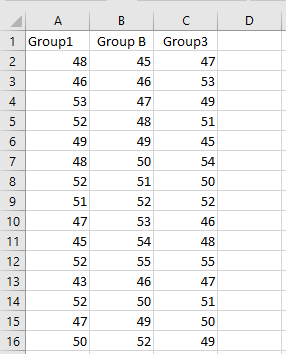
    In this example, we have data collected from three different groups of male participants, each group representing a distinct training or demographic category. The data reflects the participants’ performance in a vertical jump test, where the outcome variable is the height jumped, measured in centimeters (cm).

    Each column in the dataset corresponds to a different group, and each cell within a column represents the vertical jump height achieved by an individual participant from that group.

    This format of data is suitable for conducting a One-Way ANOVA, as it allows us to compare the mean jump heights across the three independent groups to determine whether the differences in performance are statistically significant.

    As you can see, each of the three groups consists of 15 participants, resulting in a balanced dataset with a total of 45 observations. The goal is to perform a One-Way ANOVA to determine whether there is a statistically significant difference in the mean vertical jump heights among the three groups.

    Steps to Perform One-Way ANOVA in Excel:

    To conduct the analysis using Microsoft Excel, follow these steps:

    Step 1: Click on “Data Analysis” under the Data tab

    To begin, go to the Data tab in the Excel ribbon.
    On the far-right side, click on Data Analysis.
    This opens the Analysis ToolPak, which contains various statistical tools.

    Note: If the “Data Analysis” option does not appear, you need to activate it.

    Go to: FileOptionsAdd-ins → In the Manage box, choose “Excel Add-ins” and click Go → Check Analysis ToolPak → Click OK.

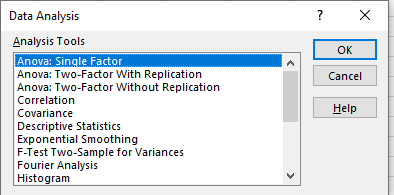
    Step 2: Select “Anova: Single Factor”

    In the Data Analysis window:

    • Select the first option in the list: Anova: Single Factor.

    • Click OK to proceed.

    This option is used to test whether there are any statistically significant differences between the means of three or more independent groups.

    Step 3: Set Up the ANOVA Parameters

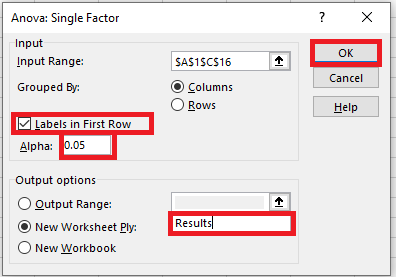
    In the Anova: Single Factor dialog box, you need to configure the input settings.

    • Input Range: Select the entire range of your dataset, including all group columns.
      You can include the labels in the first row (e.g., Group A, Group B, Group C) if you check the box labeled “Labels in First Row.”

    • Grouped By: Choose Columns if your groups are arranged in columns (as in most datasets for ANOVA).

    This step defines which data Excel will analyze.

    Step 4: Choose How Data Is Grouped

    Next, specify whether your data is grouped by columns or rows.

    • In this example, select Columns because each group’s data is arranged in a separate column.

    • If your data were arranged in rows instead, you would select Rows.

    Step 5: Indicate if Your Data Includes Labels

    If you included the group names or labels in the first row of your selection during the Input Range step, make sure to check the box labeled “Labels in First Row”. This helps Excel correctly identify the groups in the output.

    Step 6: Set the Significance Level (Alpha)

    The Alpha level represents your threshold for statistical significance.

    • The most commonly used alpha value is 0.05.

    • This means that if the P-value obtained from the ANOVA test is less than or equal to 0.05, you reject the null hypothesis and accept that there is a significant difference between group means.

    For this example, leave the alpha level set at 0.05.

    Step 7: Choose the Output Location

    You have three options for where to place the ANOVA results:

    • Output Range: Select a specific range within your current worksheet where the results will be displayed.

    • New Worksheet Ply: Place the results in a new worksheet within the current workbook. You can name this new sheet (e.g., “Results”).

    • New Workbook: Output the results to an entirely new Excel file.

    For this example, select New Worksheet Ply and name the new sheet “Results”.

    Step 8: Run the One-Way ANOVA

    Finally, click OK to execute the one-way ANOVA test in Excel.

    Interpreting the Results

    Once Excel completes the analysis, it will generate an ANOVA summary table containing several key statistics. The next step is to interpret these results to determine whether there is a statistically significant difference among the group means.

    Detailed ANOVA Report

    Summary Table Explained

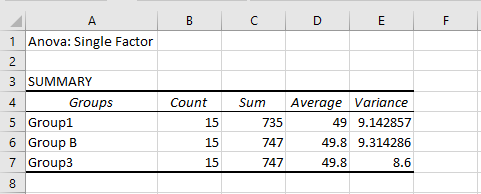
    Here you will find the following key statistics for each group:

    • Sample Size – The number of data points (observations) within each group.

    • Sum – The total sum of all data points in the group.

    • Mean – The average value of the data points in the group.

    • Variance – The average of the squared differences from the mean; it measures the dispersion or spread of values within the dataset.

    Analysis of Variance

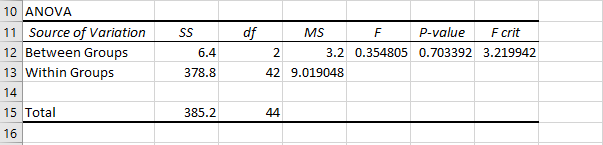
    Below is an overview of the ANOVA summary table generated by Excel, which displays the results of the variance analysis.

    Understanding the ANOVA Results Table

    The results table is divided into three main rows:

    • Between Groups – This row summarizes the variation attributed to differences between the groups.

    • Within Groups (Error) – This row summarizes the variation within each group, often referred to as residual or error variance.

    • Total – This row shows the combined total of the sum of squares and degrees of freedom from the two rows above.

    Each column in the table corresponds to a specific statistical measure:

    • Sum of Squares (SS):
      Measures the total variation attributed either between groups or within groups.

    • Degrees of Freedom (df):
      For between groups, calculated as the number of groups minus one (e.g., 3 – 1 = 2).
      For within groups, calculated as the total number of observations minus the number of groups (e.g., 45 – 3 = 42).

    • Mean Squares (MS):
      The average variation calculated by dividing the sum of squares by the corresponding degrees of freedom (MS = SS / df).

    • F Statistic (F):
      The test statistic used in one-way ANOVA, calculated as the ratio of MS between groups to MS within groups.

    • P-Value:
      The probability value that indicates the significance level of the test result.

    • Critical F (F crit):
      The threshold value obtained from the F-distribution table based on the degrees of freedom and the chosen significance level (alpha).

    Hypotheses for One-Way ANOVA

    • Null Hypothesis (H₀):
      There is no difference between the mean values of the three groups.

    • Alternative Hypothesis (H₁):
      At least one group mean is different from the others.

    Interpreting the P-Value

    Recall that earlier you specified an alpha level of 0.05.

    • If the P-value ≤ 0.05, you reject the null hypothesis, indicating a statistically significant difference between the group means.

    • If the P-value > 0.05, you fail to reject the null hypothesis, indicating that there is no statistically significant difference between the group means.

    In this example, since the P-value is greater than 0.05, we do not reject the null hypothesis. This means there is no evidence of a difference in the average vertical jump heights among the three groups. In other words, all groups performed approximately the same on the vertical jump test.

    Post-Hoc Tests

    If the one-way ANOVA result is significant (i.e., P ≤ α), the ANOVA tells you that there is a difference somewhere among the group means but does not specify where the difference lies.

    To pinpoint which specific groups differ from each other, you need to perform post-hoc tests such as:

    • Tukey’s HSD (Honestly Significant Difference)

    • Bonferroni correction

    • Scheffé’s test

    These tests help compare each pair of group means to identify the exact pairs with statistically significant differences.

    What is ANCOVA?

    ANCOVA stands for Analysis of Covariance. It can be understood as an extension of the ANOVA test. ANCOVA combines elements of ANOVA and regression analysis. For example, if all independent variables act as covariates, ANCOVA essentially becomes a regression analysis; thus, it is a hybrid between ANOVA and regression.

    This method accounts for and controls the effects of covariates, improving the accuracy of an experiment. Covariates are characteristics of the participants that are not the focus of the study but can potentially influence the dependent variable (outcome).

    Example: ANOVA vs. ANCOVA

    Imagine a study investigating the effects of a specific medication on a disease in participants of varying ages.

    • The independent categorical variable (factor) is the treatment group (medication vs. placebo).

    • The continuous covariate is age.

    • The dependent variable is the change in disease status after treatment.

    • Here, ANCOVA would be used because it controls for age as a covariate while assessing the treatment effect.

    • By contrast, ANOVA would be used if age is not considered a continuous independent variable and the analysis focuses only on the treatment groups and their effect on disease progression.

    Statistical Methods: ANOVA, ANCOVA, MANOVA, and Regression

    • MANOVA (Multivariate ANOVA) is similar to ANOVA but involves multiple continuous dependent variables instead of just one.

    • In regression analysis, the predictors can be continuous variables, whereas ANOVA typically uses categorical predictors.

    Comparison Table: ANOVA vs. ANCOVA

    Aspect ANOVA ANCOVA
    Definition Analysis of variance Analysis of covariance
    Purpose Tests variance or differences between means of 3+ groups Evaluates the mean of a dependent variable based on a categorical independent variable while controlling for covariates
    Model Type Can involve linear and non-linear models Uses only linear models
    Independent Variables Categorical Both categorical and continuous (covariates)
    Covariate Treatment Ignores covariate influence Accounts for and controls the effects of covariates
    • Regression mainly applies to fixed or independent variables; ANOVA applies to random variables.

    • Regression can be linear or multiple regression, whereas ANOVA has popular types such as random effects, fixed effects, and mixed effects models.

    • Regression is used for estimating or predicting a dependent variable from one or more independent variables. ANOVA is used to find a common mean among groups.

    • Regression typically has one error term, while ANOVA has more than one error term.

    Comparison Table: Regression vs. ANOVA

    Aspect Regression ANOVA
    Definition Statistical method to model relationships between variables Analysis of variance, used to determine if unrelated groups have a common mean
    Variable Nature Applied to fixed or independent variables Applied to random variables
    Types Mainly linear and multiple regression Random effects, fixed effects, and mixed effects ANOVA
    Examples Predicting raw material prices based on Brent crude price Comparing results from different research teams on unrelated products
    Variables Used One dependent and one or more independent variables Different variables that are not necessarily related
    Purpose Used for prediction and estimation Used to test differences between group means
    Error Terms Typically one residual (error) term More than one error term

    Regression and ANOVA are both powerful statistical tools applied to multiple variables:

    • Regression is used for predicting the dependent variable based on one or more independent variables, usually fixed or continuous.

    • ANOVA is used to compare means across groups that are unrelated, focusing on identifying whether group means differ significantly rather than prediction.

    ANCOVA extends ANOVA by controlling for continuous covariates, allowing for more precise interpretation when confounding variables may affect the dependent variable.

  • Chi-Square Test in Excel

    The chi-square test is a non-parametric statistical method used to examine the association between two or more categorical variables based on randomly selected data samples. This test helps determine whether there is a significant relationship or dependency between the variables under study.

    In Excel, performing a chi-square test involves calculating the p-value, which indicates the probability that any observed differences occurred by chance. Since Excel does not provide a built-in, direct chi-square test function, users rely on mathematical formulas and functions to compute the test statistic and its associated p-value.

    There are two main types of chi-square tests commonly used in statistical analysis:

    • Chi-Square Goodness-of-Fit Test:
      This test assesses whether the observed frequency distribution of a single categorical variable matches an expected distribution. It answers questions such as: “Does this sample data fit the expected proportions?”

    • Chi-Square Test of Independence:
      This test evaluates whether two categorical variables are independent of each other or if there is a significant association between them. It is commonly applied to contingency tables to test relationships between variables.

    Chi-Square Goodness-of-Fit Test

    The goodness-of-fit test is a statistical method used to determine whether the observed sample data correspond to a specific theoretical distribution or population. In other words, it assesses how well the sample data fit a set of expected observations.

    The chi-square test statistic is denoted by the symbol χ2\chi^2 (read as « chi-square »). This statistic is calculated as the sum of the squared differences between the observed and expected frequencies, divided by the expected frequencies for each category.

    Mathematically, the chi-square goodness-of-fit formula is expressed as:

    Where:

    • χ2* is the chi-square test statistic

    • Oi represents the observed frequency

    • Ei represents the expected frequency

    • i is the index of the category, ranging from 1 to 

    • is the total number of categories

    • The degrees of freedom (df) for this test is calculated as df=k−1

    Applications of the Chi-Square Goodness-of-Fit Test

    This test is widely used in various fields to analyze categorical data and check hypotheses about distributions. Some typical applications include:

    • Evaluating the creditworthiness of borrowers by analyzing their age groups and history of debts to see if the observed default rates fit expected patterns.

    • Investigating the relationship between sales performance and the type or amount of training received by sales representatives.

    • Comparing the returns of a single stock against the returns of the overall sector to see if the stock’s performance aligns with sector trends.

    • Assessing the impact of a television advertising campaign on a specific demographic of viewers by comparing observed viewer responses with expected levels.

    Chi-Square Test for Independence

    The Chi-Square test for independence is a statistical method used to determine whether two categorical variables are independent or related to each other. Two random variables are said to be independent if the probability distribution of one variable is not influenced or affected by the other variable.

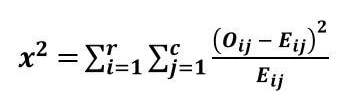
    Formula of the Chi-Square Test for Independence:

    Where:

    • χ2 (chi-square) is the test statistic measuring the difference between observed and expected frequencies.

    • Oij is the observed frequency count in the cell located at the ith row and jt column of the contingency table.

    • Eij is the expected frequency count in the same cell under the assumption that the variables are independent.

    • r is the total number of rows in the contingency table.

    • c is the total number of columns in the contingency table.

    • Degrees of freedom (df) for the test are calculated as:

      df=(r−1)(c−1)

    Calculation of Expected Frequencies:

    The expected frequency EijE_{ij} for each cell in the contingency table is calculated by:

    This formula assumes the null hypothesis that the variables are independent, allowing us to estimate what frequency counts would be expected if no association exists.

    Interpreting the Chi-Square Test for Independence:

    The chi-square statistic (χ2\chi^2) measures how much the observed frequencies deviate from the expected frequencies. Specifically, it quantifies whether the differences between observed and expected counts are larger than what might be reasonably attributed to random chance.

    • A large χ2 value suggests that the observed data differ significantly from what we would expect if the variables were independent, implying a potential association between the variables.

    • A small χ2 value indicates that any observed differences could plausibly be due to random sampling variability, supporting the idea that the variables are independent.

    The p-value associated with the test statistic represents the probability that the observed deviations (or more extreme) could occur by chance if the null hypothesis of independence were true. The p-value ranges between 0 and 1:

    • For example, a p-value of 0.0254 indicates there is a 2.54% probability that the observed association is due to chance alone.

    • The smaller the p-value, the stronger the evidence against the null hypothesis.

    • When the p-value is below a predetermined significance level (commonly 0.05), the null hypothesis of independence is rejected, and it is concluded that there is a statistically significant association between the variables.

    Applications of the Chi-Square Test for Independence:

    This test is particularly useful in the following situations:

    • When there are two categorical variables and the goal is to determine whether an association exists between them.

    • When analyzing contingency tables (cross-tabulations) to examine relationships between multiple categorical variables.

    • When dealing with qualitative data that cannot be quantified directly, such as determining if health plan variations differ across age groups or categories.

    Key Characteristics of the Chi-Square Test

    The Chi-Square test is a widely used non-parametric statistical method. Its main characteristics can be described as follows:

    Assesses the Difference Between Observed and Expected Frequencies:
    The Chi-Square test is primarily used to evaluate whether the observed frequencies in a dataset significantly deviate from the frequencies that would be expected under a specific null hypothesis. This helps determine if the deviations are due to chance or indicate a statistically significant effect.

    Tests the Goodness of Fit:
    It is employed to assess how well a theoretical distribution fits the observed data. In a goodness-of-fit test, the Chi-Square statistic quantifies the discrepancy between expected and actual data across various categories.

    Analyzes Relationships Between Categorical Variables:
    In contingency tables (also called cross-tabulations), the Chi-Square test is used to analyze the association or independence between two or more categorical variables. It helps answer questions such as whether gender is associated with product preference, or whether a treatment is linked to a certain outcome.

    Applicable to Nominal Data:
    The test is designed for use with categorical variables, particularly those measured at the nominal level (e.g., gender, color, type of product). It does not require interval or ratio data, making it suitable for qualitative analysis.

    Perform the Chi-Square Test in Excel

    A restaurant manager seeks to examine the relationship between the quality of service and the income level of customers who are waiting to be served.

    To conduct this analysis, she follows a structured approach:

    • A random sample of 100 customers is selected to ensure that the results are representative of the overall customer base.

    • Each customer in the sample is asked to evaluate the quality of the service they received using three qualitative categories: “Excellent,” “Good,” and “Poor.”

    Based on this setup, the manager formulates the following statistical hypotheses:

    • Null Hypothesis (H₀): There is no association between the quality of service perceived by customers and their income level while waiting to be served.

    • Alternative Hypothesis (H₁): There is an association between the quality of service and the income level of customers waiting to be served.

    To further refine the analysis, the manager categorizes customer income levels into three distinct groups:

    • Low income,

    • Middle income, and

    • High income.

    She sets the level of significance (α) at 0.05, which means that she is willing to accept a 5% probability of incorrectly rejecting the null hypothesis (Type I error).This setup suggests the use of a Chi-Square Test of Independence to determine whether there is a statistically significant relationship between service quality ratings and income categories.

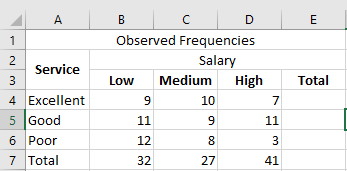
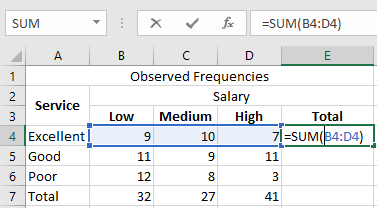
    The results are presented as nine distinct data points, which are systematically outlined in the table below for ease of analysis and interpretation.

    Let us calculate the sum of all the rows and columns. We use the following SUM formula to add the values in the fourth row.

    Press the « Enter » key, and the sum appears in cell E4. The output is 26.

    Similarly, we apply the SUM formula to the remaining rows and columns. There are 27 respondents with an average salary, and 51 respondents rated the service quality as “Good.”

    We apply the formula « (r–1)(c–1) » to calculate the degrees of freedom (df). df = (3–1)(3–1) = 2 × 2 = 4

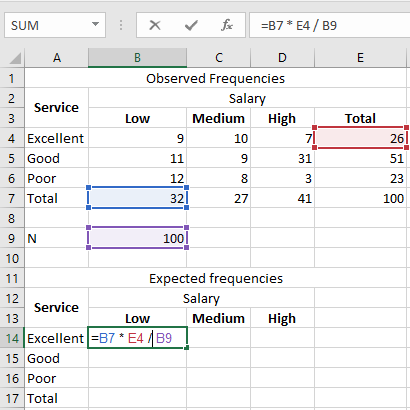
    We then use the following formula to calculate the expected frequency for column B and row 4:  =B7 * E4 / B9

    This calculation is illustrated in the image below.

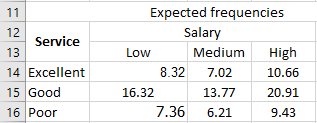
    The expected number of customers with a “Low” income who rated the dining service as “Excellent” is 8.32.

    In the following calculations, E11 represents the expected frequency for the first row and the first column. E12 corresponds to the first row and the second column.

    • E11 = (26 × 32) / 100 = 8.32

    • E12 = 7.02

    • E13 = 10.66

    • E21 = 16.32

    • E22 = 13.77

    • E23 = 20.91

    • E31 = 7.36

    • E32 = 6.21

    • E33 = 9.43

    Similarly, we calculate the expected frequencies for the entire table, as shown in the image below.

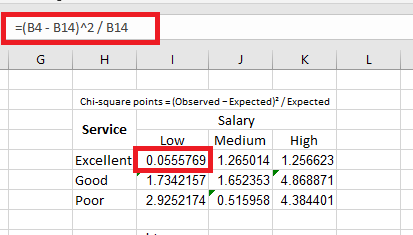
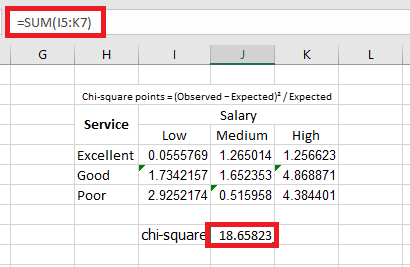
    Let us calculate the chi-square data points using the following formula:

    Chi-square points = (Observed − Expected)² / Expected

    We apply the formula =(B4 - B14)^2 / B14 to calculate the first chi-square point.

    We copy and paste the formula into the remaining cells. This is done to fill in the values across the entire table, as illustrated in the image below.

    Let us calculate the chi-square test statistic by summing all the values presented in the following table.

    The calculated chi-square value is 18.65823.

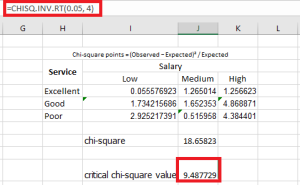
    To calculate the critical value, we use either the chi-square critical value table or the formula CHISQ.INV.RT. The formula takes two arguments — the probability and the degrees of freedom.

    The probability is 0.05, which represents the significance level. The degrees of freedom (df) is 4.

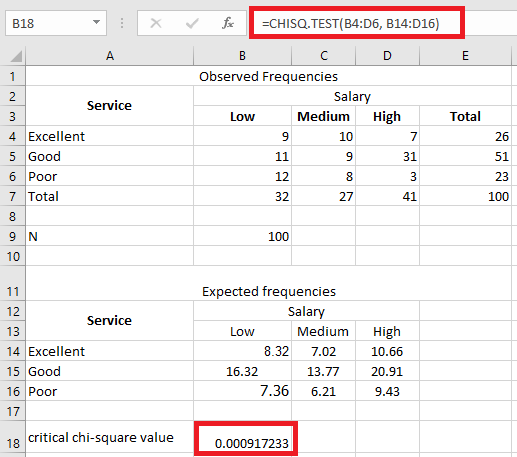
    Let’s find the p-value of the chi-square test using the following formula: =CHISQ.TEST(actual_range, expected_range)

    We apply the formula =CHISQ.TEST(B4:D6, B14:D16).

    The p-value of the chi-square test is 0.00091723.

    The calculated chi-square value is considered significant when it is equal to or greater than the critical chi-square value (tabulated value). The null hypothesis (H₀) is rejected if the calculated chi-square value is greater than the critical chi-square value.

    Here, χ² (calculated) > χ² (tabulated), that is, 18.65 > 9.48. Therefore, we reject the null hypothesis and accept the alternative hypothesis.

    The p-value can also be used to determine whether to accept or reject the null hypothesis. To do this, the p-value is compared to alpha (α) as follows:

    • If p-value ≤ α, reject the null hypothesis.

    • If p-value > α, accept the null hypothesis.

    In this example, p-value < α, or 0.0009172 < 0.05. Therefore, we reject H₀ and accept H₁.

    We conclude that the quality of service depends on the income level of the customers waiting to be served.

    Key points to remember:

    • The chi-square test is a non-parametric test that compares two or more variables using randomly selected data.

    • The chi-square goodness-of-fit test determines whether the sample data match the population distribution.

    • The chi-square test of independence determines whether variables are independent of each other or not.

    • Two random variables are said to be independent if the probability distribution of one variable is not affected by the other.

    • The symbol for the chi-square test is « χ² » (chi raised to the power of 2).

    • If the calculated chi-square value is greater than the critical chi-square value, the null hypothesis (H₀) is rejected.

    • If the p-value of the chi-square test is less than or equal to the significance level (α), the null hypothesis is rejected.

  • The F-Test in Excel

    The F-test is a statistical hypothesis testing procedure used to compare the variances of two independent samples. It is primarily applied when we need to assess whether the variability (or spread) of two datasets is significantly different. This test helps determine whether the two samples can be assumed to come from normal populations that share the same variance.

    In practical applications, the F-test is valuable in many fields. For instance, a quality control analyst may use it to evaluate whether product quality is deteriorating over time by comparing the variances of product measurements taken at different time intervals. Similarly, an economist might apply the F-test to compare the variability of income levels between two demographic groups or regions.

    Excel offers built-in tools and functions (such as F.TEST, F.DIST, and F.INV) that make performing the F-test accessible and straightforward for users who wish to conduct variance comparisons within their datasets.

    Key Takeaways

    • ■ The F-test is a statistical method used to evaluate whether the variances of two normally distributed populations are equal.

    • ■ It is based on the F-ratio, which is the ratio of the two sample variances.

    • ■ If the computed F-value is relatively small (e.g., F < 0.5), it may suggest that there is no significant difference between the variances, indicating the samples could belong to populations with similar variability.

    • ■ Conversely, if F ≥ F₀.₅ (a critical value from the F-distribution table at the 0.5 level), the null hypothesis — which assumes equal variances — is rejected, meaning the difference in variances is statistically significant.

    • F-test vs. t-test: While both are statistical tests, they serve different purposes. The t-test compares the means of two samples, whereas the F-test compares their variances. Both are essential tools in statistical inference but answer different research questions.

    Explanation of the F-Test in Statistics

    The F-test is a fundamental statistical method used to determine whether the variances of two populations are equal. It is often referred to as the variance ratio test because it involves calculating the ratio of two sample variances. The main objective is to evaluate whether the observed difference in variability between two groups is statistically significant.

    The F-test was first introduced by the British statistician Ronald A. Fisher, after whom the test is named. It was later formalized and expanded upon by George W. Snedecor, who helped develop its practical applications in statistical analysis.

    Conditions Required for the Valid Use of the F-Test

    To ensure the validity of the F-test when comparing the variances of two populations, the following assumptions and conditions must be satisfied:

    • ■ Normality:
      Both populations being compared must follow a normal distribution. If the data are not normally distributed, the results of the F-test may be unreliable or invalid.

    • ■ Independent and Random Sampling:
      The elements selected for each sample must be independent of each other and chosen through a random process. This helps avoid bias and ensures the representativeness of the sample.

    • ■ Variance Ratio ≥ 1:
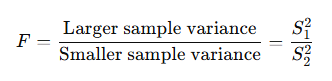
      The F-test is designed so that the larger sample variance is divided by the smaller one, ensuring that the variance ratio (F) is greater than or equal to 1. This convention simplifies interpretation and aligns with the F-distribution, which is skewed and only defined for positive values.

    • ■ Additive Property of Variance:
      The total variance observed in the data is assumed to be the sum of two components:

      • The variance between the samples (i.e., differences due to group membership)

      • The variance within the samples (i.e., random variation within each group)
        This principle is especially important in Analysis of Variance (ANOVA), where the F-test plays a central role in decomposing and analyzing sources of variation.


    The F-Test Formula and Its Application

    Sample Variance Formula

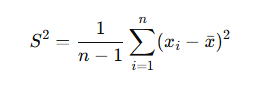
    In the context of the F-test, we begin by calculating the sample variances of the two groups. The formula for sample variance (denoted as S2S^2) is:

    Where:

    • n is the sample size

    • xi is each individual value

    •  is the sample mean

    To simplify this process, you may use an online F-test calculator, which performs all the computations automatically.

    Null Hypothesis ( H0 )

    When performing an F-test, the null hypothesis is formulated as follows:

    • H0: The two populations have equal variances, i.e.,
      σ12=σ22

    This can be interpreted in two ways:

    • (a) The two samples come from the same population

    • (b) The population variances are equal, even if the samples differ

     Variance Ratio Formula

    To compute the F-statistic, we use the formula:

    Note: Whether S12 or S22 is in the numerator depends solely on which is larger. This ensures the F-value is always ≥ 1.

    Degrees of Freedom (df)

    • For the numerator (larger variance): df1=n1−1

    • For the denominator (smaller variance): df2=n2−1

    These values are used to find the critical value from the F-distribution table, based on a chosen significance level (e.g., 5%).

    Decision Criteria

    Compare the calculated F-value with the critical F-value from the F-table:

    • If F≤F0.05, the result is not statistically significant. We fail to reject the null hypothesis and conclude that the variances are likely equal.

    • If F>F0.05, the result is statistically significant. We reject the null hypothesis and conclude that the variances are different.

     Example: Comparing Incomes in Two Villages

    Village A B
    Sample Size (nn) 10 12
    Mean Monthly Income 150 140
    Sample Standard Deviation 92 110

    Step 1: Calculate Sample Variances

    We square the sample standard deviations:

    S12=922=8464 and S22=1102=12100

    Now, place the larger variance in the numerator:

    F=12100/8464≈1.43

    Step 2: Determine Degrees of Freedom

    • df1=12−1=11

    • df2=10−1=9

    Step 3: Look Up the Critical Value

    Using the F-distribution table at a 5% significance level, the critical value for df1=11 and is approximately 2.90.

    Step 4: Interpret the Results

    Fcalculated=1.43 < Fcritical=2.90

    Since the calculated F-value is less than the critical value, we fail to reject the null hypothesis.

    How to Perform an F-Test in Excel

    The F-Test is used to compare the variances of two data sets and determine whether they are significantly different. This type of test is useful when assessing the assumption of equal variances in statistical analyses such as ANOVA or t-tests.

    Here are the step-by-step instructions to perform an F-Test in Microsoft Excel using the Data Analysis Toolpak:

    Step 1: Prepare your data

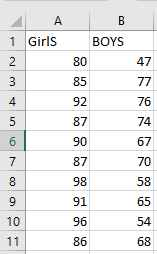
    Make sure your data is organized in two separate columns, each representing one of the two data sets (variables) you want to compare. For example:

    • Column A: Variable 1 (e.g., Sample A)

    • Column B: Variable 2 (e.g., Sample B)

    Ensure that each column contains numerical values and that both variables have the same number of observations.

    Step 2: Enable the Data Analysis Toolpak

    Before performing the F-Test, make sure the Data Analysis Toolpak is installed and activated:

    • Go to the « File » menu, then select « Options »

    • Click on « Add-ins »

    • In the « Manage » box at the bottom, choose « Excel Add-ins » and click « Go »

    • Check « Analysis ToolPak » and click « OK »

    Once activated, a new option called « Data Analysis » will appear in the « Data » tab on the ribbon.

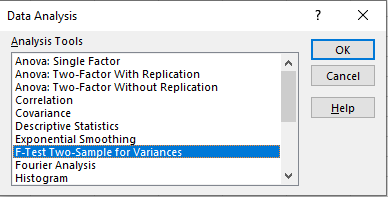
    Step 3: Launch the F-Test procedure

    • Go to the « Data » tab in the Excel ribbon.

    • Click on « Data Analysis » (usually located on the right side of the ribbon).

    • In the dialog box that appears, scroll down and select « F-Test Two-Sample for Variances », then click « OK ».

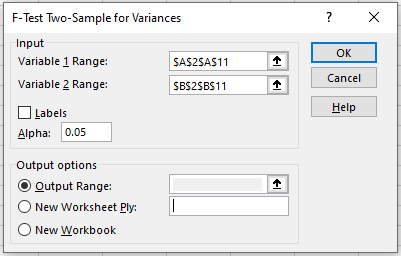
    Step 4: Input your data ranges

    In the F-Test dialog box:

    • For Variable 1 Range, select the range of cells that contains the first set of data (e.g., A2:A11)

    • For Variable 2 Range, select the range of the second data set (e.g., B2:B11)

    • If your data includes headers (e.g., « Sample A », « Sample B »), check the « Labels » box

    • Choose a significance level (commonly 0.05 for a 5% significance level)

    Step 5: Choose an output option

    • Select an Output Range if you want the results to appear within the worksheet, or

    • Choose New Worksheet Ply to display the results on a separate sheet

    Step 6: Click « OK » to run the test

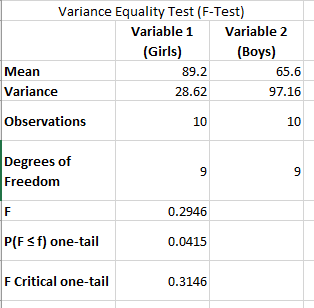
    Once you click « OK », Excel will display the F-Test results in the designated output area. The key results to interpret include:

    • F (test statistic): the ratio of the two variances

    • P(F ≤ f) one-tail: the p-value used to determine significance

    • F Critical one-tail: the critical value at your chosen alpha level

    Interpreting the results

    Compare the calculated F value to the F critical value:

    • If F > F Critical, the variances are significantly different

    • Alternatively, if the p-value is less than the significance level (e.g., 0.05), you reject the null hypothesis of equal variances

    Understanding the F-Test: Purpose, Functioning, and Applications

    What is the F-Test and When Is It Used?

    The F-test is a statistical procedure used to compare the variances of two datasets to determine if they are significantly different from one another. It helps answer the question: Are the variances of two populations equal or not? This test is commonly employed in the context of variance analysis and is essential for conducting ANOVA (Analysis of Variance).

    How the F-Test Works

    The key elements of the F-test are outlined below:

    • The F-test is applied when we want to test for a significant difference between the variances of two data samples.

    • The null hypothesis (H₀) assumes that the variances of the two datasets are equal.

    • The alternative hypothesis (H₁) assumes that the variances are different.

    • If the calculated F-value is significantly large and the p-value is below the chosen level of significance (usually 0.05), we reject the null hypothesis, indicating that the variances differ.

    • If the p-value is above the threshold, we fail to reject the null hypothesis, suggesting the variances are statistically equal.

    Limitations and Requirements of the F-Test

    • The F-test requires two datasets; it cannot be conducted on a single sample.

    • It returns an error in the following cases:

      • If either dataset contains fewer than two values.

      • If the variance of one of the datasets is zero, making comparison meaningless.

    • The F-test ignores non-numeric data such as text values and focuses solely on the numerical variances.

    Typical Applications of the F-Test

    The F-test is commonly used in scenarios where comparing variability is crucial. Examples include:

    • Evaluating the teaching effectiveness of two professors delivering the same course by comparing the variance in students’ performance.

    • Comparing two samples of bottled water (or gourds) tested under different environmental conditions.

    • Analyzing test scores from two groups of students within the same academic field to assess consistency.

    F-Test vs T-Test: Key Differences

    Feature T-Test F-Test
    Purpose Tests for significant difference between means of two datasets. Tests for significant difference between variances of two datasets.
    Null Hypothesis (H₀) The means of the two populations are equal. The variances of the two populations are equal.
    Focus Determines whether a single variable is statistically significant. Determines whether a group of variables is collectively significant.
    Degrees of Freedom (df) df=n−1, where n is the sample size. df1=n1−1, df2=n2−1, where n₁ and n₂ are sample sizes of the two datasets.

    The F-test is a general term for any statistical test that uses an F-statistic to compare variances. ANOVA (Analysis of Variance) is a specific application of the F-test used to compare the means of three or more groups. ANOVA relies on the assumption that the populations are normally distributed, have equal variances, and are independent.

    In summary:

    • Every ANOVA involves an F-test.

    • Not every F-test is an ANOVA.

    Understanding the P-Value in the F-Test

    The P-value in an F-test represents the probability that the observed differences in variance could have occurred by random chance.

    • A small p-value (typically < 0.05) indicates strong evidence against the null hypothesis, suggesting that the variances are significantly different.

    • A large p-value (typically > 0.05) implies weak evidence against the null hypothesis, supporting the idea that the variances are equal.

    For example:

    • A p-value of 0.01 means there is a 1% chance that the variance difference occurred randomly.

    P-values are also used to determine the statistical significance of individual variables within a dataset.

  • The Z-Test in Excel

    Definition and Purpose

    The Z-test is a statistical hypothesis test used to determine whether there is a significant difference between sample means when the population variance (or standard deviation) is known. It is especially appropriate for large sample sizes (n ≥ 30) and assumes that the data follows a normal distribution.

    This test evaluates how far the sample mean deviates from the population mean in terms of standard errors. It is commonly applied in hypothesis testing for comparing population means or proportions.

    Key Characteristics of the Z-Test

    • Used for hypothesis testing: The Z-test helps determine if a sample statistic (e.g., the sample mean) significantly deviates from a known population parameter.
    • Requires known population standard deviation (σ): Unlike the t-test, which estimates standard deviation from the sample, the Z-test assumes that σ is known.
    • Applicable for large sample sizes: A minimum sample size of 30 or more is typically required to ensure reliability under the Central Limit Theorem.
    • Types of Z-tests:
      • One-sample Z-test: Compares the mean of a single sample to a known population mean.
      • Two-sample Z-test: Compares the means of two independent samples.

    Z-Test Formula

    The formula for the Z-test statistic is:

    Where:

    •  Sample mean
    • μ0= Population mean
    • σ= Population standard deviation
    • n = Sample size

    This Z-score indicates how many standard deviations the sample mean is from the population mean.

    Hypothesis Testing with the Z-Test

    The process of hypothesis testing involves:

    • Setting up the hypotheses:
      • Null hypothesis (H₀): Assumes no effect or no difference (e.g., μ=μ0\mu = \mu_0)
      • Alternative hypothesis (H₁ or Hₐ): Indicates a deviation from the null (e.g., μ≠μ0\mu \ne \mu_0, μ>μ0\mu > \mu_0, or μ<μ0\mu < \mu_0)
    • Calculating the Z-statistic using the formula.
    • Comparing the Z-score with the critical value based on the chosen significance level (commonly α = 0.05).
    • Making a decision:
      • If the Z-score exceeds the critical value, reject H₀.
      • Otherwise, fail to reject H₀.

    Example 1: Academic Scenario

    A professor claims that first-year students have an average IQ above the general population mean of 100. A random sample of 30 students yields an average IQ of 117 with a known population standard deviation of 27.

    • H₀: μ=100\mu = 100
    • Hₐ: μ>100\mu > 100
    • xˉ=117, σ=27, n=3

    Z=117−10027/30=174.929=3.44

    Since 3.44 > 1.96 (critical value for α = 0.05, one-tailed), we reject the null hypothesis. The professor’s claim is statistically supported.

    Example 2: Medical Scenario

    A doctor asserts that a hospital treats more than 100 diabetic patients with an average blood glucose level above 234 mg/dL. A test on 90 patients results in:

    • Mean = 279 mg/dL
    • Standard deviation = 18
    • Population mean = 234
    • Significance level = 22.50 (used for comparison)

    Z=279−23418/90=451.89=23.80

    Since the Z-score (23.80) is greater than the significance level threshold (22.50), the doctor’s claim is supported by the data.

    Z-Score Interpretation

    The Z-score quantifies how far a sample statistic is from the population parameter in units of standard deviation:

    • Positive Z-score: Sample mean is above the population mean.
    • Negative Z-score: Sample mean is below the population mean.

    Z-scores help normalize data and make probability comparisons between different data distributions possible—even if the distributions have different means or variances.

    Z-Test Function in Excel

    Excel provides a built-in function Z.TEST for hypothesis testing, particularly when working with large datasets and known population parameters.

    Syntax:

    Z.TEST(array, x, [sigma])

    • array: Range of sample data.
    • x: Value to be tested (hypothesized population mean).
    • sigma (optional): Known standard deviation of the population. If omitted, Excel uses the sample standard deviation.

    Example:

    Given the data set in A7:A14{6, 7, 8, 9, 5, 4, 10, 4}, we want to test whether the population mean is 4:

    =Z.TEST(A7:A14, 4)

    Result: 0.00052 (p-value)

    Since the p-value is extremely small, the null hypothesis (that the population mean is 4) is likely to be rejected in favor of the alternative.

    Example– Using the Z.TEST Function

    Take a look at the data presented below.

    We will use this dataset to calculate the one-tailed p-value using the Z.TEST function.
    For this example, let’s assume that the hypothesized population mean is 6.

    Here are the steps to use the Z.TEST formula in Excel:

    • In an Excel cell, begin by typing the Z.TEST function.
    • Select the data range containing the sample scores, for example, from A2 to A11.

    • The next argument is the hypothesized mean (x). Since we are assuming the population mean to be 6, enter this value.

    • The third argument (standard deviation) is optional, so you can simply close the formula at this point.

    Excel will return the one-tailed p-value based on the data and the specified mean.

    • This is a one-tailed Z.TEST p-value. To get the two-tailed Z.TEST p-value, multiply this result by 2.

    Example – Performing a Z.TEST Using the Data Analysis Tool in Excel

    We can carry out a Z.TEST in Excel by using the Data Analysis tool. This method is useful when comparing two sample means where the population variances are known. The Z.TEST helps us determine if there is a statistically significant difference between the two population means.

    Hypothesis Setup

    Before running the test, we define two hypotheses:

    • Null hypothesis (H0): μ₁ – μ₂ = 0
      This means there is no difference between the two population means.

    • Alternative hypothesis (H1): μ₁ – μ₂ ≠ 0
      This states that the two population means are different.

    Dataset

    For this example, we use the scores of two students across several subjects. Our goal is to determine whether their average scores differ significantly.

    Step-by-Step Procedure

    Step 1: Calculate Population Variances
    Since the Z.TEST requires known population variances, start by calculating the variance for each student’s scores. Use Excel’s VAR.P function (which calculates variance for the entire population) on each student’s data range.

    Step 2: Open the Data Analysis Tool

    • Go to the Data tab on the Excel ribbon.

    • Click on Data Analysis (if this option is not visible, you may need to add the Analysis ToolPak add-in).

    • Scroll down and select Z-Test: Two Sample for Means, then click OK.

    Step 3: Input Data Ranges

    • For Variable 1 Range, select the range of scores for Student 1.

    • For Variable 2 Range, select the range of scores for Student 2.

    Step 4: Enter Known Variances

    • In the field Variable 1 Variance (known), input the variance value calculated for Student 1.

    • In Variable 2 Variance (known), input the variance value for Student 2.

    Step 5: Choose Output Range

    • Select where you want Excel to output the results. This can be a specific cell or a new worksheet.

    • Click OK to run the test.

    Interpreting the Results

    Once Excel outputs the result, it will include the calculated Z-statistic and the p-value.

    To decide whether to reject the null hypothesis, use the following criteria for a two-tailed test:

    • Reject H0 if Z < – critical z-value or Z > critical z-value

    The critical z-value is based on the chosen significance level (commonly α = 0.05), which corresponds to ±1.96 for a 95% confidence interval.

    Example result:

    • Calculated Z = -1.0808

    • Critical z-values = ±1.9599

    Since:

    • -1.0808 is not less than -1.9599

    • -1.0808 is not greater than 1.9599

    The calculated Z-value does not fall into the rejection region. Therefore, we fail to reject the null hypothesis, indicating that there is no statistically significant difference between the average scores of the two students.

    Important Notes

    • All input arguments must be numeric. If the data contains text or errors, Excel will return a #VALUE! error.

    • The data range must contain actual numeric values, or else you will get an #N/A error.

    • The Z-test assumes that the population standard deviations (or variances) are known, which is why we calculate and input variances here.

    • Typically, the Z-test is appropriate when the sample size is large (usually 30 or more data points) or when the population variance is known.

  • The T-Test in Excel

    A T-test is a fundamental statistical method used to determine whether there is a significant difference between the means of two groups, which may or may not be related. This test helps assess whether the observed differences in sample means reflect actual differences in the populations they represent, or whether they occurred by random chance.

    The T-test works by analyzing randomly selected samples from the two groups or categories being compared. It is particularly useful when the population data does not perfectly follow a normal distribution, which is often the case in real-world data.

    The type of T-test to be applied depends on the nature of the samples being studied—whether they are independent or paired, and whether the variances are assumed to be equal or unequal. The result of the test helps estimate the probability (p-value) that the observed difference in means occurred by chance.

    T-tests are commonly used in a wide variety of contexts, such as:

    • Comparing the average age between two population groups,

    • Evaluating the growth duration of two different crop species,

    • Analyzing student performance across different teaching methods or classes


    Understanding the T-Test

    A T-test is a statistical method used to evaluate data collected from two similar or distinct groups to determine the probability that the observed difference in results occurred by chance. It helps answer whether the variation in outcomes between groups is statistically significant or simply due to random variation.

    The accuracy of a T-test relies on several factors, such as the underlying data distribution, sample size, and variability within the samples. Based on these factors, the test produces a T-value, which serves as a statistical indicator of the likelihood that the observed difference is due to chance.

    Example:

    Suppose a researcher wants to assess whether the average petal length of a flower differs between two species. The researcher can randomly collect petal length data from both species and conduct a T-test to statistically compare the two means. The conclusion is then drawn based on the resulting T-value and corresponding p-value.

    The interpretation of the T-test result usually follows two hypotheses:

    • Null Hypothesis (H₀): Assumes that there is no difference between the means of the two groups (i.e., the means are equal).
    • Alternative Hypothesis (H₁): Assumes that the means are significantly different, implying that the difference is not due to random chance, and the null hypothesis is rejected.

    Note: A T-test is only appropriate when comparing two groups. If more than two groups need to be compared simultaneously, an ANOVA (Analysis of Variance) test is more appropriate.

    T-Test Assumptions

    For a T-test to yield valid results, several assumptions must be met:

    • Scale of Measurement: The data should be measured on an interval or ratio scale. Continuous or ordinal patterns must be followed when setting up hypotheses.
    • Random Sampling: Data should be obtained through a process of random sampling. Since individual identity is not preserved, the reliability depends on how representative the sample is.
    • Normality: The distribution of the sample data should approximate a normal distribution. When plotted, the data should ideally form a bell-shaped curve.
    • Sample Size: A larger sample size helps achieve a more clearly defined normal distribution curve, enhancing test reliability.
    • Homogeneity of Variance: The standard deviations of the groups being compared should be approximately equal. If this assumption is violated, a different version of the T-test (Welch’s T-test) should be used.

    Types of T-Tests

    There are several commonly used types of T-tests, depending on the nature of the data and comparison:

    One-Sample T-Test

    This test compares the mean of a single group to a known or hypothesized population mean. It helps determine whether the sample differs significantly from a set benchmark.

    Example:
    A teacher wants to determine if the average weight of 5th-grade students is greater than 45 kg.

    • She randomly selects a group of students, records their individual weights, and calculates the sample mean.
    • Then, she uses a one-sample T-test to check if the sample mean is statistically different from 45 kg.

    Formula (for a one-sample T-test):
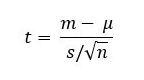
    Where:

    •  = sample mean
    • μ = population mean
    • s = sample standard deviation
    • n = sample size

     Independent Two-Sample T-Test

    The independent two-sample T-test, also known as the independent T-test, is used to compare the means of two independent groups or populations. This test is appropriate when the samples come from different groups that are unrelated to each other.

    Example:

    A teacher wants to compare the average height of male and female students in Grade 5. Since these are two separate groups, an independent two-sample T-test is used.

    Formula:
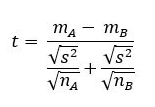
    Where:

    • mA−mB = difference between sample means
    • nA, nB = sample sizes of groups A and B
    • s2 = pooled variance (assuming equal variances)

    Paired Sample T-Test

    A paired sample T-test is used when two measurements are taken from the same group at different times or under two different conditions. It accounts for the fact that the data points are not independent but related or « paired. »

    Example:

    A nutritionist measures the weight of a group of individuals before and after a diet plan. Since the same individuals are measured twice, the data are paired.

    Formula:
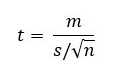
    Where:

    • m = mean of the differences between paired observations
    • s = standard deviation of the differences
    • n = number of pairs

    This test determines whether the average change is statistically significant.

    Equal Variance T-Test (Pooled T-Test)

    This version of the T-test is applied when the sample sizes are equal or nearly equal, and the variances of the two groups are assumed to be approximately the same. It is sometimes referred to as the pooled T-test.

    Formula:

    Where:

    • Mean1 and Mean2 = the mean value of each sample set

    • Var1 and Var2 = the variance of each sample set

    • n1 and n2 = the number of records (sample size) in each set

    Unequal Variance T-Test (Welch’s T-Test)

    The Welch’s T-test is used when the variances and sample sizes differ significantly between the two groups. It is a robust alternative to the standard T-test and does not assume equal variances.

    Formula:
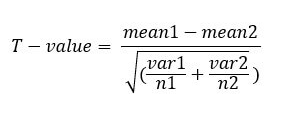
    Where:

      • Mean1 and Mean2 = the mean value of each sample set

      • Var1 and Var2 = the variance of each sample set

      • n1 and n2 = the number of records (sample size) in each set.

    Performing a T-Test in Excel

    A T-test in Excel can be conducted using either the Data Analysis Toolpak or the T.TEST function. Note that the older TTEST function has been replaced by T.TEST starting with Excel 2010 and onwards.

    The T.TEST function, also referred to as TEST.STUDENT in certain language settings, is categorized under Excel’s statistical functions and is used to determine the probability associated with a Student’s T-Test.

    Syntax of the T.TEST Function

    =T.TEST(array1, array2, tails, type)

    Where:

    • array1 – This is the first range of data (sample set) on which the T-test will be performed.

    • array2 – This is the second range of data to be compared against the first.

    • tails – Specifies the number of distribution tails. It can be:

      • 1 – for a one-tailed test: Used when testing if the mean of one group is greater or less than the other in a specific direction.

      • 2 – for a two-tailed test: Used when testing if the means of the two populations are significantly different, regardless of direction.

    • type – Indicates the type of T-test to be performed. It can be:

      • 1Paired T-test (used when comparing two related samples, such as measurements before and after treatment).

      • 2Two-sample equal variance T-test (used when the two samples are independent and assumed to have equal population variances — i.e., homoscedastic).

      • 3Two-sample unequal variance T-test (also known as Welch’s test, used when the two independent samples are assumed to have unequal variances — i.e., heteroscedastic).

    All arguments are required when using the T.TEST function in Excel.

    Example 1 – Paired Sample T-Test Using a One-Tailed Distribution

    Suppose we want to test whether there is a statistically significant difference in spending (in INR) by an organization between two countries — India and the United States — using paired data (e.g., corresponding monthly expenditures over the same period).

    Steps to perform the T-test:

    • In Excel, assume:

      • Column A (A4:A24): Monthly expenditures in India.

      • Column B (B4:B24): Monthly expenditures in the U.S.

    • To perform a paired one-tailed T-test, enter the following formula in cell B25:
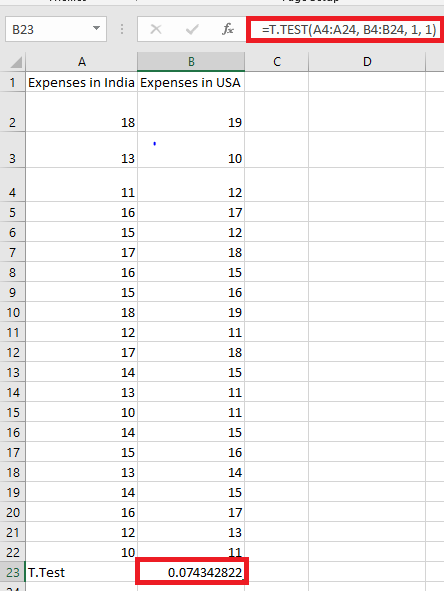
    =T.TEST(A4:A24, B4:B24, 1, 1)

    Press the “Enter” key.

    The output in cell B25 is 0.074342822, as shown in the image below.

    One-tailed/Two-tailed Explanation:

    The range A4:A24 (entered in step 1 of the formula) represents the first dataset on which the Excel t-Test is to be performed. Similarly, B4:B24 represents the second dataset.

    Additionally, we entered the arguments « tails » and « type » as 1. This indicates that a one-tailed, paired t-Test is being conducted.

    Interpretation:

    To determine whether to accept or reject the null hypothesis, perform the following steps:

    • Compare t-Statistic with Critical t-Value:
      Refer to the one-tailed t-distribution table to find the critical t-value at a given significance level (alpha), with the appropriate degrees of freedom (df).
      Then compare this table value to the calculated t-statistic (0.177639611).

      • If the calculated t-value is greater than the critical t-value, reject the null hypothesis.

    • Compare p-Value with Significance Level:
      Use the p-value obtained from the t-Test and compare it with the chosen significance level.
      Since alpha is not specified in the question, assume it to be 0.05 (5%).

      • If the p-value is less than 0.05, reject the null hypothesis.

    Decision-making regarding the null hypothesis should be based on both the t-value and the p-value. Rejecting the null hypothesis implies accepting the alternative hypothesis.

    Note: When comparing t-values, you can ignore the negative sign (if present).

    NOTE:

    The null hypothesis in a paired sample t-Test in Excel assumes that the mean difference between paired observations is zero.
    In other words, the average values of both paired datasets are equal.

    The alternative hypothesis assumes that the mean difference is not zero.
    For example, for row 4, the paired difference would be calculated as (18 – 19) or (cell A4 – cell B4).

    Rejecting the null hypothesis means that a significant average difference exists between the paired observations — i.e., the average difference is not zero.

    Example 2 – Two-Sample Equal Variance t-Test Using One-Tailed Distribution

    An organization launched a new beverage flavor. To test its effectiveness, two samples (each with 21 people) were created.

    • People who tasted the new flavor are listed under the “New” column.

    • Those who tasted the old flavor are listed under the “Old” column.

    Assume both groups (New and Old) are independent samples and have equal population variances.

    Now, perform a two-sample equal variance t-Test in Excel using a one-tailed distribution.

    Steps to Perform the t-Test:

    Step 1: In cell B52, enter the following formula:

    =T.TEST(B2:B22, C2:C22, 2, 1)

    This is shown in the image below.
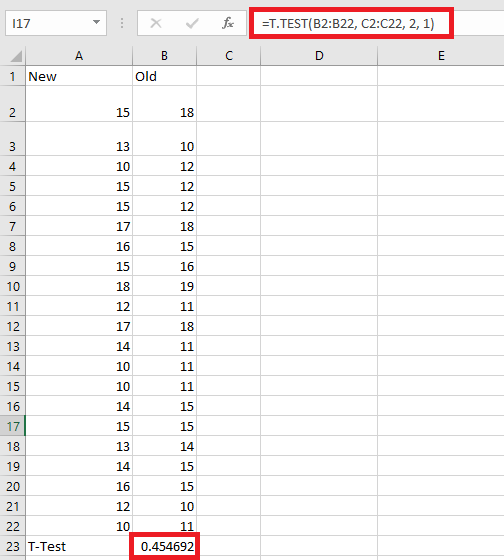
    Step 2: Press the “Enter” key.

    The output in cell B52 is 0.454691996.

    Explanation:

    • The first data range in the formula (entered in Step 1) is A31:A51

    • The second data range is B31:B51

    • The argument 1 indicates a one-tailed test

    • The argument 2 specifies a two-sample equal variance t-Test (also known as a homoscedastic t-Test)

    Interpretation:

    To determine whether to accept or reject the null hypothesis, proceed as follows:

    • Compare the calculated t-statistic with the critical t-value from the t-distribution table

    • Simultaneously, compare the p-value with the standard significance level (alpha = 0.05)

    t-Test Hypotheses (Equal Variance, Two-Sample):

    • Null Hypothesis (H₀):
      There is no difference between the means of the two samples (i.e., the means are equal).

    • Alternative Hypothesis (H₁):
      There is a difference between the sample means (i.e., the means are not equal).

    NOTE:

    • If you are using the Data Analysis Toolpak in Excel:

      • Compare the t-statistic obtained with the one-tailed critical t-value.

      • If the t-statistic > critical t-value, reject the null hypothesis.

      • Also, compare the one-tailed p-value with the significance level (e.g., 0.05).

      • If the p-value < 0.05, reject the null hypothesis.

    Rejecting the null hypothesis suggests that there is a significant difference between the two sample means — and this difference is not due to random chance.

    If you’re unsure whether to use the one-tailed or two-tailed t-critical values, it’s safer to compare the t-statistic against the two-tailed t-critical value for a more conservative interpretation.

    Example #3 – Two-Sample Unequal Variance t-Test Using a One-Tailed Distribution

    A researcher wants to study the impact of a new drug on a person’s driving performance. A total of 21 individuals were administered the drug before taking a driving test.

    • Column A in the Excel sheet contains the driving test scores.

    • Column B contains the drug level (%) administered to each person.

    The population variances of the two samples are unequal.
    Perform a two-sample t-Test assuming unequal variances using a one-tailed distribution.

    Steps to Perform the Test:

    Step 1: Enter the following formula in cell B23:

    =T.TEST(A2:A22, B2:B22, 1, 3)
    • Argument 1 = one-tailed distribution

    • Argument 3 = two-sample unequal variance t-Test (also called Welch’s t-Test)

    This setup is shown in the image below.
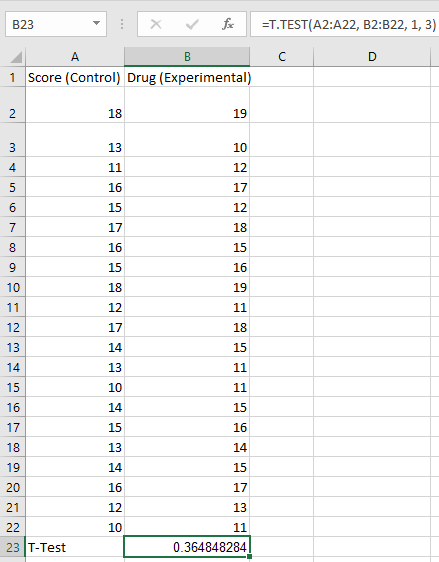
    Step 2: Press the « Enter » key on your keyboard.
    As a result, the output displayed in the cell will be 0.364848284, as shown in the image below. This value corresponds to the result of the formula or operation entered in the previous step.

    Explanation:

    The range A2:A22 represents the first data array, as referenced in the formula entered in Step 1. The range B2:B22 represents the second data array, which will be compared to the first using Excel’s T.TEST function.

    Since a one-tailed test is required, we enter 1 for the "tails" argument. The value 3 for the "type" argument specifies that Excel should perform a two-sample t-test assuming unequal variances (also known as Welch’s t-test).

    Interpretation:

    To interpret the result, compare the calculated t-value (returned by Excel) with the critical t-value from the t-distribution table at the chosen level of significance.

    • If the calculated t-value is greater than the critical t-value, the null hypothesis is rejected.

    • Similarly, if the p-value returned by Excel is less than the significance level (e.g., 0.05), the null hypothesis is rejected in favor of the alternative hypothesis.

    NOTE:

    In a two-sample t-test assuming unequal variances, the null hypothesis states that the means of the two samples are equal.
    The alternative hypothesis asserts that the means are different (i.e., not equal).

    Common Errors Returned by the Excel T.TEST Function:

    The T.TEST function in Excel can return several types of errors depending on the input values. These include:

    • #N/A Error:
      This appears when the two data arrays are of different lengths and a paired t-test is specified (type = 1).

    • #NAME? Error:
      This occurs when either the "tails" or "type" argument is provided as text rather than a numeric value.

    • #NUM! Error:
      This error is returned in the following cases:

      • If the "tails" argument is not 1 (one-tailed) or 2 (two-tailed).

      • If the "type" argument is not 1, 2, or 3.

    For example, in the illustration provided, the error #NUM! is shown because the "tails" argument was incorrectly entered as 5, and the two data arrays were of different sizes.

    Even if both arrays had the same length, using invalid values for the "tails" (e.g., 5) or "type" arguments would still result in a #NUM! error.


    Key Differences Between the Z-Test and the T-Test

    The Z-test is a statistical hypothesis test typically used to determine whether there is a significant difference between the means of two groups when the population standard deviation (or variance) is known and the sample size is large. In contrast, the T-test is employed when the population variance is unknown and is estimated using the sample data, particularly when the sample size is small.

    Both Z-tests and T-tests are foundational tools in inferential statistics and are widely used across disciplines such as science, business, medicine, and social sciences. While both are univariate hypothesis tests, they differ in their underlying assumptions and applications.

    Main Differences

    • Knowledge of Population Variance
      • The Z-test requires that the population variance or standard deviation is known or assumed to be known.
      • The T-test, however, is applied when the population variance or standard deviation is unknown, and thus must be estimated from the sample.
    • Distribution Assumptions
      • The Z-test assumes that the sampling distribution of the sample mean follows a normal distribution.
      • The T-test is based on the Student’s t-distribution, which is similar in shape to the normal distribution but has heavier tails, especially when sample sizes are small. This accounts for additional uncertainty due to estimating the population standard deviation.
    • Sample Size Requirement
      • The Z-test is appropriate for large samples (typically n > 30).
      • The T-test is more suitable for small samples (usually n < 30), where the sampling variability is higher.
    • Application Context
      • The Z-test is ideal when comparing two sample means and population parameters are known.
      • The T-test is used to compare means when population parameters are not known and must be estimated from the data.
    • Statistical Foundation
      • The Z-test relies on the standard normal distribution (mean = 0, variance = 1).
      • The T-test relies on the t-distribution, which varies depending on degrees of freedom, often calculated as the sample size minus one (n − 1).
    • Hypothesis Assumptions
      Aspect Z-Test T-Test
      Population Parameters Known population standard deviation or variance Unknown population standard deviation or variance
      Sample Size Large (n > 30) Small (n < 30)
      Underlying Distribution Based on the normal distribution Based on the Student’s t-distribution
      Independence Data points must be independent Data points must be independent and accurately measured
      Test Statistic z-score t-score

    Key Differences Between ANOVA and the T-Test

    The main difference between ANOVA (Analysis of Variance) and the T-test lies in the number of groups being compared. The T-test is used when comparing the means of two groups, while ANOVA is designed to compare the means across three or more groups simultaneously.

    In addition, ANOVA requires that the dependent variable be continuous, and the independent variable be categorical with at least three levels. Conversely, in a T-test, the independent variable must also be categorical, but it should have exactly two levels.

    Main Differences

    • Number of Groups Compared
      • The T-test is appropriate for comparing the means of two groups only.
      • ANOVA (typically One-Way ANOVA) is used when comparing the means of three or more groups.
    • Independent Variable Levels
      • In a T-test, the independent variable is categorical with two levels (e.g., male vs. female).
      • In ANOVA, the independent variable must be categorical with at least three levels (e.g., low, medium, high).
    • Test Statistic
      • The T-test uses the t-value as the test statistic.
      • ANOVA uses the F-statistic, which represents the ratio of variance between group means to the variance within the groups.
    • Data Type Requirements
      • Both tests require the dependent variable to be continuous.
      • However, ANOVA is more scalable and better suited when analyzing data involving multiple groups.
    • Error and Robustness
      • As the number of comparisons increases, performing multiple T-tests raises the risk of Type I error.
      • ANOVA controls this risk by analyzing all group differences simultaneously, making it more robust when dealing with more than two groups.
    • Types of Tests
      Test Type Description
      T-Test One-sample, two-sample (independent), paired sample
      ANOVA One-way ANOVA (single factor), Two-way ANOVA (two factors with interaction)
    • Summary Comparison Table
    Criteria ANOVA T-Test
    Meaning A statistical technique used to compare the means of 3 or more groups A statistical test to compare the means of 2 groups
    Types One-way and Two-way ANOVA One-sample, two-sample, paired-sample t-tests
    Focus Compares between-group and within-group variances Compares the mean difference between two groups
    Population Size Can be applied to larger populations Best suited for smaller populations (n < 30)
    Test Statistic F-value t-value
    Interpretation High F-value suggests significant variance between group means High t-value suggests significant mean difference
    Error Risk Slightly more risk due to multiple group comparisons Less error-prone, but limited to two-group comparisons


  • Understanding and Calculating Confidence Intervals in Excel

    1. What is a Confidence Interval?

    A Confidence Interval (CI) is a range of values that estimates the true population parameter (usually the mean), based on sample data. It tells us how confident we are that the actual mean falls within that range.

    For example:
    If the 95% confidence interval for a sample mean is (60.31, 81.88), we can say that we are 95% confident that the population mean lies between those two values.

    2. Formula for Confidence Interval in Excel

    We use this formula:

    Confidence Interval = Sample Mean ± Confidence Value

    The confidence value is calculated using the CONFIDENCE.NORM function (for normal distribution):

    =CONFIDENCE.NORM(alpha, standard_dev, size)

    • alpha = 1 – Confidence Level (e.g., 0.05 for 95%)
    • standard_dev = Standard deviation of the sample
    • size = Sample size

    3. Sample Dataset

    4. Steps in Excel

    Step 1: Calculate Sample Mean

    Use the AVERAGE function:

    =AVERAGE(B2:B11)

    Step 2: Calculate Standard Deviation

    Use STDEV.P (population) or STDEV.S (sample). For samples, use:

    =STDEV.S(B2:B11)

    Step 3: Set Significance Level (Alpha)

    If you want a 95% confidence level:

    =1 – 0.95 → 0.05

    Put 0.05 in a cell like E4.

    Step 4: Calculate Sample Size

    Use the COUNT function:

    =COUNT(B2:B11)

    Step 5: Calculate Confidence Value

    Use CONFIDENCE.NORM function:

    =CONFIDENCE.NORM(E4, E3, E5)

    Assuming:

    • E4 = alpha (0.05)
    • E3 = standard deviation
    • E5 = sample size

    Step 6: Calculate Confidence Interval Bounds

    Lower Bound:

    =Mean – Confidence_Value

    Upper Bound:

    =Mean + Confidence_Value

    If the mean is in E2 and confidence value in E6:

    Lower Bound = E2 – E6

    Upper Bound = E2 + E6

    5. Example Output

    Let’s say:

    • Mean = 66.7
    • Standard Deviation = 8.14
    • Sample Size = 10
    • Alpha = 0.05
    • Confidence Value = 5.27

    Then:

    • Lower Bound = 66.7 – 5.27 = 61.43
    • Upper Bound = 66.7 + 5.27 = 71.97

    ✅ So, the 95% Confidence Interval is (61.43, 71.97).

    6. Important Notes

    • Use STDEV.S for sample data and STDEV.P for population data.
    • CONFIDENCE.NORM assumes normal distribution.
    • For small samples (n < 30), consider using CONFIDENCE.T instead.

    7. Downloadable Excel Template

    You can easily recreate the spreadsheet using this structure:

    Metric Formula Cell
    Mean =AVERAGE(B2:B11) E2
    Std Dev (Sample) =STDEV.S(B2:B11) E3
    Alpha (0.05 for 95%) 0.05 E4
    Sample Size =COUNT(B2:B11) E5
    Confidence Value =CONFIDENCE.NORM(E4,E3,E5) E6
    Lower Bound =E2-E6 E7
    Upper Bound =E2+E6 E8

    8. Conclusion

    You now have:

    • A clear understanding of Confidence Intervals
    • A method to calculate them using Excel
    • A real-world dataset to practice with
    • Formulas and steps to apply in your own data analysis


  • QUARTILE Function in Excel

    1. What is the QUARTILE Function?

    The QUARTILE function is a statistical tool in Excel used to divide a dataset into four equal parts. These parts are known as quartiles.

    Quart Argument Returns
    0 Minimum value
    1 First quartile (Q1 = 25th percentile)
    2 Second quartile (Q2 = median or 50th percentile)
    3 Third quartile (Q3 = 75th percentile)
    4 Maximum value

    2. Syntax

    =QUARTILE(array, quart)

    • array: A range of numeric data (like A2:A10).
    • quart: A number from 0 to 4 indicating the quartile you want.

    Note: In newer versions of Excel, QUARTILE has been replaced by two updated functions:

    • QUARTILE.INC – inclusive of 0 and 1
    • QUARTILE.EXC – exclusive of 0 and 1

    3. Example Datasets to Practice

    Dataset #1 – Small Dataset

    Dataset #2 – Sorted Dataset

    4. Using the QUARTILE Function

    To use the function, follow these steps:

    1. Enter your data into a column (e.g., A2:A9).
    2. In other cells, use these formulas:

    =QUARTILE(A2:A9, 0)   → Minimum value

    =QUARTILE(A2:A9, 1)   → First quartile (Q1)

    =QUARTILE(A2:A9, 2)   → Median (Q2)

    =QUARTILE(A2:A9, 3)   → Third quartile (Q3)

    =QUARTILE(A2:A9, 4)   → Maximum value

    ✅ Replace QUARTILE with QUARTILE.INC or QUARTILE.EXC to test different quartile methods.

    5. Example Calculation – Interpreting Results

    Using Dataset #1:

    Sorted Data: 12, 15, 22, 29, 34, 40, 55, 62

    Quartile Type Excel Formula Result
    Minimum =QUARTILE.INC(A2:A9, 0) 12
    Q1 (25%) =QUARTILE.INC(A2:A9, 1) 18.5
    Q2 (Median) =QUARTILE.INC(A2:A9, 2) 31.5
    Q3 (75%) =QUARTILE.INC(A2:A9, 3) 48.75
    Maximum =QUARTILE.INC(A2:A9, 4) 62

    6. QUARTILE.INC vs QUARTILE.EXC – What’s the Difference?

    Function Includes Min/Max? Supports values 0 and 4? Behavior
    QUARTILE.INC ✅ Yes ✅ Yes Same as old QUARTILE
    QUARTILE.EXC ❌ No ❌ No (returns #NUM!) More strict

    Example: QUARTILE.EXC(A2:A9, 0) will return #NUM! error because it doesn’t calculate the minimum or maximum.

    Excel Practice File Layout

    You can build your Excel test like this:

    A (Data) B (Formula) C (Label)
    12 =QUARTILE.INC(A2:A9, 0) Minimum
    15 =QUARTILE.INC(A2:A9, 1) First Quartile
    22 =QUARTILE.INC(A2:A9, 2) Median
    29 =QUARTILE.INC(A2:A9, 3) Third Quartile
    34 =QUARTILE.INC(A2:A9, 4) Maximum

    Bonus Tips

    • Use PERCENTILE.INC(array, k) if you want a specific percentile like 90% or 33%.
    • Combine quartiles with a Box & Whisker chart for visual analysis.
    • Useful for analyzing: salaries, exam scores, sales data, customer response times, etc.

    Want a Downloadable Excel Template?

    Would you like me to generate a downloadable Excel file with the examples?

    Please choose:

    • Basic quartile analysis
    • Quartile.INC vs Quartile.EXC comparison
    • Boxplot-ready version