Votre panier est actuellement vide !
Étiquette : macro_graphics
Two-Color Scale In Excel VBA
It is possible to format a range of cells using either a two-color or three-color scale. Here is an example using a two-color scale:
Sub TwoColorScale()
    Dim Rg As Range
    ThisWorkbook.Worksheets("Sheet6").Activate
    Set Rg = Range("A2:A11")
    ' Remove any existing conditional formats
    Rg.FormatConditions.Delete
    ' Add a two-color scale conditional formatting
    Rg.FormatConditions.AddColorScale 2
    ' Modify the two-color scale settings
    With Rg.FormatConditions(1)
        .ColorScaleCriteria(1).Type = xlConditionValueLowestValue
        .ColorScaleCriteria(1).FormatColor.Color = vbYellow
        .ColorScaleCriteria(2).Type = xlConditionValueHighestValue
        .ColorScaleCriteria(2).FormatColor.Color = vbRed
    End With
    Set Rg = Nothing
End Sub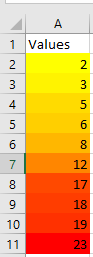
Explanation:
First, any existing conditional formats in the specified range are deleted.The method AddColorScale() creates a ColorScale object, which is a conditional formatting rule using a color gradient. The first parameter (ColorScaleType) determines whether the scale is two-colored or three-colored.
Additional formatting criteria can be set on a ColorScale object via its ColorScaleCriteria collection.
For the first criterion, the lowest value in the range is assigned the color yellow. This is done by setting the Type property to xlConditionValueLowestValue (from the xlConditionValueTypes enumeration) and assigning the desired color to the FormatColor.Color property.
For the second criterion, the highest value is assigned the color red, using the xlConditionValueHighestValue enumeration.
Data Bars In Excel VBA
The following program illustrates the relative sizes of a series of numbers using data bars:
Sub CreateDataBars()
    Dim Rg As Range
    ThisWorkbook.Worksheets("Sheet6").Activate
    Set Rg = Range("A2:A11")
    ' Remove any existing conditional formats
    Rg.FormatConditions.Delete
    ' Add data bars conditional formatting
    Rg.FormatConditions.AddDatabar
    ' Modify the data bar color
    Rg.FormatConditions(1).BarColor.Color = vbRed
    Set Rg = Nothing
End Sub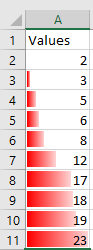
Explanation:
Conditional formatting rules applied to a cell or a range are stored in the FormatConditions collection.The Delete() method removes any existing conditional formats in the specified range.
The AddDatabar() method adds a data bar conditional formatting rule, which creates a bar inside each cell reflecting the relative value within the range.
Since this is the first conditional format applied, it is accessed by the index 1. Additional conditional formats could later be added and accessed by higher indices.
The color of the data bar is modified through the BarColor.Color property.
Figure shows the resulting data bars visualization.
WordArt In Excel VBA
WordArt allows you to create decorative text effects, such as shadowed or mirrored text. Using the method AddTextEffect(), the following example displays an overview of the 30 different predefined effect types available up to Excel 2010. Since Excel 2013, 20 additional effect types have been introduced. Each resulting object is of the class Shape.
Code:
Sub DisplayAllWordArt()
    Dim Sh As Shape
    Dim i As Integer, lf As Integer, tp As Integer
    ' Select the worksheet
    ThisWorkbook.Worksheets("Sheet5").Activate
    ' Hide gridlines for clearer display
    ActiveWindow.DisplayGridlines = False
    ' Delete all existing shapes
    For Each Sh In ActiveSheet.Shapes
        Sh.Delete
    Next Sh
    ' Initial position values
    lf = 5
    tp = 5
    ' Create all available WordArt presets
    For i = 0 To 49
        Set Sh = ActiveSheet.Shapes.AddTextEffect( _
            i, CStr(i), "Arial", 48, False, False, lf, tp)
        Sh.TextFrame.Characters.Font.Color = RGB(255, 0, 0)
        ' Calculate position for next WordArt object
        lf = lf + 70
        If i Mod 6 = 5 Then
            lf = 10
            tp = tp + 70
        End If
    Next i
    Set Sh = Nothing
End Sub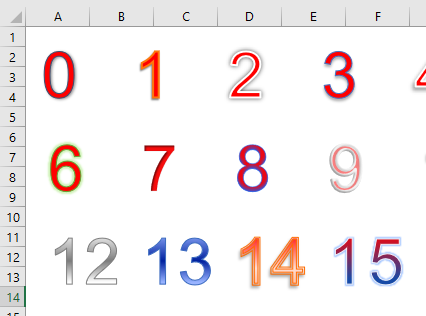
Explanation:
As in the previous program, gridlines on the worksheet are hidden, and any existing shapes are deleted.After setting the initial position, the loop calls the method AddTextEffect(), which has eight mandatory parameters:
- Type of predefined text effect
- Text to display
- Font name
- Font size
- Bold: True/False
- Italic: True/False
- Left position
- Top position
The font color of the text inside the shape’s text frame is set to red.
At the end of each loop iteration, the position for the next WordArt object is calculated.
The effect can be further customized using the parameters.
Figure shows a small excerpt displaying WordArt types.
All Shapes In Excel VBA
For better clarity, this section demonstrates all the different AutoShapes using the following VBA program:
Sub DisplayAllShapes()
    Dim Sh As Shape
    Dim i As Integer, lf As Integer, tp As Integer
    ' Select the worksheet
    ThisWorkbook.Worksheets("Sheet4").Activate
    ' Hide gridlines for clearer display
    ActiveWindow.DisplayGridlines = False
    ' Delete all existing shapes
    For Each Sh In ActiveSheet.Shapes
        Sh.Delete
    Next Sh
    ' Initial position values
    lf = 5
    tp = 5
    ' Create all possible shapes
    For i = 1 To 137
        Set Sh = ActiveSheet.Shapes.AddShape(i, lf, tp, 30, 30)
        ' Format the shape
        With Sh
            .Line.Weight = 1
            .Line.ForeColor.RGB = RGB(0, 0, 0)
            .Fill.ForeColor.RGB = RGB(255, 255, 255)
        End With
        ' Add the shape type number as text inside the shape
        With Sh.TextFrame.Characters
            .Font.Color = vbBlack
            .Font.Size = 7
            .Text = i
        End With
        ' Calculate position for next shape
        lf = lf + 35
        If i Mod 15 = 0 Then
            lf = 5
            tp = tp + 35
        End If
    Next i
    Set Sh = Nothing
End Sub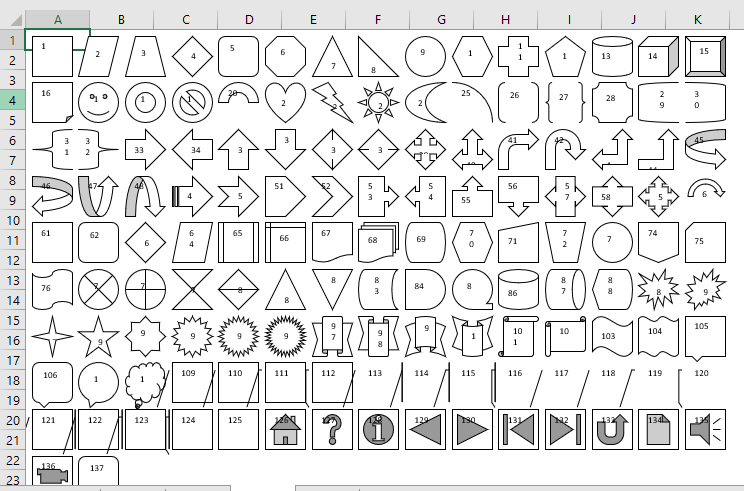
Explanation:
First, gridlines on the worksheet are hidden to improve visibility. Then, any existing shapes on the sheet are deleted.Initial coordinates for placing the AutoShapes are set.
Within the loop, all 137 different AutoShapes are created using the AddShape() method.
Each shape is sized 30 by 30 points, drawn with a thin black border and a white fill.
Inside each shape, its Type number (the current loop index) is displayed as text.
At the end of each loop iteration, the position for the next shape is calculated, moving horizontally by 35 points and moving down a row every 15 shapes.
The Figure shows a small excerpt of the shapes. Depending on the shape’s design, the type number may only be partially visible, but can always be inferred by the neighboring shapes.
Freeform Shape In Excel VBA
A freeform shape is a path composed of straight or curved line segments connecting vertices (called nodes). If the last node coincides with the first, the freeform is closed, creating an enclosed area.
The method BuildFreeform() creates a FreeformBuilder object starting with the first node. Additional nodes are added with AddNodes(). Finally, ConvertToShape() converts the freeform into a Shape object.
Two examples follow: a closed freeform and an open freeform polyline.
Closed Freeform Example:
Sub ClosedFreeform()
    Dim FB As FreeformBuilder
    Dim Sh As Shape
    ThisWorkbook.Worksheets("Sheet3").Activate
    ' Initialize freeform with first node
    Set FB = ActiveSheet.Shapes.BuildFreeform(msoEditingAuto, 330, 30)
    ' Add curved nodes
    FB.AddNodes msoSegmentCurve, msoEditingAuto, 390, 60
    FB.AddNodes msoSegmentCurve, msoEditingAuto, 390, 120
    FB.AddNodes msoSegmentCurve, msoEditingAuto, 430, 40
    ' Close the freeform by returning to the first node
    FB.AddNodes msoSegmentCurve, msoEditingAuto, 330, 30
    ' Convert freeform to shape and format
    Set Sh = FB.ConvertToShape
    Sh.Line.Weight = 3
    Sh.Fill.ForeColor.RGB = RGB(91, 155, 213)
    Sh.Line.ForeColor.RGB = RGB(65, 113, 156)
    Set Sh = Nothing
    Set FB = Nothing
End Sub
Explanation of Closed Freeform:
The method BuildFreeform() requires three parameters:
- EditingType: defines the editing behavior of the first node and must be a value from the msoEditingType enumeration. The value msoEditingAuto means the editing mode adapts automatically to connected segments, providing a universal setting.
- X1 and Y1: specify the coordinates of the first node.
The AddNodes() method requires at least four parameters:
- SegmentType: defines the type of connection to the new node, from the msoSegmentType enumeration. Possible values include msoSegmentCurve for curved segments and msoSegmentLine for straight lines.
- EditingType: as described above.
- The next two parameters specify the coordinates of the new node when EditingType is set to msoEditingAuto.
The method ConvertToShape() converts the built freeform into a Shape, which can then be manipulated with standard shape properties and methods, such as Line.Weight for line thickness.
Open Freeform Polyline Example:
The node coordinates are taken from the worksheet (see Figure 7.16).
Sub OpenFreeformPolyline()
    Dim FB As FreeformBuilder
    Dim Sh As Shape
    Dim i As Integer
    ThisWorkbook.Worksheets("Sheet3").Activate
    ' Initialize freeform with first node from cells I1 (col 9), J1 (col 10)
    Set FB = ActiveSheet.Shapes.BuildFreeform(msoEditingAuto, Cells(1, 9), Cells(1, 10))
    ' Add line segments for nodes in rows 2 to 10
    For i = 2 To 10
        FB.AddNodes msoSegmentLine, msoEditingAuto, Cells(i, 9), Cells(i, 10)
    Next i
    ' Convert freeform to shape and format
    Set Sh = FB.ConvertToShape
    Sh.Line.Weight = 3
    Sh.Line.ForeColor.RGB = RGB(91, 155, 213)
    Set Sh = Nothing
    Set FB = Nothing
End Sub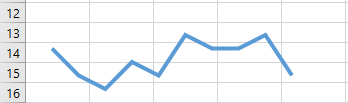
Explanation:
The coordinates for the first node come from the first row of the specified columns, and subsequent nodes come from the rows below. The connection type used here is a straight line (msoSegmentLine).Connector In Excel VBA
A connector provides a flexible link between two graphic objects. When one or both of these objects change position or size, the connector’s properties adjust accordingly. The connection can originate from one of several possible connection points on an object. Typically, it is desirable for the connection points on both objects to be as close to each other as possible.
In the following example, two rectangles are first created. Then, these two shapes are connected by a straight connector. Rectangles have four possible connection points, each located at the midpoint of their four sides.
Sub CreateConnector()
    Dim Sh1 As Shape, Sh2 As Shape
    Dim Con As Shape
    ThisWorkbook.Worksheets("Sheet3").Activate
    ' Shapes to be connected
    Set Sh1 = ActiveSheet.Shapes.AddShape(msoShapeRectangle, 80, 130, 40, 30)
    Set Sh2 = ActiveSheet.Shapes.AddShape(msoShapeRectangle, 180, 100, 40, 30)
    ' Connector
    Set Con = ActiveSheet.Shapes.AddConnector(msoConnectorStraight, 1, 1, 1, 1)
    Con.Line.Weight = 3
    Con.ConnectorFormat.BeginConnect Sh1, 1
    Con.ConnectorFormat.EndConnect Sh2, 1
    Con.RerouteConnections
    ' Colors
    Sh1.Fill.ForeColor.RGB = RGB(91, 155, 213)
    Sh2.Fill.ForeColor.RGB = RGB(91, 155, 213)
    Con.Line.ForeColor.RGB = RGB(91, 155, 213)
    Set Con = Nothing
    Set Sh1 = Nothing
    Set Sh2 = Nothing
End Sub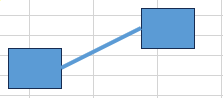
Explanation:
The AddConnector() method creates a connector, returning an object of type Shape.The first parameter specifies the connector type, which is a value from the msoConnectorType enumeration. Here, msoConnectorStraight indicates a straight connector.
The next four parameters define the starting point (BeginX, BeginY) and ending point (EndX, EndY) coordinates of the connector, similar to a line. However, once the connector is connected, these values are overridden by the positions of the connected objects. Thus, only nonzero placeholder values are required here.
Additional line properties such as Weight (line thickness) can be set for the connector.
The actual connection is made using the BeginConnect() and EndConnect() methods of the ConnectorFormat property. Both methods take two parameters:
- The first parameter is the shape to connect to.
- The second parameter is the index number of the connection point on that shape.
As noted, it is generally desirable for the connection points on the two objects to be as close as possible. Therefore, placeholder nonzero values suffice initially.
The RerouteConnections() method automatically adjusts the connector to use the optimal connection points between the two shapes.
Line In Excel VBA
The AddLine() method creates a line shape. The return value is an object of type Shape. For a line, the Line property of the Shape object controls the properties of the line itself. For larger shapes (such as rectangles), this property controls the border line characteristics.
Data arrays can contain not only variables but also references to objects. In this example, an array of references to three similar line shapes is created:
Sub CreateLines()
    Dim Sh(1 To 3) As Shape
    Dim i As Integer
    ThisWorkbook.Worksheets("Sheet3").Activate
    For i = 1 To 3
        Set Sh(i) = ActiveSheet.Shapes.AddLine(240, 30, 280, 30)
        Sh(i).Line.ForeColor.RGB = RGB(255, 0, 0)
        Sh(i).Line.Weight = 3
        Sh(i).Rotation = (i - 1) * 30
        Set Sh(i) = Nothing
    Next i
End Sub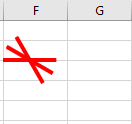
Explanation:
The AddLine() method requires four parameters:- BeginX and BeginY specify the coordinates of the line’s starting point.
- EndX and EndY specify the coordinates of the line’s ending point.
Inside the loop, the color and thickness of each line are set uniformly.
The Rotation property is set differently for each line, increasing in increments of 30 degrees for each successive line.
Oval In Excel VBA
The type msoShapeOval is used to create an oval shape. If the width and height are equal, the shape becomes a perfect circle. Many graphic objects can contain text, which is demonstrated here with the oval:
Sub CreateOval()
    Dim Sh As Shape
    ThisWorkbook.Worksheets("Sheet3").Activate
    Set Sh = ActiveSheet.Shapes.AddShape(msoShapeOval, 130, 30, 80, 50)
    Sh.Fill.ForeColor.RGB = RGB(91, 155, 213)
    Sh.Line.DashStyle = msoLineDash
    Sh.TextFrame.Characters.Text = "Hello"
    Sh.TextFrame.Characters.Font.Color = vbYellow
    Set Sh = Nothing
End Sub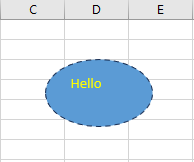
Explanation:
By specifying the type msoShapeOval, you create an oval.The DashStyle property of the shape’s line controls the style of the border line. The values come from the enumeration msoLineDashStyle. Here, msoLineDash means the line is dashed.
The TextFrame property allows you to set certain text-related properties for many shapes (though not all). Related properties include TextFrame2 and TextEffect.
The sub-property TextFrame.Characters is used to assign the actual text (via the Text property) and to set font attributes (via the Font property).
Rectangle In Excel VBA
The following example demonstrates how to create a rectangle with fill color, border line, and rotation. A rectangle is a shape of the type msoShapeRectangle.
Sub CreateRectangle()
    Dim Sh As Shape
    ThisWorkbook.Worksheets("Sheet3").Activate
    Set Sh = ActiveSheet.Shapes.AddShape(msoShapeRectangle, 30, 30, 50, 80)
    Sh.Fill.ForeColor.RGB = RGB(255, 0, 0)
    Sh.Line.ForeColor.RGB = RGB(255, 255, 0)
    Sh.Line.Weight = 3
    Sh.Rotation = 20
    Set Sh = Nothing
End Sub
Explanation:
The AddShape() method is used to create many different types of graphic objects. It takes five parameters:- Type: A value from the enumeration msoAutoShapeType. This enumeration includes well over 100 elements, each representing a specific type of graphic object. By specifying msoShapeRectangle, you create a rectangle.
- Left and Top: These specify the coordinates of the bounding frame of the new shape, measured from the top-left corner of the worksheet.
- Width and Height: These define the width and height of the bounding frame. For a rectangle, the bounding frame corresponds exactly to the shape itself. For an oval, however, the bounding frame is the invisible rectangle surrounding the oval, which becomes visible when the shape is selected.
The Fill property of a shape controls the fill formatting. Here, the sub-property ForeColor.RGB is used to set the fill color of the shape.
The Line property pertains to the line formatting of the shape. For line shapes, it controls the line itself; for larger shapes like a rectangle, it controls the border line. Here, the sub-property ForeColor.RGB sets the border color.
The Weight property sets the thickness of the border line.
The Rotation property determines the rotation angle of the graphic object in degrees, measured clockwise.
Note:
The coordinates of the shape (Left and Top) do not change when the shape is rotated, even though, for example, the position of the upper-left corner of the shape may appear shifted. Therefore, the actual position of the shape on the worksheet is determined only by the combination of Left, Top, and Rotation values.Example Formatted Pie Chart In Excel VBA
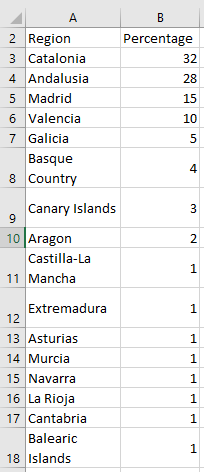
As another example of creating and formatting an embedded chart, the following illustrates a pie chart. You will notice that many general chart properties used in the line chart example can be applied here as well. However, some properties are unique to pie charts. The data source is election results from Spain in 2019,.
Code:
Sub CreatePieChart()
    Dim CO As ChartObject
    Dim CH As Chart
    Dim i As Integer
    Set CO = ThisWorkbook.Worksheets("Sheet2").ChartObjects.Add(200, 10, 400, 350)
    Set CH = CO.Chart
    ' Chart type and data source
    CH.ChartType = xlPie
    CH.SetSourceData Range("A1:B16")
    ' Chart and plot area formatting
    CH.ChartArea.Interior.Color = vbCyan
    CH.PlotArea.Interior.Color = vbYellow
    ' Title
    CH.HasTitle = True
    CH.ChartTitle.Text = "Spain 2019"
    ' Legend
    CH.HasLegend = True
    With CH.Legend
        .Interior.Color = vbYellow
        .Border.Color = vbBlue
        .Border.Weight = xlThick
    End With
    ' Data points formatting
    CH.SeriesCollection(1).Points(1).Interior.Color = vbWhite
    For i = 1 To CH.SeriesCollection(1).Points.Count
        If Cells(i + 1, 2) > 30 Then
            With CH.SeriesCollection(1).Points(i)
                .ApplyDataLabels xlDataLabelsShowLabelAndPercent
                .DataLabel.NumberFormatLocal = "0.00%"
            End With
        End If
    Next i
    Set CH = Nothing
    Set CO = Nothing
End Sub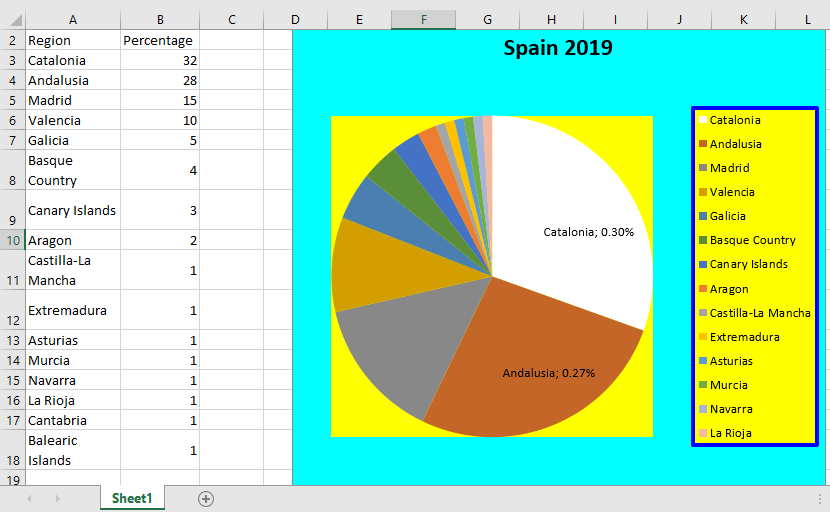
Explanation:
As known, the ChartObjects.Add() method creates a new chart frame.The chart type used is xlPie, which specifies a pie or doughnut chart.
The chart area, plot area, title, and legend can be formatted similarly to the line chart example.
However, data series behave differently in pie charts. For instance, there are no markers, but features like:
- xlDataLabelsShowLabelAndPercent — a special label type that shows both the category label and the percentage.
- An interior fill for each data point slice.
In this example, data points with values above a threshold (30 seats) receive data labels showing their category and percentage share. Additionally, the interior color of the first data point is set to white.
The DataLabel property controls the appearance of the labels. Here, the percentage is formatted to show two decimal places (« 0.00% »).