Votre panier est actuellement vide !
Étiquette : texte and data function
How to use the PROPER function in Excel
This function converts the first character of each word in a text string to uppercase and all subsequent characters to lowercase.
Syntax
PROPER(text)Arguments
- text(required): The text to convert, which can be:
- A string enclosed in quotation marks
- A formula that returns text
- A reference to a cell containing text
Background
The PROPER() function is particularly useful for:- Formatting imported data that is in all uppercase.
- Standardizing names or titles (including hyphenated names).
- Numeric values are treated the same as in the UPPER()
Examples
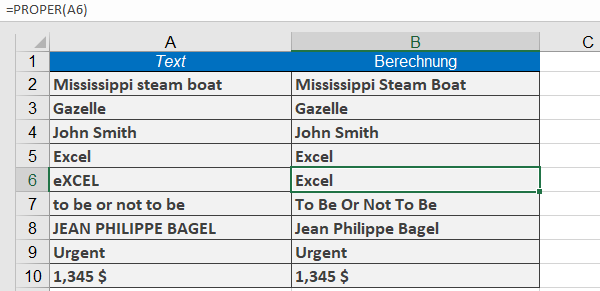
- =PROPER(« charles dickens »)returns Charles Dickens.
- =PROPER(« Excel »)returns Excel.
- =PROPER(« eXCEL »)returns Excel.
- =PROPER(« JEAN PHILIPPE BAGEL »)returns Jean Philippe Bagel.
- text(required): The text to convert, which can be:
How to use the PHONETIC function in Excel
This function extracts the phonetic (Furigana) characters from a Japanese text string.
Syntax
PHONETIC(reference)Arguments
- reference(required): A text string or reference to a cell/cell range containing Furigana characters.
- If referencing a range, returns Furigana from the upper-left cell.
- Returns #N/Afor non-contiguous ranges.
Background
The Japanese writing system uses:- Kanji: Chinese-derived ideographs
- Kana: Syllabic scripts including:
- Hiragana: For native Japanese words
- Katakana: For foreign words, loanwords, and emphasis
Furigana are small Hiragana characters that annotate Kanji pronunciation.
Notes:
- Requires Asian language support installed.
- Primarily useful for Japanese text processing.
- Most Excel users may not need this function.
- reference(required): A text string or reference to a cell/cell range containing Furigana characters.
How to use the MID and MIDB function in Excel
The MID() function extracts characters from the middle of a text string, starting at a specified position (start_num) and returning a defined number of characters (num_chars). The MIDB() function is used for double-byte characters, where num_bytes specifies the length in bytes.
Syntax
MID(text; start_num; num_chars)
MIDB(text; start_num; num_bytes)Arguments
- text(required): The string from which characters are to be extracted.
- start_num(required): The starting position for extraction (1-based index).
- num_chars/num_bytes(required): The number of characters/bytes to extract.
Background
The MID() function is useful for extracting substrings from structured data like ZIP codes, product IDs, or ISBNs. It works alongside LEFT() and RIGHT() for flexible text manipulation.Important Notes:
- Returns an empty string (« ») if start_numexceeds the string length.
- Returns all remaining characters if start_num + num_charsexceeds the string length.
- Returns #VALUE!if:
- start_numis less than 1.
- start_numis negative.
Example
To extract a product group from a 10-digit item number (e.g., 2301511290), where:- Positions 1–2 = Main product group.
- Positions 3–5 = Product group.
- Positions 6–10 = Product number.
The formula:
=MID(« 2301511290 »; 3; 3)
returns 015 (the product group).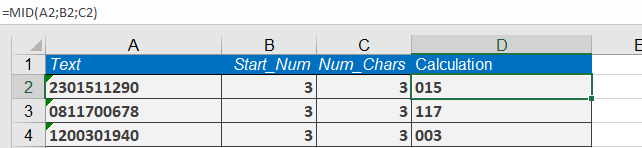
Additional Examples:
- =MID(« intercontinentalflight »; 1; 5)→ inter
- =MID(« gazelle »; 1; 4)→ gaze
- =MID(« gazelle »; 4; 4)→ elle
- =MID(« Louis »; 2; 3)→ oui
- =MID(« Excel »; 1; 2)→ Ex
- =MID(« Excel »; 2; 3)→ xce
How to use the LOWER function in Excel
This function converts a string to lowercase.
Syntax
LOWER(text)Arguments
- text(required): The text you want to convert to lowercase.
Background
The LOWER() function is the counterpart of the UPPER() function, which converts a string to uppercase. All uppercase letters are converted to lowercase, while other characters (numbers, symbols, etc.) remain unchanged.This function is useful for:
- Comparing strings in a non–case-sensitive manner.
- Standardizing text data to lowercase format.
If a numeric value is passed as the text argument, Excel converts it to unformatted text. However, if the result is used in numeric calculations, Excel automatically converts it back to a number.
Example
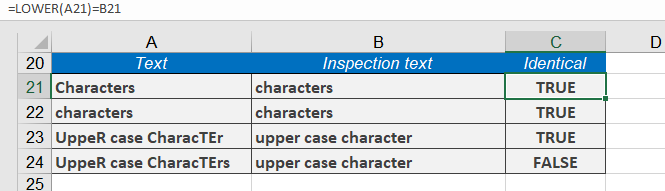
To perform a case-insensitive comparison, you can convert text to lowercase. For example:- =LOWER(« Letters »)= »letters »returns TRUE.
- =LOWER(« LETTERS »)= »letters »also returns TRUE.
Additional Examples
- =LOWER(« John Smith »)returns john smith.
- =LOWER(« Excel »)returns excel.
- =LOWER(« eXCEL »)returns excel.
- =LOWER(TODAY())returns 40450.
How to use the LEN and LENB function in Excel
The LEN() function returns the number of characters in a string. The LENB() function returns the number of bytes used by double-byte characters in a string.
Syntax
LEN(text)
LENB(text)Arguments
- text(required): The text for which you want to determine the length.
Background
This function is useful for various tasks, such as combining it with other functions like MID(), LEFT(), or RIGHT() to manipulate strings.You can use LEN() to verify whether an entry meets a specific length requirement or to check if text in a column exceeds a defined limit. The function counts spaces and numerals as characters.
Example
Suppose you need to ensure that interface descriptions in a column do not exceed 10 characters. You can use LEN() along with AutoFilter to quickly identify and correct strings longer than 10 characters.Additional examples:
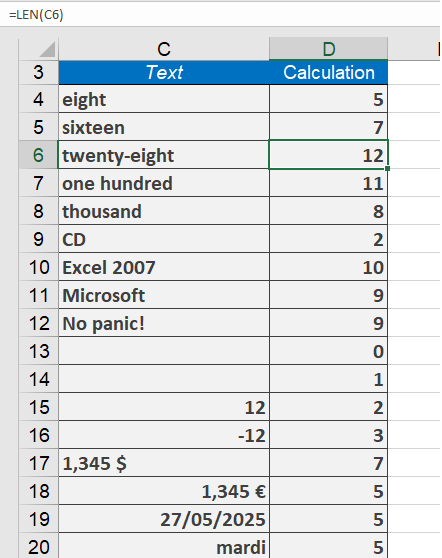
- =LEN(« CD »)returns 2.
- =LEN(« Excel 2007 »)returns 10.
- =LEN(« Microsoft »)returns 9.
- =LEN(« No Panic! »)returns 9.
- =LEN(« »)returns 0.
- =LEN( » « )returns 1.
- =LEN(« 1.345 $ »)returns 7.
- =LEN(TODAY())returns 5.
How to use the LEFT and LEFTB function in Excel
The LEFT function returns the first characters of a string. The LEFTB function is used for double-byte characters and returns the first bytes.
Syntax
LEFT(text; num_chars)
LEFTB(text; num_bytes)Arguments
- text(required): The string containing the characters you want to extract.
- num_chars/num_bytes(optional): Specifies how many characters/bytes to extract.
Background
Use the LEFT function to extract the first part of a string. You can enter letters or numbers in the text argument. The functions LEFT, RIGHT, and MID are especially useful if strings follow a specific pattern, such as ZIP codes, locations, or ISBNs.The num_chars argument must be greater than or equal to 0. If num_chars exceeds the length of the text argument, LEFT() returns the entire string. If num_chars is omitted, the default value is 1.
Example
A list of names is entered into a spreadsheet column, with the first name separated from the last name by a space. Cell H4 contains a name.The following formula extracts the first name:
=LEFT(H4; SEARCH( » « ; H4) – 1)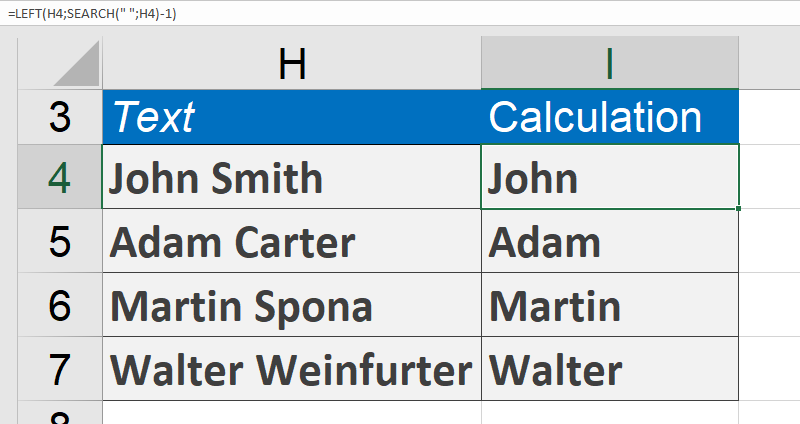
The SEARCH function determines the position of the space between the first and last names. Subtracting 1 gives the position of the last character of the first name (the number of characters from the left).
Additional Examples
- =LEFT(« steamboat »; 5)returns steam.
- =LEFT(« gazelle »; 4)returns gaze.
- =LEFT(« Oliver Kiel »; 5)returns Oliver.
- =LEFT(« Excel »; 1)returns E.
- =LEFT(« Excel »; 2)returns Ex.
How to use the FIXED function in Excel
This function converts numbers to formatted text with fixed decimal places and optional comma separators.
Syntax:
FIXED(number, [decimals], [no_commas])Arguments:
- number (required): The numeric value to convert
- decimals (optional):
- Positive: Rounds to specified decimal places
- Negative: Rounds left of decimal point
- Default: 2 decimal places
- no_commas (optional):
- TRUE: Omits thousands separators
- FALSE/omitted: Includes commas
Key Features:
- Conversion Rules:
- Maximum 15 significant digits
- Supports up to 127 decimal places
- Uses standard rounding (≥0.5 rounds up)
- Comparison to Formatting:
Feature FIXED() Cell Formatting Data Type Text Number Calculations Auto-converts Direct Display Fixed width Dynamic Examples:
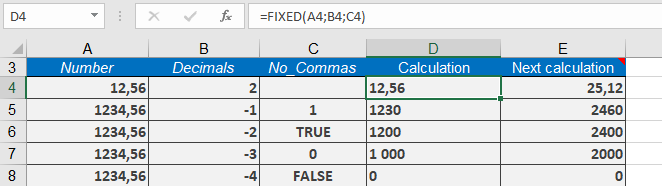
Assume that you want to ensure that a column with number values that is used for a mail merge in Word is not changed. Use the FIXED() function to convert the values into text in a new column. This column can then be used for the mail merge in Word. Here are some more examples:
=FIXED(12.56) returns 12.56.
=FIXED(1234.56,-1,1) returns 1230.
=FIXED(12.56,0) returns 13.
=FIXED(1234.56,-2,TRUE) returns 1200.
=FIXED(12.46,0) returns 12.
=FIXED(1234.56,-3,0) returns 1,000.
=FIXED(PI(),3) returns 3.142.
=FIXED(1234.56,-4,FALSE) returns 0.
Important Notes:
- For calculations, Excel automatically converts results back to numbers
- Alternative functions:
- TEXT() for custom formats
- DOLLAR() for currency formatting
- Combine with TRIM() to remove extra spaces
How to use the FIND and FINDB function in Excel
These functions locate the starting position of a substring within a text string. FIND() works with single-byte characters, while FINDB() handles double-byte characters (e.g., Asian languages). Both are case-sensitive.
Syntax:
FIND(find_text, within_text, [start_num])
FINDB(find_text, within_text, [start_byte])Arguments:
- find_text (required): The substring to search for
- within_text (required): The text to search within
- start_num/start_byte (optional):
- Character/byte position to begin search (default=1)
- First position = 1 (not 0)
Key Features:
- Case Sensitivity:
- =FIND(« E », »excel ») → #VALUE!
- =FIND(« e », »excel ») → 1
- Error Conditions:
- Returns #VALUE! if:
- Substring not found
- start_num ≤ 0
- start_num > text length
- Using wildcards (*, ?)
- Returns #VALUE! if:
- Special Cases:
- Empty find_text (« ») returns start_num
- Works with hidden characters
Comparison with SEARCH():
Feature FIND() SEARCH() Case-Sensitive Yes No Wildcards No Yes Error Handling Strict Flexible EXAMPLE
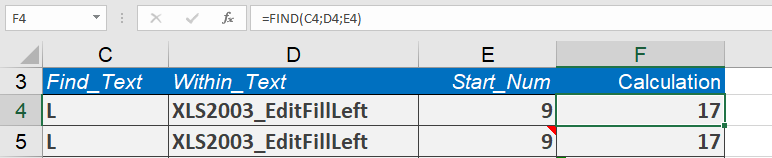
Assume that you have a string that is separated into two parts by an underscore. If you want to locate the uppercase S in the second part of the string and find its position in the string, you will first need to determine the position of the underscore to ensure that the first part is not searched.
Then you can perform the search in the remainder of the string. If cell C19 contains the string XLS2003_FormatCellSecure, the formula
=FIND(« S »,C19,FIND(« _ »,C19)+1)
returns 17, because the S in the second part of the string is located in the nineteenth position
Notes:
- For case-insensitive searches, use SEARCH()
- Combine with LEFT/RIGHT/MID for text extraction
- FINDB() essential for double-byte character systems
How to use the EXACT function in Excel
This function performs a case-sensitive comparison of two text strings, returning TRUE if they are identical and FALSE otherwise.
Syntax:
EXACT(text1, text2)Arguments:
- text1 (required): First text string for comparison
- text2 (required): Second text string for comparison
Key Features:
- Case Sensitivity:
- =EXACT(« Word », « word ») → FALSE
- =EXACT(« Word », « Word ») → TRUE
- Format Ignorance:
- Only compares raw text content
- Ignores font styles, colors, or cell formatting
- Array Compatibility:
- Can compare a value against a range using array formulas
Practical Applications:
- Data Validation:
=EXACT(A2, PROPER(A2)) // Checks for proper capitalization
- Password Verification:
=EXACT(B1, B2) // Compares two password entries
- Array Search (Ctrl+Shift+Enter):
{=OR(EXACT(D22,B23:B48))} // Checks if D22 exists in range
Comparison with Equal Sign (=):
Feature EXACT() = Operator Case-Sensitive Yes No Format-Aware No No Array-Friendly Yes Limited Examples:
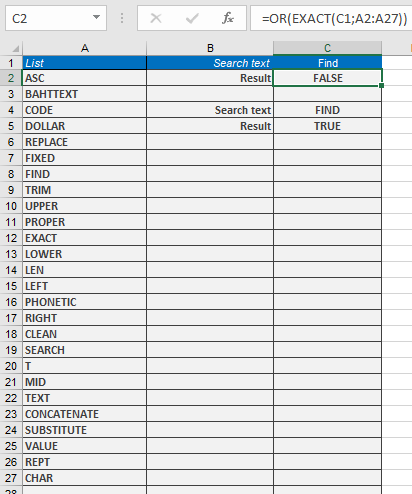
Assume that after you have entered a list of data, you want to examine the array to check whether it contains a specific character string. The list is entered in the cell range B23:B48, and cell D22 contains the search string. Enter the following formula in a cell:
=OR(EXACT(C1;A2:A27))
and press Ctrl+Shift+Enter. The formula looks like this (see Figure 8-3):
{=OR(EXACT(C1;A2:A27))}
If you use the function as an array expression, you need the OR() function to return a single value from the list.
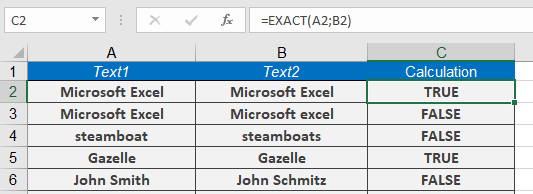
Here are a few further examples:
=EXACT(« Microsoft Excel », »Microsoft excel ») returns FALSE.
=EXACT(« steamboat », »steamboats ») returns FALSE.
=EXACT(« gazelle », »gazelle ») returns TRUE.
=EXACT(« John Smith », »Jeff Smith ») returns FALSE.
Limitations:
- Does not support wildcards (*, ?)
- For case-insensitive checks, use =A1=B1
- Array formulas require Ctrl+Shift+Enter in Excel 2019
How to use the DOLLAR function in Excel
This function converts a numeric value to text formatted as currency, using the local currency symbol and formatting conventions.
Syntax:
DOLLAR(number, [decimals])Arguments:
- number (required):
The numeric value to convert (can be a number, cell reference, or formula) - decimals (optional):
Number of decimal places to display:- Positive: Rounds to specified decimal places
- Negative: Rounds left of decimal point
- Omitted: Defaults to 2 decimal places
Key Features:
- Conversion Behavior:
- Converts numbers to text strings with currency formatting
- Uses local currency symbol based on system settings
- Default format: $#,##0.00;($#,##0.00)
- Comparison to Cell Formatting:
Feature DOLLAR() Format Cells Data Type Text Number Display Overflow Truncates Shows ### Calculations Auto-converts Directly usable - Rounding Rules:
- Uses standard rounding (≥0.5 rounds up)
- Negative decimals round to 10s, 100s, etc.
Examples:
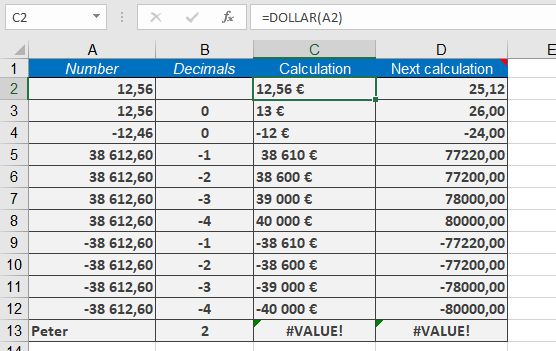
Assume that you want to ensure that a price column used for a mail merge in Microsoft Word is not changed. For this reason, you use the DOLLAR() function to convert the values in the price column into the corresponding currency text in a calculated column. The calculated column is used for the mail merge process in Word. Here are some other examples:
=DOLLAR(12.56) returns $12.56.
=DOLLAR(38612.60,-1) returns $38,610.
=DOLLAR(12.56,0) returns $13.
=DOLLAR(38612.60,-2) returns $38,600.
=DOLLAR(12.46,0) returns $12.
=DOLLAR(38612.60,-3) returns $39,000.
=DOLLAR(PI(),3) returns $3.142.
=DOLLAR(38612.60,-4) returns $40,000.
As shown below;
- number (required):