Votre panier est actuellement vide !
Étiquette : texte and data function
How to use the CONCATENATE function in Excel
This function combines multiple text strings into a single string.
Syntax:
CONCATENATE(text1, [text2], …)Arguments:
- text1, text2, … (up to 30 items):
Strings, numbers, or cell references to be joined- Can include hardcoded text in quotes ( » « )
- Numbers are converted to text
- Cell references must be to single cells
Key Features:
- No Automatic Delimiters:
- Joins items exactly as provided
- Add spaces/commas manually as separate arguments
- Alternatives:
- & operator (simpler syntax):
=A1 & » » & B1 - TEXTJOIN() (Excel 2016+) for advanced concatenation
- & operator (simpler syntax):
- Special Characters:
- Space: » » or CHAR(32)
- Line break: CHAR(10)
Example:
Data:- B19: « Robin »
- A19: « Counts »
- C19: 12/06/1964
Formula:
=CONCATENATE(
B19, » « , A19, » was born « , TEXT(C19, »MM/DD/YYYY »), « . « ,
« This was a « , TEXT(C19, »DDDD »), « . »
)
Result:
« Robin Counts was born 12/06/1964. This was a Sunday. »
Limitations:
- No range references (must list cells individually)
- No built-in delimiter system
- Limited to 30 arguments
- text1, text2, … (up to 30 items):
How to use the CODE function in Excel
This function returns the numeric ASCII/Latin-1 code of the first character in a text string, based on your system’s character encoding.
Syntax:
CODE(text)Arguments:
- text (required):
The text string or cell reference containing the character to analyze
(Only the first character’s code is returned)
Background:
The CODE() function is particularly useful for:- Identifying hidden/special characters in data
- Creating custom sorting or categorization systems
- Working with CHAR() for character manipulation
Key characteristics:
- Inverse function of CHAR()
- Case-sensitive (returns different codes for ‘A’ vs ‘a’)
- Supports ASCII (1-127) and extended Latin-1 (128-255) characters
Examples:
- Basic character codes:
- =CODE(« E ») → 69 (uppercase E)
- =CODE(« Excel ») → 69 (returns first character only)
- =CODE(« x ») → 120 (lowercase x)
- Getting non-initial character codes:
=CODE(MID(« Excel »,2,1)) // Returns 120 (x)
- Alphabet position calculation:
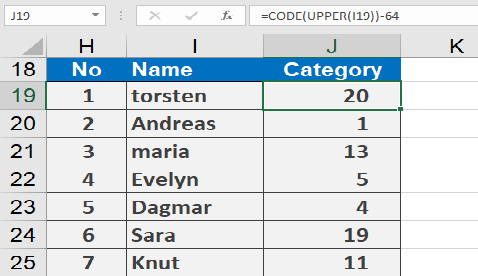
=CODE(UPPER(« torsten »))-64 // Returns 20 (T is 20th letter)
Common Uses:
- Data validation (identifying invisible characters)
- Custom categorization (e.g., A=1, B=2,…)
- Cleaning imported data with special characters
Technical Notes:
- Case Handling:
- ‘A’=65, ‘B’=66,…’Z’=90
- ‘a’=97, ‘b’=98,…’z’=122
- Space character = 32
- Numbers 0-9 = 48-57
- text (required):
How to use the CLEAN function in Excel
This function removes all non-printable characters from a text string.
Syntax:
CLEAN(text)Arguments:
- text (required): The text string or cell reference containing characters to be cleaned
Background:
The CLEAN() function is primarily used to:- Sanitize text imported from other applications
- Remove control characters (ASCII codes 1-31)
- Eliminate line breaks and other non-visible characters
- Prepare data for export or further processing
Key characteristics:
- Targets characters in the ASCII range 1-31
- Preserves regular spaces (ASCII 32)
- Often used with TRIM() for comprehensive cleaning
Examples:
- Basic cleaning:
- Original text in A2: « Month of ¶ August »
- Formula: =CLEAN(A2)
- Result: « Month of August »
- Removing embedded line breaks:
=CLEAN(« inter » & CHAR(13) & « continental » & CHAR(32) & « flight »)
Result: « intercontinental flight »
(Removes line break [CHAR(13)] but keeps space [CHAR(32)])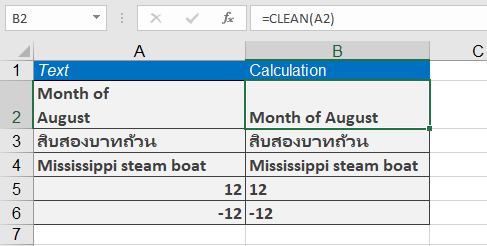
Important Notes:
- Does NOT remove:
- Regular spaces (ASCII 32)
- Non-ASCII characters (e.g., Unicode symbols)
- Printable special characters (e.g., ¶, ©, ®)
- For comprehensive cleaning, combine with:
=TRIM(CLEAN(A1))
How to use the CHAR fonction in Excel
This function returns the character corresponding to a specified numeric code from your computer’s character set.
Syntax:
CHAR(number)Arguments:
- number (required):
An integer between 1 and 255 that specifies which character to return
Background:
The CHAR() function is particularly useful for:- Converting numeric codes to displayable characters
- Inserting special control characters in strings
- Working with data from different operating systems
Key characteristics:
- Inverse function of CODE()
- Character output depends on system’s character encoding
- Essential for inserting non-printable characters
Common Uses:
- Adding line breaks:
=A1 & CHAR(10) & B1 (requires Wrap Text) - Inserting special characters:
= »Price: » & CHAR(36) & B2 (adds dollar sign) - Creating CSV-friendly strings:
=A1 & CHAR(44) & B1 (comma separator)
Important Codes:
Code Character Description 9 Tab Horizontal tab 10 LF Line feed (Unix) 13 CR Carriage return 34 « Double quotation mark 39 ‘ Apostrophe 160 Non-breaking space Examples:
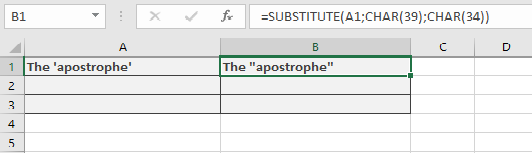
Assume that cell A2 contains the text The ‘apostrophe’. The formula results in The « apostrophe ». Though you only had to put the word apostrophe in double quotation marks, you had to enter four double quotation marks instead of three in the third argument.
This is complicated because the double quotation mark is now the text. An alternative is:
=SUBSTITUTE(E2,CHAR(39),CHAR(34))
Notes:
- Results vary between Windows/Mac systems for codes 128-255
- For Unicode characters, use UNICHAR() instead
- Combine with CLEAN() to remove non-printable characters
- number (required):
How to use the CLEAN function Excel
This function removes all non-printable characters from a text string.
Syntax:
CLEAN(text)Arguments:
- text (required): The text string or cell reference containing characters to be cleaned
Background:
The CLEAN() function is primarily used to:- Sanitize text imported from other applications
- Remove control characters (ASCII codes 1-31)
- Eliminate line breaks and other non-visible characters
- Prepare data for export or further processing
Key characteristics:
- Targets characters in the ASCII range 1-31
- Preserves regular spaces (ASCII 32)
- Often used with TRIM() for comprehensive cleaning
Examples:
- Basic cleaning:
- Original text in A2: « Month of ¶ August »
- Formula: =CLEAN(A2)
- Result: « Month of August »
- Removing embedded line breaks:
=CLEAN(« inter » & CHAR(13) & « continental » & CHAR(32) & « flight »)
Result: « intercontinental flight »
(Removes line break [CHAR(13)] but keeps space [CHAR(32)])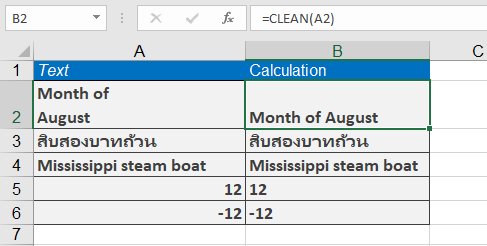
Important Notes:
- Does NOT remove:
- Regular spaces (ASCII 32)
- Non-ASCII characters (e.g., Unicode symbols)
- Printable special characters (e.g., ¶, ©, ®)
- For comprehensive cleaning, combine with:
=TRIM(CLEAN(A1))
How to use the CHAR function in Excel
This function returns the character corresponding to a specified numeric code from your computer’s character set.
Syntax:
CHAR(number)Arguments:
- number (required):
An integer between 1 and 255 that specifies which character to return
Background:
The CHAR() function is particularly useful for:- Converting numeric codes to displayable characters
- Inserting special control characters in strings
- Working with data from different operating systems
Key characteristics:
- Inverse function of CODE()
- Character output depends on system’s character encoding
- Essential for inserting non-printable characters
Common Uses:
- Adding line breaks:
=A1 & CHAR(10) & B1 (requires Wrap Text) - Inserting special characters:
= »Price: » & CHAR(36) & B2 (adds dollar sign) - Creating CSV-friendly strings:
=A1 & CHAR(44) & B1 (comma separator)
Important Codes:
Code Character Description 9 Tab Horizontal tab 10 LF Line feed (Unix) 13 CR Carriage return 34 « Double quotation mark 39 ‘ Apostrophe 160 Non-breaking space Examples:
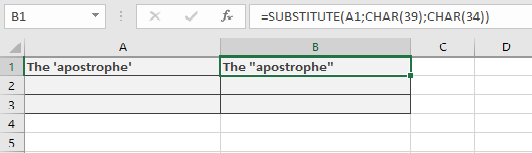
Assume that cell A2 contains the text The ‘apostrophe’. The formula results in The « apostrophe ». Though you only had to put the word apostrophe in double quotation marks, you had to enter four double quotation marks instead of three in the third argument.
This is complicated because the double quotation mark is now the text. An alternative is:
=SUBSTITUTE(E2,CHAR(39),CHAR(34))
Notes:
- Results vary between Windows/Mac systems for codes 128-255
- For Unicode characters, use UNICHAR() instead
- Combine with CLEAN() to remove non-printable characters
- number (required):
How to use the BAHTTEXT function in Excel
This function converts a numeric value into Thai text representation, appending the word « Baht » as a currency suffix.
Syntax:
BAHTTEXT(number)Arguments:
- number (required):
The value to be converted. Can be:- A direct numeric input (e.g., 125.50)
- A cell reference containing a number
- A formula that returns a numeric value
Background:
Primary uses include:- Generating tamper-resistant financial documents
- Creating formal contracts and checks
- Preventing numeric misinterpretation
Key characteristics:
- Exclusive to Thai language conversions
- No built-in English equivalent in Excel
- Available in all Excel versions but rarely used outside Thailand
Technical Notes:
- Conversion rules:
- Whole numbers: Returns Thai numerals + « Baht »
- Decimals: Converts satang (fractional baht) to text
- Negative values: Properly handles negative amounts
- Limitations:
- Only supports Thai language output
- Requires third-party add-ins for other languages
Examples:
- Basic conversion:
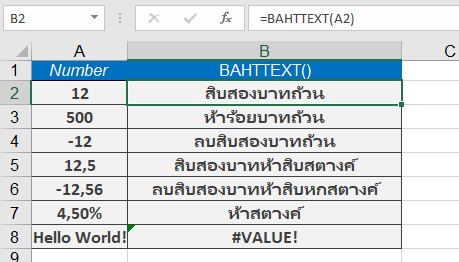
=BAHTTEXT(12) → Returns « สิบสองบาทถ้วน » (Twelve Baht) - Decimal amount:
=BAHTTEXT(125.50) → « หนึ่งร้อยยี่สิบห้าบาทห้าสิบสตางค์ » - Cell reference:
=BAHTTEXT(B5) where B5 contains 500
Note: While specialized for Thai financial documents, similar functionality for other languages requires custom solutions as described in Chapter 6 (Custom Functions).
- number (required):
How to use the ASC function in Excel
This function converts double-byte characters (typically used in Asian languages) to their single-byte equivalents. If the text contains no double-byte characters, it remains unchanged.
Syntax:
ASC(text)Arguments:
- text (required):
The text string or cell reference containing characters to convert. Can be:- Direct text input (in quotes)
- Cell reference
- Text-formatted number
Background:
Originally developed for legacy systems using:- Single-byte code pages (256 characters max)
- Double-byte systems for Asian character sets
Modern relevance:
- Most systems now use Unicode (handles all languages)
- Primarily maintained for backward compatibility
- Not available in Excel’s function wizard (must be typed manually)
Technical Notes:
- Behavior with different inputs:
- Empty cells → Returns empty
- Numbers → Returns as text strings
- Arrays → Returns first element only
- Error-free operation:
- Never returns errors (#VALUE!, etc.)
- Simply returns original text if no conversion possible
Example Usage:
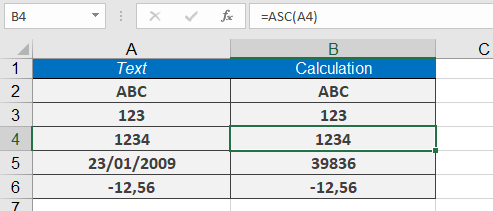
Though rarely used, sample implementations might include:=ASC(« ABC ») // Converts full-width ABC to regular ABC
=ASC(123) // Returns « 123 » as text
=ASC(A1) // Processes contents of cell A1
Compatibility:
- Works in all Excel versions but hidden from UI
- Mainly for legacy Asian-language documents
- Modern alternative: UNICODE()/UNICHAR() functions
Note: Practical examples are excluded as this function is essentially obsolete in Unicode-based systems. The book’s sample files contain the only relevant demonstration cases.
- text (required):