Votre panier est actuellement vide !
Étiquette : texte and data function
How to use the VALUE function in Excel
The VALUE() function converts text representations of numbers into numeric values.
Syntax:
VALUE(text)Arguments:
- text (required): The text string (enclosed in quotation marks) or cell reference containing the text to be converted to a number.
Background:
While Excel automatically converts number-like text to numeric values in most cases, the VALUE() function is particularly useful when:- Processing data imported from external sources (e.g., text files, databases)
- Handling numbers stored as text by third-party applications or add-ins
- Preparing data for mathematical operations where text-formatted numbers would cause errors
Alternative Conversion Method (Paste Special):
- Enter 1 in an empty cell and copy it (Ctrl+C)
- Select the range containing text-formatted numbers
- Use Paste Special (Home → Paste dropdown → Paste Special)
- Select Values and Multiply, then click OK
- Delete the temporary cell containing 1
Note: The VALUE() function supports all Excel-recognized formats for:
- Numbers (including decimals and currency symbols)
- Dates
- Times
Returns #VALUE! error for incompatible formats (e.g., logical values, text strings).
Examples
Formula Result Explanation =VALUE(« 1.234 ») 1234 Converts numeric text to number (uses system decimal separator) =VALUE(1234) 1234 Returns number unchanged =VALUE(« 09/09/2008 ») 39700 (date serial value) Converts date string to Excel date number =VALUE(TRUE) #VALUE! Fails with logical values =VALUE(« $1,000 ») 1000 Handles currency symbols and commas =VALUE(« 12:30 PM ») 0.520833 (time serial value) Converts time text to decimal 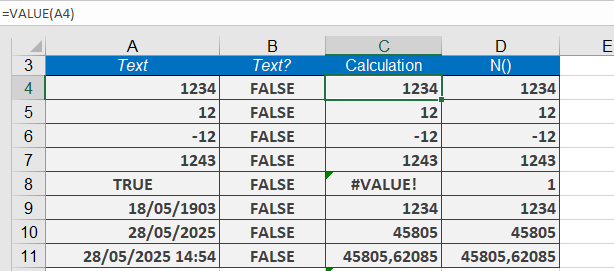
Key Notes
- Regional Settings Impact:
- Decimal/thousand separators must match system settings (e.g., VALUE(« 1,234 ») fails if system uses commas as decimals).
- Error Handling:
- Wrap with IFERROR for problematic data:
=IFERROR(VALUE(A1), « Invalid number »)
- Wrap with IFERROR for problematic data:
- Automatic Conversion:
- Excel usually auto-converts text to numbers in calculations (making VALUE() redundant in simple cases).
- Date/Time Caveat:
- Converted dates/times appear as serial numbers—apply number formatting to display properly.
Practical Use Case
When importing CSV data with numeric columns flagged as text:
=VALUE(TRIM(A2))
→ Combines TRIM() to remove extra spaces before conversionHow to use the UPPER function in Excel
This function converts all lowercase letters in a text string to uppercase.
Syntax:
UPPER(text)Arguments:
- text (required): The text you want to convert to uppercase.
Background:
The UPPER() function is useful for:- Standardizing text data (e.g., converting names or codes to uppercase)
- Case-insensitive comparisons in formulas
- Preparing text for case-sensitive systems
Key Notes:
- Only affects alphabetic characters (a-z → A-Z)
- Leaves numbers, symbols, and existing uppercase letters unchanged
- Returns text values (even if input appears numeric)
Examples
Formula Result Explanation =UPPER(« Letters ») « LETTERS » Converts all letters to uppercase =UPPER(« letters ») « LETTERS » Same as above =UPPER(« Excel ») « EXCEL » Standardizes mixed case =UPPER(« eXCEL ») « EXCEL » Converts all letters regardless of original case =UPPER(« 1,232.56 ») « 1,232.56 » Numbers and punctuation remain unchanged 
Limitations
- Does not affect non-alphabetic characters
- Returns text values (may require VALUE() wrapper for numeric operations)
- For proper capitalization (e.g., « John Smith »), use PROPER() instead
How to use the TRIM function in Excel
This function removes all spaces from text except for single spaces between words.
Syntax:
TRIM(text)Arguments:
- text (required): The text containing leading, trailing, or excessive intermediate spaces you want to clean.
Background:
The TRIM() function is particularly useful for:- Processing text imported from other applications that may contain irregular spacing
- Preparing data for mail merges or text searches where extra spaces could cause errors
- Cleaning datasets while preserving intentional single spaces between words
Unlike the Find and Replace command (Ctrl+H), TRIM() specifically targets:
→ Leading spaces (at the start of text)
→ Trailing spaces (at the end of text)
→ Multiple consecutive spaces between words (reducing them to single spaces)If the input string has no excess spaces, TRIM() returns the original text unchanged.
Examples
Formula Result Explanation =TRIM(« August ») « August » No spaces to remove =TRIM(« August « ) « August » Removes 1 trailing space =TRIM( » August ») « August » Removes 2 leading spaces =TRIM( » August « ) « August » Removes 1 leading + 2 trailing spaces =TRIM( » August the Strong « ) « August the Strong » Reduces multiple spaces between words to singles + removes leading/trailing spaces 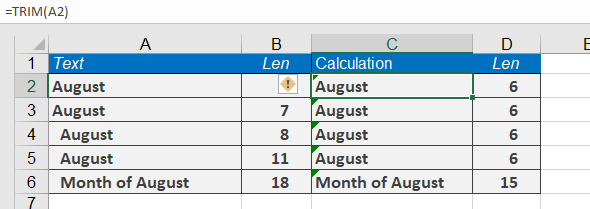
Practical Use Case
After importing data from a CSV file, you notice entries like:
» Product A » (with irregular spacing)Solution:
=TRIM(A1) converts this to « Product A » – clean and ready for analysis.Note: Unlike some string functions, TRIM():
✓ Preserves meaningful single spaces between words
✗ Doesn’t affect non-breaking spaces (ASCII 160) – use SUBSTITUTE() for thoseKey Takeaways
- Essential for data cleaning, especially with imported text
- Only affects space characters (ASCII 32)
- Returns text values (wrap with VALUE() if numbers need conversion)
How to use the TEXT function in Excel
This function converts a value into text in a specific number format.
Syntax:
TEXT(value; format_text)Arguments:
- value (required): A number, a formula that evaluates to a numeric value, or a reference to a cell containing a numeric value.
- format_text (required): A number format, which is one of those in the Custom category box on the Number tab in the Format Cells dialog box.
Background:
You might need to convert numeric values to text to link static text with calculations. The TEXT() function not only converts numeric values to text but also allows you to use the number formats available in the Format Cells dialog box.In the format_text argument, you can specify custom formats. However, the formats have the following restrictions:
- Formats cannot contain an asterisk (*).
- The General number format is not allowed.
- Colors (e.g., red for negative values) are ignored.
The difference between the Format Cells command and the TEXT() function is that TEXT() returns text. A number formatted with Format Cells remains a numeric value. You can still use numbers converted with TEXT() in other formulas because Excel automatically converts text-formatted numbers back to numeric values for calculations.
Examples
- Dynamic Payment Date in an Invoice
To display a payment due date (14 days from today) in a readable format:
Formula:
=CONCATENATE(« Please pay before « ; TEXT(TODAY()+14; « MM/DD/YYYY »); ». »)Result :
« Please pay before 06/DD/YY. »Without TEXT():
=CONCATENATE(« Please pay before « ; TODAY()+14; « . »)
Result: « Please pay before 40527. » (Excel’s date serial number, which is unreadable to users).- Current Date in a Sentence
To format today’s date as a full sentence:
Formula:
= »Today is » & TEXT(TODAY(); « DDDD ») & « , » & TEXT(TODAY(); « MMMM D; YYYY ») & « . »Result (May 28, 2025):
« Today is Wednesday, may 28, 2025. »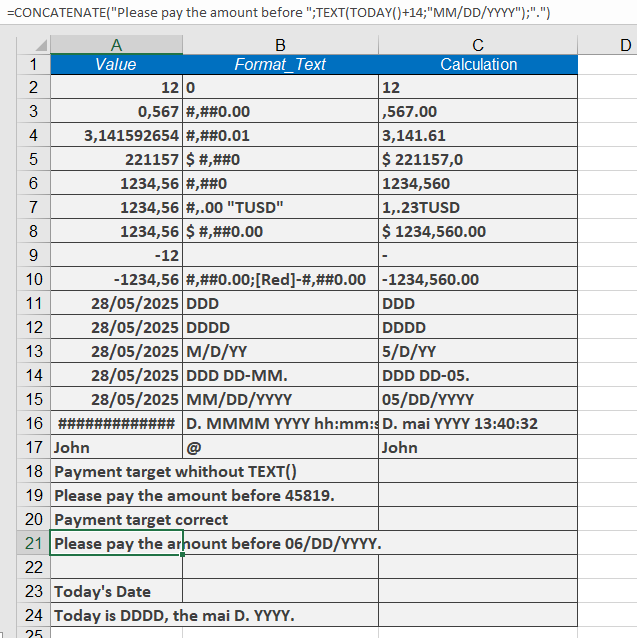
Key Notes
- Use TEXT() to force a specific format (e.g., dates, currency) when combining numbers with text.
- Avoid using TEXT() for calculations, as it converts numbers to strings (though Excel may auto-convert them back in formulas).
- For standalone number formatting (without text concatenation), Format Cells is preferable.
How to use the T function in Excel
This function checks whether an entry is text and returns the text value. If the entry is not a text value, the return value is empty.
Syntax:
T(value)Arguments:
- value(required): The expression (a number, text, a formula without an equal sign, a logical value, an error value, a reference, or a name) to check.
Background:
The T() function is provided for compatibility with other spreadsheet software. You do not normally need to use the T() function in formulas, because Excel automatically converts values as needed.When using this function, keep in mind that:
- Numbers are notconverted into numerals; instead, the result is an empty string.
- Logical values (TRUE/FALSE) also return an empty string.
- Error values remain as error values and are notconverted into text.
Example of the T() Function
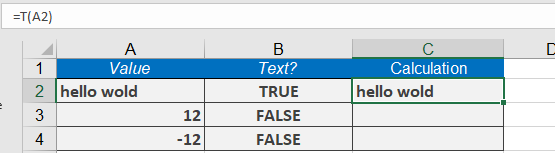
- Suppose you have the following data in cell A1:
« Hello World »(a text string) - Formula:
=T(A2) - Result:
« Hello World »(returns the text unchanged)
How to use the SUBSTITUTE function in Excel
The SUBSTITUTE() function replaces characters or strings with new text.
Syntax:
SUBSTITUTE(text; old_text; new_text; [instance_num])Arguments:
- text(required): The text or the reference to a cell containing text in which you want to substitute characters.
- old text(required): The string you want to replace.
- new text(required): The string you want to replace old text
- instance Num(optional): Specifies which occurrence of old text you want to replace with new text. If you specify instance Num, only that occurrence of old text is replaced; otherwise, every instance of old text is replaced.
Background:
Use this function to replace a string of text with alternative text. The replacement can be for a single or for multiple instances.You can use the SUBSTITUTE() function to replace a specific string within text. Use the REPLACE() function to replace a string at a certain position within text.
Example:
Here are some few examples:
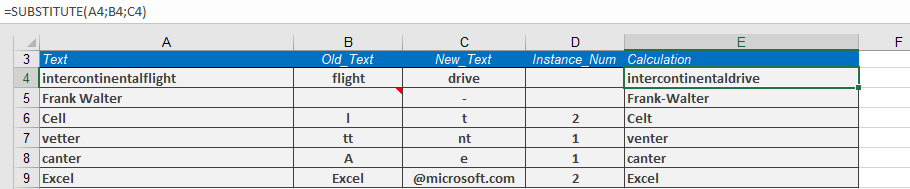
- =SUBSTITUTE(« intercontinentalflight »; « flight »; « drive »)→ « intercontinentaldrive »
- =SUBSTITUTE(« cell » ; « l » ; « t » ; 2)→ « celt »
- =SUBSTITUTE(« vetter » ; « tt » ; « nt » ; 1)→ « venter »
- =SUBSTITUTE(« canter »; « A »; « e »)→ « canter » (no change, as « A » is not found)
- =SUBSTITUTE(« million »; « m »; « b »)→ « billion »
How to use the SEARCH and SEARCHB function in Excel
The SEARCH() function locates the starting position of a substring within text, beginning at start_num.
The SEARCHB() function performs the same operation for double-byte character sets (counting bytes).Syntax
SEARCH(find_text; within_text; [start_num])
SEARCHB(find_text; within_text; [start_byte])Key Features
- Case-insensitive (unlike FIND())
- Supports wildcards:
- ? matches any single character
- * matches any sequence of characters
- Use ~ to search for literal ? or *
Arguments
Argument Required Description find_text Yes Text to locate (can include wildcards) within_text Yes Text to search through start_num/start_byte No Starting position (default=1) Behavior Notes
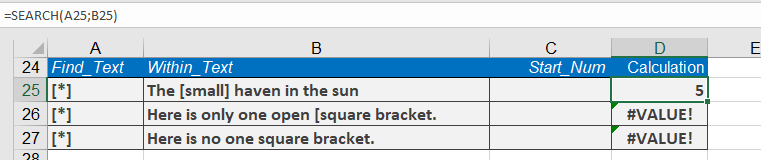
- Returns #VALUE! if:
- Text not found
- start_num ≤ 0
- start_num > length of within_text
- Returns 1 (or start_num) if searching for empty string (« »)
Example: Wildcard Search
To find any text in square brackets:=SEARCH(« [*] »; « Product [small] version »)
Returns 5 (position of [small])
Comparison with FIND
Feature SEARCH() FIND() Case-sensitive No Yes Wildcards Yes No Error if not found #VALUE! #VALUE! Practical Applications
- Extracting substrings (combined with MID())
- Validating text patterns
- Processing structured data like codes or identifiers
How to use the RIGHT and RIGHTB function in Excel
The RIGHT() function extracts the specified number of characters from the end of a string.
The RIGHTB() function performs the same operation for double-byte character sets (DBCS), counting bytes instead of characters.Syntax
RIGHT(text; num_chars)
RIGHTB(text; num_bytes)Arguments
- text (required): The string containing characters to extract
- num_chars/num_bytes (optional):
- Number of characters/bytes to extract (default=1 if omitted)
- Must be ≥0
Key Features
- Returns the entire string if num_chars exceeds string length
- Part of the essential text function trio with LEFT() and MID()
- Ideal for structured data like:
- ZIP/postal codes
- ISBN numbers
- Formatted identifiers
Example: Extracting Last Names
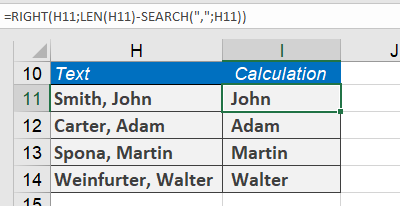
For cell H4 containing « John Smith »:=RIGHT(H4; LEN(H4) – SEARCH( » « ; H4))
How it works:
- SEARCH( » « ;H4) finds the space position (5)
- LEN(H4) gets total length (10)
- Calculation: 10 – 5 = 5 characters to extract
- Returns « Smith »
Error Handling
- Returns #VALUE! if num_chars is negative
- Handles numbers in text by treating them as characters
How to use the REPT function in Excel
This function repeats a text string a specified number of times.
Syntax
REPT(text; number_times)Arguments
- text (required): The character or string to repeat.
- number_times (required): A positive number specifying repetition count.
Background
The REPT() function is useful for:- Creating repeated patterns (e.g., filling cells with characters).
- Generating in-cell bar charts or visual indicators.
Key Notes:
- Returns « » (empty string) if number_times is 0.
- Truncates decimal values (e.g., 3.9 becomes 3).
- Returns #VALUE! if:
- number_times is negative.
- Result exceeds 32,767 characters.
Example: Aligning Names and Scores
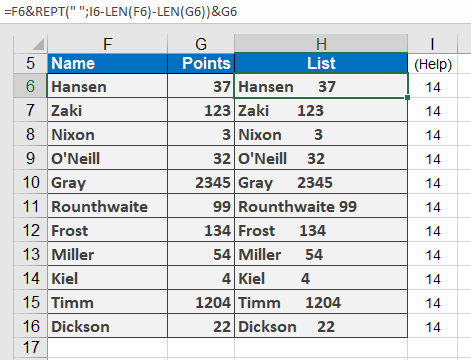
- Setup:
- Names in F6:F16, scores in G6:G16.
- Goal: Combine in H6:H16 with aligned spacing.
- Step 1: Calculate Max Length
Select I6:I16 and enter (as an array formula with Ctrl+Shift+Enter):
=MAX(LEN(F6:F16) + LEN(G6:G16)) + 1
Result: Determines maximum combined length for alignment.
- Step 2: Align Text
In H6, enter:
=F6 & REPT( » « , I6 – LEN(F6) – LEN(G6)) & G6
How it works:
-
- Repeats spaces ( » « ) to pad between names and scores.
- Adjusts spacing dynamically based on each row’s text length.
How to use the REPLACE and REPLACEB function in Excel
The REPLACE() function substitutes a portion of old_text (beginning at start_num and spanning num_chars) with new_text.
The REPLACEB() variant handles double-byte characters (using byte counts instead of character counts).Syntax
REPLACE(old_text; start_num; num_chars; new_text)
REPLACEB(old_text; start_num; num_bytes; new_text)Arguments
- old_text (required): The original string to modify.
- start_num (required): The position (1-based) where replacement begins.
- num_chars/num_bytes (required): The length of text to replace (in characters/bytes).
- new_text (required): The text to insert.
Background
Use REPLACE() to:- Swap fixed-length segments within strings (e.g., placeholders or formatted sections).
- Modify specific positional patterns (unlike SUBSTITUTE(), which replaces all occurrences of a substring).
Key Differences from SUBSTITUTE
- REPLACE() targets text by position/length.
- SUBSTITUTE() replaces all instances of a specific substring.
Examples
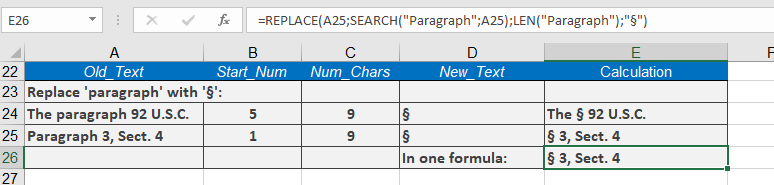
- Replacing a word with a symbol
Cell B25 contains « Paragraph 3, Sect. 4 »:
=REPLACE(A25; SEARCH(« paragraph »; A25); LEN(« paragraph »); « § »)
Result: « § 3, Sect. 4 »
Additional Notes
- Returns #VALUE! if start_num exceeds old_text length.
- For partial replacements (e.g., middle characters in a word), combine with LEFT(), RIGHT(), or MID().