Votre panier est actuellement vide !
Étiquette : engineering-function
How to use the OCT2HEX() function in Excel
This function converts an octal number into a hexadecimal number.
Syntax
OCT2HEX(number; [places])Arguments
- number(required)
The (at most) 10-digit octal number in two’s complement notation (see the section titled Two’s Complement) that is to be converted into a hexadecimal number. If number has a negative value, a 10-digit hexadecimal number is returned. - places(optional)
Determines how many digits are to be displayed, and is used to display leading zeros in the result. If the argument places is omitted, only the required number of digits is displayed. Possible decimal places after the decimal point are ignored.
Background
See the detailed description in the section titled Number Systems in the introduction to these functions (Number Systems).Examples
The following examples illustrate OCT2HEX():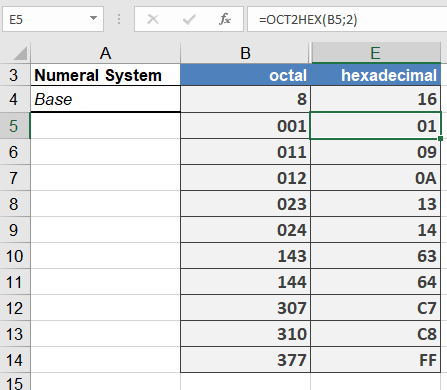
- number(required)
How to use the OCT2DEC() function in Excel
Its converts an octal (base-8) number to its decimal (base-10) equivalent using two’s complement notation.
Syntax
OCT2DEC(number)Argument
- number (required)
- Octal number to convert (10-digit maximum)
- Can be entered as text string or numeric value
- Valid range: 7777777000 (-536,870,912) to 7777777777 (-1) for negative values, 0 to 3777777777 (536,870,911) for positive values
Key Features
- Handles both positive and negative numbers via two’s complement
- No places parameter (unlike other conversion functions)
- Automatic sign detection based on most significant digit
- Truncates any fractional values
Examples
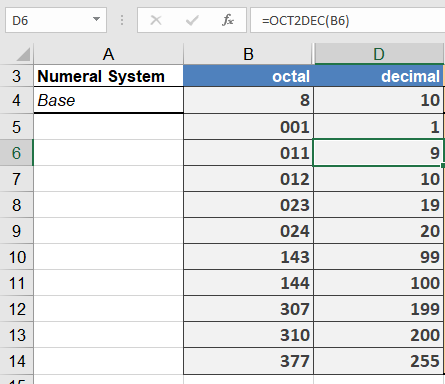
Common Applications
- Legacy system integration
- Unix/Linux permission analysis
- Digital signal processing
- Embedded systems debugging
Error Conditions
- Returns #NUM! when:
- Input exceeds 10 digits
- Value outside valid range
- Returns #VALUE! for:
- Non-octal characters (8-9, letters)
- Invalid number format
- number (required)
How to use the OCT2BIN() function in Excel
Its converts an octal (base-8) number to its binary (base-2) equivalent using two’s complement notation.
Syntax
OCT2BIN(number; [places])Arguments
- number (required)
- Octal number to convert (10-digit maximum)
- Can be entered as text string or number
- Valid range: 7777777000 (-512) to 777 (511) decimal equivalent
- places (optional)
- Minimum number of binary digits to display (1-10)
- Adds leading zeros for positive numbers
- Ignored for negative numbers (always 10 digits)
Technical Specifications
Characteristic Details Input Range Negative: 7777777000 to 7777777777
Positive: 0 to 777Output Range Negative: 10-digit binary
Positive: 1-10 digit binarySpecial Handling Negative values ignore places parameter Input Format Accepts both string and numeric input Examples
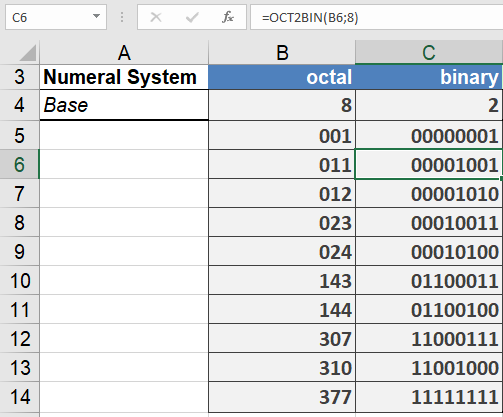
Common Use Cases
- Legacy system modernization
- Embedded systems programming
- Digital circuit design
- File permission analysis
Error Handling
- #NUM! Error:
- Input exceeds valid range
- Places too small for positive number conversion
- More than 10 octal digits
- #VALUE! Error:
- Contains non-octal digits (8-9, letters)
- Empty input
Best Practices
- For negative inputs, output will always be 10 binary digits
- Use quotes around octal literals for clarity
- For consistent formatting of positive numbers, specify places parameter
- Pre-validate octal strings in dynamic applications
- number (required)
How to use the IMSUM() function in Excel
This function returns the sum of complex numbers in rectangular form (x + yi or x + yj). It can add between 1 and 255 complex numbers.
Syntax
IMSUM(complex_number1; [complex_number2]; …)Arguments
- complex_number1 (required)
First complex addend in « x+yi » or « x+yj » format - complex_number2,… (optional)
Additional complex addends (up to 254 more)
Background
The sum of complex numbers is calculated by component-wise addition:(a + bi) + (c + di) = (a + c) + i·(b + d)
The basics of complex numbers are described in the section titled Functions for Complex Numbers.
Example
=IMSUM(« 3-4i », »-7-24i ») // Returns « -4-28i »
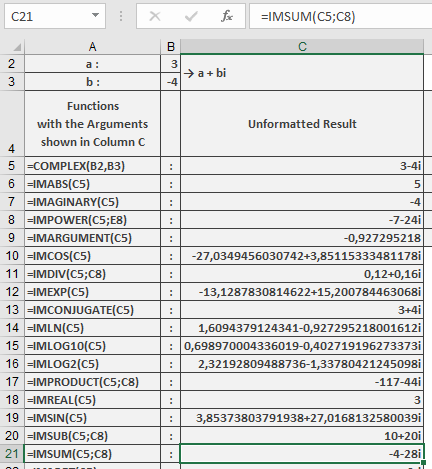
Additional Examples
=IMSUM(« 1+i », »1-i ») // Returns « 2 » (real number)
=IMSUM(« 2+3i », »4-5i », »6″) // Returns « 12-2i »
=IMSUM(« 3i », »-4i ») // Returns « -i »
Key Features
- Supports 1 to 255 complex arguments
- Maintains 15-digit calculation precision
- Preserves imaginary unit convention from first argument
- Handles mixed « i »/ »j » notation (converts to first argument’s format)
Error Conditions
- Returns #NUM! for:
- Invalid complex number format
- Non-numeric components
- More than 255 arguments
- Returns #VALUE! for incompatible formats
- complex_number1 (required)
How to use the IMSUB() function in Excel
This function returns the difference between two complex numbers, which must be strings in the format x + yi or x + yj.
Syntax
IMSUB(complex_number1; complex_number2)Arguments
- complex_number1 (required)
The complex minuend (number to be subtracted from) - complex_number2 (required)
The complex subtrahend (number to subtract)
Background
The difference between two complex numbers is calculated by separately subtracting their real and imaginary components:(a + bi) – (c + di) = (a – c) + i·(b – d)
The basics of complex numbers are described in the section titled Functions for Complex Numbers.
Example
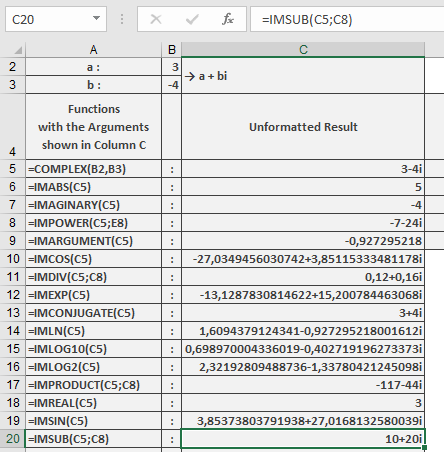
The following example illustrates this function:=IMSUB(« 3-4i », »-7-24i ») returns 10+20i
Key Features
- Handles both « i » and « j » notation
- Maintains component-wise precision
- Preserves the imaginary unit from the first argument
- Returns result in standard rectangular form
Technical Notes
- Real and imaginary parts are subtracted independently
- For complex conjugates:
(a+bi) – (a-bi) = 0+2bi - Essential for:
- Complex vector calculations
- Circuit analysis
- Signal processing
Error Conditions
- Returns #NUM! for:
- Invalid complex number format
- Non-numeric components
- Mismatched imaginary units
- complex_number1 (required)
How to use the IMSQRT() function in Excel
This function returns the square root of a complex number (x + yi or x + yj).
Syntax
IMSQRT(complex_number)Argument
- complex_number (required)
The complex number whose square root is to be determined
Background
The square root of a complex number is calculated as follows:√(x + yi) = √r · [cos(Φ/2) + i·sin(Φ/2)]
Where:
r = √(x² + y²)
and
Φ = atan2(y,x) where Φ ∈ (–π, π]
(a right half-open interval).
The basics of complex numbers are described in the section titled Functions for Complex Numbers.Example
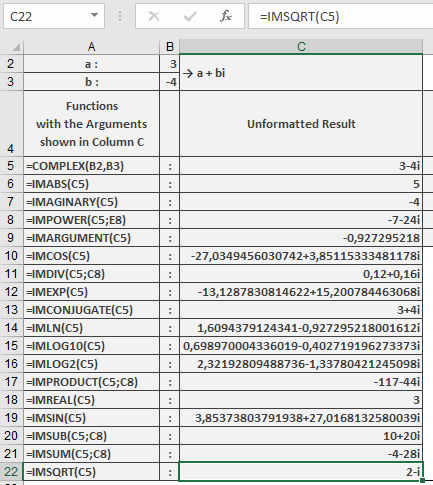
The following example illustrates this function:=IMSQRT(« 3-4i ») returns 2-i
Key Features
- Returns the principal square root (with non-negative real part)
- Handles both « i » and « j » notation
- Maintains mathematical consistency with real square roots
- Preserves full calculation precision
- complex_number (required)
How to use the IMSIN() function in Excel
Its computes the sine of a complex number in rectangular form (x + yi or x + yj), extending the trigonometric sine function to the complex plane.
Syntax
IMSIN(complex_number)Argument
- complex_number (required)
A complex number in either:- « x+yi » format (mathematical convention)
- « x+yj » format (engineering convention)
Technical Background
For a complex number z = x + yi:sin(z) = sin(x)cosh(y) + i·cos(x)sinh(y)
Where:
- sin/cos are trigonometric functions
- sinh/cosh are hyperbolic functions
- Output combines real and imaginary oscillations with hyperbolic growth/decay
Example
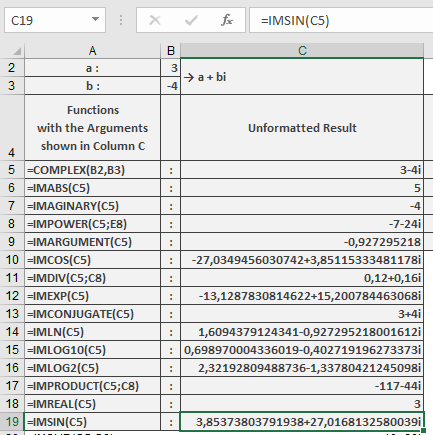
=IMSIN(« 3-4i ») // Returns « 3.853738037+27.01681326i »
Additional Examples
=IMSIN(« 1+i ») // Returns « 1.298457581+0.634963914i »
=IMSIN(« 0+πi ») // Returns « 11.54873936i » (pure imaginary)
=IMSIN(« π/2-2i ») // Returns « 3.762195691-0.000000001i » (≈ cosh(2))
Key Features
- Maintains 9 decimal place precision
- Preserves input’s imaginary unit convention
- Periodic in real dimension (period 2π)
- Exponential growth/decay in imaginary dimension
Error Conditions
- Returns #NUM! for:
- Invalid complex number format
- Non-numeric components
- Missing imaginary unit when required
- complex_number (required)
How to use the IMREAL() function in Excel
Its extracts the real component (x) from a complex number in rectangular form (x + yi or x + yj).
Syntax
IMREAL(complex_number)Argument
- complex_number (required)
A text string representing a complex number in either:- « x+yi » format (mathematical convention)
- « x+yj » format (engineering convention)
Technical Background
For a complex number z = x + yi:- The real part represents the horizontal component in the complex plane
- When plotted, corresponds to the projection on the real (x) axis
Example
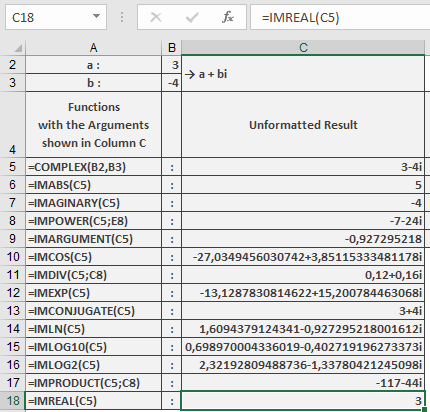
=IMREAL(« 3-4i ») // Returns 3
Additional Examples
=IMREAL(« 5+12j ») // Returns 5
=IMREAL(« -1.5+2i ») // Returns -1.5
=IMREAL(« 0-3i ») // Returns 0
=IMREAL(« 7 ») // Returns 7 (real numbers are valid input)
Key Features
- Returns a real number value
- Handles both « i » and « j » notation
- Preserves decimal precision from input
- Works with pure real or pure imaginary numbers
Error Conditions
- Returns #NUM! for:
- Invalid complex number format
- Non-numeric components
- Missing real part when ‘+’ or ‘-‘ present
- complex_number (required)
How to use the IMPRODUCT() function in Excel
Its calculates the product of complex numbers in rectangular form (x + yi or x + yj). Supports multiplication of 1 to 255 complex numbers.
Syntax
IMPRODUCT(complex_number1; [complex_number2]; …)Arguments
- complex_number1 (required)
First complex factor in « x+yi » or « x+yj » format - complex_number2,… (optional)
Additional complex factors (up to 255 total)
Technical Background
For two complex numbers z₁ = a + bi and z₂ = c + di:z₁·z₂ = (ac – bd) + i(ad + bc)
For n complex numbers, multiplication is performed sequentially following the associative property of complex multiplication.
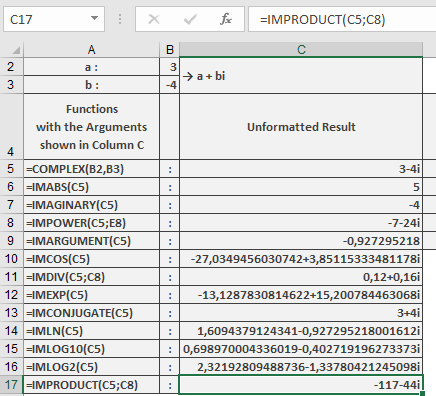
Example
=IMPRODUCT(« 3-4i », « -1-24i ») // Returns « -117-44i »
Additional Examples
=IMPRODUCT(« 1+i », « 1-i ») // Returns « 2 » (real number)
=IMPRODUCT(« i », « i ») // Returns « -1 »
=IMPRODUCT(« 2+3i », « 4-5i », « 6 ») // Returns « 174+42i »
=IMPRODUCT(« 3 », « 4i ») // Returns « 12i »
Key Features
- Handles 1 to 255 complex arguments
- Maintains 9 decimal place precision
- Preserves imaginary unit convention from first argument
- Efficiently chains multiple multiplications
Error Conditions
- Returns #NUM! for:
- Invalid complex number format
- Non-numeric components
- More than 255 arguments
- Returns #VALUE! for mismatched imaginary units
- complex_number1 (required)
How to use the IMPOWER() function in Excel
Its raises a complex number to a specified real power, returning the result in rectangular form (x + yi). This is the complex analog of the POWER() function.
Syntax
IMPOWER(complex_number; power)Arguments
- complex_number (required)
A complex number in either:- « x+yi » format (mathematical convention)
- « x+yj » format (engineering convention)
- power (required)
The real-valued exponent which can be:- Integer (positive or negative)
- Fractional/rational number
- Decimal value
Technical Background
Using de Moivre’s Formula for z = x + yi = r(cosΦ + i·sinΦ):zⁿ = rⁿ·[cos(nΦ) + i·sin(nΦ)]
Where:
- r = √(x² + y²) (magnitude)
- Φ = atan2(y,x) (phase angle)
- n = power
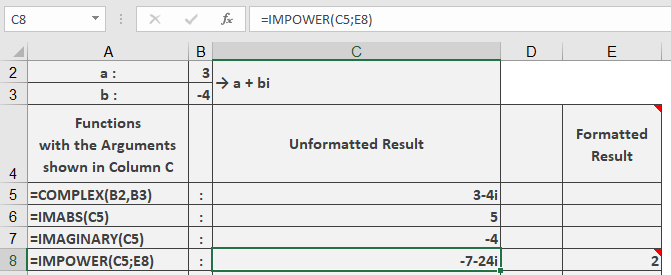
Example
=IMPOWER(« 3-4i », 2) // Returns « -7-24i »
Additional Examples
=IMPOWER(« 1+i », 3) // Returns « -2+2i »
=IMPOWER(« 2+0i », 0.5) // Returns « 1.414213562 » (√2)
=IMPOWER(« 0+1i », -1) // Returns « 0-1i » (1/i = -i)
=IMPOWER(« -1 », 1/3) // Returns « 0.5+0.866025404i » (principal cube root)
Key Features
- Handles all real exponents (integer, fractional, negative)
- Returns principal value (-π < arg ≤ π)
- Maintains 9 decimal place precision
- Preserves input’s imaginary unit convention
Error Conditions
- Returns #NUM! for:
- Invalid complex number format
- Non-numeric components
- Zero magnitude with non-positive power
- complex_number (required)