Votre panier est actuellement vide !
Étiquette : engineering-function
How to use the IMLOG10() function in Excel
Its computes the principal value of the base-10 logarithm of a complex number, returning the result in rectangular form (x + yi). This is the complex analog of the standard LOG10() function.
Syntax
IMLOG10(complex_number)Argument
- complex_number (required)
A complex number in either:- « x+yi » format (mathematical convention)
- « x+yj » format (engineering convention)
Technical Background
For a complex number z = x + yi:IMLOG10(z) = (log₁₀e)·IMLN(z) ≈ 0.434294482·IMLN(z)
Where:
- IMLN(z) is the complex natural logarithm
- log₁₀e ≈ 0.434294481903252
Example
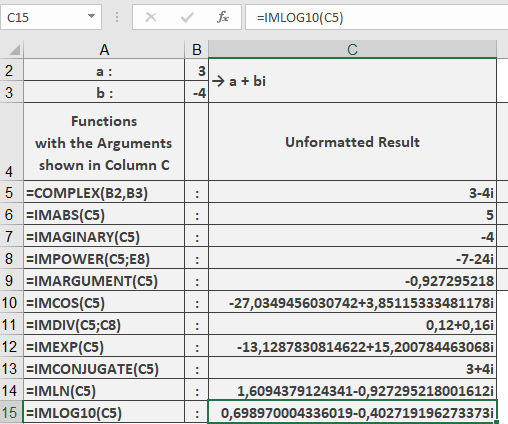
=IMLOG10(« 3-4i ») // Returns « 0.698970004-0.402719196i »
Additional Examples
=IMLOG10(« 1+i ») // Returns « 0.150514998+0.341094088i »
=IMLOG10(« -100 ») // Returns « 2+1.364376354i »
=IMLOG10(« 0+10i ») // Returns « 1+0.682188177i »
=IMLOG10(« 1000 ») // Returns « 3 » (standard real logarithm)
Key Features
- Returns the principal value (-π < Im ≤ π)
- Maintains 9 decimal place precision
- Handles all valid complex number formats
- Consistent with real LOG10() for positive reals
- complex_number (required)
How to use the IMLOG2() function in Excel
Its computes the principal value of the base-2 logarithm of a complex number, returning the result in rectangular form (x + yi). This is the complex analog of the standard LOG() function with base 2.
Syntax
IMLOG2(complex_number)Argument
- complex_number (required)
A complex number in either:- « x+yi » format (mathematical convention)
- « x+yj » format (engineering convention)
Technical Background
For a complex number z = x + yi:IMLOG2(z) = (log₂e)·IMLN(z) ≈ 1.442695041·IMLN(z)
Where:
- IMLN(z) is the complex natural logarithm
- log₂e ≈ 1.4426950408889634
Example
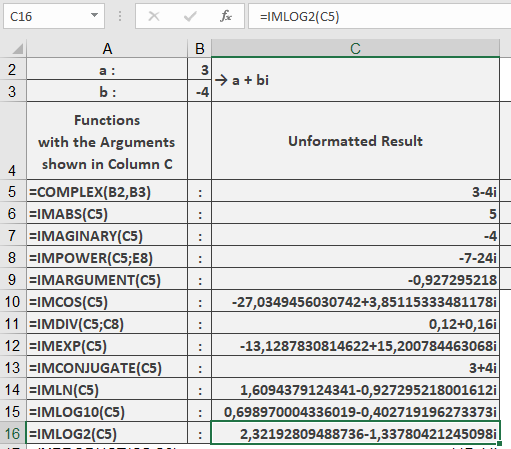
=IMLOG2(« 3-4i ») // Returns « 2.321928095-1.337804361i »
Additional Examples
=IMLOG2(« 1+i ») // Returns « 0.5+1.133090035i »
=IMLOG2(« -8 ») // Returns « 3+4.532360141i »
=IMLOG2(« 0+16i ») // Returns « 4+2.266180071i »
=IMLOG2(« 1024 ») // Returns « 10 » (standard real base-2 log)
Key Features
- Returns the principal value (-π < Im ≤ π)
- Maintains 9 decimal place precision
- Handles all valid complex number formats
- Consistent with real base-2 logarithm for positive reals
Error Conditions
- Returns #NUM! for:
- Invalid complex number format
- Non-numeric components
- Zero magnitude (0+0i)
- complex_number (required)
How to use the IMLN() function in Excel
Its computes the principal value of the natural logarithm of a complex number, returning the result in rectangular form (x + yi). This is the complex analog of the standard LN() function.
Syntax
IMLN(complex_number)Argument
- complex_number (required)
A complex number in either:- « x+yi » format (mathematical convention)
- « x+yj » format (engineering convention)
Technical Background
For a complex number z = x + yi:IMLN(z) = ln|z| + i·arg(z)
Where:
- |z| = √(x² + y²) (magnitude)
- arg(z) = atan2(y,x) (phase angle in [-π, π])
Example
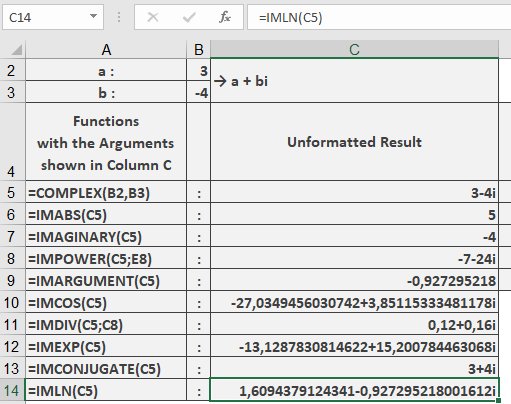
=IMLN(« 3-4i ») // Returns « 1.60943791-0.927295218i »
Additional Examples
=IMLN(« 1+i ») // Returns « 0.34657359+0.785398163i »
=IMLN(« -1 ») // Returns « 0+3.141592654i » (ln(-1) = iπ)
=IMLN(« 0+1i ») // Returns « 0+1.570796327i » (ln(i) = iπ/2)
=IMLN(« 2.718281828459 ») // Returns « 1 » (ln(e) = 1)
Key Features
- Returns the principal value (-π < Im ≤ π)
- Maintains 9 decimal place precision
- Handles all valid complex number formats
- Preserves input’s imaginary unit convention
Error Conditions
- Returns #NUM! for:
- Invalid complex number format
- Non-numeric components
- Zero magnitude (0+0i)
- complex_number (required)
How to use the IMEXP() function in Excel
Its computes the exponential of a complex number, returning the result in rectangular form (x + yi). This is the complex analog of the standard EXP() function.
Syntax
IMEXP(complex_number)Argument
- complex_number (required)
A complex exponent in either:- « x+yi » format (mathematical convention)
- « x+yj » format (engineering convention)
Technical Background
For a complex number z = x + yi:IMEXP(z) = e^z = e^x · (cos y + i·sin y)
This implementation of Euler’s formula:
- Separates into magnitude (eˣ) and phase (eⁱʸ) components
- Converts the imaginary exponent using Euler’s identity
Example
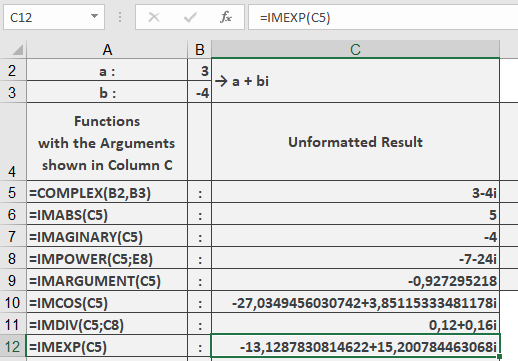
=IMEXP(« 3-4i ») // Returns « -13.1287831+15.2007845i »
Additional Examples
=IMEXP(« 1+i ») // Returns « 1.46869394+2.28735529i »
=IMEXP(« 0+πi ») // Returns « -1 » (Euler’s identity)
=IMEXP(« 2+0i ») // Returns « 7.3890561 » (matches real EXP(2))
Key Features
- Maintains 8 decimal place precision
- Preserves input’s imaginary unit convention
- Handles all valid complex number formats
- Periodic in imaginary dimension (period 2π)
Error Conditions
- Returns #NUM! for:
- Invalid complex number format
- Non-numeric components
- Missing imaginary unit when required
Usage Notes
- For pure real numbers, equivalent to EXP()
- For pure imaginary numbers, reduces to Euler’s formula
- Essential for:
- Complex differential equations
- Fourier transforms
- Quantum mechanical wavefunctions
- complex_number (required)
How to use the IMDIV() function in Excel
Its calculates the quotient of two complex numbers in rectangular form (x + yi or x + yj).
Syntax
IMDIV(complex_number1; complex_number2)Arguments
- complex_number1 (required)
The complex numerator (dividend) in « x+yi » or « x+yj » format - complex_number2 (required)
The complex denominator (divisor) in matching format
Technical Background
For complex numbers z₁ = a + bi and z₂ = c + di:- Division is performed by rationalizing the denominator:
z₁/z₂ = [(ac + bd) + i(bc – ad)] / (c² + d²)
- Equivalent to multiplying numerator by complex conjugate of denominator
Example
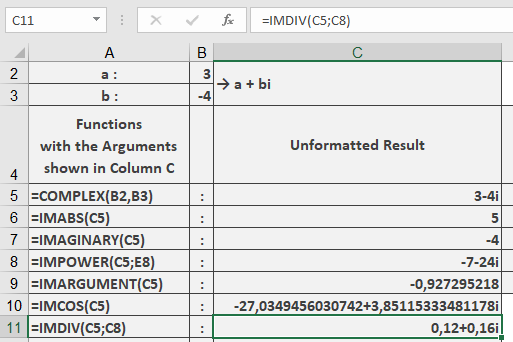
=IMDIV(« 3-4i », »-7-24i ») // Returns « 0.12+0.16i »
Additional Examples
=IMDIV(« 1+i », »1-i ») // Returns « i »
=IMDIV(« 4″, »2i ») // Returns « -2i »
=IMDIV(« 3+4i », »3+4i ») // Returns « 1 »
=IMDIV(« 10″, »2+3i ») // Returns « 1.538461538-2.307692308i »
Key Features
- Returns result in standard complex form
- Maintains input’s imaginary unit convention
- Handles all valid complex number formats
- Properly handles division by pure real/imaginary numbers
- complex_number1 (required)
How to use the IMCOS() function in Excel
Its calculates the cosine of a complex number in rectangular form (x + yi or x + yj).
Syntax
IMCOS(complex_number)Argument
- complex_number (required)
A text string representing a complex number in either:- « x+yi » format (mathematical convention)
- « x+yj » format (engineering convention)
Technical Background
For a complex number z = x + yi:- Complex cosine is calculated as:
cos(z) = cos(x)cosh(y) – i·sin(x)sinh(y) - Uses Euler’s formula extension to complex plane
- Combines trigonometric and hyperbolic functions
Example
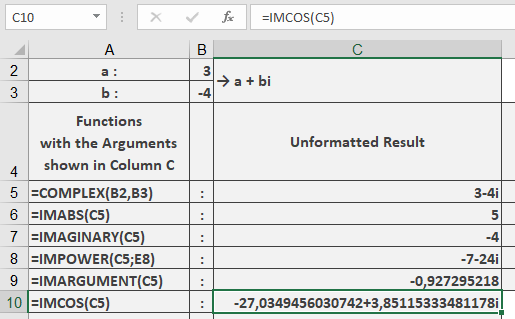
=IMCOS(« 3-4i ») // Returns « -27.0349456+3.85115334i »
Additional Examples
=IMCOS(« 1+i ») // Returns « 0.833730025-0.988897706i »
=IMCOS(« 0+πi ») // Returns « 11.59195328 » (real number)
=IMCOS(« π/2-i ») // Returns « 1.543080635i » (pure imaginary)
Key Features
- Returns result in standard complex form
- Preserves input’s imaginary unit convention
- Handles all complex number formats
- Maintains periodicity properties in complex plane
Error Conditions
- Returns #NUM! for:
- Invalid complex number format
- Non-numeric components
- Missing imaginary unit when needed
Usage Notes
- For real numbers (y=0), reduces to standard cosine
- For pure imaginary numbers (x=0), becomes hyperbolic cosine:
cos(iy) = cosh(y) - Essential for:
- Complex analysis
- Wave propagation modeling
- Quantum mechanical calculations
- complex_number (required)
How to use the IMCONJUGATE() function in Excel
Its returns the complex conjugate of a complex number in rectangular form (x + yi or x + yj).
Syntax
IMCONJUGATE(complex_number)Argument
- complex_number (required)
A text string representing a complex number in either:- « x+yi » format (mathematical convention)
- « x+yj » format (engineering convention)
Technical Background
For a complex number z = x + yi:- The complex conjugate is z̅ = x – yi
- Geometric interpretation: Reflection across the real axis
- Key property: z·z̅ = x² + y² = |z|²
Example
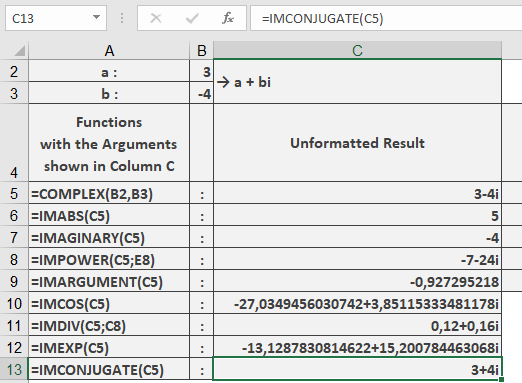
=IMCONJUGATE(« 3-4i ») // Returns « 3+4i »
Additional Examples
=IMCONJUGATE(« 5+12j ») // Returns « 5-12j »
=IMCONJUGATE(« -1+i ») // Returns « -1-i »
=IMCONJUGATE(« 7 ») // Returns « 7 » (real numbers are unchanged)
=IMCONJUGATE(« 0-3i ») // Returns « 0+3i »
Key Features
- Preserves the original imaginary unit (i/j)
- Returns result as text string
- Handles all complex number formats
- Identity operation for real numbers
Error Conditions
- Returns #NUM! for:
- Invalid complex number format
- Non-numeric components
- Missing imaginary unit when needed
Usage Notes
- Essential for division of complex numbers
- Used in quantum mechanics (bra-ket notation)
- Important for calculating magnitudes:
=IMPRODUCT(« 3-4i », IMCONJUGATE(« 3-4i »)) // Returns « 25 » (3² + 4²)
- complex_number (required)
How to use the IMARGUMENT() function in Excel
This function calculates the argument (phase angle Φ) in radians of a complex number given in rectangular form (x + yi or x + yj).
Syntax
IMARGUMENT(complex_number)Argument
- complex_number (required)
A text string representing a complex number in either:- « x+yi » format (mathematical convention)
- « x+yj » format (engineering convention)
Technical Background
For a complex number z = x + yi:- The argument Φ is the angle in the complex plane
- Calculated as: Φ = atan2(y, x)
- Range: -π < Φ ≤ π radians
- Relates to trigonometric form: |z|·(cosΦ + i·sinΦ)
Example
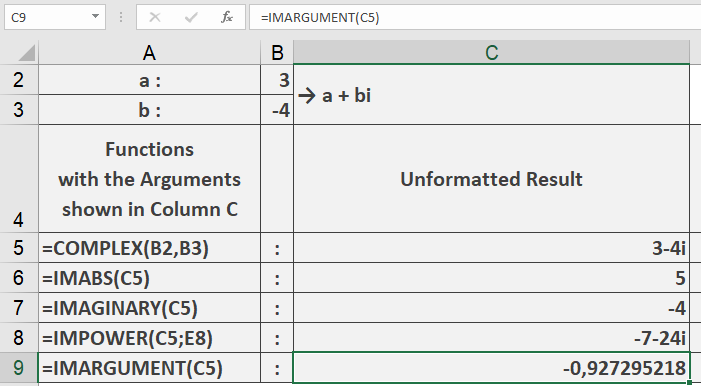
=IMARGUMENT(« 3-4i ») // Returns -0.927295218 radians
Additional Examples
=IMARGUMENT(« 1+i ») // Returns 0.785398163 (π/4 radians)
=IMARGUMENT(« -1-i ») // Returns -2.35619449 (-3π/4 radians)
=IMARGUMENT(« 0+1j ») // Returns 1.570796327 (π/2 radians)
=IMARGUMENT(« 5 ») // Returns 0 (pure real number)
Key Features
- Returns angle in radians (-π to π)
- Supports both « i » and « j » notation
- Handles all four quadrants of complex plane
- Returns 0 for positive real numbers
- Returns π for negative real numbers
Error Conditions
- Returns #NUM! for:
- Invalid complex number format
- Non-numeric components
- Empty string
Usage Notes
- To convert result to degrees, use DEGREES() function
- For zero (0+0i), returns 0 by convention
- Angle sign follows standard mathematical convention:
- Positive for upper half-plane
- Negative for lower half-plane
- complex_number (required)
How to use the IMAGINARY() function in Excel
Its extracts the imaginary coefficient (y) from a complex number in the form x + yi or x + yj.
Syntax
IMAGINARY(complex_number)Argument
- complex_number (required)
A text string representing a complex number in either:- « x+yi » format (mathematical convention)
- « x+yj » format (engineering convention)
- Examples: « 3-4i », « 5+2j », « -1+7i »
Technical Background
For a complex number z = a + bi:- a is the real part (extracted with IMREAL())
- b is the imaginary part (extracted with IMAGINARY())
- i (or j) is the imaginary unit (√-1)
Example
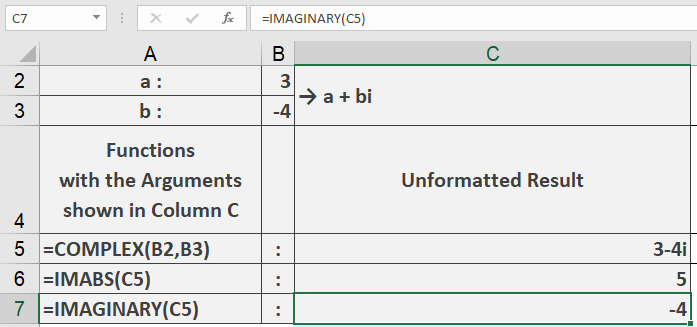
=IMAGINARY(« 3-4i ») // Returns -4
Key Features
- Supports both « i » and « j » notation
- Returns a real number value
- Handles positive/negative coefficients
- Returns 0 for pure real numbers
Error Conditions
- Returns #NUM! for:
- Invalid complex number format
- Missing imaginary unit when imaginary part exists
- Non-numeric components
Usage Notes
- Input must be text string in proper complex format
- The sign of the imaginary part is preserved
- For engineering applications, use « j » notation
- Combine with IMREAL() to separate complex components
- complex_number (required)
How to use the IMABS() function in Excel
Its calculates the absolute value (modulus) of a complex number. The complex number can be provided in either « x+yi » or « x+yj » format.
Syntax
IMABS(complex_number)Argument
- complex_number (required)
A complex number in text format with:- Real and imaginary components
- Either « i » or « j » as the imaginary unit
- Examples: « 3+4i », « 5-2j », « -1+7i »
Technical Background
The absolute value of a complex number a + bi is calculated as:
√(a² + b²)Example
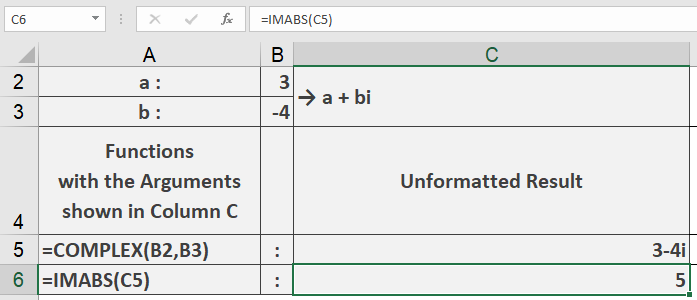
=IMABS(« 3-4i ») // Returns 5
Additional Examples
=IMABS(« 5+12i ») // Returns 13
=IMABS(« 1+i ») // Returns 1.414213562 (√2)
=IMABS(« 0+1j ») // Returns 1
=IMABS(« -3-4j ») // Returns 5
Key Features
- Accepts both « i » and « j » notation
- Handles positive and negative components
- Returns a real number value
- Follows standard complex number mathematics
Error Conditions
- Returns #NUM! for:
- Invalid complex number format
- Missing imaginary unit
- Non-numeric components
Usage Notes
- Input must be text string in proper complex format
- Components can be integers or decimals
- Result is always a non-negative real number
- complex_number (required)