Votre panier est actuellement vide !
Étiquette : engineering-function
How to use the HEX2OCT() function in Excel
Its converts a hexadecimal (base-16) number to its octal (base-8) equivalent using two’s complement notation.
Syntax
HEX2OCT(number; [places])Arguments
- number (required)
- Hexadecimal string (10-character maximum)
- Valid range: « FFE0000000 » to « 1FFFFFFF »
(-536,870,912 to +536,870,911 decimal) - Case-insensitive (A-F accepted in any case)
- places (optional)
- Specifies minimum output digits (1-10)
- Adds leading zeros for positive numbers
- Ignored for negative numbers (always 10 digits)
Technical Specifications
Characteristic Details Input Range Negative: « FFE0000000 » to « FFFFFFFFF »
Positive: « 0 » to « 1FFFFFFF »Output Range Negative: 10-digit octal
Positive: 1-10 digit octalSpecial Handling Truncates fractions, negative values ignore places parameter Case Sensitivity None (A-F and a-f treated identically) Examples
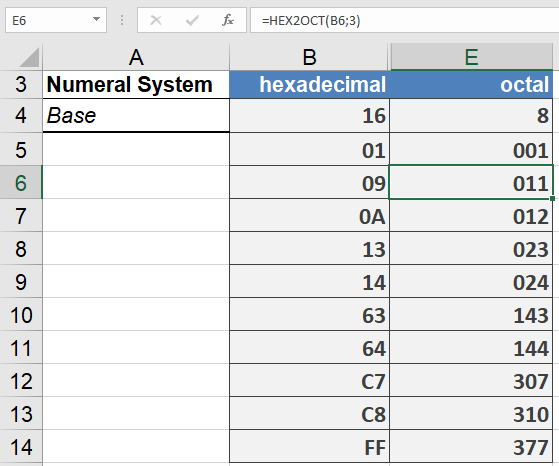
Common Use Cases
- Unix/Linux permission management
- Legacy system interfaces
- Embedded systems debugging
- Digital signal processing
Error Handling
- #NUM! Error:
- Input exceeds valid range
- Result requires more digits than specified places
- More than 10 hex characters
- #VALUE! Error:
- Contains non-hex characters (G-Z, symbols)
- Empty string input
- number (required)
How to use the HEX2DEC() function in Excel
Its converts a hexadecimal (base-16) number to its decimal (base-10) equivalent using two’s complement notation.
Syntax
HEX2DEC(number)Argument
- number (required)
- Hexadecimal string to convert (10-character max)
- Valid range: « 8000000000 » to « 7FFFFFFFFF »
(-549,755,813,888 to +549,755,813,887 decimal) - Case-insensitive (A-F or a-f accepted)
- Can be entered with or without quotes
Key Features
- Handles both positive and negative numbers via two’s complement
- No places parameter (use cell formatting for leading zeros)
- Automatic sign detection based on most significant hex digit
- Truncates any fractional values
Examples
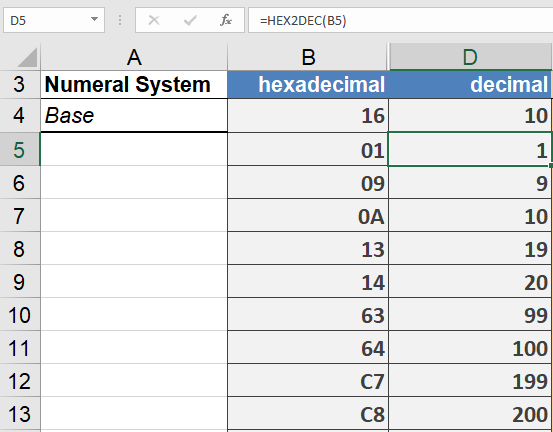
Technical Specifications
- Input Range:
Negative: « 8000000000 » to « FFFFFFFFF »
Positive: « 0 » to « 7FFFFFFFFF » - Output Range:
-549,755,813,888 to +549,755,813,887 - Processing:
- Leading/trailing spaces are ignored
- Letters A-F are case-insensitive
- Empty strings return 0
Common Applications
- Memory address conversion
- Color value calculations
- Cryptographic operations
- Legacy system integration
Error Conditions
- Returns #NUM! when:
- Input exceeds 10 characters
- Value outside valid range
- Returns #VALUE! for:
- Non-hex characters (G-Z, symbols)
- Invalid number format
- number (required)
How to use the HEX2BIN() function in Excel
Its converts a hexadecimal (base-16) number to its binary (base-2) equivalent using two’s complement notation.
Syntax
HEX2BIN(number; [places])Arguments
- number (required)
- Hexadecimal string to convert (10-character max)
- Valid range: « FFFFFFFE00 » (-512) to « 1FF » (+511)
- Negative values return 10-digit binary
- Can be entered with or without quotes
- places (optional)
- Minimum number of binary digits to display
- Adds leading zeros for positive numbers
- Ignored for negative numbers (always 10 digits)
- Decimal places are truncated
Technical Background
Uses two’s complement representation for negative values. Hexadecimal letters (A-F) are case-insensitive.Examples
=HEX2BIN(« E ») // Returns « 1110 »
=HEX2BIN(« E »,6) // Returns « 001110 » (padded to 6 digits)
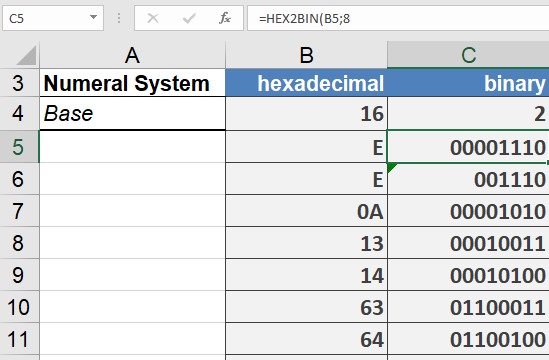
Common Applications
- Low-level hardware programming
- Network protocol analysis
- Binary file manipulation
- Embedded systems debugging
Error Conditions
- Returns #NUM! when:
- Number < « FFFFFFFE00 » (-512)
- Number > « 1FF » (511)
- Places < required digits for positive numbers
- Returns #VALUE! for:
- Non-hex characters
- Empty strings
- More than 10 characters
- number (required)
How to use the DEC2OCT() function in Excel
Its converts a decimal number to its octal (base-8) equivalent using two’s complement notation.
Syntax
DEC2OCT(number; [places])Arguments
- number (required)
- Decimal integer to convert (range: -536,870,912 to +536,870,911)
- Non-integers are truncated (decimal places ignored)
- Negative values return 10-digit two’s complement octal
- places (optional)
- Minimum number of octal digits to display (1-10)
- Adds leading zeros for positive numbers
- Has no effect on negative numbers (always 10 digits)
- Decimal places are truncated if specified
Technical Background
The conversion uses two’s complement representation for negative values. For complete number system theory, see the « Number Systems » introduction section.Examples
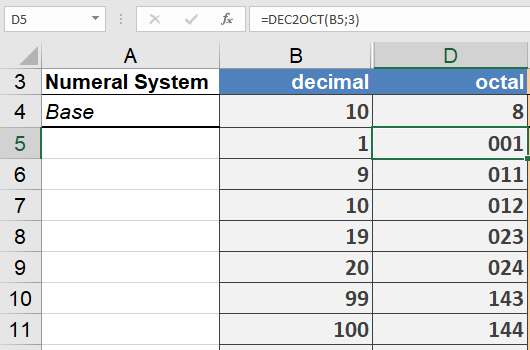
Key Specifications
- Input Range: -536,870,912 to 536,870,911
- Output Characteristics:
- Positive: Variable length (1-10 octal digits)
- Negative: Always 10 octal digits
- Special Handling:
- Negative numbers ignore places parameter
- Fractional values are truncated
- Leading zeros only applied to positive numbers
Common Applications
- Unix/Linux file permission systems
- Digital signal processing
- Embedded systems programming
- Legacy system interfaces
- number (required)
How to use the DEC2HEX() function in Excel
Its converts a decimal number to its hexadecimal (base-16) equivalent using two’s complement notation.
Syntax
DEC2HEX(number; [places])Arguments
- number (required)
- Decimal integer to convert (range: -549,755,813,888 to +549,755,813,887)
- Non-integers are truncated (decimal places ignored)
- Negative values return 10-digit two’s complement hexadecimal
- places (optional)
- Minimum number of hexadecimal digits to display
- Adds leading zeros for positive numbers
- Has no effect on negative numbers (always 10 digits)
- Decimal places are truncated if specified
Technical Background
The conversion uses two’s complement representation for negative values. For complete number system theory, see the « Number Systems » introduction section.Examples
=DEC2HEX(14) // Returns « 0E »
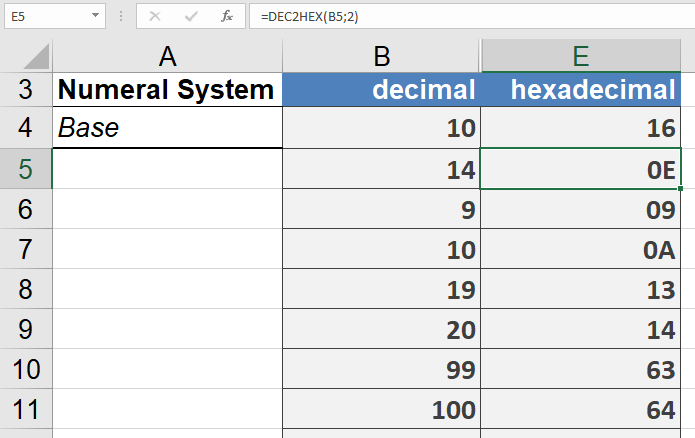
Key Specifications
- Input Range: -549,755,813,888 to 549,755,813,887
- Output Characteristics:
- Positive: Variable length (1-10 hex digits)
- Negative: Always 10 hex digits
- Letter digits (A-F) appear in uppercase
- Special Handling:
- Negative numbers ignore places parameter
- Fractional values are truncated
Common Applications
- Memory address representation
- Color code manipulation
- Cryptographic operations
- Low-level system programming
Error Conditions
- Returns #NUM! error when:
- Number < -549,755,813,888
- Number > 549,755,813,887
- Places < required digits for positive numbers
- Returns #VALUE! for non-numeric inputs
- number (required)
How to use the DEC2BIN() function in Excel
Its converts a decimal number to its binary (base-2) equivalent using two’s complement notation.
Syntax
DEC2BIN(number; [places])Arguments
- number (required)
- Decimal integer to convert (range: -512 to +511)
- Non-integers are truncated (decimal places ignored)
- Negative values return 10-digit two’s complement binary
- places (optional)
- Minimum number of binary digits to display
- Adds leading zeros for positive numbers
- Has no effect on negative numbers (always 10 digits)
- Decimal places are truncated if specified
Background
For complete details on two’s complement and number system conversions, refer to the « Number Systems » introduction section.Examples
=DEC2BIN(1) // Returns « 1 »
=DEC2BIN(9) // Returns « 1001 »
=DEC2BIN(10) // Returns « 00001010 »

Key Features
- Handles both positive and negative decimal integers
- Negative numbers always return 10-digit two’s complement results
- Automatic truncation of fractional values
- Optional padding for positive numbers only
Common Use Cases
- Digital logic design
- Computer engineering
- Bitmask operations
- Low-level data processing
Error Conditions
- Returns #NUM! if:
- Number < -512
- Number > 511
- Places < required digits for positive numbers
- Returns #VALUE! for non-numeric inputs
- number (required)
How to use the COMPLEX() function in Excel
Its creates a complex number from real and imaginary components in the form x + yi or x + yj.
Syntax
COMPLEX(real_part; imaginary_part; [suffix])Arguments
- real_part (required)
The real coefficient (x) of the complex number - imaginary_part (required)
The imaginary coefficient (y) of the complex number - suffix (optional)
The imaginary unit designation (« i » or « j »)
Default: « i » if omitted
Technical Background
Complex numbers consist of real and imaginary components. For complete details, see the Functions for Complex Numbers section.Examples
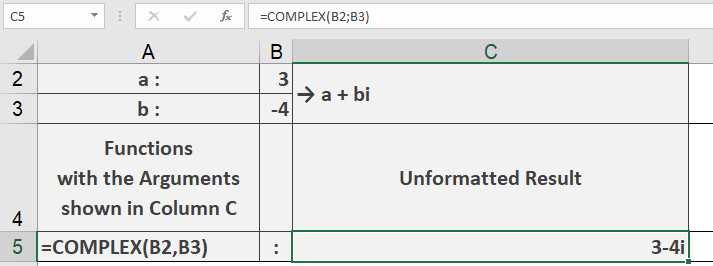
Key Features
- Supports both « i » and « j » notation for imaginary units
- Automatically inserts proper sign between components
- Returns text string representing the complex number
- Defaults to « i » suffix if not specified
Error Conditions
- Returns #VALUE! if:
- Non-numeric inputs provided
- Invalid suffix (not « i » or « j ») specified
- Too few arguments provided
Usage Notes
- The output is a text string, not a numeric value
- For engineering applications, use « j » suffix
- For mathematical applications, « i » is standard
- Components can be integer or decimal values
- real_part (required)
How to use the BIN2OCT() function in Excel
Its converts a binary number to its octal (base-8) equivalent.
Syntax
BIN2OCT(number; [places])Arguments
- number (required)
- A 10-digit maximum binary number in two’s complement notation
- Negative values return a 10-digit octal number
- places (optional)
- Specifies minimum number of characters to display
- Adds leading zeros if necessary
- If omitted, shows only significant digits
- Decimal places are truncated
Background
For complete details on number systems and two’s complement representation, see the « Number Systems » introduction section.Examples
=BIN2OCT(1110) // Returns 16 (binary 1110 = octal 16)
=BIN2OCT(1110,4) // Returns 0016 (padded to 4 digits)
=BIN2OCT(111111111) // Returns 777 (binary 111111111 = octal 777)
=BIN2OCT(1111111111)// Returns 7777777777 (binary 1111111111 = -1 in two’s complement)
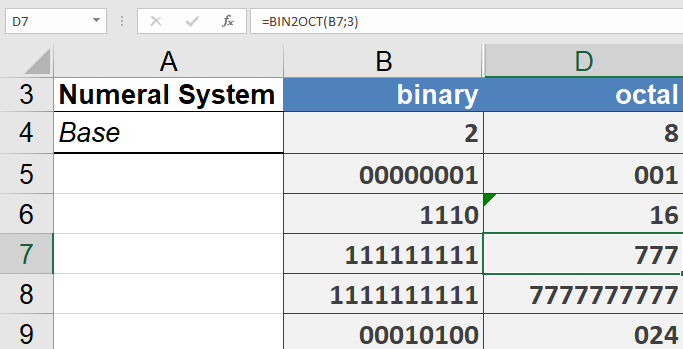
Key Features
- Handles both positive and negative binary numbers via two’s complement
- 10-digit binary input limit (sign bit included)
- Negative inputs always return 10-digit octal results
- Optional padding for positive numbers only
- number (required)
How to use the BESSELY() function in Excel
This function returns the Bessel function of the second kind, Yₙ(x), also known as the Weber function or Neumann function.
Syntax
BESSELY(x; n)Arguments
- x (required)
The value at which to evaluate the function:- Must be a positive real number
- Valid range: 0 < x ≤ ~1.34×10⁸ (upper limit varies slightly with order n)
- n (required)
The order of the Bessel function:- Must be positive
- Maximum value depends on x (covers all practical applications)
- Non-integer values are truncated (decimal places ignored)
Background
Yₙ(x) is a solution to Bessel’s differential equation:x²y » + xy’ + (x² – n²)y = 0
or
y » + (1/x)y’ + (1 – n²/x²)y = 0
It can be expressed in terms of Jₙ(x):

Example
The graphical representation demonstrates Yₙ(x) behavior (see Figures below):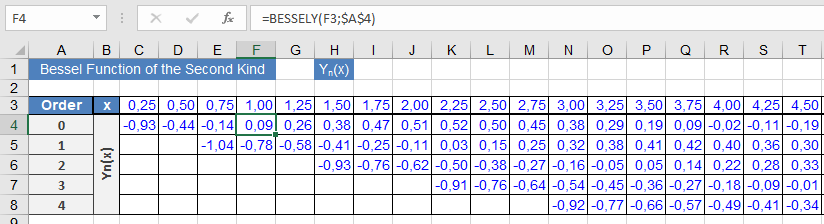
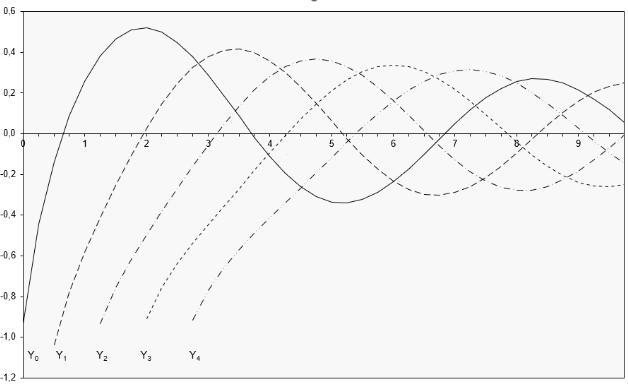
Implementation notes:
- Worksheet calculates Yₙ(x) for orders n=0 to 4
- Higher orders omitted from graph due to large initial values
- Characteristic oscillatory behavior with singularities visible in Figure above
Key Properties
- Oscillates with decreasing amplitude as x increases
- Singular at x=0 for all orders
- Yₙ(x) and Jₙ(x) are linearly independent solutions
- Satisfies the same recurrence relations as Jₙ(x)
Technical Applications
- Solutions to wave equations in cylindrical coordinates
- Modeling of acoustic waveguides
- Electromagnetic field problems
- Heat transfer in circular geometries
Computation Notes
- Calculated via relation to Jₙ(x) functions
- Requires special handling near x=0 due to singularity
- Higher orders show more rapid oscillations
- x (required)
How to use the BESSELK() function in Excel
This function returns the modified Bessel function of the second kind, Kₙ(x).
Syntax
BESSELK(x ; n)Arguments
- x (required)
The value at which to evaluate the function:- Must be a positive real number
- Valid range: approximately 1×10⁻³⁰⁷ to >700
- Upper limit depends on order n (practically unlimited for most applications)
- n (required)
The order of the Bessel function:- Must be positive integer (typically <10 in practice)
- Non-integer values are truncated (not rounded)
Background
Kₙ(x), also known as:- Basset function
- Macdonald function
- Modified Bessel function of the third kind
It is a solution to the modified Bessel’s differential equation:
x²y » + xy’ – (x² + n²)y = 0
or
y » + (1/x)y’ – (1 + n²/x²)y = 0
Can be expressed in terms of Iₙ(x):

Example
The graphical representation is used to demonstrate Kₙ(x) behavior (see Figures below):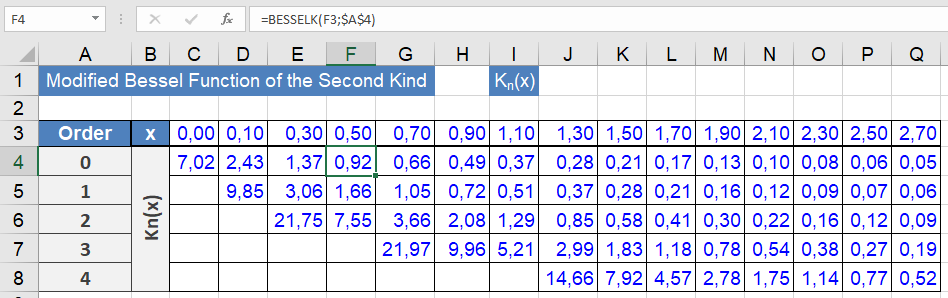
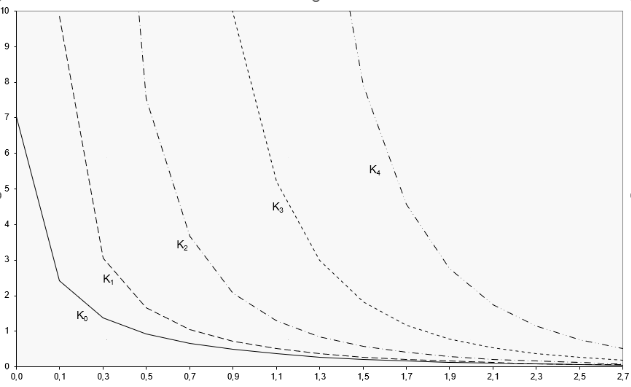
Implementation notes:
- Worksheet calculates Kₙ(x) for orders n=0 to 4
- Higher orders omitted from graph due to large initial values
- Characteristic exponential decay visible in Figure above
Key Properties
- Exhibits exponential decay as x increases
- Singular at x=0 for all orders
- Kₙ(x) > 0 for x > 0
- Satisfies various recurrence relations
Technical Applications
- Solutions to potential problems in cylindrical coordinates
- Heat conduction in annular regions
- Radial wave equations
- Quantum mechanical scattering problems
- x (required)