Votre panier est actuellement vide !
Étiquette : function
How to use the ERROR.TYPE function in Excel
This function returns a number corresponding to an error value in Excel. If no error exists in the cell or in the calculation, the function returns the #N/A error.
Syntax
ERROR.TYPE(error_value)
Arguments
- error_value (required) – The error value (either the actual error in a cell or the result of a calculation) for which you want to find the error code.
Background
You can use this function in an IF() function to replace an error value with a descriptive string. To do this, you need to know the relationship between error values and their corresponding return codes (see Table 1).
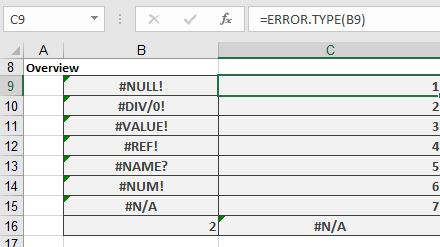
Table 1. Error Values and Results of the ERROR.TYPE Function
Error Value Return Value #NULL! 1 #DIV/0! 2 #VALUE! 3 #REF! 4 #NAME? 5 #NUM! 6 #N/A 7 No error #N/A Examples
The following examples illustrate how to use the ERROR.TYPE() function.
- Conditional Formatting
Assume you want to use conditional formatting to highlight cells with errors in different colors.
- Figure below shows an example using the ISERROR() function to highlight error cells in a user-defined color.
- A critical error (e.g., division by zero, where ERROR.TYPE() returns 2) can be highlighted in a second color (e.g., red).
Note: Pay attention to the order of conditions. If ISERROR() is checked first, a specific error check (like #DIV/0!) may be ignored.
- Custom Functions
If you frequently need to map error types (1–7) to their descriptions (e.g., #DIV/0!), you can create a custom function for efficiency.
The following VBA code provides a solution:
Function ErrorDescription(Range As Range)
If WorksheetFunction.IsError(Range.Value) Then
Select Case CStr(Range.Value)
Case « Error 2000 »
ErrorDescription = « Intersection is empty »
Case « Error 2007 »
ErrorDescription = « Division by zero »
Case « Error 2015 »
ErrorDescription = « Noncalculable expression »
Case « Error 2023 »
ErrorDescription = « Lost reference »
Case « Error 2029 »
ErrorDescription = « Name not defined »
Case « Error 2036 »
ErrorDescription = « Number cannot be shown »
Case « Error 2042 »
ErrorDescription = « Nonexistent value »
End Select
Else
ErrorDescription = « No error »
End If
End Function
How to use the CELL function in Excel
This function retrieves details about the formatting, location, or contents of the upper-left cell in a specified range.
Syntax
CELL(info_type;[reference])
Arguments
- info_type (required)
A text string specifying the type of information to return (see in table 1). - reference (optional)
The cell being analyzed. If omitted, the function returns data for the last modified cell.
Background
The CELL() function requires knowledge of valid info_type arguments (listed below). Some return values are encoded (see Table 2 for number formats).
Table 1. info_type Arguments and Return Values
Argument Returns « address » Absolute reference of the cell (e.g., « $A$1 »). Includes sheet name if workbook is open. « width » Column width (rounded to integer), measured in characters of the default font. « filename » Full file path (empty if unsaved). « color » 1 if cell formats negative values in color; otherwise 0. « format » Text code for the cell’s number format (see Table 11-3). Appends « – » for color-negative or « () » for parentheses. « contents » Cell value (ignores formulas). « parentheses » 1 if cell uses parentheses for positives/all values; otherwise 0. « prefix » Text alignment marker: ‘ (left), » (right), ^ (center), \ (fill), or « » (other). « protect » 1 if cell is locked; 0 if unlocked. « col » Column number (e.g., 2 for column B). « type » Data type: « b » (blank), « l » (text), « v » (other). « row » Row number (e.g., 5 for row 5). Table 2. Number Format Codes
CELL() Returns Meaning « G » General « F0 » 0 « 0 » #,##0 « F2 » 0.00 « ,2 » #,##0.00 « C0 » Currency (no decimals) « C0-« Currency (no decimals, negatives in red) « C2 » Currency (2 decimals) « C2-« Currency (2 decimals, negatives in red) « P0 » 0% « P2 » 0.00% « S2 » Scientific (e.g., 0.00E+00) « D1 » Date: MM.DD.YY « D2 » Date: MM.DD « D3 » Date: MM.YY « D4 » Date: DD/MM/YY « D5 » Date: DD/MM « D6 » Time: h:mm:ss AM/PM « D7 » Time: h:mm AM/PM « D8 » Time: h:mm:ss « D9 » Time: h:mm Examples
- Track Cell Changes
- Display a warning if C63 is modified:
=IF(CELL(« address »)= »$C$63″, « Caution », « OK »)
-
- Highlight the changed cell directly (using conditional formatting):
=(CELL(« address »)= »$C$63″)

- Note: Resets when another cell is edited.
- Simplify Repeated Use
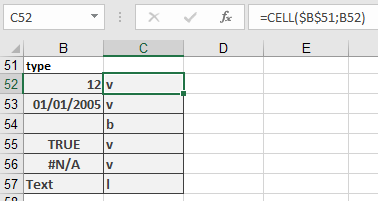
- Store info_type in a cell (e.g., B51 = « type »):
=CELL($B$51; B52) // Instead of =CELL(« type »;B52)
- Generate Consecutive Numbers
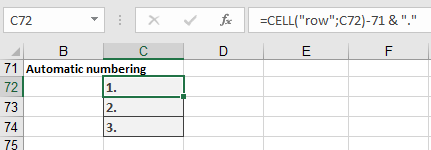
- Start numbering from row 72
=CELL(« row »; C72) – 71 & « . »
Result: 1., 2., etc.
Practical Tips
- IntelliSense aids formula entry.
- Conditional Formatting: Use CELL(« protect », …) to color-code locked/editable cells.
- Dynamic References: Combine with INDIRECT() for flexible lookups.
- info_type (required)
How to Use the OR Function in Excel
The OR function is a logical function that returns TRUE if any of the specified conditions are TRUE, and returns FALSE only if all conditions are false. Unlike the AND function, which requires all conditions to be true, the OR function only needs one true condition to return TRUE.
The syntax for the OR function is as follows:
=OR(logical1; [logical2]; …)
- logical1 (Required): The first condition or logical value to evaluate.
- logical2 (Optional): The second condition or logical value to evaluate.
USING THE OR FUNCTION
Let’s determine whether:
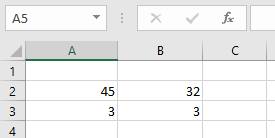
- Cell A2 is greater than 30,
- Cell B2 is less than 50,
- Cell B3 is equal to 45,
by using the OR function to return either TRUE or FALSE based on the evaluation.
To apply the function:
- Select an empty cell and enter the function with the specified arguments:
=OR(A2>30; B2<50; B3=45)
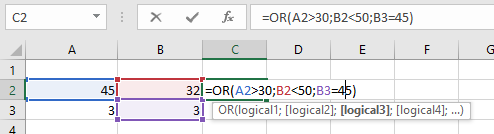
- Press Enter, and the result will be displayed (e.g., FALSE if none of the conditions are met).
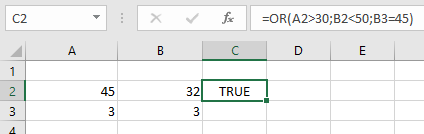
NOTES WHEN USING THE OR FUNCTION
- If any logical test cannot be interpreted as a numeric or logical value, the function returns a #VALUE! error.
- The function ignores text values or empty cells in the arguments.
- It can evaluate up to 255 conditions in a single function.
- The OR function can also be combined with the AND function, depending on the required logic.
THE AND FUNCTION in Excel
The AND function is a logical function that checks whether all specified conditions in a dataset are TRUE. If any condition fails, it returns FALSE. For example, checking if B1 is greater than 50 AND less than 100.
The AND function uses the following syntax:
=AND(logical1; [logical2]; …)
Arguments:
- Logical1 (Required): The first condition to evaluate
- Logical2 (Optional): The second condition to evaluate
(Up to 255 conditions can be tested)
USING THE AND FUNCTION
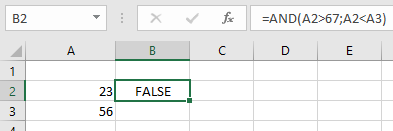
Using the table below, let’s test if cell A2 is greater than 67 AND less than cell A3:
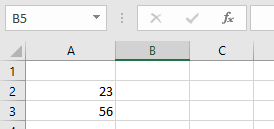
To perform this check:
- Select an empty cell
- Enter the formula:
=AND(A2>6; A2<A3)
In this example:
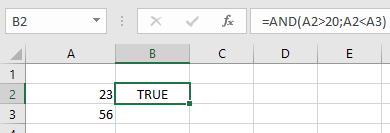
- The function returns FALSE because one condition fails (A2 is not greater than 67)
- If all conditions were met, it would return TRUE
IMPORTANT NOTES ABOUT THE AND FUNCTION
- Returns #VALUE! error if no logical values are provided
- Ignores text values and empty cells in its arguments
- Can test up to 255 different conditions
- Only returns TRUE when ALL conditions are satisfied
- Returns FALSE if any single condition fails
- Commonly used with other functions like IF to create more complex logical tests
The AND function provides a simple way to verify multiple conditions simultaneously in your data analysis.
How to Use the IFERROR Function in Excel
The IFERROR function is used to return a custom result when a formula produces an error. It provides a simple way to handle errors without complex nested IF statements.
The IFERROR function uses the following syntax:
=IFERROR(value; value_if_error)
Arguments:
- Value (Required): The formula or expression to be checked for errors
- Value_if_error (Required): The result to return if an error is detected
USING THE IFERROR FUNCTION
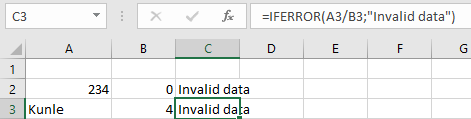
Using the table below, we’ll apply the IFERROR function to replace errors with the message « invalid data »:
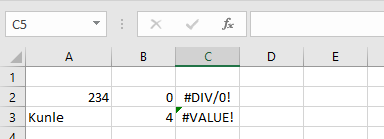
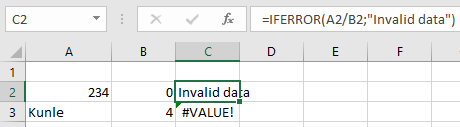
To correct the error in cell C2:
- Select an empty cell
- Enter the formula:
=IFERROR(A2/B2; « invalid data »)
To correct the error in cell C3:
- Select an empty cell
- Enter the formula:
=IFERROR(A3/B3; « invalid data »)
IMPORTANT NOTES ABOUT THE IFERROR FUNCTION
- If either value or value_if_error refers to an empty cell, IFERROR treats it as an empty string (« »)
- When applied to an array formula, IFERROR returns an array of results for each cell in the specified range
- Common errors handled by IFERROR include:
- #N/A
- #VALUE!
- #REF!
- #DIV/0!
- #NUM!
- #NAME?
- #NULL!
The IFERROR function simplifies error handling in formulas while maintaining spreadsheet clarity and efficiency.
How to Use the IFS Function in Excel
The IFS function serves as an alternative to nested IF functions. This function evaluates one or more conditions and returns the value corresponding to the first TRUE condition found.
The IFS function operates using the following syntax:
=IFS(Logical_test1; Value1; [Logical_test2, Value2]; …; [Logical_test127; Value127])
Arguments:
- Logical_test1 (Required): The first condition Excel evaluates as TRUE or FALSE
- Value1 (Required): The result returned if Logical_test1 is TRUE
- Additional logical tests and values (Optional): You can include up to 127 condition/value pairs
USING THE IFS FUNCTION
Let’s apply the IFS function to assign letter grades based on student marks from the table below:
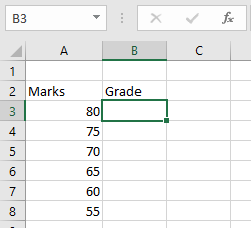
To assign grades:
- Select an empty cell
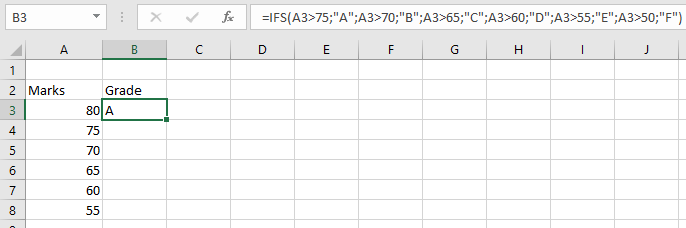
- Enter the formula:
=IFS(A3>75; »A »; A3>70; »B »; A3>65; »C »; A3>60; »D »; A3>55; »E »; A3>50; »F »)
- Press Enter to see the grade for the first student
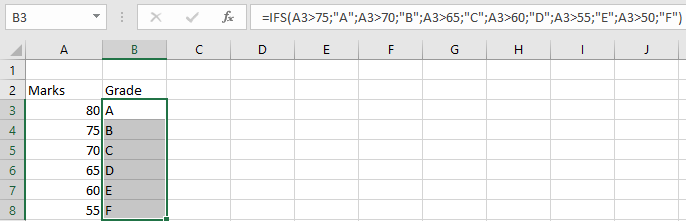
To apply this to other students:
- Use the fill handle to drag the formula down to adjacent cells
IMPORTANT NOTES ABOUT THE IFS FUNCTION
- #N/A Error: Occurs when none of the specified conditions are met
- #VALUE! Error: Appears when a logical test returns a value that isn’t TRUE or FALSE
- Evaluation Order: The function checks conditions sequentially and stops at the first TRUE result
- Default Case: Unlike IF, IFS doesn’t have a built-in « else » clause – all possible outcomes must be explicitly defined
How to Use the NESTED IF Function in Excel
The Nested IF function refers to one IF function placed inside another IF function, enabling you to evaluate multiple conditions and expand the range of possible results. While you could achieve similar outcomes using separate IF functions individually, nesting them provides a more streamlined approach. Now, let’s apply the Nested IF function to the table below to examine whether prices exceed or fall below 500.

USING THE NESTED IF FUNCTION
To determine if a value is greater than 500 using the Nested IF, input the following formula in an empty cell:
=IF(A2>500; « Yes »; « No »
=IF(A3>500; « Yes »; « No »
=IF(A4>500; « Yes »; « No »
=IF(A5>500; « Yes »; « No »)
=IF(A6>500; « Yes »; « No »))))
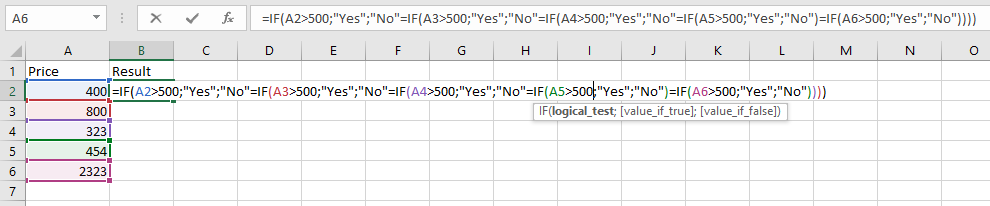
Press Enter, and the result for the first referenced cell will appear.
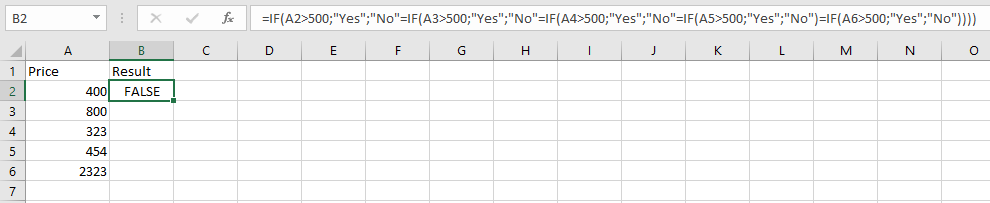
To extend this evaluation to the remaining cells, utilize the fill handle to drag the formula downward, applying it to the other cells automatically.

IMPORTANT NOTES ON NESTED IF FUNCTIONS
- Precision in Construction
- Crafting a Nested IF function demands careful thought and accuracy to ensure the logic processes each condition correctly through to the final outcome.
- Potential for Complexity
- Nested IF functions can become difficult to follow, particularly when numerous IF functions are nested within one another.
- Precision in Construction
How to Use the IF Function in Excel
The IF function is a function that tests a given condition and returns one value for a TRUE result and another value for a FALSE result. This function allows you to make a logical comparison between a value and what you expect.
The IF function uses the following syntax:
=IF(Logical_test; [Value_if_true]; [Value_if_false])
Arguments:
- Logical_test (Required Argument): This is the value or logical expression to be tested and evaluated as either TRUE or FALSE.
- Value_if_true (Optional Argument): This is the value returned if the logical test evaluates to TRUE.
- Value_if_false (Optional Argument): This is the value returned if the logical test evaluates to FALSE.
When using this function, the following logical operators can be applied:
- Equal to (=)
- Greater than (>)
- Greater than or equal to (≥)
- Less than (<)
- Less than or equal to (≤)
- Not equal (≠)
USING THE IF FUNCTION
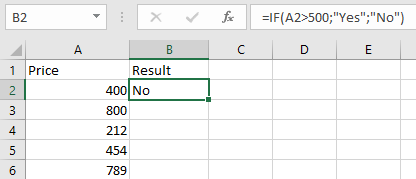
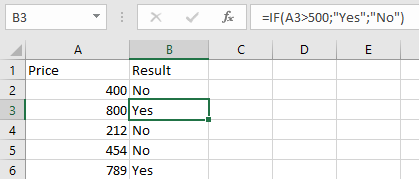
In the table below, we want to test whether the values in the cells are greater than 500 or not. If TRUE, the result will be « Yes », and if FALSE, the result will be « No ».
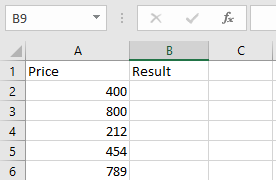
To check if cell A2 is greater than 500, enter:
=IF(A2>500; « Yes »; « No »)
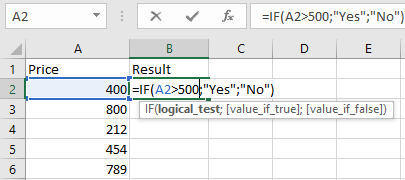
Press Enter, and the returned value will be « No ».
Use the same steps to evaluate cells A3 to A6:
=IF(A3>500; « Yes »; « No »)
=IF(A4>500; « Yes »; « No »)
=IF(A5>500; « Yes »; « No »)
=IF(A6>500; « Yes »; « No »)
NOTES WHEN USING THE IF FUNCTION:
- The IF function works if the logical_test returns a numeric value.
- It treats any non-zero value as TRUE and zero as FALSE.
- #VALUE! occurs when the logical_test argument cannot be evaluated as TRUE or FALSE.
- If any argument is supplied as an array, the IF function evaluates each element of the array.
- To count based on conditions, use COUNTIF and COUNTIFS.
- To sum based on conditions, use SUMIF and SUMIFS.
How to use the MEDIAN function in Excel
The MEDIAN function calculates the middle value of a given set of numbers. For example, the function returns 3 in =MEDIAN(1;2;3;4;5).
The MEDIAN function contains the following arguments:
=MEDIAN(number1; [number2]; …)
Number1 (Required Argument): The range of one or more cells containing values for median calculation.
Number2 (Optional Argument): Additional numbers to include (up to 255 arguments).USING THE MEDIAN FUNCTION
Using the table below, let’s calculate the median of numeric data:
- Select an empty cell and enter:
=MEDIAN(B3:B7)
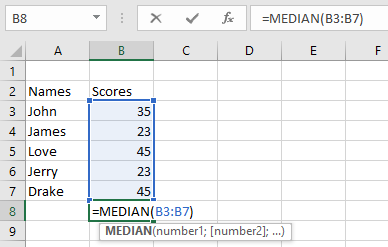
- Press Enter – the result will be 35 (as shown below).

NOTE: Important MEDIAN function behaviors:
- Returns errors if arguments contain uninterpretable text/errors
- Accepts numbers, named ranges, arrays, or number-containing references
- Ignores empty cells, logical values, and text entries
- For even-numbered sets: returns average of two middle values
How to use the MAX function in Excel
The MAX function returns the maximum or largest number in a given set of values or arguments. The MAX function ignores text and logical values in its calculations.
The MAX function uses the following argument:
=MAX(number1; [number2]; …)
Number1 (Required Argument): This is the range of cells from which the highest number will be returned.
Number2 (Optional Argument): Here, up to 255 additional numbers can be included.USING THE MAX FUNCTION
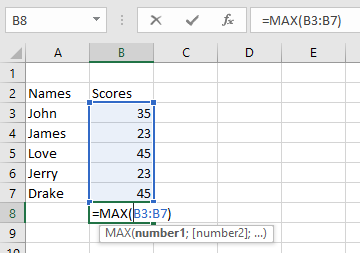
With the table given below, find the maximum number using the MAX function.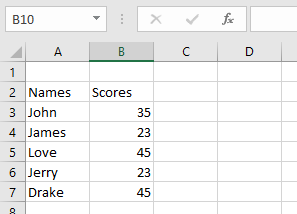
To find the maximum number using the MAX function, follow the steps below:
- Select an empty cell and type in the function name and its arguments:
=MAX(B3:B7)
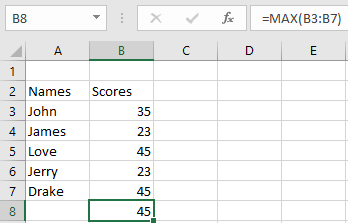
- Click Enter and the result will be 45 as shown in the table below.
NOTE: Keep these in mind when using the MAX function:
- A #VALUE! error occurs when non-numeric values are provided
- The MAX function returns 0 for arguments without numbers
- To include logical values and text representations of numbers, use the MAXA function
- Arguments can be numbers, names, arrays, or references containing numbers
- Empty cells, logical values, and text are ignored
- Error values or uninterpretable text in arguments will cause errors