Votre panier est actuellement vide !
Étiquette : lookup and reference function
How to use the COLUMNS function in Excel
This function returns the number of columns in an array or cell reference.
Syntax:
COLUMNS(array)
Arguments:
- array (required): An array constant or a reference to a cell range.
Background:
- Using a discontiguous range as an argument triggers the error:
« You’ve entered too many arguments to the function. »
- Enclosing such arguments in extra parentheses results in a #REF! error.
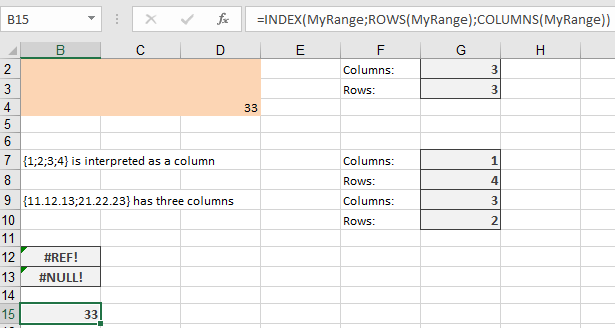
- If the range is defined by intersections and the intersection is empty, the function returns #NULL!.
Array constants are numbers or text that you must enclose in braces. Rows are separated by semicolons, and columns are separated by commas
- {1;2;3;4} → Interpreted as a single column:
=COLUMNS({1;2;3;4}) // Returns 1
- {11,12,13;21,22,23} → Interpreted as three columns:
=COLUMNS({11,12,13;21,22,23}) // Returns 3
Example:
Combined with ROWS(), this function helps access specific cells in a named range, particularly useful for dynamic ranges.
- If a range is named MyRange, the formula:
=INDEX(MyRange; ROWS(MyRange); COLUMNS(MyRange))
Returns a reference to the lower-right cell of the range.
How to use the COLUMN function in Excel
This function returns the column number of a given cell reference.
Syntax:
COLUMN([reference])
Arguments:
- reference (optional): Must evaluate to a cell reference or range.
Background:
- If the reference argument is omitted, the function returns the column number of the cell containing the formula.
- If reference is a range (or a named range), the function can be used in array formulas:
- If the output range has fewer columns than the input, excess data is truncated.
- If the output range has more columns than the input, extra cells display #N/A.
Example:
Suppose you want to sum numbers in a row based on whether their column numbers are even or odd.
- A number is even if:
(2 * INT(A1 / 2) – A1) = 0 → TRUE
- A number is odd if:
(2 * INT(A1 / 2) – A1) <> 0 → TRUE
If cells B21:E21 contain numbers:
- Sum of even columns:
{=SUM((INT(COLUMN(B21:E21)/2)*2 – COLUMN(B21:E21) = 0) * B21:E21)}
- Sum of odd columns:
{=SUM((INT(COLUMN(B21:E21)/2)*2 – COLUMN(B21:E21) <> 0) * B21:E21)}
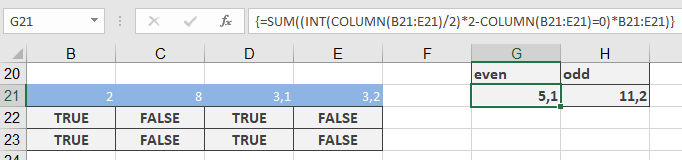
This works because Excel interprets:
- TRUE as 1
- FALSE as 0
How to use the CHOOSE function in Excel
This function uses an index to return a value from the list of value arguments.
Syntax:
CHOOSE(index; value1; value2; …)Arguments:
- index (required): Specifies which item is selected from the value arguments.
- value1, value2, … (the first value argument is required): A list of values separated by commas. These can be numbers, cell references, defined names, formulas, functions, or text.
- In Excel the maximum number of arguments is 254.
- In earlier versions, the limit is 29.
Background:
- The index argument must evaluate to an integer between 1 and 29 (or 1 and 254, depending on the Excel version).
- You can use a formula or a cell reference that returns such a number.
- If index is less than 1 or greater than the number of value arguments, CHOOSE() returns the #VALUE! error.
- If index is a fraction, the decimal part is truncated before evaluation.
Using CHOOSE() in Array Formulas:
You can use CHOOSE() in an array formula by specifying the index as an array. However, be cautious to avoid errors.- The formula:
{=CHOOSE({1;2}; SUM(E41:G41); SUM(E42:G42))}
Returns:
-
- The sum of E41:G41 in the first cell.
- The sum of E42:G42 in the second cell.
- The formula:
{=SUM(CHOOSE({1;2}; E41:G41; E42:G42))}
Returns the total of E41:G42 in both cells.
- The formulas:
=SUM(CHOOSE(1; E41:G41; E42:G42))
and
=SUM(CHOOSE(2; E41:G41; E42:G42))
Return the correct individual sums.
Example:
Assume the names of the days (starting with Sunday) are in cells B42:B48. The formula:= »Today is » & CHOOSE(WEEKDAY(D42); B42; B43; B44; B45; B46; B47; B48) & « . »
Returns:
« Today is [weekday name]. »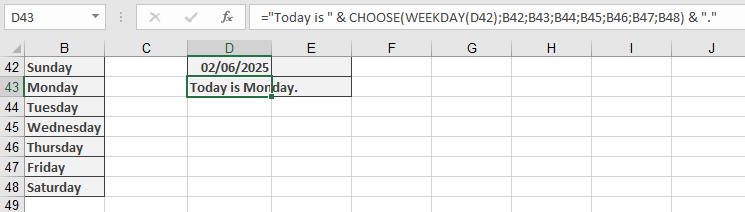
How to use the AREAS function in Excel
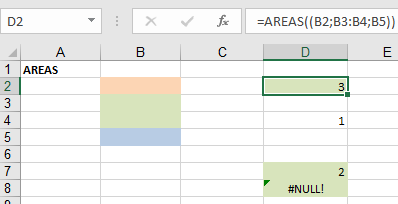
This function returns the number of contiguous ranges within a reference.
Syntax:
AREAS (reference)Arguments:
- reference (required): Must evaluate to a reference for one or more cell ranges. Otherwise, Excel returns an error (preventing formula entry) or an error value.
Background:
If the argument consists of multiple references separated by a comma, additional parentheses must be used:=AREAS((A1;A2))
or
=AREAS((A1:A2;B3))
If additional parentheses are omitted, the comma is treated as a list separator, resulting in an error. Attempting to calculate empty ranges returns the #NULL! error (e.g., =AREAS(A1 A2)), as no intersection exists between A1 and A2.
Example:
This function is not commonly used in daily Excel tasks but can be helpful when:- A dynamic list is named using the OFFSET() function.
- A list is formatted as a table.
Scenario:
Suppose you want to expand a list by adding cells below its title while ensuring it does not exceed 100 entries. If row 100 is reached, the title row should change color as an alert.To count overlapping ranges between the named range List and cell A101, use:
=AREAS(List others!$A$101)
If the result is 1 (indicating an overlap), conditional formatting should change the title row’s colour. However, the Conditional Formatting dialog does not support intersection operations (spaces in cell references).
Workaround:
- Assign a name to the formula:
- In Excel: Formulas > Defined Names > Define Name.
- In Excel: Insert > Name > Define.
- Enter a reference name (e.g., Formula).
- Apply the conditional format to the title row using:
=(Formula=1)
and specify the desired colour.
How to use the ADDRESS function in Excel
Creates a cell reference as text from given row and column numbers.
Syntax:
ADDRESS(row_num; column_num; [abs_num]; [a1];[sheet_text])Arguments:
- row_num (required):
- Row number (1 to 1,048,576 in modern Excel)
- column_num (required):
- Column number (1 to 16,384 in modern Excel)
- abs_num (optional): Reference type:
- 1 [Default]: Absolute ($A$1)
- 2: Absolute row, relative column (A$1)
- 3: Relative row, absolute column ($A1)
- 4: Relative (A1)
- a1 (optional):
- TRUE/1: A1-style (default)
- FALSE/0: R1C1-style
- sheet_text (optional):
- Worksheet name (e.g., « Sheet2 ») to prefix reference
Key Notes:
- Truncates decimal values in row/column numbers
- Doesn’t verify worksheet existence
- Returns text, not an actual reference (use with INDIRECT() for dynamic references)
Examples
- Basic References
Formula Result =ADDRESS(6, 2) $B$6 =ADDRESS(6, 2, 4) B6 =ADDRESS(6, 2, 2) B$6 =ADDRESS(6, 2, , , « Sheet2 ») Sheet2!$B$6 - Automatic Column Labels
=LEFT(ADDRESS(1, COLUMN()-COLUMN($C$14)+1, 4), 1)
- Generates letters (A, B, …) for columns starting at C14
- COLUMN() calculates current column position
- Dynamic Cell Access
=INDIRECT(ADDRESS(6, 2)) // Returns value from B6
- Last Cell in Range
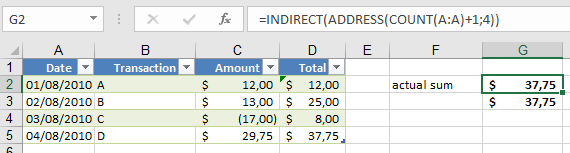
=INDIRECT(ADDRESS(COUNT(A:A)+1, 4))
- Finds last numeric entry in column A and returns value from column D
- For cross-sheet reference:
=INDIRECT(ADDRESS(COUNT(Payments!A:A)+1, 4,,, »Payments »))
Practical Applications
- Dynamic Headers:
Create self-updating column labels when columns are added/removed. - Summary Sheets:
Reference data from variable-length lists without manual updates. - Template Building:
Generate formulas that adapt to changing data structures. - Cross-Sheet References:
Programmatically create references to other worksheets.
Combination Techniques
- With MATCH()/INDEX():
=INDIRECT(ADDRESS(MATCH(« Total »,A:A,0), 2))
- With VLOOKUP():
=VLOOKUP(« Item », A:B, 2, 0) // Alternative to ADDRESS+INDIRECT
Limitations
- Reference strings may break if rows/columns are deleted
- Volatile when combined with INDIRECT()
- Consider INDEX() as a more stable alternative for many use cases
- row_num (required):
How to Use the REFERENCE FORMAT OF THE INDEX Function in Excel
The reference format of the INDEX function returns a cell reference at the intersection of specified row and column numbers within one or more ranges.
Syntax:
=INDEX(reference; row_num; [column_num]; [area_num])
Arguments:
- reference (Required):
One or more cell ranges. Multiple ranges must be separated by commas and enclosed in parentheses (e.g., (A1:B2;D5:E6)). - row_num (Required):
The row position within the reference.- If 0, returns a reference to all rows in the range.
- column_num (Optional):
The column position within the reference.- If 0, returns a reference to all columns in the range.
- area_num (Optional):
Specifies which range to use when multiple ranges are provided in reference.- Defaults to 1 (first range) if omitted.
USING THE REFERENCE FORMAT OF THE INDEX FUNCTION
Example: Find the Price of Mango
Given the following table (range A2:C10):
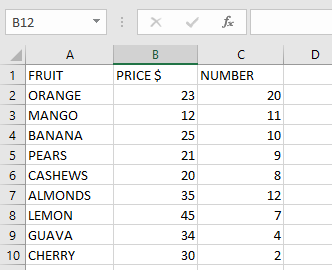
Steps to find Mango’s price (row 2, column 3, area 1):
- Select an empty cell.
- Enter the formula:
=INDEX((A2:C10); 2; 3; 1)
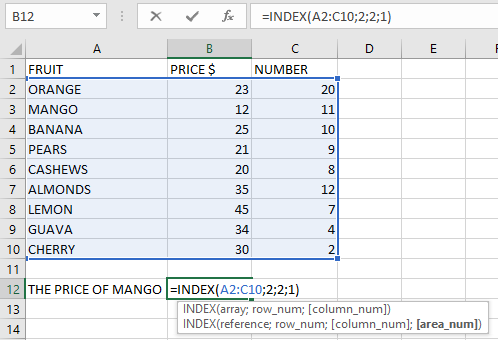
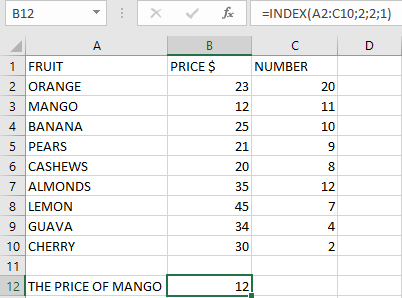
- Press Enter → Returns 12 (Mango’s price).
NOTES & ERROR HANDLING
- Return Behavior:
- Returns the value at the row/column intersection when both row_num and column_num are specified.
- Returns an array of values if either row_num or column_num is 0.
- Common Errors:
- #VALUE!: Occurs if row_num, column_num, or area_num is non-numeric.
- #REF!: Occurs when:
- row_num exceeds the range’s row count.
- column_num exceeds the range’s column count.
- area_num exceeds the number of provided ranges.
- Multi-Range Example:
=INDEX((A1:B2;D5:E6); 1; 2; 2)
Returns the value from row 1, column 2 of the second range (D5:E6).
- reference (Required):
How to use the INDEX function in Excel
The INDEX function returns a value or reference from within a table or range based on specified row and column positions. This function is commonly used with MATCH and can serve as an alternative to VLOOKUP. The INDEX function has two formats:
- Array Format
- Reference Format
THE ARRAY FORMAT OF THE INDEX FUNCTION
The array format returns the value of a specific cell or range of cells within an array.
Syntax:
=INDEX(array; row_num; [col_num])
Arguments:
- array (Required):
The range of cells to search within. - row_num (Required):
The row position in the array to return.- If set to 0 or omitted, returns all rows in the array.
- col_num (Optional):
The column position in the array to return.- If set to 0 or omitted, returns all columns in the array.
USING THE ARRAY FORMAT OF THE INDEX FUNCTION
Example: Find Goals Scored by LOVETH
Given the following table (range A2:C5):
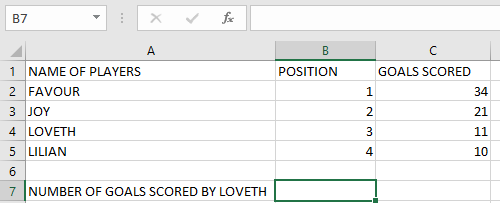
Steps to find Loveth’s goals (row 3, column 3):
- Select an empty cell.
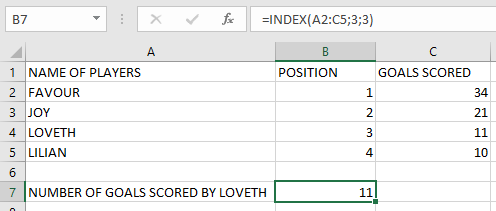
- Enter the formula:
=INDEX(A2:C5; 3; 3)

- Press Enter → Returns 11 (Loveth’s goals).
How to use the ROW function in Excel
The ROW function returns the row number of a specified cell reference in a worksheet. This function helps identify the numerical position of rows in Excel’s grid system.
Syntax:
=ROW([reference])
Argument:
- reference (Optional):
The cell or range for which you want to determine the row number.- If omitted, returns the row number of the cell containing the formula.
USING THE ROW FUNCTION
Example: Finding Row Numbers
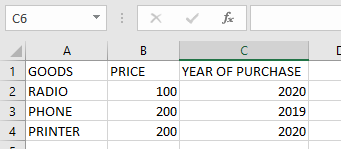
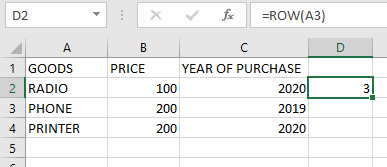
To find the row number of cell A3:
- Select a blank cell
- Enter the formula:
=ROW(A3)
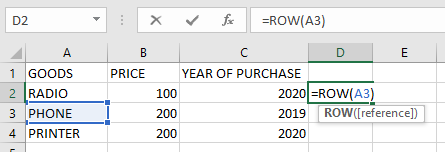
- Press Enter → Returns 3
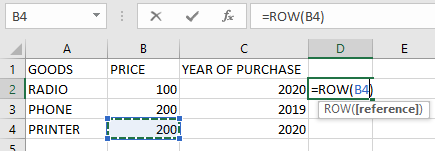
To find the row number of cell B4:
- Select a blank cell
- Enter the formula:
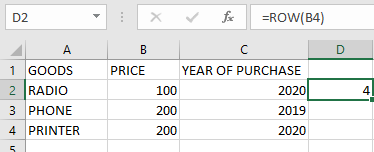
=ROW(B4)
- Press Enter → Returns 4
To find the row number of cell C3:
- Select a blank cell
- Enter the formula:
=ROW(C3)
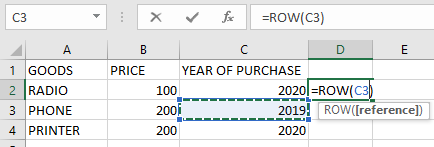
- Press Enter → Returns 3
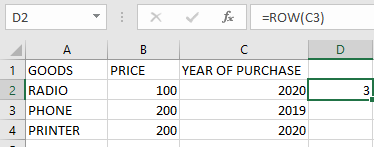
Using ROW without reference:
=ROW()
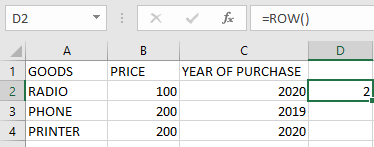
Returns the row number of the cell containing this formula.
IMPORTANT NOTES:
- Single Reference Only:
- Processes only one cell reference at a time
- Reference Types Accepted:
- Works with single cells or range references
- Returns the top row number for ranges
- Optional Argument:
- When omitted, automatically references the formula cell
- Array Handling:
- Returns an array of row numbers when reference is a range
- Example: =ROW(A1:A5) returns {1;2;3;4;5}
- Key Differences from ROWS Function:
- ROW returns position numbers
- ROWS counts total rows in range
- reference (Optional):
How to use the COLUMN function in Excel
The COLUMN function returns the column number of a specified cell reference within a worksheet. This function provides the numerical position of a column in Excel’s grid system.
Syntax:
=COLUMN([reference])
Argument:
- reference (Optional):
The cell or range for which you want to determine the column number.- If omitted, returns the column number of the cell containing the formula.
USING THE COLUMN FUNCTION
Example: Finding Column Numbers
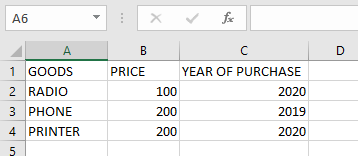
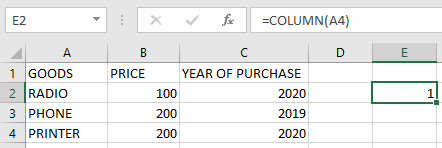
To find the column number of cell A4:
- Select a blank cell
- Enter the formula:
=COLUMN(A4)
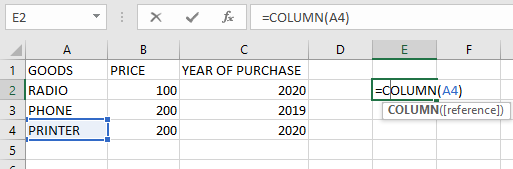
- Press Enter and the column number will be displayed
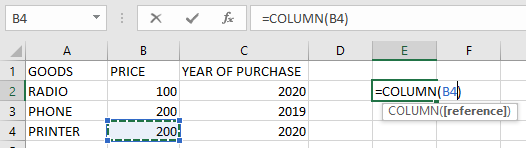
To find the column number of cell B3:
- Select a blank cell
- Enter the formula:
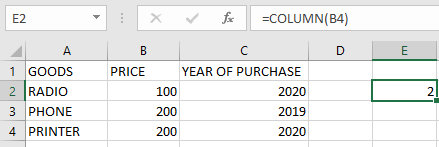
=COLUMN(B4)
- Press Enter → Returns 2 (B is the second column)
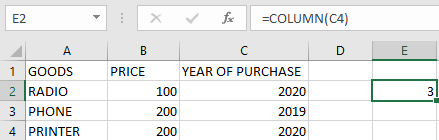
To find the column number of cell C1:
- Select a blank cell
- Enter the formula:
=COLUMN(C4)
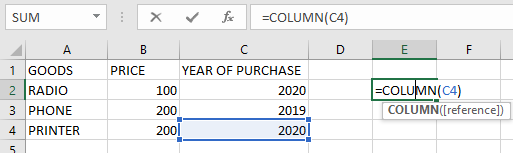
- Press Enter → Returns 3 (C is the third column)
Using COLUMN without reference:
=COLUMN()
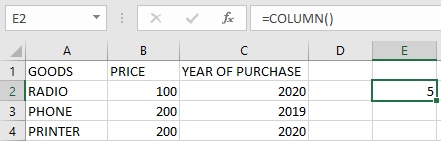
Returns the column number of the cell containing this formula.
IMPORTANT NOTES:
- Single Reference Only:
- Cannot process multiple cell references simultaneously
- Reference Types Accepted:
- Works with single cells or range references
- Returns the leftmost column number for ranges
- Optional Argument:
- When omitted, automatically references the formula cell
- Practical Applications:
- Useful in combination with other functions like INDEX, OFFSET
- Helps create dynamic column references in formulas
- reference (Optional):
How to use the FORMULATEXT function in Excel
The FORMULATEXT function displays the formula contained in a specified cell as a text string. This function was introduced in Microsoft Excel 2013.
Syntax:
=FORMULATEXT(reference)
Argument:
- reference (Required):
The cell reference containing the formula you want to display as text.
USING THE FORMULATEXT FUNCTION
Example: Display a Cell’s Formula
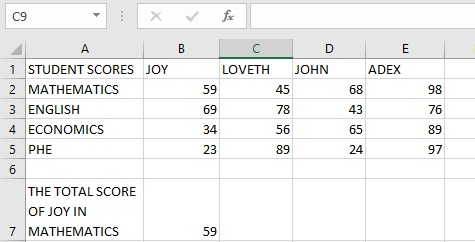
Given a cell (B7) containing a formula to calculate Joy’s mathematics score:
Steps to Display the Formula:
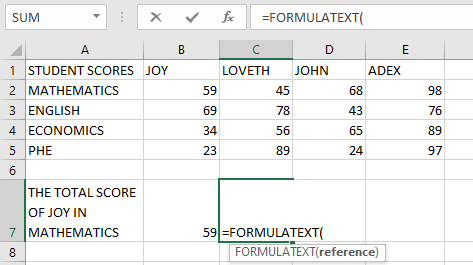
- Select an empty cell type in the function =FORMULATEXT
- Enter the function:
=FORMULATEXT(B7)
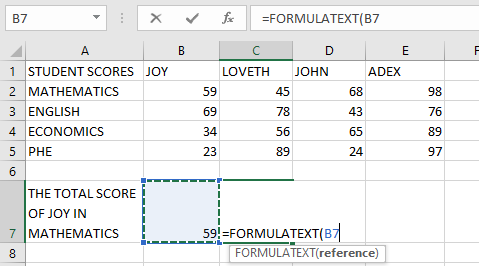
- Press Enter
Result:
The actual formula from cell B7 will be displayed as text in the selected cell.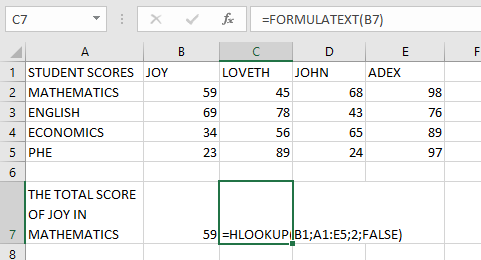
ERRORS & IMPORTANT NOTES
Common Errors:
- #VALUE! Error:
Occurs when invalid data types are used as inputs. - #N/A Error:
Occurs when:- The referenced cell doesn’t contain a formula
- Referencing a closed workbook
- The formula exceeds 8192 characters
- The worksheet is protected
Key Points:
- Only displays formulas – won’t show values or text
- Particularly useful for:
- Documenting complex spreadsheets
- Troubleshooting formulas
- Auditing workbook calculations
- reference (Required):