Votre panier est actuellement vide !
Étiquette : function
How to use the MINA() function in Excel
The MINA function returns the smallest value in a dataset, evaluating:
- Numbers
- Text representations of numbers
- Logical values (TRUE/FALSE)
Syntax
MINA(value1; [value2]; …)
Arguments
Argument Requirement Description value1 Required First value, cell reference, or range value2,… Optional Additional values/ranges (1-255 total) Value Conversion Rules
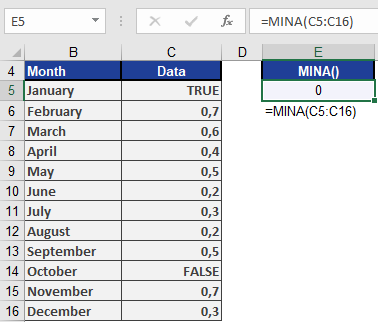
Data Type Conversion Example Numbers Used as-is 42 → 42 Text numbers Converted to numeric « 100 » → 100 Logical TRUE Treated as 1 TRUE → 1 Logical FALSE Treated as 0 FALSE → 0 Text strings Treated as 0 « Text » → 0 Empty cells Ignored [blank] → excluded Example. Using the same example as for MAXA(), the MINA() function returns 0 because the smallest value is the logical value FALSE (see figure below).
How to use the MIN() function in Excel
Returns the smallest numeric value from a set of arguments.
Syntax
MIN(number1; [number2]; …)
Arguments
- number1 (required): First number, cell reference, or range
- number2,… (optional): Additional values/ranges
Background
- Works identically to MAX() but returns minimum instead of maximum value
- Ignores empty cells, text, and logical values
- Returns 0 if no numeric values are found
- Detailed behavior explained in MAX() function documentation
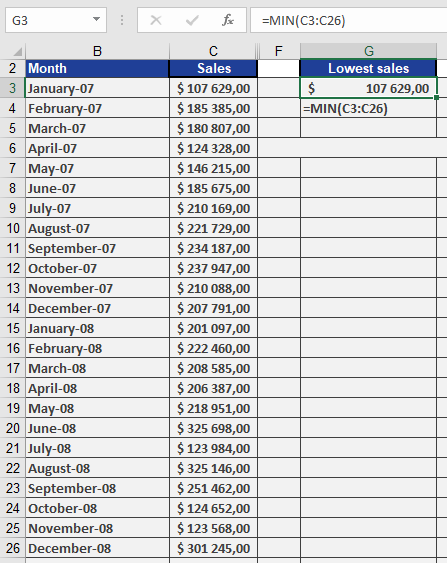
Example. The software company wants to find the smallest number of sales in a given period in a sales table. MIN() returns $107,629 for January from the unsorted data set (see figure below).
How to use the MEDIAN() function in Excel
Returns the middle value of a numeric dataset when sorted in ascending order. Exactly half of the data points will be greater than the median, and half will be less than the median.
Syntax
MEDIAN(number1; [number2]; …)
Arguments
- number1 (required): First number, cell reference, or range
- number2,… (optional): Additional values or ranges
Calculation Method
- For odd-numbered datasets:
- Returns the exact middle value
- Example: For 5 values → Returns the 3rd sorted value
- For even-numbered datasets:
- Returns the average of the two middle values
- Example: For 6 values → Averages the 3rd and 4th sorted values
Key Properties
- Outlier resistance: Not affected by extreme values
- Data requirements: Works with ordinal or higher measurement scales
- Stability: Insensitive to changes in extreme values
- Missing data: Automatically ignores blank cells and text
Example. Suppose you are the manager of the software company’s marketing department and you want to evaluate the website for the past year. The evaluation includes all clicks in all website areas. Now you want to calculate the median to get the mean value in this data set for the website visits in the past twelve months.
This example calculates the median from the two mean values in the data sets, because the number of elements is even (see figure below).
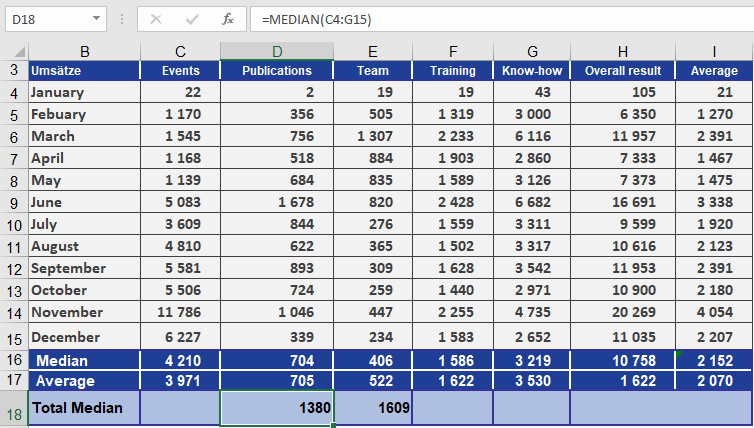
If you sort the events, you can see that the means are July (3,609) and August (4,810). These two values are added by the MEDIAN() function and divided by 2. The result is a median of 4,210. If the example included a 13th month, the median would be the seventh value in the sorted data set
How to use the MAXA() function in Excel
Returns the largest value from a set of arguments, evaluating both numerical and non-numerical data types (including logical values and text representations of numbers).
Syntax
MAXA(value1; [value2]; …)
Arguments
- value1 (required): First value, cell reference, or range to evaluate
- value2,… (optional): Additional values or ranges
Key Features
- Data Type Handling:
- Numbers: Evaluated normally
- Logical values:
- TRUE = 1
- FALSE = 0
- Text representations of numbers: Converted to numerical values
- Text strings: Ignored (treated as 0)
- Empty cells: Ignored
- Comparison with MAX():
- Unlike MAX() which ignores non-numeric values, MAXA() attempts to convert and evaluate all supported data types
- Both return 0 if no valid values are found
- Error Handling:
- Returns errors if arguments contain unprocessable error values
Example
Scenario:
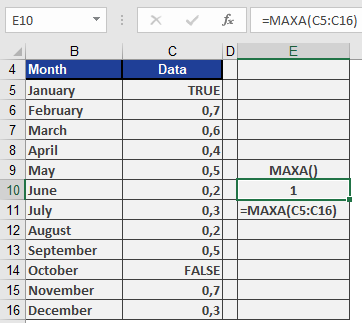
A dataset contains mixed values (numbers, logical values, and text):Data Values A1 0.5 A2 TRUE A3 « 0.8 » A4 FALSE A5 « Text » Formula:
=MAXA(A1:A5)
Evaluation:
- Converts values:
- 0.5 → 0.5
- TRUE → 1
- « 0.8 » → 0.8
- FALSE → 0
- « Text » → ignored (treated as 0)
- Compares converted values: (0.5, 1, 0.8, 0)
- Returns: 1 (from TRUE)
Practical Applications
- Analyzing datasets with mixed data types
- Processing survey data containing logical (Yes/No) responses
- Evaluating conditional results where TRUE/FALSE represent meaningful values
Complementary Functions
- MINA(): Returns smallest value with same conversion rules
- MAX(): Numeric-only maximum function
- COUNT(): Counts numeric values only
Note: For accurate results, ensure text representations of numbers use consistent decimal formats (e.g., « 0.8 » not « 0,8 »).
How to use the MAX() function in Excel
This function returns the largest value from a set of arguments.
Syntax:
MAX(number1; [number2]; …)Arguments:
- number1 (required): First number, cell reference, or range to evaluate
- number2,… (optional): Additional numbers, references, or ranges
Key Features:
- Data Handling:
- Accepts numbers, empty cells, logical values (TRUE/FALSE), and text representations of numbers
- Ignores text values that cannot be converted to numbers
- Returns 0 if no numbers are found in the arguments
- Range Behavior:
- When evaluating ranges or arrays:
✓ Processes only numerical values
✓ Automatically ignores empty cells, text, and logical values - To include logical values and text numbers, use MAXA()
- When evaluating ranges or arrays:
- Error Handling:
- Returns errors if any argument contains unprocessable text or error values
Comparison:
- For minimum values, use MIN() with identical argument rules
- For more inclusive calculations, use MAXA()/MINA()
Example:
As Accounting Manager, you need to find the highest sales figure from two years of unsorted data (see Figure below).Implementation:
=MAX(C3:C26)
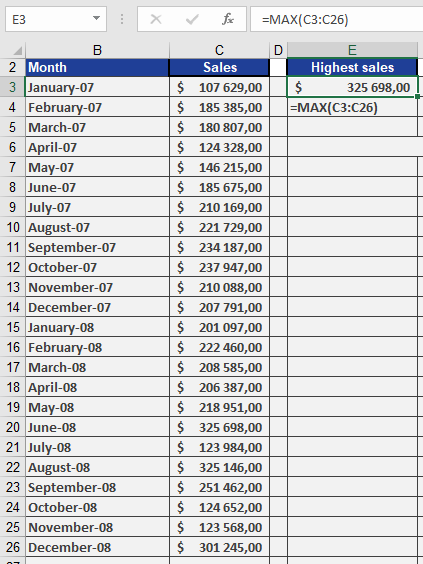
This formula will return the single highest value from cells C3 through C26, regardless of their position in the range.
Note: The function is particularly useful for:
- Identifying performance outliers
- Finding threshold values
- Data validation checks
How to use the LOGNORM.DIST() function in Excel
This function returns values from the lognormal distribution where the natural logarithm of the random variable follows a normal distribution with parameters μ (mean) and σ (standard_dev). The probability density function (PDF) is given by:

Syntax
LOGNORM.DIST(x; mean; standard_dev; cumulative)
Arguments
- x (required): Evaluation point (x>0x>0)
- mean (required): Mean of ln(x)ln(x) (μμ)
- standard_dev (required): Standard deviation of ln(x)ln(x) (σ>0σ>0)
- cumulative (required):
- TRUE: Returns cumulative distribution (CDF):
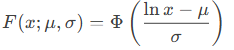
where ΦΦ is the standard normal CDF.
-
- FALSE: Returns probability density (PDF)
Background
The lognormal distribution models multiplicative processes where:
- Skewness: Right-tailed distribution
- Multiplicative effects: If X=eYX=eY with Y∼N(μ,σ2)Y∼N(μ,σ2), then XX is lognormal
- Real-world examples:
- Income distributions (growth rates compound multiplicatively)
- Particle sizes in aerosols
Key properties:
- Mean: eμ+σ2/2eμ+σ2/2
- Variance: (eσ2−1)e2μ+σ2(eσ2−1)e2μ+σ2
Example Calculation
Given:
- x=4x=4
- μ=3.5μ=3.5
- σ=1.2σ=1.2
- Cumulative = TRUE
Compute F(4;3.5,1.2):
- Standardize: z=ln(4)−3.51.2≈−0.747z=1.2ln(4)−3.5≈−0.747
- Evaluate Φ(−0.747)≈0.039084Φ(−0.747)≈0.039084
Result:
LOGNORM.DIST(4, 3.5, 1.2, TRUE) = 0.039084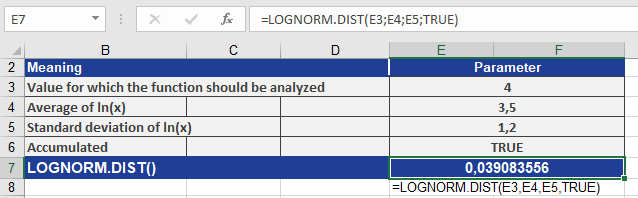
How to use the LOGNORM.INV() function in Excel
This function returns the quantile (inverse cumulative distribution) of a lognormal distribution, where the natural logarithm of the random variable *x* is normally distributed with specified mean and standard deviation parameters.
If:
p = LOGNORM.DIST(x, mean, standard_dev, TRUE)
Then:
x = LOGNORM.INV(p, mean, standard_dev)This means that for a given probability *p*, you can calculate the corresponding quantile value *x* from the lognormal distribution. Use this function to work with data that has been logarithmically transformed.
Syntax:
LOGNORM.INV(probability; mean; standard_dev)Arguments:
- probability (required): The probability value (0 ≤ *p* ≤ 1) associated with the lognormal distribution.
- mean (required): The mean (μ) of the natural logarithm of *x* (i.e., the mean of ln(*x*)).
- standard_dev (required): The standard deviation (σ) of the natural logarithm of *x* (i.e., the standard deviation of ln(*x*)).
Background:
The inverse lognormal distribution function calculates the value *x* such that the cumulative probability up to *x* equals the specified probability *p*. Mathematically, it is expressed as: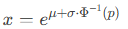
where:
- Φ−1(p)Φ−1(p) is the inverse of the standard normal cumulative distribution function (quantile function of the normal distribution).
- *e* is the base of the natural logarithm (~2.71828).
Example:
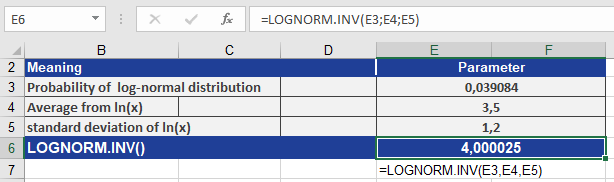
Calculate LOGNORM.INV() using the following inputs:- probability = 0.039084 (the cumulative probability associated with the lognormal distribution)
- mean = 3.5 (the mean of ln(*x*))
- standard_dev = 1.2 (the standard deviation of ln(*x*))
The calculation is illustrated in Figure below.
Result:
The function returns the quantile value 4.000025, meaning that there is a 3.9084% probability that a value from this lognormal distribution will be less than or equal to 4.000025.How to use the LOGEST() function in Excel
This function calculates the exponential curve in regression analyses and returns an array of values describing this curve. Since it returns an array, it must be entered as an array formula.
Syntax:
LOGEST(known_y’s, known_x’s, const, stats)Arguments:
- known_y’s(required): The known y-values from the relationship y = b * m^x.
- If known_y’sis a single column, each column in known_x’s is treated as a separate variable.
- If known_y’sis a single row, each row in known_x’s is treated as a separate variable.
- known_x’s(optional): The known x-values from the relationship y = b * m^x.
- The known_x’sarray can include one or more sets of variables. If only one variable is used, known_y’s and known_x’s can be ranges of any shape as long as they have equal dimensions. If multiple variables are used, known_y’s must be a single row or column (a vector).
- If known_x’sis omitted, it defaults to {1,2,3,…} with the same number of elements as known_y’s.
- const(optional): A logical value determining whether to force the constant b to equal 1.
- If constis TRUE or omitted, b is calculated normally.
- If constis FALSE, b is set to 1, and the m-values are adjusted so that y = m^x.
- stats(optional): A logical value specifying whether to return additional regression statistics.
- If statsis TRUE, LOGEST() returns additional statistics in the array format:
{mn, mn-1, …, m1, b; sen, sen-1, …, se1, seb; r², sey; F, df, ssreg, ssresid} - If statsis FALSE or omitted, LOGEST() returns only the m-coefficients and constant b.
- If statsis TRUE, LOGEST() returns additional statistics in the array format:
Background:
Unlike LINEST(), which fits a straight line, LOGEST() describes the relationship between dependent y-values and independent x-values using an exponential curve of the form:
y = b × m^xHere, y and x can be vectors. Each base m has an associated exponent x, meaning references or values must have the same number of elements.
If only one independent x-variable exists, you can calculate:
- Slope (m): =INDEX(LOGEST(known_y’s, known_x’s), 1)
- y-intercept (b): =INDEX(LOGEST(known_y’s, known_x’s), 2)
Use the equation y = b * m^x to predict future y-values. Alternatively, the GROWTH() function can be used for estimation.
When using an array constant (e.g., values_x) as an argument, separate row values with commas and column values with semicolons.
Example:
To illustrate regression value calculations, consider the example used for LINEST(). A company observed a significant increase in online orders and wants to determine whether this growth correlates with website visits.The marketing department analyzes past 18 months of data, comparing website visits to online orders using LOGEST() (see Figure below).
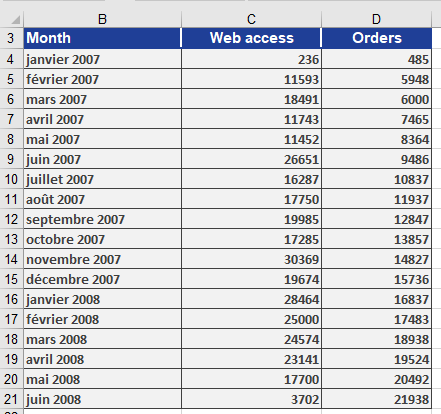
A chart (Figure below) shows that orders exhibit exponential growth relative to website visits, suggesting a strong correlation.

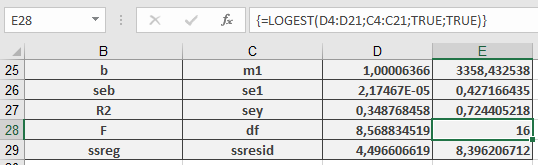
Using LOGEST(), the regression results are computed and displayed in Figure below.
- known_y’s(required): The known y-values from the relationship y = b * m^x.
How to use the LARGE() function in Excel
This function returns the k-th largest value in a data set. Use this function to select a value based on its relative size. For example, you can use LARGE() to calculate the top three sales in a table.
Syntax: LARGE(array, k)
Arguments
- array (required): The array or range of data for which you want to determine the k-th largest value.
- k (required): The position of the element in the array or cell range to return (e.g., 1 for the largest value, 2 for the second-largest, etc.).
Background
The MIN() and MAX() functions find the smallest or largest value in a range, but if you need the second-largest or third-smallest value, use LARGE() and SMALL().
- LARGE() returns the largest values.
- SMALL() returns the smallest values from a range.
Notes
- If array is empty, LARGE() returns the #NUM! error.
- If k is ≤ 0 or greater than the number of data points, the function returns #NUM!.
- If n is the number of data points in a range:
- LARGE(array, 1) returns the largest value.
- LARGE(array, n) returns the smallest value.
Examples
Software Company Example
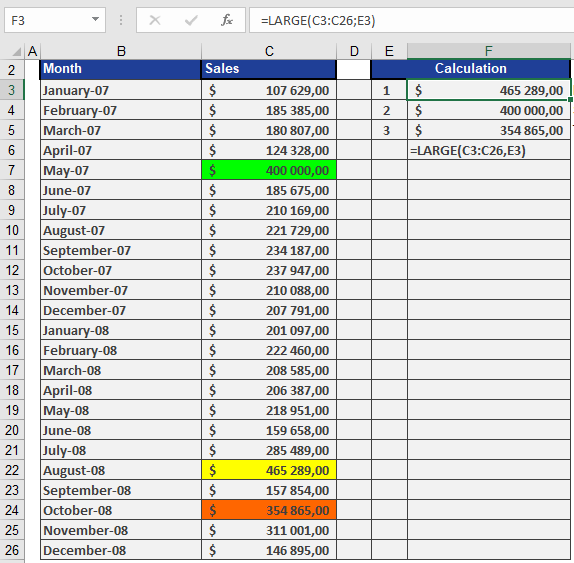
Assume a software company has a table with sales from the last two years and wants to find the three highest sales without sorting the data. The LARGE() function retrieves the three largest values, as shown in Figure below.
How to use the KURT() function in Excel
Returns the kurtosis of a dataset, which measures the « tailedness » and peakedness of a distribution compared to a normal distribution.
Syntax:
KURT(number1; [number2]; …)Arguments
Argument Required? Description number1 Yes First data point or range. number2, … Optional Additional data points Notes:
- Accepts arrays or cell ranges (e.g., A1:A10).
- Requires at least 4 data points; otherwise, returns #DIV/0!.
Background
Kurtosis Types:
- Mesokurtic (kurtosis = 0): Matches a normal distribution.
- Leptokurtic (kurtosis > 0): Sharper peak, heavier tails (e.g., financial returns).
- Platykurtic (kurtosis < 0): Flatter peak, thinner tails (e.g., uniform distribution).
Formula:
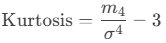
Where:
- m4m4: Fourth central moment.
- σσ: Standard deviation.
- Subtracting 3 adjusts for comparison to a normal distribution (excess kurtosis).
Example: Website Click Analysis
Scenario:
A software company evaluates click distributions:- Download Area: Kurtosis = –1.27 (platykurtic).
- Entire Website: Kurtosis = 0.42 (leptokurtic).

Interpretation:
Distribution Kurtosis Shape Implication Download Area –1.27 Flatter than normal Clicks are more spread out, fewer extreme values. Entire Website 0.42 Peaked with heavier tails Clicks cluster around the mean, with more outliers. Key Takeaways
- High Kurtosis (>0):
- Sharp peak, frequent outliers.
- Common in financial data (e.g., stock market crashes).
- Low Kurtosis (<0):
- Broad peak, fewer outliers.
- Seen in uniform distributions (e.g., dice rolls).
- Use Cases:
- Risk assessment (finance).
- Quality control (manufacturing).
Excel Tip: Combine with SKEW() to fully describe distribution shape.