Votre panier est actuellement vide !
Étiquette : mathematical-and-trigonometry-function
How to use the MDETERM() Function in Excel
This function returns the determinant of a square matrix (array). The determinant is a scalar value that encodes key properties of the matrix, such as invertibility.
Syntax
MDETERM(array)
Argument
Parameter Requirement Valid Input array Required Square numeric array (e.g., 2×2, 3×3) Key Properties
- Input Rules:
- Must be a square matrix (equal rows/columns).
- Supports:
- Cell ranges (e.g., A1:B2)
- Array constants (e.g., {1,2;3,4})
- Named ranges
- Rejects:
- Non-numeric/text entries → #VALUE!
- Non-square arrays → #VALUE!
- Mathematical Formulas:
- 1×1 Matrix: det([a]) = a
- 2×2 Matrix:
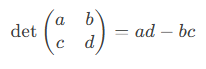
-
- 3×3 Matrix (Sarrus’ Rule):

-
- n×n Matrix: Computed via LU decomposition in Excel.
- Critical Interpretation:
- det = 0 → Matrix is singular (no inverse, linearly dependent rows/columns).
- det ≠ 0 → Matrix is invertible.
Examples
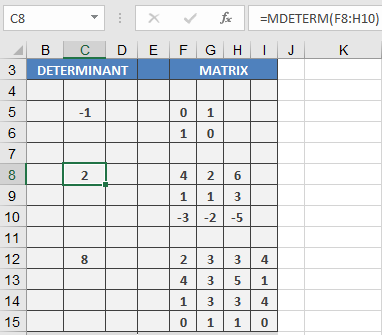
- Real-World Use:
- Check invertibility before using MINVERSE().
- Solve linear systems (Cramer’s Rule).
Why This Matters
- Engineering: Stability analysis of systems.
- Economics: Input-output models.
- Computer Graphics: Transformation matrices.
Error Handling
Error Cause Solution #VALUE! Non-square/non-numeric input Ensure square numeric matrix - Input Rules:
How to use the LOG10() Function in Excel
Its returns the common logarithm (base 10) of a positive real number.
Syntax
LOG10(number)
Argument
Parameter Requirement Valid Input number Required Positive real number (> 0) Key Properties
- Mathematical Definition:

-
- Special Values:
- LOG10(1) = 0
- LOG10(10) = 1
- LOG10(100) = 2
- Special Values:
- Error Handling:
- #NUM! → number ≤ 0
- #VALUE! → Non-numeric inputs
- Inverse Relationship:
- =10^LOG10(x) returns x
- =LOG10(10^x) returns x
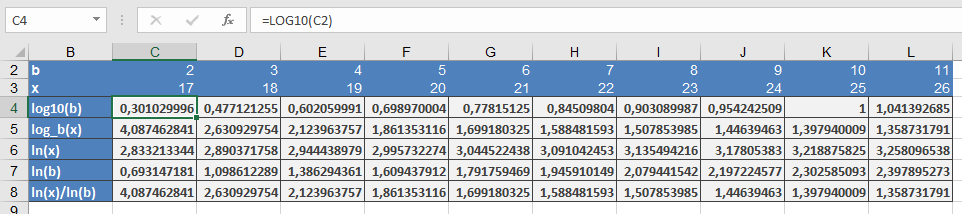
Examples
- Basic Calculations:
=LOG10(2) → Returns 0.301029996
=LOG10(6) → Returns 0.77815125
=LOG10(9) → Returns 0.954242509
=LOG10(10) → Returns 1
- Scientific Applications:
- Decibels (Sound): =10*LOG10(Power_ratio)
- pH Scale: =-LOG10(H+_concentration)
- Richter Scale (Earthquakes): Logarithmic magnitude
Comparison with Other Logs
Function Base Example LOG10() 10 =LOG10(1000) = 3 LN() *e* =LN(10) ≈ 2.302585 LOG() Custom =LOG(8, 2) = 3 How to use the LOG() Function in Excel
Its returns the logarithm of a number to a specified base. If the base is omitted, it defaults to 10 (common logarithm).
Syntax
LOG(number; [base])
Arguments
Parameter Requirement Valid Input number Required Positive real number (> 0) [base] Optional Positive real number ≠ 1 (default = 10) Key Concepts
- Mathematical Definition:

-
- Inverse of Exponentiation: LOG(number, base) reverses base^y = number.
- Special Cases:
- LOG(10) = LOG10(10) = 1 (base 10)
- LOG(8, 2) = 3 (since 23=823=8)
- Error Handling:
- #NUM! → number ≤ 0 or base ≤ 0 / base = 1
- #VALUE! → Non-numeric inputs
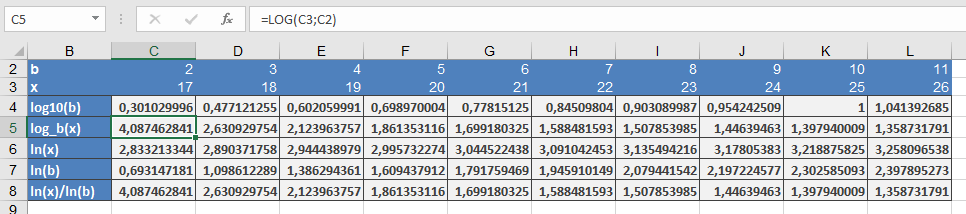
Examples
Comparison with Other Log Functions
Function Base Example LOG() Custom =LOG(27, 3) → 3 LOG10() 10 =LOG10(1000) → 3 LN() *e* =LN(20) ≈ 3.0 Why This Matters
- Simplifies multiplicative problems into additive ones (e.g., compounding interest).
- Essential in data science (log-scaling) and engineering (signal processing).
- Base 2 is critical in computer science (binary trees, Big-O notation).
Common Errors & Fixes
Error Cause Solution #NUM! number ≤ 0 or invalid base Ensure inputs are positive and base ≠ 1 #VALUE! Text input Use =IFERROR(LOG(A1,B1), « Check Input ») How to use the LN() Function in Excel
Its returns the natural logarithm (base *e*) of a positive real number, where *e* ≈ 2.71828182845904 (Euler’s number).
Syntax
LN(number)
Argument
Parameter Requirement Valid Input number Required Positive real number (> 0) Key Concepts
- Mathematical Definition:

-
- Inverse of EXP(): LN(EXP(x)) = x and EXP(LN(x)) = x
- Special Values:
- LN(1) = 0
- LN(e) = 1
- Error Handling:
- Returns #NUM! if number ≤ 0
- Returns #VALUE! for non-numeric inputs
- Comparison with Other Logs:
Function Base Example LN() *e* =LN(10) ≈ 2.302585 LOG10() 10 =LOG10(100) = 2 LOG() Custom =LOG(8,2) = 3 Examples
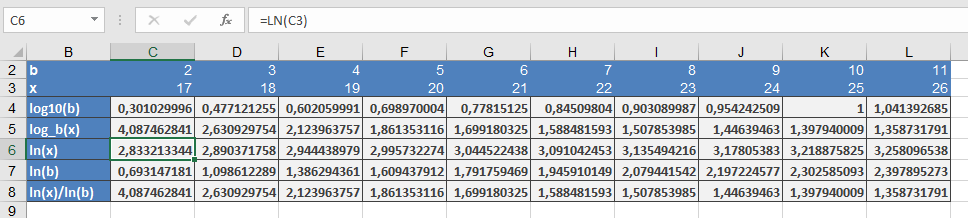
Why This Matters
The natural logarithm is fundamental in:
- Calculus: Derivatives/integrals of exponential functions
- Physics: Describes natural growth/decay (e.g., Newton’s Law of Cooling)
- Economics: Logarithmic returns in finance
Common Errors & Fixes
Error Cause Solution #NUM! number ≤ 0 Ensure input is positive #VALUE! Text input Verify numeric values How to use the INT() function in Excel
This function rounds a number down to the nearest integer (toward negative infinity).
Syntax
INT(number)Argument
- number (required) – Any real number to be rounded
Key Behavior:
- Positive numbers: Removes decimal portion (truncates)
- =INT(3.7) → 3
- Negative numbers: Rounds to next lower integer
- =INT(-2.3) → -3
- Whole numbers: Returns unchanged
- =INT(5) → 5
Comparison with Similar Functions:
Function 4.3 -4.3 Behavior INT() 4 -5 Toward -∞ TRUNC() 4 -4 Toward zero ROUNDDOWN() 4 -4 Toward zero FLOOR() 4 -5 Toward -∞ (with significance=1) Examples:
- Tax Calculation (Conservative rounding):
=INT(12.78) → 12

- Special Cases:
Formula Result Notes =INT(4.3) 4 Truncates decimals =INT(-2.51) -3 Rounds down =INT(78.8) 78 =INT(0.999) 0 Applications:
- Financial reporting (conservative estimates)
- Age calculations (whole years)
- Inventory management (whole units)
- Time tracking (complete hours)
Error Handling:
- Returns #VALUE! for non-numeric inputs
- Handles very large/small numbers within Excel’s limits
Technical Notes:
- Differs from TRUNC() for negative numbers
- Equivalent to FLOOR(number,1) for positive numbers
- For rounding to other multiples, consider FLOOR() or CEILING()
How to use the GCD() Function in Excel
This function returns the largest positive integer that divides all specified numbers without a remainder.
Syntax
GCD(number1; [number2]; …)Arguments
- number1 (required) – First integer value
- number2,… (optional) – Additional integers (up to 255 total values in modern Excel)
Key Features:
- Truncates decimal values to integers
- Requires all arguments ≥ 0 (#NUM! error if negative)
- Returns 0 if all arguments are 0
- At least one non-zero value required for meaningful result
Calculation Methods:
- Prime Factorization

- Euclidean Algorithm (More efficient):

Applications:
- Optimizing material cuts (construction/design)
- Fraction simplification (mathematics)
- Cryptography algorithms
- Scheduling recurring events
- Musical rhythm patterns
Error Handling:
=IFERROR(GCD(A1,B1), »Invalid input »)
Related Functions:
- LCM(): Least Common Multiple
- MOD(): Modulus/Remainder
- QUOTIENT(): Integer division
How to use the FLOOR() function in Excel
This function rounds a number down to the nearest multiple of the specified significance value.
Syntax
FLOOR(number; significance)Arguments
- number (required) – The numeric value to be rounded
- significance (required) – The rounding multiple
Key Behavior:
- Positive numbers: Rounds toward zero (down)
- Negative numbers: Rounds away from zero (up)
- Same sign requirement: Both arguments must be positive or both negative
- Exact multiples: Returns unchanged if number is already a multiple of significance
Error Conditions:
- #VALUE! – Non-numeric arguments
- #NUM! – When number and significance have opposite signs
Examples:
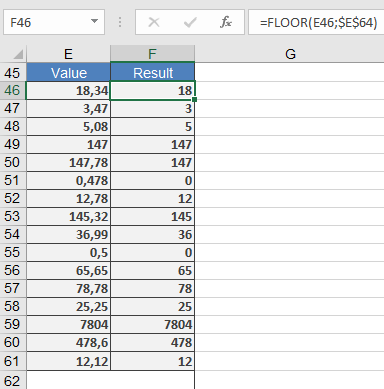
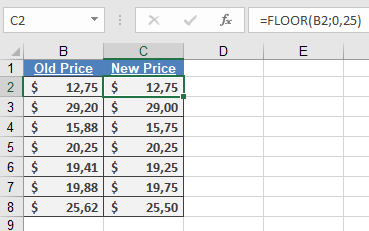
Comparison with Similar Functions:
Function Direction Multiple-Based Handles Negatives FLOOR Down Yes Yes (with same sign) CEILING Up Yes Yes MROUND Nearest Yes Yes ROUNDDOWN Down No Yes Applications:
- Price setting and discount calculations
- Time tracking (15-minute increments)
- Inventory management (case quantities)
- Financial reporting (standardized units)
How to use the FACTDOUBLE() function in Excel
This function returns the double factorial of a specified number, which is the product of all integers with the same parity (odd/even) up to that number.
Syntax
FACTDOUBLE(number)Argument
- number (required) – A non-negative integer (decimal values are truncated)
Key Properties:
- For even numbers:
n!! = n × (n-2) × (n-4) × … × 4 × 2 - For odd numbers:
n!! = n × (n-2) × (n-4) × … × 3 × 1 - Special cases:
0!! = 1 and 1!! = 1 - Maximum computable value in Excel: FACTDOUBLE(297) for odd, FACTDOUBLE(300) for even
Mathematical Background
Double factorials are used in:- Advanced combinatorics
- Special function theory
- Quantum physics calculations
- Trigonometric integral solutions
Example Applications:
- Even Number Example:
=FACTDOUBLE(8) → Returns 384 (8×6×4×2)
- Odd Number Example:
=FACTDOUBLE(7) → Returns 105 (7×5×3×1)
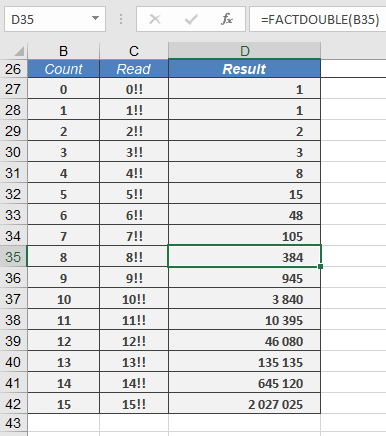
- Special Cases:
Formula Result Notes =FACTDOUBLE(0) 1 By definition =FACTDOUBLE(1) 1 =FACTDOUBLE(5.9) 15 Truncates to 5 =FACTDOUBLE(-1) #NUM! Invalid input Error Conditions:
- #VALUE! – Non-numeric input
- #NUM! – Negative numbers or values exceeding computational limits
Comparison with FACT():
n FACT(n) FACTDOUBLE(n) 5 120 15 6 720 48 7 5040 105 Related Functions:
- FACT(): Standard factorial
- MULTINOMIAL(): Generalized factorial
- COMBIN(): Combinatorial calculations
Note: Particularly useful in physics for:
- Normalization constants in quantum mechanics
- Volume calculations in n-dimensional spheres
- Solutions to certain differential equations
How to use the FACT() function in Excel
This function calculates the factorial of a specified non-negative integer.
Syntax
FACT(number)Argument
- number (required) – A non-negative integer (decimal values are truncated)
Key Properties:
- For any positive integer n:
n! = n × (n-1) × (n-2) × … × 2 × 1 - By definition: 0! = 1
- Maximum computable value in Excel: FACT(170) ≈ 7.26E+306
(Larger values return #NUM! error)
Mathematical Background
Factorials represent:- Permutations of distinct items
- Partial products of natural numbers
- Fundamental in combinatorics and probability
Example Applications:
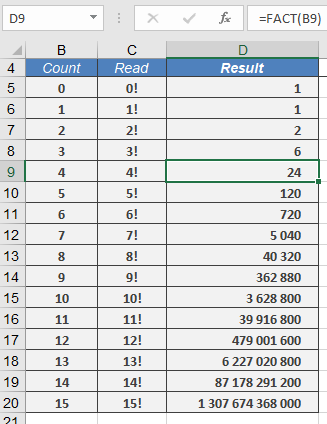
- Race Placement (Permutations)
=FACT(4) → Returns 24
Interpretation: 4 runners can finish in 24 different orders
- Committee Arrangements
=FACT(5)/FACT(3) → Returns 20 (5P2 permutations)
- Special Cases:
Formula Result Notes =FACT(0) 1 Definition =FACT(1) 1 =FACT(5.9) 120 Truncates to 5 =FACT(170) 7.26E+306 Excel’s limit Error Conditions:
- #VALUE! – Non-numeric input
- #NUM! – Negative numbers or n > 170
How to use the EXP() function in Excel
This function returns Euler’s number *e* (approximately 2.71828182845904) raised to the power of the specified number.
Syntax
EXP(number)Argument
- number (required) – The exponent applied to base *e*
Background
The EXP() function performs exponential calculations using:- Base *e* (Euler’s number), the fundamental constant for natural logarithms
- An irrational, transcendental number (cannot be expressed as a simple fraction)
- The inverse operation of the natural logarithm function LN()
Key Mathematical Properties:
- Relationship with LN():
EXP(LN(x)) = x and LN(EXP(x)) = x - Special Values:
- EXP(0) = 1
- EXP(1) ≈ 2.71828183 (Euler’s number)
- Growth Characteristics:
- Models continuous growth/decay processes
- Fundamental in calculus (derivative of EXP(x) is EXP(x))
Examples:
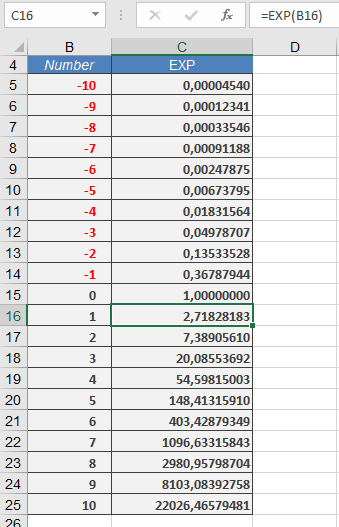
- Basic Calculations:
=EXP(1) → Returns 2.71828183 (e)
=EXP(2) → Returns 7.3890561 (e²)
=EXP(0) → Returns 1
- Scientific Applications:
- Radioactive decay: =EXP(-decay_constant*time)
- Population growth: =initial_population*EXP(growth_rate*time)
- Financial Modeling:
=principal*EXP(rate*years) // Continuous compounding
Comparison with Power Operator (^):
Method Example Result EXP() =EXP(1) e (2.718…) ^ =2.71828182845904^1 e (2.718…) ^ =2^8 256 (different base) Common Uses:
- Continuous growth/decay models
- Probability distributions
- Complex number calculations
- Differential equations solutions
- Financial continuous compounding
Note: For exponents with different bases, use the caret operator (^):
=base^exponent