Votre panier est actuellement vide !
Étiquette : mathematical-and-trigonometry-function
How to use the SQRTPI() function in Excel
This function returns the square root of a number multiplied by π (pi).
Syntax:
SQRTPI(number)Argument:
- number(required) – The positive number to be multiplied by π before taking the square root.
Background:
- Calculates √(number × π)
- Only accepts positive numbers
- Returns #NUM!error for negative inputs
Examples:
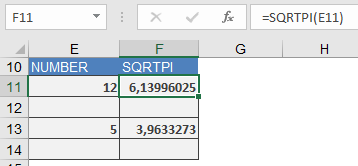
- =SQRTPI(12)returns 6,13996025
(√(12×π) ≈ √37.6991118 ≈ 6.13996025) - =SQRTPI(5)returns 3,9633273
(√(5×π) ≈ √15.7079633 ≈ 3.9633273)
Key Notes:
- Equivalent to =SQRT(number*PI())
- Useful for circular calculations (e.g., wave functions, geometry)
- More efficient than separate multiplication and root operations
Common Applications:
- Physics (wave equations)
- Engineering (structural calculations)
- Geometry (circle-related formulas)
How to use the SQRT() function Excel
This function returns the square root of a number.
Syntax:
SQRT(number)Argument:
- number(required) – The number for which you want to calculate the square root.
Background:
The root function is the inverse of exponentiation.- The base (b) is called the radicand
- x represents the root order
- When the root order is 2, it is called a square root
Note:
The SQRT() function only returns the square root of positive numbers. If the input number is negative, the function returns a #NUM! error.Example:
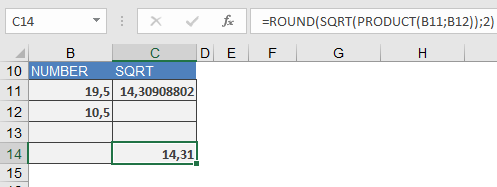
Calculate the dimensions of a square building lot with the same area as a rectangular lot measuring 19.5 × 10.5 meters.- Rounded result:
=ROUND(SQRT(PRODUCT(B11;B12)),2)
Returns: 14,31meters
Calculation steps explained:
- Calculate the area (product of dimensions):
=PRODUCT(19.5,10.5) - Extract the square root of the area:
=SQRT(PRODUCT(19.5,10.5)) - Round the result to 2 decimal places:
=ROUND(SQRT(…),2)
How to use the SIN() function in Excel
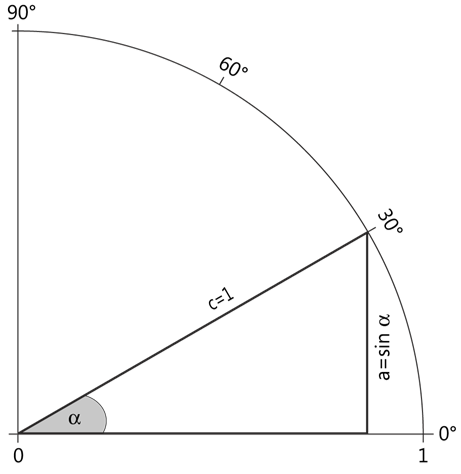
Its returns the trigonometric sine of an angle. The sine represents the ratio of the length of the opposite side to the hypotenuse in a right-angled triangle.
Syntax:
SIN(number)Argument:
Argument Description number (required) The angle in radians for which you want to calculate the sine Key Concepts:
- Right Triangle Relationship: In a right triangle, sin(α) = opposite side / hypotenuse
- Unit Circle Properties:
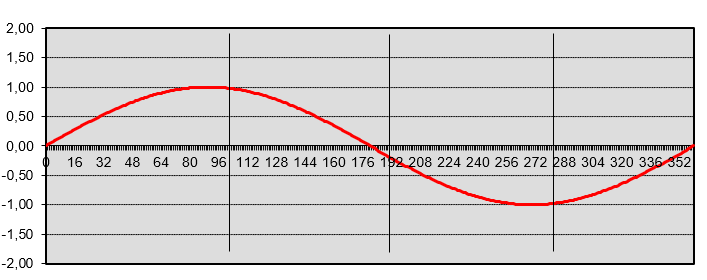
- Sine values range between -1 and 1
- Reaches maximum (1) at 90° (π/2 radians)
- Periodicity: The sine function is periodic with 2π (360°) period
Important Notes:
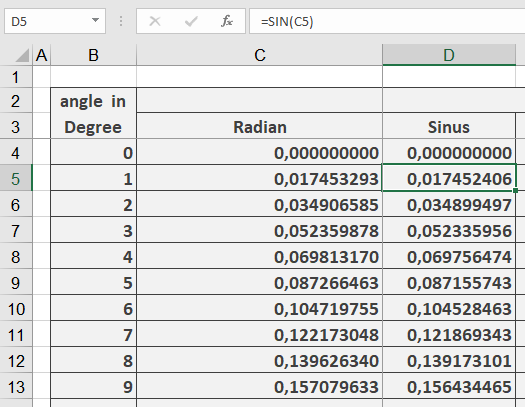
- Excel requires angles in radians
- To convert degrees to radians:
- Multiply by PI()/180, or
- Use RADIANS() function
- The function returns results between -1 and 1
Example:
Visualization Tip:
The sine curve can be plotted with:- x-axis: Angle (in radians)
- y-axis: SIN(x)
This produces the characteristic wave pattern that oscillates between -1 and 1.
Common Applications:
- Physics (wave motions)
- Engineering (oscillations)
- Navigation (distance calculations)
- Computer graphics (wave patterns)
How to use the SIGN() function in Excel
Its returns the sign of a number as:
- 1 if the number is positive
- 0 if the number is zero
- -1 if the number is negative
Syntax:
SIGN(number)Argument:
Argument Description number (required) Any real number. Background:
- Positive numbers are > 0 (plus sign + optional).
- Negative numbers are < 0 (minus sign – required).
- Zero is neutral (neither positive nor negative).
Examples:
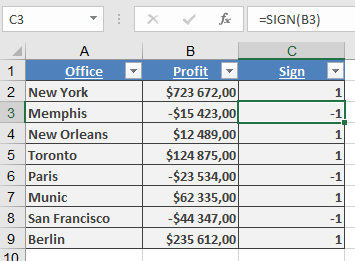
- Filtering Negative Revenues
Scenario: Identify subsidiaries with losses in a sales list.
Step 1: Add a column with SIGN() to flag revenue signs:
=SIGN(B2) // Returns -1 for losses, 1 for profits
Step 2: Calculate total losses (negative values):
{=SUM(IF(SIGN(B2:B9)=-1, B2:B9))} // Array formula (Ctrl+Shift+Enter)
Step 3: Calculate total profits (positive values):
{=SUM(IF(SIGN(B2:B9)=1, B2:B9))} // Array formula (Ctrl+Shift+Enter)
Additional Use Cases:
- Conditional Formatting: Highlight negative values.
- Data Validation: Restrict inputs to positive numbers.
Key Notes:
- Simple but powerful for data analysis and validation.
- Often combined with IF(), SUMIF(), or array formulas.
How to use the SERIESSUM() function in Excel
Its Calculates the sum of a power series with the formula:
y = a₁xⁿ + a₂xⁿ⁺ᵐ + a₃xⁿ⁺²ᵐ + … + aₖxⁿ⁺ᵏᵐ
The number of terms equals the number of coefficients provided.Syntax:
SERIESSUM(x; n; m; coefficients)Arguments:
Argument Description x (required) Independent variable value for the series. n (required) Initial power of *x* (first term). m (required) Increment added to *n* for each subsequent term. coefficients (required) Array of coefficients (a₁, a₂, …, aₖ). Determines the number of terms. Background:
A power series approximates functions using an expansion point (x₀). Accuracy improves with more terms:
Σ aₖ(x – x₀)ⁿ⁺ᵏᵐExamples:
Example 1: Calculating Euler’s Number (*e*)
Formula:
=SERIESSUM(1, 0, 1, {1, 1, 0.5, 0.16666667, 0.04166667, 0.00833333, 0.00019841})
Returns: 2.71686508
Coefficients Explained:
- a₁ = 1 = 1/0!
- a₂ = 1 = 1/1!
- a₃ = 0.5 = 1/2!
- …
- a₇ = 0.00019841 ≈ 1/6!
Example 2: Sine Function Approximation
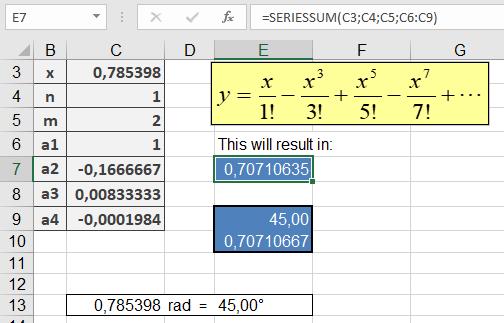
- Inputs (B3:C9):
- *x* = π/4 (45° in radians)
- Coefficients: {1, -0.166667, 0.008333, -0.000198} (Taylor series for sine)
- Formula (Cell E7):
=SERIESSUM(B3, 1, 2, {1, -0.166667, 0.008333, -0.000198})
Result: 0.707107
- Validation:
- =DEGREES(B3) → Confirms *x* = 45°
- =SIN(B3) → Returns 0.707107 (matches SERIESSUM() to 6 decimals)
Key Notes:
- Used in engineering/math to approximate functions (e.g., eˣ, sin(x)).
- More coefficients → higher precision.
- Negative coefficients alternate signs (e.g., sine series).
How to use the ROUNDUP() function in Excel
This function rounds a number up (away from zero) to the specified number of digits.
Syntax:
ROUNDUP(number; num_digits)Arguments:
- number (required) – The real number to be rounded up.
- num_digits (required) – The number of decimal places to round up to.
Key Behavior:
Unlike standard rounding (ROUND()), ROUNDUP() always rounds up regardless of the digit value.Rules Based on num_digits:
- num_digits > 0: Rounds up to the specified decimal places.
- num_digits = 0: Rounds up to the nearest integer.
- num_digits < 0: Rounds up to the left of the decimal point (e.g., tens, hundreds).
Special Cases:
- Negative numbers round toward zero (e.g., -2.8 → -2).
- Zero or positive numbers round away from zero (e.g., 1.1 → 2).
Examples:

How to use the ROUNDDOWN() function in Excel
This function rounds a number down (toward zero) to the specified number of digits.
Syntax:
ROUNDDOWN(number; num_digits)Arguments:
- number(required) – The real number to be rounded down.
- num_digits(required) – The number of decimal places to round down to.
Background:
Unlike ROUND(), which follows standard rounding rules (≥5 rounds up, <5 rounds down), ROUNDDOWN() always truncates the number at the specified digit, regardless of its value.Behavior based on num_digits:
- num_digits > 0: Rounds down to the specified decimal places.
- num_digits = 0: Rounds down to the nearest integer.
- num_digits < 0: Rounds down to the left of the decimal point (e.g., tens, hundreds).
Key Notes:
- Negative numbers are rounded toward zero(e.g., -2.846 → -2.84).
- The function simply truncates extra digits without rounding.
Examples:
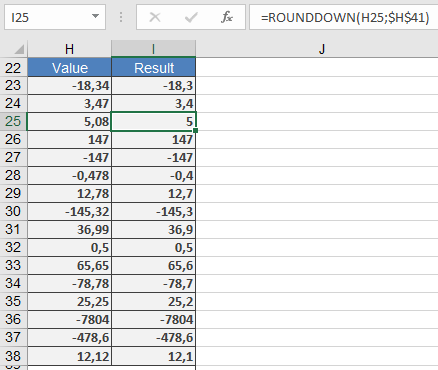
How to use the ROUND() function in Excel
This function rounds a number to a specified number of decimal places.
Syntax:
ROUND(number; num_digits)Arguments:
- number (required) – The number you want to round.
- num_digits (required) – The number of decimal places to round to.
Background:
Rounding is essential in our number system, as most values are rounded at some point. Reasons for rounding include:- Improving clarity and simplifying calculations (e.g., demographic statistics, pi (π)).
- Standardizing monetary values (e.g., prices rounded to two decimal places, since the smallest unit is one cent).
Rounding Rules:
- If the digit after the rounding position is 5 or greater, the number is rounded up.
- If the digit is 4 or less, the number is rounded down.
- Negative values are rounded away from zero (i.e., upward in absolute terms).
Examples:
- $3.2549 → $3.25 (4 ≤ 4, round down)
- $3.2551 → $3.26 (5 ≥ 5, round up)
- –$3.2549 → –$3.25
- –$3.2551 → –$3.26
Effect of num_digits:
- num_digits > 0: Rounds to the specified decimal places.
- num_digits = 0: Rounds to the nearest integer.
- num_digits < 0: Rounds to the left of the decimal point (e.g., tens, hundreds).
Example:
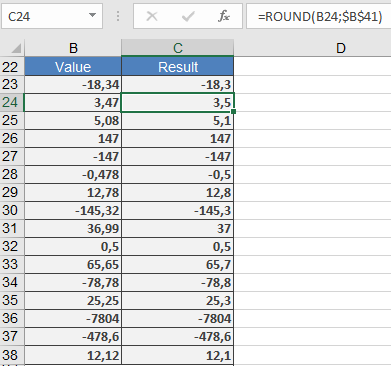
How to use the ROMAN() function in Excel
This function converts an Arabic numeral into a Roman numeral.
Syntax:
ROMAN(number ; form)Arguments:
- number (required) – The Arabic numeral to convert (must be between 0 and 3999). Negative numbers or values above 3999 return a #VALUE! error.
- form (optional) – A number specifying the Roman numeral style, ranging from Classic (0) to Simplified (4). Higher values produce more concise forms (see *Table 1*).
Table 1. Possible Values for the form Argument
Value Type of Roman Numeral 0 Classic 1 More concise 2 More concise 3 More concise 4 Simplified TRUE Classic FALSE Simplified Background:
Roman numerals consist of basic numerals and auxiliary numerals, the latter introduced to shorten lengthy representations (see *Table 2*).Table 2. Roman Numeral Forms
Basic Numeral Value Auxiliary Numeral Value I 1 V 5 X 10 L 50 C 100 D 500 M 1000 Rules for Roman Numerals:
- Addition: Identical adjacent numerals are added (max 3 in a row).
- Example: III = 3.
- Subtraction: A smaller numeral to the left of a larger one is subtracted; to the right, it is added. Auxiliary numerals (V, L, D) cannot be subtracted.
- Examples: XI = 11, IX = 9, XLV = 45.
- Subtraction Limits: Basic numerals (I, X, C) can only be subtracted from the nearest larger value.
- Examples: CD = 400, CM = 900.
Historically, Roman numerals were used in Europe until the 16th century, with adjustments over time. The subtractive notation (e.g., IV for 4) was not originally used—clocks often display 4 as IIII.
Examples:
The ROMAN() function is useful for chapters, lists, or enumerations: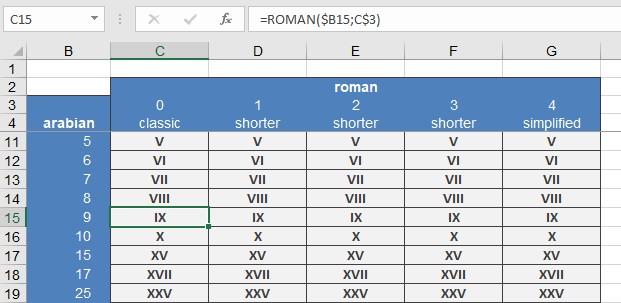
How to use the RANDBETWEEN() function in Excel
This function returns a random integer from a specified range. A new random number is generated every time the worksheet is recalculated.
Syntax:
RANDBETWEEN(bottom; top)Arguments:
- bottom(required) – The smallest integer RANDBETWEEN() can return.
- top(required) – The largest integer RANDBETWEEN() can return.
Background:
Random values are essential in engineering and natural sciences for simulating processes.
To generate a random date, the input must be provided as a numerical value.Example:
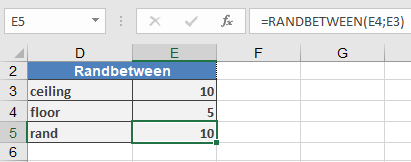
the practical example for the RANDBETWEEN() function.