Votre panier est actuellement vide !
Étiquette : mathematical-and-trigonometry-function
How to use the RAND() function in Excel
This function returns a random number between 0 and 1 with up to 16 decimal places.
Syntax:
RAND()Arguments:
NoneBackground:
The RAND() function returns a random number greater than or equal to 0 and less than 1.To generate a random real number between a and b, use:
=RAND() • (b – a) + aA new random number is returned every time the worksheet is calculated.
Example:
The RAND() function is often used to fill a table with test data or to simulate processes in engineering and natural sciences. The formula must be entered in each cell. Some examples of this function are: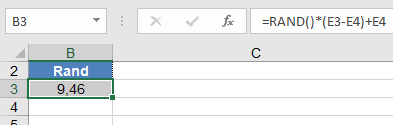
How to use the RADIANS() Function in Excel
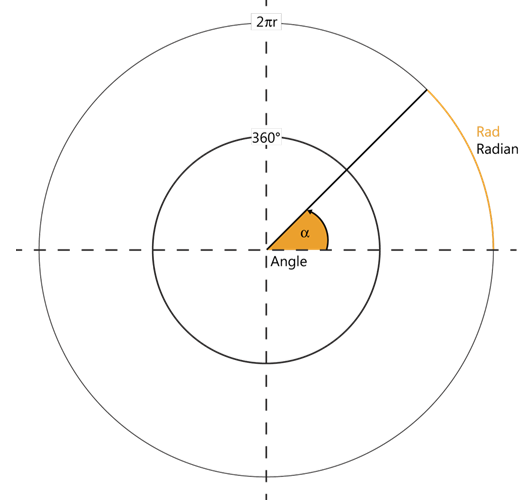
Its converts an angle from degrees to radians.
Syntax
RADIANS(angle)
Argument
Parameter Requirement Valid Input angle Required Angle in degrees (°) Key Properties
- Conversion Formula:
radians=degrees×(π180)
-
- π in Excel: PI() ≈ 3.14159265358979.
- Critical Values:
Degrees Radians 0° 0 30° π/6 ≈ 0.5236 45° π/4 ≈ 0.7854 90° π/2 ≈ 1.5708 180° π ≈ 3.1416 360° 2π ≈ 6.2832 - Inverse Function:
- DEGREES() converts radians back to degrees.
Examples
- Basic Conversion:
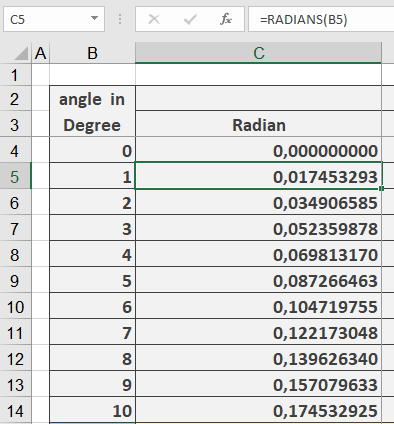
=RADIANS(1) → Returns 0.017453293
=RADIANS(45) → Returns 0.785398163
=RADIANS(90) → Returns 1.570796327
- Trigonometric Calculations:
=SIN(RADIANS(30)) → Returns 0.5 (sin of 30°)
- Real-World Use:
- Navigation: Convert nautical miles to radians for arc length.
- Physics: Angular velocity calculations.
Why This Matters
- Excel’s Default: Trigonometric functions (SIN, COS, TAN) use radians.
- Precision: Avoids manual conversion errors.
- Scientific Standards: Radians are natural units in calculus/physics.
Related Functions
- DEGREES(): Radians to degrees.
- SIN()/COS()/TAN(): Trigonometric functions.
- PI(): Returns π for manual calculations.
How to use the QUOTIENT() Function in Excel
Its returns the integer portion of a division operation (without the remainder).
Syntax
QUOTIENT(numerator; denominator)
Arguments
Parameter Requirement Valid Input numerator Required Dividend (number to divide) denominator Required Divisor (must be ≠ 0) Key Properties
- Behavior:
- Truncates (not rounds) the result toward zero.
- Equivalent to INT(numerator/denominator) for positive numbers.
- Ignores remainder: QUOTIENT(5, 2) = 2 (remainder 1 is dropped).
- Error Handling:
- #DIV/0! if denominator = 0.
- #VALUE! for non-numeric inputs.
- Mathematical Equivalent:

Examples
- Paint Mixing Example:
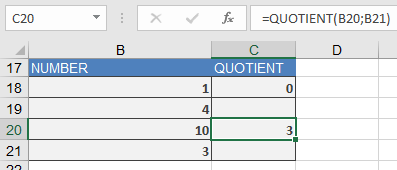
=QUOTIENT(1, 4) → Returns 0 (since 1/4 = 0.25, integer part is 0)
- Real-World Use:
- Inventory: Full crates from total items (=QUOTIENT(total_items, items_per_crate)).
- Timekeeping: Complete hours worked (=QUOTIENT(minutes, 60)).
Comparison with Similar Functions
Function Example (10, 3) Notes QUOTIENT() 3 Drops remainder / 3.333… Full decimal result INT(numerator/denominator) 3 Same as QUOTIENT for positives TRUNC(numerator/denominator) 3 Identical to QUOTIENT Why This Matters
- Efficiency: Faster than INT() or TRUNC() for integer division.
- Clarity: Explicitly signals intent to discard remainders.
- Compatibility: Requires Analysis ToolPak in older Excel versions.
Related Functions
- MOD(): Returns the remainder.
- INT()/TRUNC(): Alternative truncation methods.
- ROUND(): Controlled rounding.
- Behavior:
How to use the PRODUCT() Function in Excel
This function multiplies all given numbers or ranges and returns the product.
Syntax
PRODUCT(number1; [number2]; …)
Arguments
Parameter Requirement Valid Input number1 Required Number, cell reference, or range number2,… Optional Additional numbers/ranges (up to 255 total) Key Properties
- Behavior:
- Multiplies all numeric values in arguments.
- Ignores empty cells, text, or logical values (TRUE/FALSE).
- Returns 0 if any argument is zero.
- Mathematical Notation:
PRODUCT(a,b,c)=a×b×c
-
- Analogous to the Π (Pi) symbol in mathematics for sequential products.
- Alternatives:
- Use the * operator for simple multiplication: =A1*A2*A3.
Examples
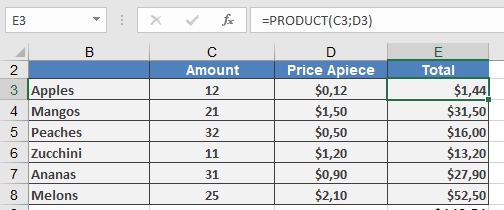
Why This Matters
- Efficiency: Faster than manual * chains for large ranges.
- Error-Resistant: Skips non-numeric values automatically.
- Financial/Statistical Use:
- Compound growth calculations.
- Volume/area computations.
Related Functions
- SUMPRODUCT(): Multiplies then sums ranges.
- SUM(): Adds values.
- FACT(): Factorial (product of integers up to *n*).
- Behavior:
How to use the POWER() Function in Excel
Its returns the result of raising a base number to a specified exponent.
Syntax
POWER(number; power)
Arguments
Parameter Requirement Valid Input number Required Any real number (base) power Required Real number (exponent) Key Properties
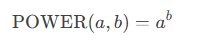
- Mathematical Operation:
-
- Special Cases:
- a0=1 (any non-zero aa)
- 0b=0 (for b>0b>0)
- a1=a
- Special Cases:
- Error Handling:
- #NUM! if a<0a<0 and bb is non-integer (e.g., (−2)1.5(−2)1.5).
- Alternate Syntax:
Use the caret operator (^):
=5^2 // Equivalent to =POWER(5,2)
Examples
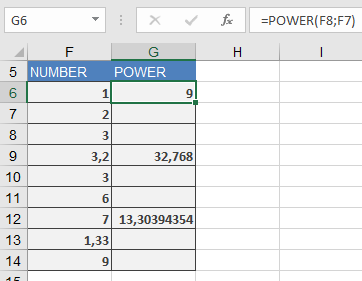
- Basic Calculations:
=POWER(3, 2) → Returns 9
=POWER(3.2, 3) → Returns 32.768
=POWER(7, 1.33) → Returns ≈13.3039
- Computer Science (Binary Units):
=POWER(2, 10) → Returns 1024 (1 kilobyte)
- Physics (Inverse Square Law):
=POWER(distance, -2) → Calculates intensity decay.
Related Functions
- SQRT(): Square root (=POWER(x,0.5)).
- EXP(): Natural exponentiation (exex).
- LOG(): Inverse of power functions.
How to use the ODD() Function in Excel
Its rounds a number away from zero to the nearest odd integer.
Syntax
ODD(number)
Argument
Parameter Requirement Valid Input number Required Any real number Key Behavior
- Rounding Rules:
- Positive numbers: Rounds up to next odd integer.
- =ODD(1.9) → 3 (next odd above 1.9)
- Negative numbers: Rounds down to next odd integer (more negative).
- =ODD(-2.8) → -3 (next odd below -2.8)
- Odd integers: Returns unchanged.
- =ODD(5) → 5
- Positive numbers: Rounds up to next odd integer.
- Error Handling:
- #VALUE! for non-numeric inputs.
- Special Cases:
Input Output Explanation 0 1 Rounds away from zero -1 -1 Already odd 2.1 3 Next odd above Examples
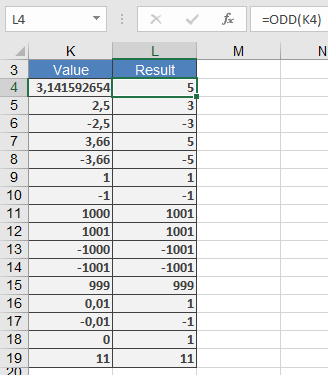
Comparison with Similar Functions
Function Direction Target Example (Input: 2.5) ODD() Away from zero Next odd 3 EVEN() Away from zero Next even 4 CEILING() Up Specified multiple Depends on significance FLOOR() Down Specified multiple Depends on significance Why This Matters
- Data Standardization: Enforce odd-numbered IDs or codes.
- Mathematical Modeling: Odd-step simulations (e.g., cellular automata).
Related Functions
- EVEN(): Rounds to nearest even integer.
- INT(): Truncates to integer (toward zero).
- MROUND(): Rounds to specified multiple.
- Rounding Rules:
How to use the MROUND() Function in Excel
Its rounds a number to the nearest specified multiple, using standard rounding rules (up if remainder ≥ half of multiple).
Syntax
MROUND(number; multiple)
Arguments
Parameter Requirement Valid Input number Required Numeric value to round multiple Required Positive numeric value (rounding interval) Key Properties
- Rounding Rules:
- Round Up if remainder ≥ multiple/2
- Round Down if remainder < multiple/2
- Follows banker’s rounding (toward nearest even for exact halves).
- Error Handling:
- #NUM! if number and multiple have opposite signs.
- Special Cases:
- If multiple = 0, returns 0.
- If number = 0, returns 0 regardless of multiple.
Examples
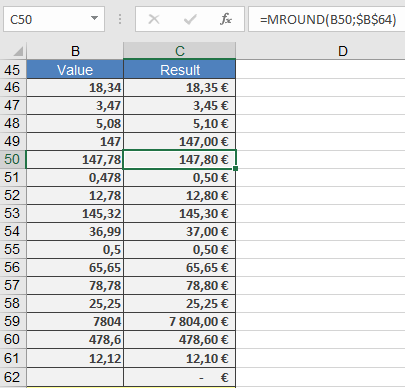
Comparison with Other Rounding Functions
Function Behavior Example (number=3.25, multiple=0.5) MROUND() Nearest multiple 3.5 CEILING() Always up 3.5 FLOOR() Always down 3.0 ROUND() Nearest digit 3.2 (if rounding to 1 decimal) Applications
- Pricing Strategies: Ensure prices end in 0.99 or 0.49.
- Manufacturing: Round measurements to standard units (e.g., 1/8″).
- Scheduling: Align timestamps to 5/10/15-minute blocks.
Error Handling
Error Cause Solution #NUM! number and multiple have opposite signs Use same signs #VALUE! Non-numeric input Validate data - Rounding Rules:
How to use the MOD() Function in Excel
The MOD returns the remainder after division of number by divisor, preserving the sign of the divisor.
Syntax
MOD(number; divisor)
Arguments
Parameter Requirement Valid Input number Required Any real number (dividend) divisor Required Non-zero real number Key Properties
- Mathematical Definition:

-
- Sign Rule: Result carries the sign of divisor.
- Special Case: MOD(n, 1) returns the decimal part of n.
- Error Handling:
- #DIV/0! if divisor = 0.
- Behavior for Negatives:
Example Result Explanation =MOD(7,3) 1 Standard case =MOD(-7,3) 2 Follows divisor’s sign (+) =MOD(7,-3) -2 Follows divisor’s sign (–) =MOD(-7,-3) -1 Follows divisor’s sign (–) Examples
The MOD() function is often used together with other functions; for example, to add every second line (see Figure below).

The formula is {=SUM(IF(MOD(ROW(C3:C8);2)=0;C3:C8;0))}. Because this is an array formula, you have to press Ctrl+Page Up+Enter after you enter the formula.
Comparison with Other Methods
Method Formula -7 mod 3 Sign Rule Excel MOD n – d*INT(n/d) 2 Matches divisor Symmetrical n – d*TRUNC(n/d) -1 Matches dividend Applications
- Alternate Row Shading:
=MOD(ROW(),2)=0 → Conditional formatting rule
- Time Calculations: Convert seconds to HH:MM:SS.
- Circular Buffers: Index wrapping in programming.
How to use the MMULT() Function in Excel
Its returns the matrix product of two arrays. The resulting matrix has:
- Rows = Number of rows in array1
- Columns = Number of columns in array2
Syntax
MMULT(array1; array2)
Arguments
Parameter Requirement Valid Input array1 Required Numeric array with dimensions m×n array2 Required Numeric array with dimensions n×p Note: The number of columns in array1 must equal the number of rows in array2.
Key Properties
- Mathematical Operation:
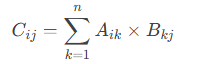
For matrices A (m×n) and B (n×p), the product C (m×p) is calculated as:
- Input Rules:
- Supports:
- Cell ranges (e.g., A1:B2)
- Array constants (e.g., {1,2;3,4})
- Named ranges
- Rejects:
- Non-numeric/text → #VALUE!
- Dimension mismatch → #VALUE!
- Supports:
- Array Formula:
- In legacy Excel, enter with Ctrl+Shift+Enter.
- Excel 365 handles dynamic arrays automatically.
Examples
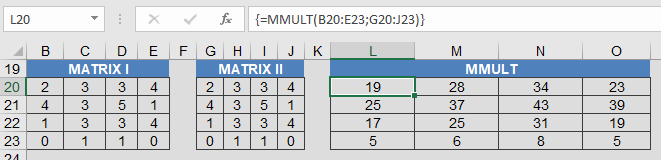
Real-World Use:
-
- Physics: Transformations in 3D space.
- Finance: Portfolio risk calculations.
- Engineering: Stress-strain models.
Why This Matters
- Solves systems of linear equations (e.g., with MINVERSE).
- Fundamental in computer graphics (rotation/scaling).
- Used in machine learning (neural networks).
Error Handling
Error Cause Solution #VALUE! Dimension mismatch/non-numeric input Verify matrix dimensions Related Functions
- MINVERSE(): Matrix inversion (for solving equations).
- MDETERM(): Matrix determinant (invertibility check).
- SUMPRODUCT(): Dot product for vectors.
How to use the MINVERSE() Function in Excel
Its returns the inverse of a square matrix if it exists (i.e., the matrix is non-singular).
Syntax
MINVERSE(array)
Argument
Parameter Requirement Valid Input array Required Square numeric array (e.g., 2×2, 3×3) Key Properties
- Prerequisites:
- Matrix must be square (equal rows/columns).
- Determinant ≠ 0 (check with MDETERM()).
- Rejects:
- Non-numeric/text → #VALUE!
- Non-square arrays → #VALUE!
- Singular matrices → #NUM!
- Mathematical Definition:
For matrix A, its inverse A⁻¹ satisfies:

-
- Calculated via LU decomposition in Excel (16-digit precision).
- Critical Notes:
- Array Formula: Must be entered with Ctrl+Shift+Enter (legacy Excel) or Enter (dynamic arrays in Excel 365).
- Numerical Stability: Rounding errors may occur for ill-conditioned matrices.
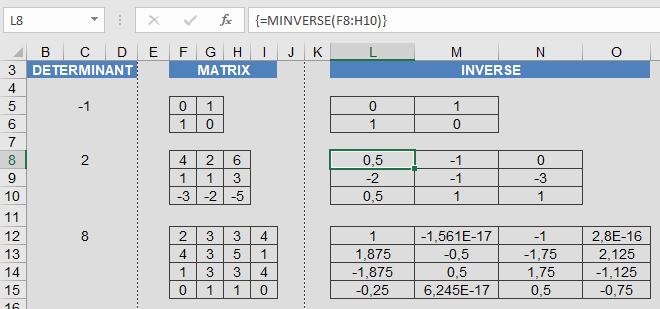
Example
Why This Matters
- Engineering: Circuit analysis, structural modeling.
- Economics: Input-output models (Leontief).
- Computer Science: 3D transformations, cryptography.
Error Handling
Error Cause Solution #VALUE! Non-square/non-numeric input Validate matrix dimensions/contents #NUM! Singular matrix (det=0) Use pseudoinverse or reformulate problem - Prerequisites: