Votre panier est actuellement vide !
Étiquette : statistical
How to use the AMORLINC() function in Excel
This function calculates the linear depreciation of an asset for a specified period, following the French accounting system. Unlike AMORDEGRC() (which uses degressive depreciation), AMORLINC() applies a straight-line method, making it adaptable to other tax jurisdictions with minor adjustments.
Syntax
AMORLINC(Cost; Date; First_Period; Residual_Value; Period; Rate; Basis)
Arguments
Table 1
Argument Description Cost (required) Total purchase cost (including expenses, minus discounts). Must be positive; otherwise, returns #VALUE! or #NUMBER!. Date (required) Asset purchase date (depreciation start date). First_Period (required) End date of the first depreciation period (assigned period 0). Residual_Value (required) Expected remaining value post-depreciation. Must be ≤ Cost and non-negative; otherwise, returns #NUMBER!. Period (required) Depreciation period (integer ≥ 0). Rate (required) Annual depreciation rate (e.g., 10% for 10 years, 20% for 5 years). Basis (optional) Day-count method (see Table 2 below). Default varies by region. Table 2: Day-Count Methods
Basis Method Description 0 30/360 (NASD) 30-day months, 360-day year. Adjusts 31st to 30th. 1 Exact/Exact Actual days per month/year. 2 Exact/360 Actual days/month; year = 360 days. 3 Exact/365 Actual days/month; year = 365 days. 4 30/360 (European) 30-day months; converts 31st to 30th. Key Notes
- First Period (Period 0):
- Depreciation is prorated based on days counted (per Basis).
- Example: Purchase in October → First period covers October–December.
- Residual Value Handling:
- If residual = 0: Depreciation may extend beyond the planned periods to account for partial-year start.
- If residual > 0: Depreciation stops when book value ≤ residual.
- Tax Law Adaptations:
- For German tax law, use Basis = 4 and set:
- Date = First day of the purchase month.
- First_Period = January 1 of the next year.
- Avoid using month-end dates (e.g., February 28) to prevent day-count errors.
- For German tax law, use Basis = 4 and set:
Example
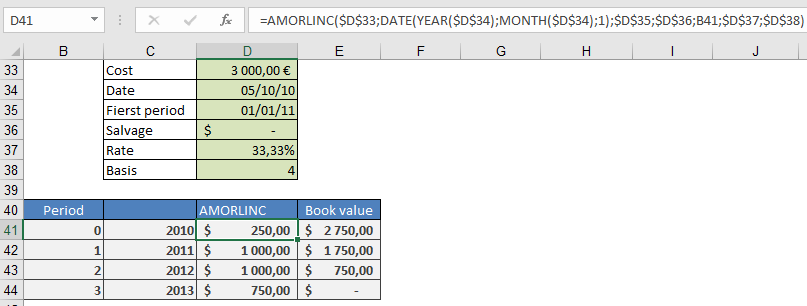
Scenario: Purchase a $3,000 computer on October 5, 2010, with:
- Depreciation rate: 33.333% (3-year lifespan).
- Residual value: $0.
- First period ends: January 1, 2011.
Formula
=AMORLINC(3000, DATE(2010,10,1); « 1/1/2011 »; 0; 0; 33.333%; 4)
Result: $250.00 (depreciation for October–December 2010).
Manual Calculation
- Days in first period:
=DAYS360(DATE(2010,10,1); « 1/1/2011 »; TRUE) → 90 days
- Depreciation:
=3000 × 33.333% × (90/360) → $250.00
Alternative:
=3000 × 33.333% × (3 months / 12) → $250.00
Why Use AMORLINC?
- Simplicity: Straight-line method avoids complex degressive calculations.
- Flexibility: Adaptable to various tax laws with proper Basis selection.
- Accuracy: Handles partial-year depreciation seamlessly.
- First Period (Period 0):
How to use the Z.TEST() function in Excel
This function returns the one-tailed probability value for a Gauss test (normal distribution). For a given expected value of a random variable (μ0), the Z.TEST() function returns the probability that the sample mean would be greater than the average of observations in the data set (array)—that is, the observed sample mean.
Syntax
Z.TEST(array ; μ0 ; sigma)
Arguments
- array (required) – The array or range of data against which to test μ0.
- μ0 (required) – The value to test.
- sigma (optional) – The known standard deviation of the population. If omitted, the sample standard deviation is used.
Notes
- If array is empty, Z.TEST() returns the #N/A error.
- The calculation differs depending on whether sigma is provided:
When sigma is specified:

When sigma is omitted:

Where:
-
- x̄ = sample mean (AVERAGE(array))
- s = sample standard deviation (STDEV.S(array))
- n = number of observations (COUNT(array))
- Φ = standard normal cumulative distribution function
- Z.TEST() indicates the probability that the sample mean is greater than the observed mean (AVERAGE(array)) when the expected value is μ0.
- Due to the symmetry of the normal distribution, if AVERAGE(array) < μ0, Z.TEST() returns a value greater than 0.5.
- For a two-tailed probability test, use:
=2×MIN(Z.TEST(array,μ0,sigma),1−Z.TEST(array,μ0,sigma))=2×MIN(Z.TEST(array,μ0,sigma),1−Z.TEST(array,μ0,sigma))
Background
The Gaussian test (named after mathematician Carl Friedrich Gauss) is a statistical test based on the standard normal distribution. It examines the significance of a value from a normally distributed population where the expected value (μ0) and standard deviation (sigma) must be known.
Example
Calculate Z.TEST() using the following parameters:
- Data = The range of values to test against μ0
- μ0 = 4 (first test value)
- μ0 = 6 (second test value)
Results (as shown in Figure below):
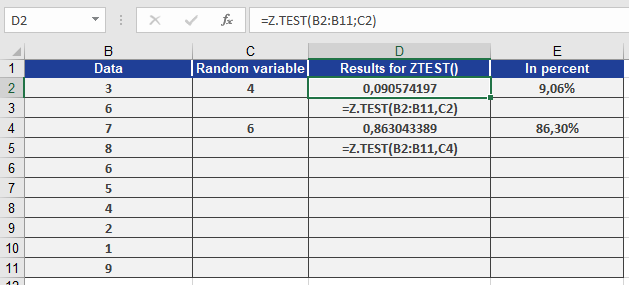
- For μ0 = 4, the one-tailed probability is 0.09057 (9.06%).
- For μ0 = 6, the one-tailed probability is 0.86304 (86.30%).
How to use the WEIBULL.DIST() function in Excel
This function returns values of a Weibull-distributed random variable. It is typically used in reliability analysis, such as calculating the mean time to failure of a device.
Syntax. WEIBULL.DIST(x; alpha; beta; cumulative)
Arguments- x (required): The value at which the function is to be evaluated.
- alpha (required): A shape parameter of the distribution.
- beta (required): A scale parameter of the distribution.
- cumulative (required): A logical value that specifies the form of the function:
— If TRUE, WEIBULL.DIST() returns the cumulative distribution function (CDF)—i.e., the probability that the event occurs between 0 and x.
— If FALSE, the function returns the probability density function (PDF)—i.e., the value of the density function at x.
Background
The Weibull distribution is a statistical distribution widely used to model life expectancy and failure rates, especially for brittle materials or electronic components.
Named after Waloddi Weibull (1887–1979), this distribution is a cornerstone in reliability engineering and is commonly visualized using a Weibull plot—often called a Weibull net—which represents life cycles and failure probabilities of mechanical or electronic parts. It is frequently used in the automotive industry.
In essence, the Weibull distribution can represent various types of data depending on its parameters. It is flexible, mathematically simple to calculate, and can model:
- Early-life failures (infant mortality),
- Random failures (constant failure rate),
- Wear-out failures (increasing failure rate).
Key properties:
- The distribution function (CDF) indicates the probability that a random variable y is less than or equal to x.
- The density function (PDF) is the derivative of the distribution function with respect to x, representing the failure rate at a specific point in time.
To calculate:
- The density function, set cumulative = FALSE.
- The distribution function, set cumulative = TRUE.
Formulas
- Cumulative Distribution Function (CDF):

- Density Function (PDF):
The first derivative of the distribution function with respect to x.
Note: If α = 1, WEIBULL.DIST() becomes an exponential distribution.
- Failure rate behavior depends on α:
- If α < 1, failure rate decreases over time (early failures).
- If α = 1, failure rate is constant (random failures).
- If α > 1, failure rate increases over time (wear-out failures).
Example
Let’s compute values using WEIBULL.DIST() with the following parameters:
- x = 105 (value to evaluate)
- alpha = 20
- beta = 100
- cumulative = TRUE / FALSE
As shown in Figure below, the function returns:
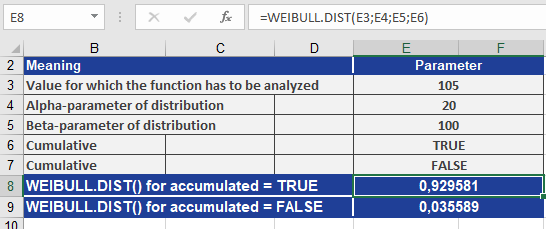
- For cumulative = TRUE: 0.929581 (CDF – cumulative probability up to 105)
- For cumulative = FALSE: 0.035589 (PDF – probability density at 105)
How to use the VARPA() function in Excel
This function calculates the variance based on the entire population. Unlike VAR.P(), VARPA() includes numbers, text, and logical values (TRUE and FALSE) in its calculation.
Syntax. VARPA(value1; value2; …)
Arguments- value1 (required) and
- value2 (optional)
You can enter at least one and up to 255 values, representing the population data set.
Background
Since variance has already been explained in the description of VAR.S(), this section focuses on the example.
VARPA() uses the same formula as VAR.P():
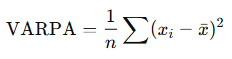
Where:
- xˉ is the population mean, calculated by AVERAGE(value1; value2; …)
- n is the number of values in the population
Like VARA(), the VARPA() function treats text and logical values as follows:
- Text entries and the logical value FALSE are treated as 0
- TRUE is treated as 1
Example
The same scenario used for the VARA() function also applies here. The software company experienced several website issues over the observed period:
- In May 2007 and August 2007, the website was unavailable due to hosting problems. These months are marked with the text « hostingproblems ».
- In March 2008, the product section was updated, preventing external access. This month is marked with the logical value FALSE.
As shown in Figure below, the result of the VARPA() function differs from that of VAR.P() because VARPA() includes text and logical values in the calculation.
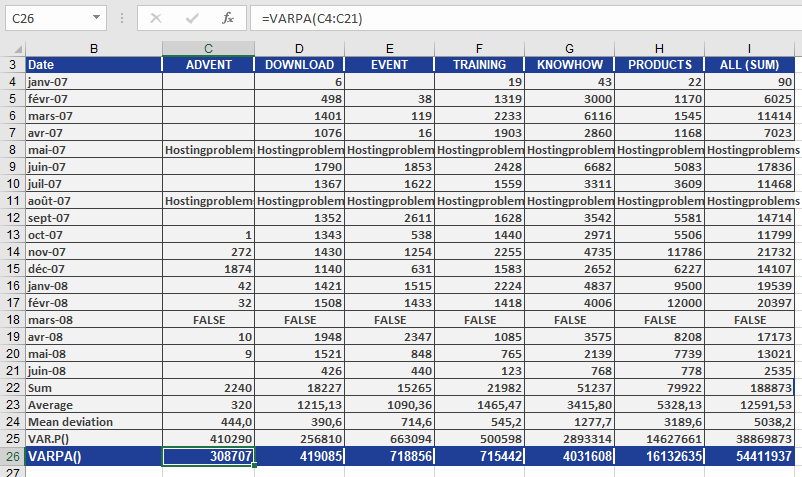
In this case, the text and the logical value FALSE are treated as 0, which affects the variance.
Looking at the DOWNLOAD section, the result can be summarized as follows:
The average squared deviation from the arithmetic mean—based on the population and including text and logical values—is 419,085 for the DOWNLOAD area.
How to use the VARA() function in Excel
This function estimates the variance based on a sample. Unlike VAR.S(), VARA() includes numbers, text, and logical values (TRUE/FALSE) in the calculation.
Syntax. VARA(value1; value2; …)
Arguments- value1 (required) and
- value2 (optional)
You can enter at least one and up to 255 values (limited to 30 in Excel 2003 and earlier), which make up a sample from the population.
Background
The only distinction between VARA() and VAR.S() is that VARA() includes text and logical values in its computation. For this reason, the focus here is on VARA().
VARA() uses the same formula as VAR.S():
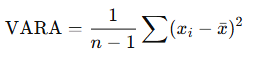
Where:
- xˉ is the sample mean, calculated as AVERAGE(value1; value2; …)
- n is the total number of values in the sample
In VARA(), text entries and the logical value FALSE are treated as 0, and TRUE is treated as 1.
Example
Let’s revisit the evaluation of website visits. Over the past 18 months, the company experienced technical issues that affected visit tracking. Specifically:
- In May 2007 and August 2007, hosting problems caused the website to be unavailable. These months are marked with the text « hostingproblems ».
- In March 2008, changes to the product section restricted access. This is represented by the logical value FALSE.
As shown in Figure below, the VARA() function returns a different result from VAR.S()—this is because VARA() incorporates both text and logical values in its variance calculation.
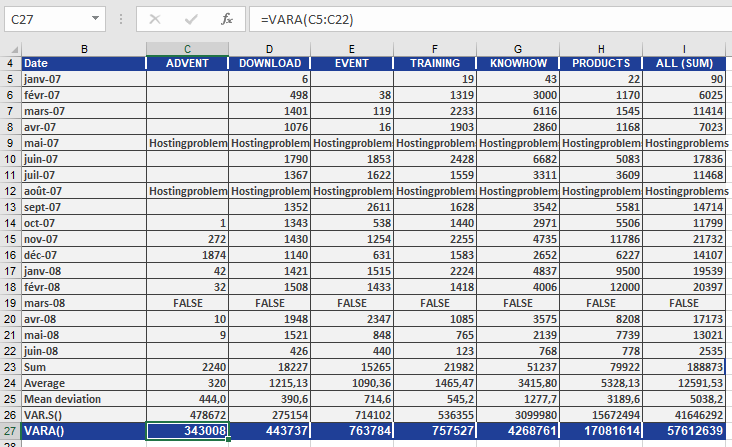
In this case:
- The text values (« hostingproblems ») and the logical value FALSE are both counted as 0 in the calculation.
By examining the DOWNLOAD section, the result can be summarized as follows:
The average squared deviation from the mean—including text and logical values—is 443,737 for the DOWNLOAD area.
How to use the VAR.S() function in Excel
This function estimates the variance based on a sample of the population. VAR.S() measures how the data points are distributed around the mean.
Syntax. VAR.S(number1; number2; …)
Arguments- number1 (required) and
- number2 (optional)
You can enter at least one and up to 255 numeric arguments, which represent a sample of the population.
Background
In statistics, the two most commonly used measures of data spread are variance and standard deviation.
- Variance quantifies the average squared deviation of a variable x from its expected value E(x).
- This result is known as the empirical variance.
There are two types of variance:
- Population variance: Measures the spread within an entire population. Use the function VAR.P() for this.
- Sample variance: Measures the spread within a sample from a population. This is commonly used in descriptive statistics to describe data spread and in inferential statistics to estimate population variance. Use the function VAR.S() for this.
When working with a sample, the sum of the squared deviations is divided by (n – 1) instead of n to correct for bias.
VAR.S() uses the following formula: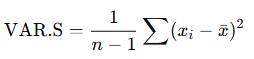
Where:
- xˉ is the sample mean, calculated by AVERAGE(number1; number2; …)
- n is the number of data points in the sample
Note: Squaring the deviations gives more weight to extreme values, which may influence the result.
A key limitation of variance is that it uses squared units, which differ from the original data units. For this reason, the standard deviation, which is the square root of the variance, is often used for interpretation.
Example
Because sample variance reflects how widely data points are spread, it is widely used in descriptive statistics.
In this example, the marketing department of a software company uses the VAR.S() function to analyze website visit data. The objective is to gain clearer insights and improve performance across different sections of the site.
Important: The analyzed data represents a sample — although the website has been online for a long time, the analysis only includes data from 18 months (January 2007 to June 2008).
As shown in Figure below, the department calculates the variance, the mean, and the average deviation.
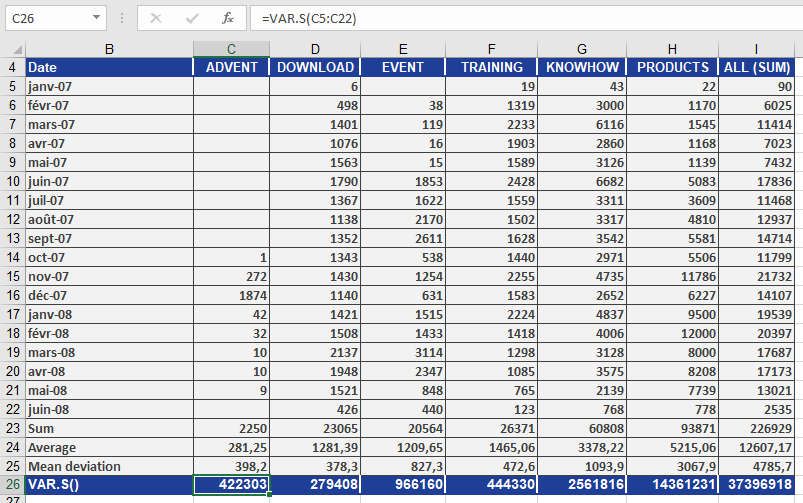
By examining the DOWNLOAD section, you can make the following statement:
The average squared deviation from the arithmetic mean for the DOWNLOAD area is 279,408.
How to use the VAR.P() function in Excel
This function calculates the variance assuming that the entire data set represents the whole population.
Syntax. VAR.P(number1; number2; …)
Arguments- number1 (required) and
- number2 (optional)
You can enter at least one and up to 255 numeric arguments, which represent the population data set.
Background
The only difference between VAR.P() and VAR.S() lies in how they treat the data set:
- VAR.P() calculates the population variance,
- while VAR.S() is based on a sample from the population.
This example focuses on VAR.P(). For more details about variance and the sample-based function, refer to the VAR.S() description.
The formula used by VAR.P() is:
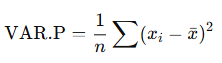
Where:
- xˉ is the population mean, calculated using AVERAGE(number1, number2, …)
- n is the total number of data points in the population
Example
Let’s return to the website analysis of the software company (see Figure below).
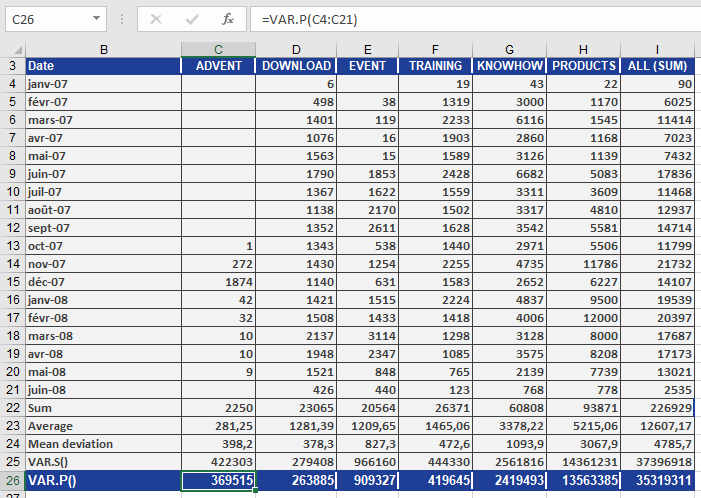
Since VAR.P() and VAR.S() use different formulas, they produce different results (as shown in Figure above).
Looking specifically at the DOWNLOAD data section, you can conclude the following:The average squared deviation from the arithmetic mean (based on the entire population) is 263,885.
How to use the TRIMMEAN() function in Excel
This function returns the average value of a data group, excluding the values from the top and bottom of the data set.
TRIMMEAN() calculates the average of a subset of data points, excluding the smallest and largest values of the original data points based on the specified percentage. Use this function to exclude outlying data from your analysis.
Syntax
TRIMMEAN(array; percent)
Arguments
- array (required) – The array or range of values to trim and average.
- percent (required) – The percentage of data points to exclude from the calculation. For example, if percent = 0.2, four points are trimmed from a data set of 20 points (20 × 0.2): two from the top and two from the bottom of the set.
Background
Usually, all values in a data set are used to calculate the mean. However, you might want to exclude the marginal areas to calculate a mean without outliers, resulting in a trimmed mean.
If the data contains outliers—that is, a few values that are too high or too low—sort the observed values in ascending order, trim the values at the beginning and end, and calculate the mean from the remaining values.
To get a mean trimmed by 10 percent, omit 5 percent of the values at the beginning and 5 percent at the end.
Example
You are the executive manager of the controlling department of a software company and have compiled the sales for the past 17 months, from January 2007 to May 2008. You want to calculate the average sales and exclude outliers, so you sort the sales in ascending order.
- If you use the AVERAGE() function, the result is not meaningful because the outliers are included in the calculation and skew the result.
- The MEDIAN() function also doesn’t return the correct result.
- Therefore, you use the TRIMMEAN() function.
As shown in Figure below, the calculation of the average sales returns a higher value due to the outliers.
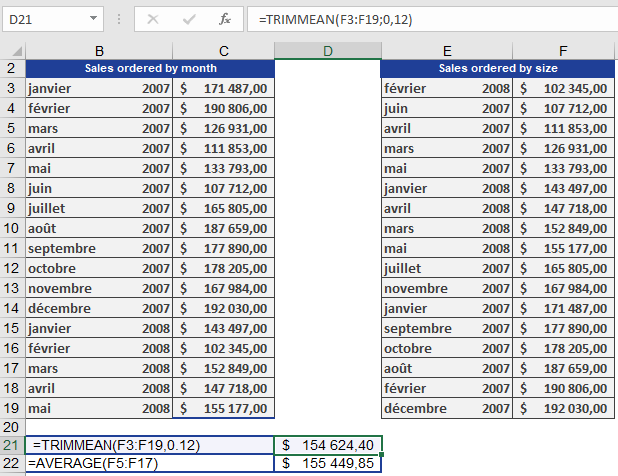
You specify 0.12 for the percent argument. This means that 12% of the original values are excluded from the calculation (6% from the top and 6% from the bottom). The trimmed mean returns an average sale of $154,624.40.
How to use the TREND() function in Excel
This function returns values along a linear trend. TREND() fits a straight line (using the least squares method) to the arrays of known_y’s and known_x’s. It then returns the corresponding y-values along that line for the specified array of new_x’s.
Syntax. TREND(known_y’s; known_x’s; new_x’s; const)
Argumentsknown_y’s (required): The known y-values in the equation y = mx + b:
— If the known_y’s array is a single column, each column in known_x’s is treated as a separate variable.
— If the known_y’s array is a single row, each row in known_x’s is interpreted as a separate variable.known_x’s (optional): The known x-values in the equation y = mx + b:
— This array may contain one or more sets of variables. If there’s only one variable, known_y’s and known_x’s can be ranges of any shape as long as they have matching dimensions. If there is more than one variable, known_y’s must be a vector (a single row or column).
— If known_x’s is omitted, it defaults to the array {1, 2, 3, …} with the same number of elements as known_y’s.
— known_y’s and known_x’s must have the same number of rows or columns. A mismatch leads to a #REF! error. A zero or negative y-value will produce a #NUM! error.new_x’s (optional): The new x-values for which you want the function to return the corresponding y-values:
— Like known_x’s, new_x’s must have one column (or row) for each independent variable. If known_y’s is a single column, then known_x’s and new_x’s must have the same number of columns. If known_y’s is a single row, then known_x’s and new_x’s must have the same number of rows.
— If new_x’s is not provided, it is assumed to be equal to known_x’s.
— If both known_x’s and new_x’s are omitted, Excel assumes them to be {1, 2, 3, …} with the same number of elements as known_y’s.const (optional): A logical value that specifies whether to force the constant b to equal 1:
— If const is TRUE or omitted, b is calculated normally.
— If const is FALSE, b is set to 1, and the slope m is adjusted so the formula becomes y = m^x.Background
When you know that some values are interdependent, you can use TREND() to make predictions based on known data.
Excel provides several statistical functions for calculating trends. These functions determine a line or curve from existing values. By extending the timeline, you can forecast future values. Known values are analyzed and expressed as a formula for extrapolation. However, your dataset must be large enough to account for seasonal patterns. Unpredictable influences can also distort trend predictions.Example: Suppose a competitor launches a highly successful new product in your area. This sudden change could disrupt your data model. Since regression analysis approximates data using mathematical functions, Excel includes various tools for this, including the TREND() function.
Use TREND() to identify a linear trend or analyze existing data. The values are plugged into a formula to help you forecast future changes.
The x- and y-values come from the equation y = mx + b, where:
— b is the y-intercept (where the line crosses the y-axis), and
— m is the slope (the rate of change of y for every unit change in x).
If changes follow a consistent pattern, a linear trend exists.Example
You’re the marketing manager of a software company analyzing web traffic. Recently, both visits and online orders have significantly increased. You want to forecast future activity, so you use the TREND() function to project future values.
The website visits and orders up to June 2008 are shown in Figure below.

You generate a chart from the available data to visualize the linear trend for website visits and online orders. The chart includes equations and the coefficient of determination (r²), as shown in Figure below.
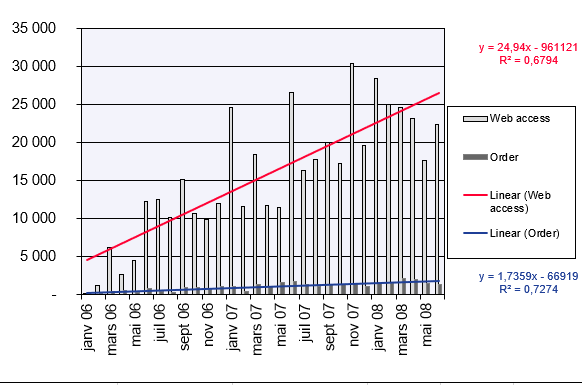
The linear trend line and equation show that orders increase by 52.872 each month — roughly 53 new orders per month.
You now want to project the trend for visits and orders from July 2008 to March 2009.To calculate website visits over the next nine months, use these TREND() arguments:
- known_y’s = website visits from January 2008 to June 2008
- known_x’s = months from January 2006 to June 2008
- new_x’s = months from July 2008 to March 2009
- const = TRUE (calculate b normally in the equation y = mx + b)
Figure below displays the results.

By applying the same method, you can forecast online orders using the projected website visits. Figure below shows the calculated values and the arguments used in the TREND() function.
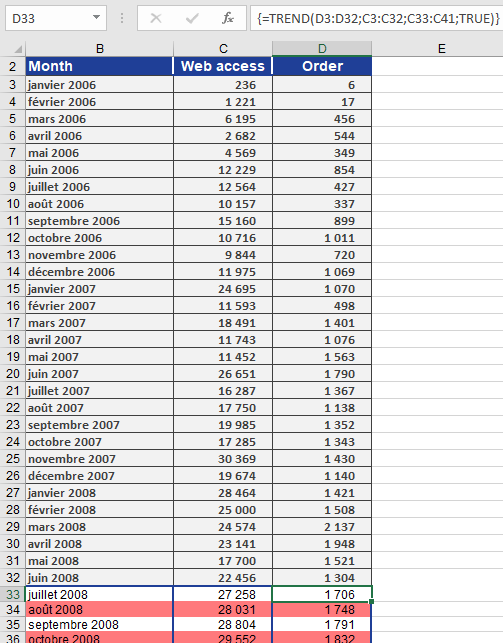
With the TREND() function, Excel allows accurate forecasting of website visits and online orders, assuming the previous exponential growth trend continues.
How to use the T.TEST() function in Excel
The T.TEST() function returns the probability (p-value) associated with a Student’s t-test. It evaluates whether the means of two data sets are statistically different from each other. Use this function to determine if the two samples likely come from populations with the same mean.
Syntax
T.TEST(array1; array2; tails; type)
Arguments
- array1 (required):
First sample data set. - array2 (required):
Second sample data set. - tails (required):
Specifies the number of distribution tails:- 1 = One-tailed test
- 2 = Two-tailed test
- type (required):
Type of t-test to perform:- 1: Paired sample t-test
- 2: Two-sample equal variance (homoscedastic)
- 3: Two-sample unequal variance (heteroscedastic)
Background
The Student’s t-distribution is used when sample sizes are small and the population standard deviation is unknown. It is symmetrical and bell-shaped but has heavier tails than the normal distribution. It is parameterized by degrees of freedom.
The t-test determines the likelihood that the difference between sample means occurred by chance.
The general t-test formula is:
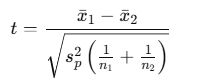
Where:
- xˉ1,xˉ2 are the sample means
- sp2s_p^2sp2 is the pooled variance (used if variances are equal)
- n1,n2 are sample sizes
Types of t-tests
- Paired Sample t-test (type = 1)
Used when the same subjects are measured twice (e.g., before and after treatment).
- Two-sample Equal Variance t-test (type = 2)
Used when two independent samples are assumed to have equal variances.
- Two-sample Unequal Variance t-test (type = 3)
Used when two independent samples have unequal variances.
Tails
- One-tailed test (tails = 1):
Tests if the mean of one sample is greater than or less than the other. - Two-tailed test (tails = 2):
Tests if the means are significantly different in either direction.
Hypotheses
One-tailed test:
- H0:μ1≤μ2
- H1:μ1>μ2
Two-tailed test:
- H0:μ1=μ2
- H1:μ1≠μ2
Example
A drug company runs a clinical study to test if a higher dosage of a treatment accelerates recovery. Two groups are observed:
- Group 1 receives the standard dosage
- Group 2 receives the increased dosage
You want to test the hypothesis that Group 2 recovers faster than Group 1.
You perform a one-tailed, two-sample equal variance t-test with:
T.TEST(array1, array2, 1, 2)
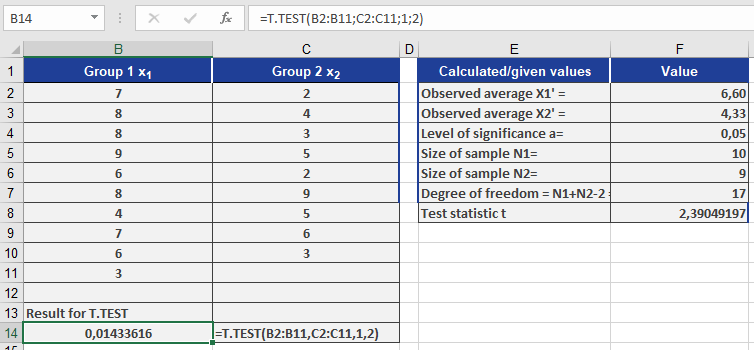
Assume the result is 0.014 (1.4%).
Interpretation
- The p-value = 0.014, which is less than the significance level α = 0.05.
- ⇒ Reject the null hypothesis.
- ⇒ There’s strong evidence that Group 2 recovers faster than Group 1.
Key Points
- If T.TEST() result < α (e.g., 0.05), the difference is statistically significant.
- The function outputs a probability, not a t-value.
- T.TEST() is more accurate and preferred over manual lookup of critical t-values.
Note: T.TEST() replaces the older TTEST() function in newer Excel versions, but both work the same.
- array1 (required):