Votre panier est actuellement vide !
Étiquette : statistical
How to use the T.INV.2T() function in Excel
This function returns the t-value of the t-distribution based on a given probability and degrees of freedom.
Syntax:
T.INV.2T(probability; degrees_freedom)Arguments:
- probability (required) – The probability associated with the two-tailed Student’s t-distribution.
- degrees_freedom (required) – The number of degrees of freedom characterizing the distribution.
NOTE:
- If any argument is non-numeric, T.INV.2T() returns the #VALUE! error.
- If probability is < 0 or > 1, T.INV.2T() returns the #NUM! error.
- If degrees_freedom is not an integer, it is truncated. If degrees_freedom is < 1, the function returns #NUM!.
- T.INV.2T() returns the value t, such that P(|X| > t) = probability, where X is a random variable following the t-distribution, and P(|X| > t) = P(X < –t or X > t).
Key Points:
- A quantile of the t-distribution can be interpreted as the t-value of a one-tailed confidence interval. Due to the symmetry of the t-distribution, the t-value for a one-tailed interval can be calculated by replacing probability with 2*probability.
- For a probability of 0.05 and 10 degrees of freedom, the two-tailed t-value is calculated as:
=T.INV.2T(0.05, 10) → 2.28139. - The one-tailed t-value for the same parameters is:
=T.INV.2T(2*0.05, 10) → 1.812462. - If probability is specified, T.INV.2T() finds x such that T.DIST.2T(x, degrees_freedom, 2) = probability. Thus, its accuracy depends on T.DIST.2T().
- The function uses an iterative search technique. If convergence fails after 100 iterations, it returns #N/A.
Background:
The t-value (critical value) returned by T.INV.2T() is used as a test statistic for hypothesis testing. It helps evaluate the null hypothesis.- Arguments:
- probability = significance level (calculable via T.DIST.2T()). For a one-tailed t-test, this level is doubled.
- degrees_freedom = (sum of both sample sizes) – 2.
Example:
A clinical study examines a drug’s efficacy:- Group 1: Normal dosage.
- Group 2: Increased dosage (one participant dropped out).
- Goal: Determine if the higher dosage speeds up recovery (measured in days).
Hypotheses:
- Null (H₀): No difference in treatment success between groups.
- Alternative (H₁): Group 2 recovers faster due to more effective treatment.
Test Setup:
- One-tailed t-test (type 2) comparing two independent sample means.
- Significance level (α): 0.05.
- Critical value calculation: =T.INV.2T(2*0.05; degrees_freedom).
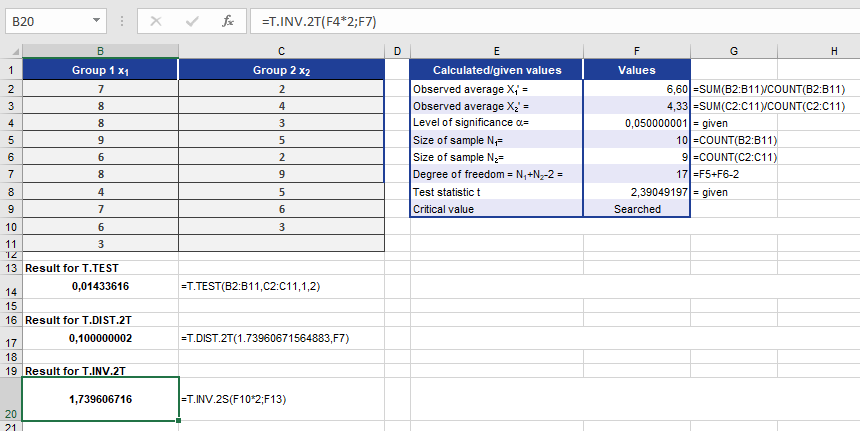
Result:
The critical t-value for the sample is 1.7396, which serves as a statistic to assess the null hypothesis.How to use the T.DIST.RT() function in Excel
This function returns the right-tailed Student’s t-distribution. The t-distribution is used for hypothesis testing with small sample data sets. Use this function instead of referring to a table of critical values for the t-distribution.
Syntax:
T.DIST.RT(x; degrees_freedom)Arguments:
- x(required): The numeric value at which to evaluate the distribution.
- degrees_freedom(required): An integer indicating the number of degrees of freedom.
Background:
For more details on t-distributed random variables, refer to the documentation for T.TEST().Example:
For further examples and usage of this function, see the figure below.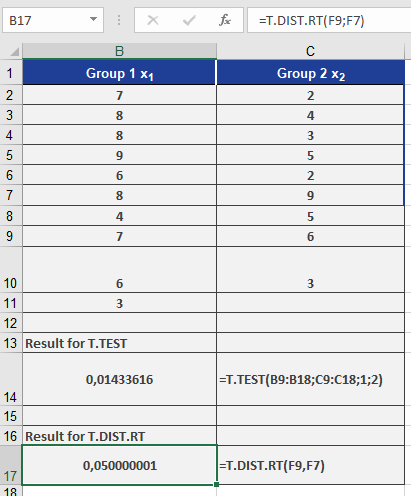
How to use the T.DIST.2T() function in Excel
This function returns the two-tailed distribution (1 – α) of a Student’s t-distributed random variable. The t-distribution is used for hypothesis testing with small sample data sets. Use this function instead of a table of critical values for the t-distribution.
Syntax:
T.DIST.2T(x; degrees_freedom)Arguments:
- x(required): The distribution value (quantile) for which you want to calculate the probability.
- degrees_freedom(required): An integer indicating the number of degrees of freedom.
Background:
The T.DIST.2T() function calculates the significance level (α-risk) of a t-distributed random variable. The probability of a hypothesis is evaluated based on this significance level.The significance level calculation becomes particularly useful when you:
- Calculate the critical value for a sample, then
- Use DIST.2T()to determine the significance level for that critical value.
The result from T.DIST.2T() helps determine whether the null hypothesis holds.
Example:
A clinical study examines drug efficacy:- Group 1:Standard daily dosage
- Group 2:Increased initial dosage
(One participant withdrew early for personal reasons)
Objective: Determine if the higher dosage accelerates recovery (measured in treatment days).
- Null Hypothesis (H₀):No difference in treatment effectiveness between groups.
- Alternative Hypothesis (H₁):Group 2 recovers faster due to more effective treatment.
A two-tailed, type 2 t-test (comparing means of independent samples) is conducted. T.DIST.2T() calculates the significance level for the critical value to evaluate the hypotheses.
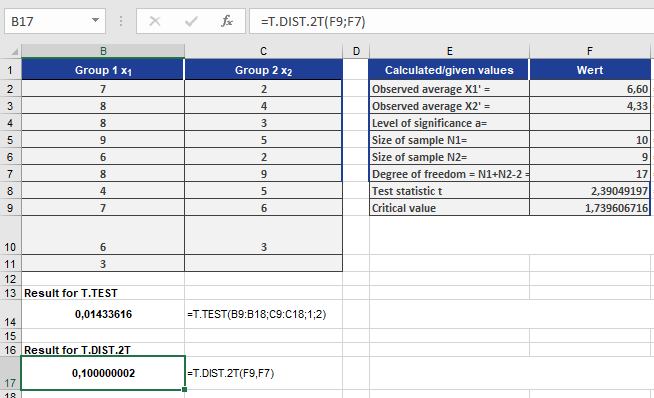
Result Interpretation:
If T.DIST.2T() returns 10% (0.1), this indicates:- There’s a 10% probability that the null hypothesis is valid.
- Since this probability is small (typically <5% is considered significant), we reject the null hypothesis.
How to use the STEYX() function in Excel
The STEYX() function calculates the standard error of the predicted y-values for each corresponding x-value in a linear regression.
This standard error quantifies the accuracy of the predictions — the smaller the standard error, the more reliable the regression model.
Syntax:
STEYX(known_y’s; known_x’s)
Arguments
- known_y’s (required): A range or array of dependent data points (output or response values)
- known_x’s (required): A range or array of independent data points (input or predictor values)
Important:
The order matters — known_y’s must come first.Background
In statistics, the standard error represents the variation of a sample estimate (like a regression prediction) around the true population parameter. It is defined as the standard deviation of the sampling distribution.
- A small standard error implies that the predicted values are close to the true values
- A large standard error means there’s more uncertainty in the predictions
The standard error decreases as the sample size increases, approximately following this rule:
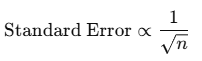
Where:
- n is the sample size
Thus, to halve the standard error, you’d need to quadruple the sample size.
Formula
The standard error of the predicted y-values is calculated using this general formula:
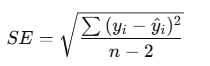
Where:
- yi = actual dependent value
- y^i = predicted y-value from the regression line
- n = number of data points
- The denominator n−2n – 2n−2 reflects the degrees of freedom in simple linear regression
Example
You’re a marketing manager at a software company. Your team records:
- Website visits (x-values) — independent variable
- Online orders (y-values) — dependent variable
Although the company is 10 years old, data from the last 2.5 years is available. You want to assess the reliability of using website visits to predict online orders.
You’ve entered both series into Excel as seen below.
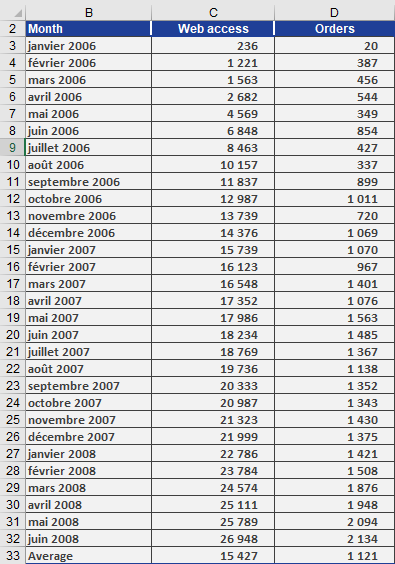
To find the standard error of the regression, use:
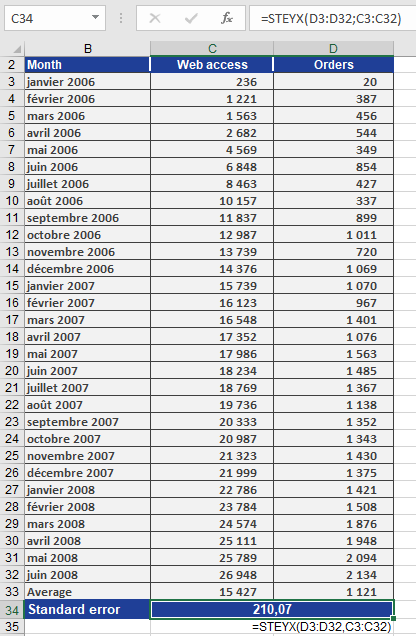
STEYX(Orders, Visits)
In your case:
- Mean of online orders yˉ=1,121\bar{y} = 1,121yˉ=1,121 (between July 2007 and June 2008)
- The function returns:
Result: 210.07
Interpretation
The value 210.07 means:
- On average, the predicted number of online orders deviates from the actual orders by about 210 orders.
- This indicates the expected margin of error in your predictions using the linear model.
Conclusion
Use the STEYX() function when:
- You’re performing linear regression
- You need to evaluate prediction accuracy
- You’re calculating confidence intervals or forecasting based on a known relationship between variables
The smaller the result, the tighter and more reliable your regression predictions will be.
How to use the STDEVPA() function in Excel
The STDEVPA() function calculates the standard deviation based on an entire population, including text and logical values in the calculation.
Standard deviation measures how spread out values are from the mean. It gives insight into the consistency or variability of your dataset.
Syntax:
STDEVPA(value1; [value2]; …)
Arguments
- value1 (required), value2 (optional):
- Up to 255 values (or 30 in Excel 2003 and earlier)
- Can be numeric values, text, logical values, cell references, or arrays
- Text is treated as 0
- Logical values:
- FALSE = 0
- TRUE = 1
Note: To exclude text and logical values, use STDEV.P() instead.
Background
The STDEVPA() function uses the same formula as STDEV.P(), but includes logical and text values in the calculation:
Formula:
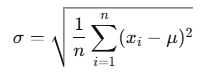
Where:
- σ = population standard deviation
- xi= each individual value (including 0 for text/FALSE, 1 for TRUE)
- μ = average (mean) of all values
- n = total number of values (including those derived from logical/text)
Example
Let’s revisit the website analysis example used for the STDEVA() function.
The software company experienced website data issues:
Month Issue Marked As March 2007 Website down « hostingproblems » (text → 0) September 2007 Hosting problem « hostingproblems » (text → 0) February 2008 Access blocked FALSE → 0 May 2008 Visits not recorded, but accessed TRUE → 1 When applying STDEVPA() to the full set of visit data:
STDEVPA(A2:A19)
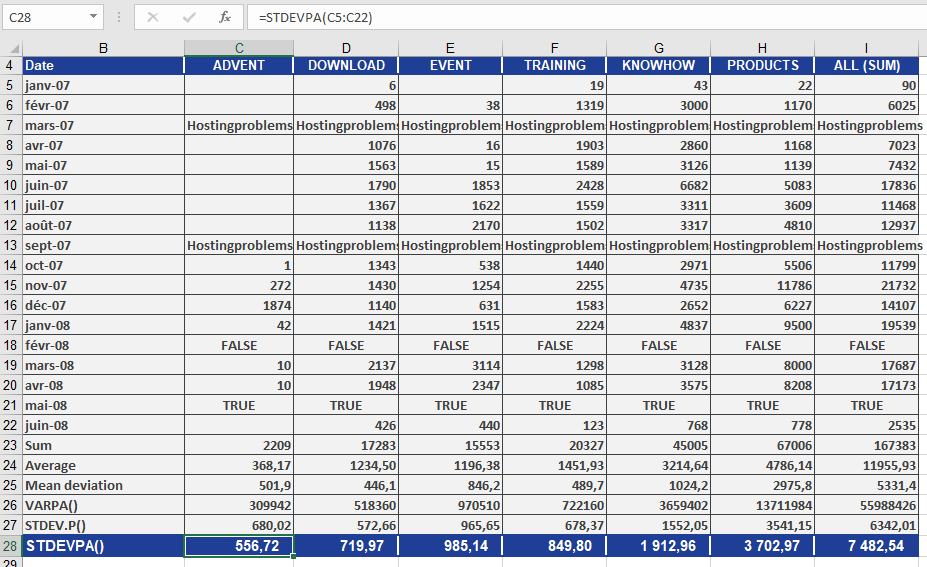
- The text and logical values are included, mapped to numeric values (as shown above).
- This leads to a different result than STDEV.P() which ignores non-numeric entries.
Result
In the PRODUCTS area:
- STDEVPA() returns 3,702.97, indicating the average deviation from the population mean, including the impact of text and logical values.
Compared to:
- STDEV.P(), which ignores these entries and thus returns a different (typically lower) value.
Conclusion
Use STDEVPA() when:
- You’re working with a complete population
- Your dataset includes text or logical values, and you want them included in your statistical analysis
- You’re handling semi-structured data, such as form responses, website logs, or datasets with missing months marked descriptively
If your data is fully numeric and clean, STDEV.P() is usually preferred.
- value1 (required), value2 (optional):
How to use the STDEVA() function in Excel
The STDEVA() function estimates the standard deviation based on a sample. It is used to measure how dispersed or spread out values are from their mean (average).
Unlike STDEV.S(), the STDEVA() function includes text and logical values in the calculation:
- Text is treated as 0
- FALSE is treated as 0
- TRUE is treated as 1
Syntax:
STDEVA(value1; [value2]; …)
Arguments
- value1 (required), value2 (optional):
- You can enter up to 255 arguments
- Arguments may be numbers, text, logical values, arrays, or cell references
Note:
To exclude text and logical values from the calculation, use STDEV.S() instead.Background
Both STDEVA() and STDEV.S() use the same mathematical formula for standard deviation. However, they differ in how they treat non-numeric data.
Formula:
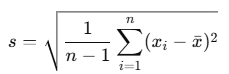
Where:
- s = sample standard deviation
- xi = each value in the dataset (including logic/text mapped to numeric values)
- xˉ = mean of the values
- n = number of items (including TRUE/FALSE/text as applicable)
Example
You’re analyzing monthly website visits over the past 18 months.
However, due to technical problems, the data includes:
- Text values (« hostingproblems ») for March and September 2007 (site was down)
- FALSE for February 2008 (site not accessible externally)
- TRUE for May 2008 (site accessed, but visits not recorded)
Figure below shows how this dataset looks.
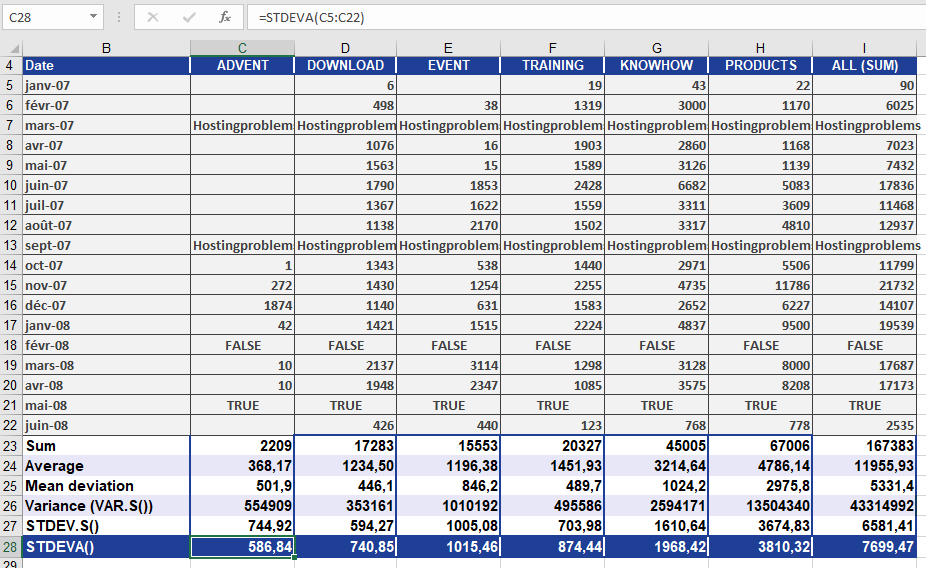
Using STDEVA():
STDEVA(A2:A19)
The function includes:
- « hostingproblems » → 0
- FALSE → 0
- TRUE → 1
These values impact the mean and thus the standard deviation.
Result
In the PRODUCTS area:
- STDEVA() returns a result of 3,810.32, which means the data deviates from the mean by about 3,810.32 clicks.
- This is slightly higher than the result from STDEV.S(), because STDEVA() includes more « values » (text/logical), which reduce the mean and increase the spread.
Conclusion
Use STDEVA() when:
- Your dataset contains text or logical values
- You want those values to contribute to your statistical analysis
- You’re working with imperfect or semi-structured data (like logs, survey forms, or partial metrics)
If your dataset is strictly numeric, or you want to ignore non-numeric data, use STDEV.S() instead
How to use the STDEV.P() function in Excel
The STDEV.P() function calculates the standard deviation based on an entire population. The standard deviation is a statistical measure that quantifies how much values in a dataset deviate from the mean (average).
A low standard deviation indicates that values are close to the mean, while a high standard deviation suggests that values are spread out over a wide range.
Syntax:
STDEV.P(number1; [number2]; …)
Arguments
- number1 (required), number2 (optional):
Up to 255 numeric arguments representing the entire population.
You can input:- Individual values
- A cell range
- An array
Note:
- Text and logical values (e.g. TRUE, FALSE) are ignored.
- To include text and logical values, use the STDEVA.P() function instead.
Background
The only difference between STDEV.P() and STDEV.S() is the type of data they assume:
- **STDEV.P()** assumes you are working with the entire population
- **STDEV.S()** assumes you are working with a sample of the population
Thus, they use slightly different formulas.
Formula
The formula used by STDEV.P() is:
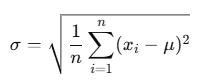
Where:
- σ = population standard deviation
- xi = each individual value
- μ = population mean (calculated using AVERAGE(number1, …))
- n = number of data points
This formula calculates the square root of the average squared deviations from the mean.
Example
Let’s return to the website evaluation by the software manufacturer (see Figure below).

You analyze the number of clicks in the PRODUCTS area over a time period and use the STDEV.P() function to measure how much the click data varies around the average.
- The result: 3,682.85
This means that the click counts typically deviate by about 3,682.85 from the average value.
If you square this result:
(3,682.85)2=Variance=VAR.P()
Thus, you can say:
- STDEV.P() gives you the standard deviation
- VAR.P() gives you the variance, which is the square of the standard deviation
Conclusion
Use STDEV.P() when:
- You are analyzing a complete population
- You want to understand the dispersion or variability of values
- You are comparing actual vs. expected behavior, such as in web analytics, manufacturing, or financial data
- number1 (required), number2 (optional):
How to use the STANDARDIZE() function in Excel
The STANDARDIZE() function returns the standardized value (also called the z-score) of a data point from a distribution defined by a known mean and standard deviation.
A standardized value represents how far and in what direction a given value deviates from the mean, expressed in units of standard deviation.
Syntax:
STANDARDIZE(x; mean; standard_dev)
Arguments
- x (required): The data point you want to standardize
- mean (required): The arithmetic mean (average) of the distribution
- standard_dev (required): The standard deviation of the distribution
Background
In statistics, standardization transforms values from different scales into a common scale, typically with:
- Mean μ=0
- Standard deviation σ=1
This allows direct comparison between values from different distributions or datasets. The result is a standard normal distribution, a special case of the normal distribution where all values are expressed as z-scores.
This is based on the central limit theorem, which states that the sum of many independent, identically distributed random variables tends toward a normal distribution as the sample size increases.
Formula
The formula used by the STANDARDIZE() function is:
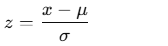
Where:
- x = observed value
- μ = mean of the distribution
- σ= standard deviation of the distribution
- z = standardized (z-score) value
Example
You’re a light bulb manufacturer analyzing the performance of your products. You’ve entered the measured lifespan values into an Excel table (Figure below).
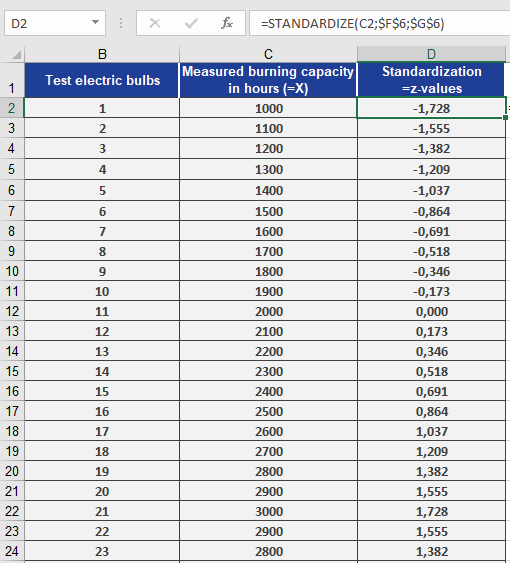
You’ve also calculated:
- Mean lifespan = 2,000 hours (mean = 2000) — cell F6
- Standard deviation = 579 hours (standard_dev = 579) — cell G6
Now, you want to standardize each measured value using:
STANDARDIZE(x, 2000, 579)
Where x refers to each measured bulb’s lifespan.
Figure below shows the resulting standardized values.
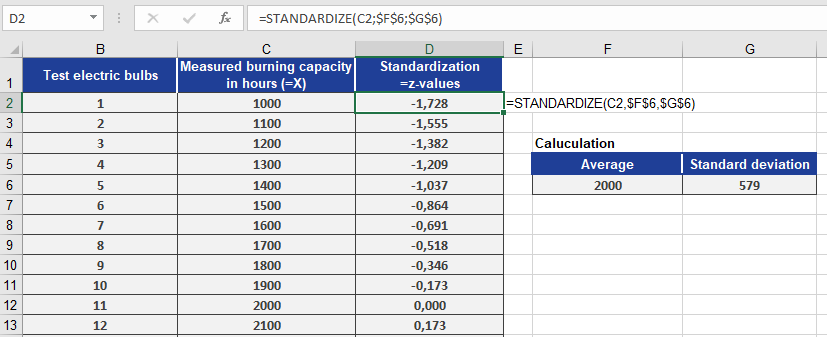
Conclusion
Using the STANDARDIZE() function, you can:
- Convert raw data into z-scores
- Identify how extreme or typical a value is
- Compare values from different distributions
- Prepare data for further statistical analysis like regression, clustering, or hypothesis testing
This function is especially useful in quality control, performance benchmarking, and data normalization tasks.
How to use the SMALL() function in Excel
Returns the k-th smallest value in a dataset. This function is useful for extracting values with specific relative rankings without sorting the data.
Syntax:
SMALL(array; k)Arguments:
- array(required): The range or array containing the dataset
- k(required): The ordinal position of the value to return (1 = smallest, n = largest)
Key Notes:
- Error Conditions:
- Returns #NUM!if:
- The array is empty
- k ≤ 0
- k exceeds the number of data points
- Returns #NUM!if:
- Special Cases:
- SMALL(array, 1)returns the minimum value
- SMALL(array, n)(where n = count of values) returns the maximum value
- Counterpart: This function complements LARGE()
Example – Football Attendance Analysis:
A league analyzes game attendance data:- Dataset: Unsorted list of daily spectator counts
- Objective: Find days with lowest attendance
- Solution:
- =SMALL(B2:B31, 1)→ Absolute minimum
- =SMALL(B2:B31, 5)→ 5th smallest attendance
Result:
Figure below demonstrates the function returning: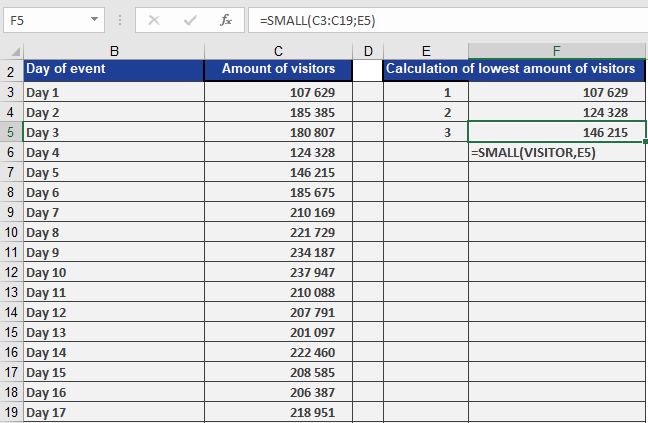
- 1st smallest value (smallest attendance day)
- 2nd smallest value
How to use the SLOPE() function in Excel
The SLOPE() function returns the slope of the linear regression line that best fits the data points in the arrays known_y’s and known_x’s.
The slope represents the rate of change — that is, the vertical change divided by the horizontal change between two points on the regression line.
Syntax:
SLOPE(known_y’s; known_x’s)
Arguments
- known_y’s (required): An array or cell range of dependent (response) variable values.
- known_x’s (required): An array or range of independent (predictor) variable values.
Background
The slope is a fundamental component in linear regression analysis. It helps determine how a change in the independent variable (x) influences the dependent variable (y).
A linear function has the general form:
yi=a+bxi
Where:
- a = y-intercept (the point where the line crosses the y-axis)
- b = slope of the line
- xi = individual x-values
- yi = corresponding y-values
- i=1,2,…,n
If both the intercept aaa and slope bbb are known, the function is fully defined. For example:
yi=2+0.4xi
In this case:
- The intercept is 2
- The slope is 0.4
- The line increases by 0.4 y-units for every increase of 1 x-unit
Formula
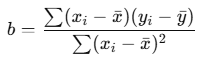
The slope of the regression line is calculated using the following formula:
Where:
- xˉ=AVERAGE(x)
- yˉ=AVERAGE(y)
This is the formula used internally by the SLOPE() function.
Example
You are the marketing manager at a software company. You want to analyze how the number of website visits affects the number of online orders over the past 18 months.
After collecting the data, you apply the SLOPE() function to the visits and orders:
SLOPE(orders_range ; visits_range)
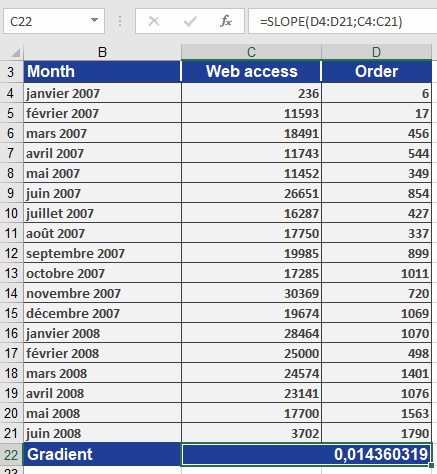
The result:
slope=0.0144\text{slope} = 0.0144slope=0.0144
This means:
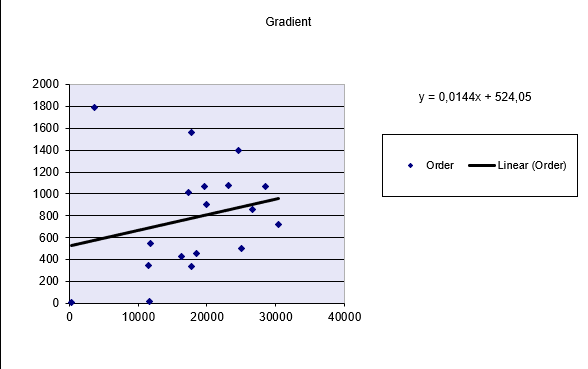
- For each additional website visit, the number of orders increases by 0.0144
- In practical terms, if website visits increase by 100, the number of orders would increase by:
100×0.0144=1.44 orders100
The Figure below displays the regression line visually.
Conclusion
Use the SLOPE() function to:
- Calculate the rate of change between two variables
- Identify trends and relationships in data
- Create forecast models in combination with INTERCEPT(), FORECAST(), or LINEST()