Votre panier est actuellement vide !
Étiquette : statistical
How to use the COUNTIFS() function in Excel
This function counts cells that meet multiple specified conditions across different ranges. It extends COUNTIF() by supporting multiple criteria.
Syntax
COUNTIFS(criteria_range1; criteria1; [criteria_range2; criteria2]; …)Arguments
- criteria_range1 (required): First range to evaluate
- criteria1 (required): Condition for criteria_range1 (number, expression, text, or reference)
- criteria_range2, criteria2,… (optional): Additional range/criteria pairs (up to 127 pairs)
Key Features
- All ranges must be the same size
- Only counts cells where ALL conditions are met (logical AND)
- Ignores empty cells and text in numeric ranges
- Supports same comparison operators as COUNTIF() (e.g., « >150000 »)
- Case-insensitive for text criteria
- Wildcards supported: ? (single char), * (any sequence)
Example: Yearly Sales Comparison
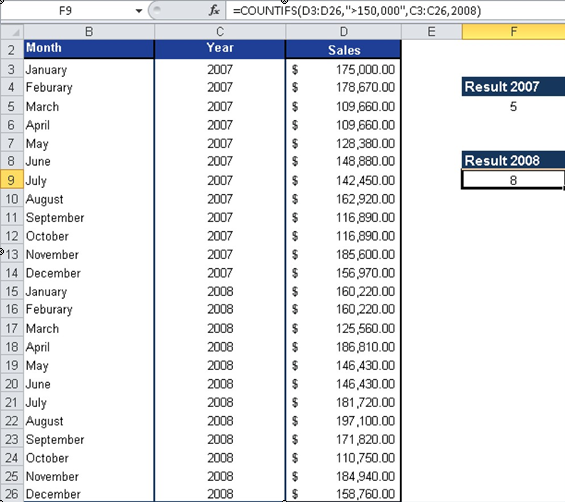
Using the software company’s 24-month sales data:- Total months >$150,000 (both years):
=COUNTIFS(C3:C26, »>150000″)
- Year-specific analysis (2007 vs 2008):
- For 2007:
=COUNTIFS(C3:C14, »>150000″,B3:B14,2007)
-
- For 2008:
=COUNTIFS(C15:C26, »>150000″,B15:C26,2008)
Results (Figure below):
- 2007: 7 months above target
- 2008: 15 months above target
- Improvement: 8 additional months achieved target in 2008
Practical Applications
- Multi-condition data analysis
- Year-over-year performance comparisons
- Complex filtering without pivot tables
- Data validation across multiple parameters
Note: For OR logic between criteria (counting if EITHER condition is met), use multiple COUNTIFS() functions summed together.
How to use the COUNTIF() function in Excel
This function counts the number of cells within a specified range that meet a single specified condition.
Syntax
COUNTIF(range; criteria)Arguments
- range (required): The group of cells to evaluate (can be numbers, text, or references)
- criteria (required): The condition that determines which cells to count, which can be:
- A number (e.g., 2000)
- Text (e.g., « Completed »)
- A cell reference (e.g., B5)
- A comparison expression (e.g., « >200000 »)
Background
While categorized as a statistical function, COUNTIF() serves as a powerful conditional counting tool. Note these technical requirements:- For comparison operators (<, >, <=, >=, <>), the criteria must be enclosed in quotation marks
- The function supports wildcards: ? (single character) and * (any sequence)
- Case-insensitive for text criteria
Examples
Example 1: Sales Target Analysis
Using the software company’s 24-month sales data (range C3:C26):=COUNTIF(C3:C26, »>200000″)
Returns: 15

Interpretation: The $200,000 monthly sales target was achieved 15 times in the 24-month period.
Special Syntax Notes
- For « less than 0 » criteria: « <0 »
- For « not empty » criteria: « <> »
- To reference another cell’s value as criteria: « <« &B1
Practical Applications
- Performance tracking against targets
- Inventory level monitoring
- Survey response categorization
- Data validation and completeness checks
How to use the COUNTBLANK() function in Excel
This function calculates the number of empty cells within a specified range. Unlike COUNT() and COUNTA(), it specifically tallies blank cells.
Syntax
COUNTBLANK(range)Arguments
- range(required): The cell range to evaluate for empty cells
Background
Particularly valuable for:- Data validation and completeness checks
- Large datasets where manual counting would be impractical
- Complementing COUNT() and COUNTA() to provide complete cell analysis
Key Features
- Counts truly empty cells (no data or formulas)
- Also counts cells containing:
- Formulas that return empty strings (« »)
- Formulas that return NULL values
- Does not count cells with:
- Space characters
- Zero values
- Text strings (even if blank-appearing)
Example
Using the same data range (C3:C25) from the COUNT() function example:
=COUNTBLANK(C3:C25)
Returns: 3
Interpretation
This indicates there are 3 completely empty cells in the range C3:C25. When combined with COUNTA() results (which returned 19 for the same data), you can verify complete data coverage:- 19 cells with data (COUNTA)
- 3 empty cells (COUNTBLANK)
- Total of 22 cells accounted for (matches range size)
Practical Application
Useful for:- Identifying missing data entries
- Tracking form completion status
- Validating data imports
- Monitoring data collection progress
How to use the COUNTA() function in Excel
This function counts the number of non-empty cells in an argument list. Use COUNTA() to determine how many cells in a range or array contain any type of data.
Syntax
COUNTA(value1; [value2]; …)Arguments
- value1(required): The first item, cell reference, or range to evaluate
- value2,…(optional): Additional items to evaluate (up to 255 arguments total, or 30 in Excel)
The function counts:
- All data types (numbers, text, logical values, error values)
- Empty text strings (« »)
- Formulas that return empty strings (« »)
Excludes:
- Truly empty cells
- Cells containing formulas that return nothing
Background
Similar to COUNT(), but more inclusive:- COUNT() only tallies numeric values
- COUNTA() counts all non-empty cells regardless of content type
- Particularly useful for mixed data types or when tracking data completeness
Example
Referring to Figure below, the function:
=COUNTA(C3:C25)
Returns 20 because:- Counts all cells with values (numbers, text, etc.)
- Includes the word « closed » in the range
- Excludes only completely empty cells

Key Difference from COUNT()
COUNTA() provides a complete occupancy count, while COUNT() gives only numeric entries. Choose based on whether you need to:- Count all data (COUNTA)
- Count only numbers (COUNT)
How to use the COUNT() function in Excel
This function counts the number of numeric entries in an argument list. The COUNT() function tallies cells containing numbers within a specified range or array.
Syntax
COUNT(value1; [value2]; …)Arguments
- value1(required): The first item, cell reference, or range to count
- value2,…(optional): Additional items, cell references, or ranges to count (up to 255 total arguments, or 30 in Excel 2003 and earlier)
Only numeric values are counted; text, logical values, or empty cells are ignored.
Background
While simple in function, COUNT() provides significant time savings, particularly when working with large datasets. Manual counting in extensive tables would be impractical and error-prone.Example
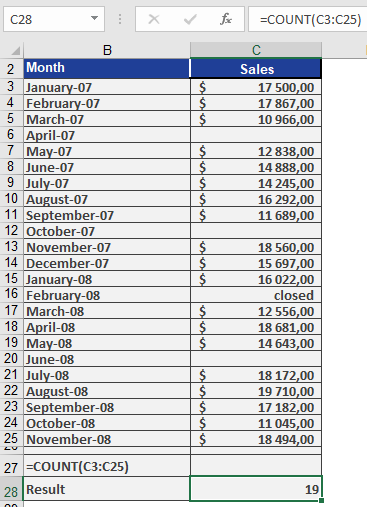
Figure below displays sales data from January 2007 through November 2008 entered by sales representatives.As sales manager, you use COUNT(C3:C25) to determine how many months saw sales activity over this two-year period. The function returns 19, indicating sales occurred in 19 of the 23 months.
How to use the CORREL() function in Excel
This function returns the correlation coefficient of a two-dimensional random variable with values in the cell ranges array1 and array2. Use the correlation coefficient to determine the relationship between two properties.
For example, you can examine the relationship between the number of website visits and online orders.
Syntax
CORREL(array1; array2)Arguments
- array1 (required): A cell range of values.
- array2 (required): A second cell range of values.
Background
Is there any correlation between two variables? This question often arises when analyzing or interpreting data. To answer it, you can use correlation analysis.The correlation coefficient measures the relationship between two properties, producing a value between -1 (perfect negative correlation) and 1 (perfect positive correlation). The sign indicates the direction of the correlation.
Correlation analysis is a key method for determining the linear relationship between two variables (e.g., website visits and online orders).
The formula for the correlation coefficient is:
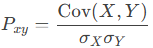
where:
- −1≤Pxy≤1−1≤Pxy≤1
- Cov(X,Y) is the covariance between variables X and Y
- σX and σY are the standard deviations of X and Y
Interpretation
The following guidelines apply to the correlation coefficient:- < 0.3: Weak correlation
- 0.3 – 0.5: Moderate correlation
- 0.5 – 0.7: Distinct correlation
- 0.7 – 0.9: Strong correlation
- > 0.9: Very strong correlation
Example
A software company sells all its products through its website. The company sends newsletters to inform customers about new products and drive traffic to the site.Last year, online orders increased significantly. Management wants to determine whether this growth resulted from marketing efforts or increased website visits.
Using CORREL(), the company analyzes the relationship between website visits and online orders (see Figure below).

Figure below illustrates the dependency between website visits and orders without the correlation coefficient.
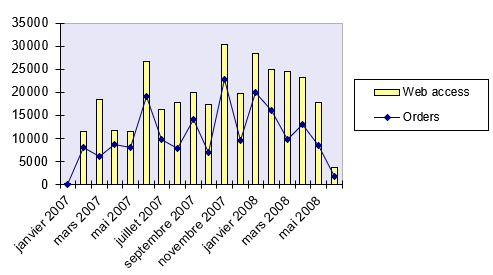
The calculated correlation coefficient of 0.89 indicates a strong positive correlation—meaning that as website visits rise (due to marketing), online orders also increase.
How to use the CONFIDENCE.T() function in Excel
This function returns the confidence interval for the expected value of a random variable using a Student’s *t*-distribution.
Syntax
CONFIDENCE.T(alpha; standard_dev; size)Arguments
- alpha(required): The significance level used to calculate the confidence interval. The confidence level is 100*(1 – alpha)%, meaning an alpha of 05 corresponds to a 95% confidence level.
- standard_dev(required): The standard deviation of the population. This value is assumed to be known.
- size(required): The sample size.
Background
Refer to the background information for the CONFIDENCE.NORM() function.Example
See the example for the CONFIDENCE.T function below.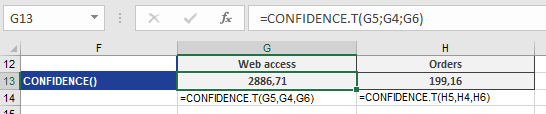
How to use the CONFIDENCE.NORM() function in Excel
This function calculates the margin of error for a confidence interval around a sample mean, assuming a normal distribution and a known population standard deviation. The confidence interval is:
Confidence Interval=xˉ±CONFIDENCE.NORM()
where:
- xˉ = Sample mean.
- The interval has a 100×(1−α)%100×(1−α)% confidence level (e.g., 95% for α=0.05α=0.05).
Syntax
CONFIDENCE.NORM(alpha; standard_dev; size)
Arguments
Argument Required? Description alpha Yes Significance level (e.g., 0.05 for 95% confidence). Must be between 0 and 1. standard_dev Yes Population standard deviation (must be known). size Yes Sample size (must be > 1). Background
- Key Concepts:
- Confidence Interval: A range where the true population mean is likely to fall.
- Margin of Error: CONFIDENCE.NORM() returns half the width of this range.
- Assumptions:
- Data is normally distributed.
- Population standard deviation (σσ) is known.
- Formula:
Margin of Error=zα/2×σnMargin of Error=zα/2×nσ
-
- zα/2zα/2 = Critical value from the standard normal distribution (e.g., 1.96 for 95% confidence).
- σ = Population standard deviation.
- n = Sample size.
- Interpretation:
- A 95% confidence interval means:
« If we repeated this experiment 100 times, ~95 of the calculated intervals would contain the true population mean. »
- A 95% confidence interval means:
Example: Website Traffic Analysis
Scenario
A software company analyzes monthly website visits and orders over 4 years (n=43n=43 months):
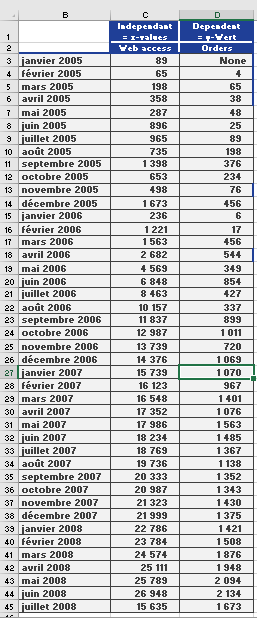
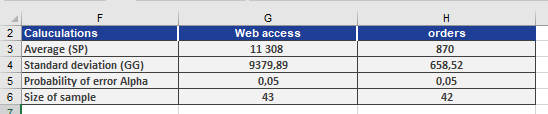
- Sample mean (xˉxˉ): 11,308.11 visits/month.
- Population standard deviation (σσ): 9,500 (assumed known).
- Confidence level: 95% (α=0.05α=0.05).
Step 1: Calculate Margin of Error
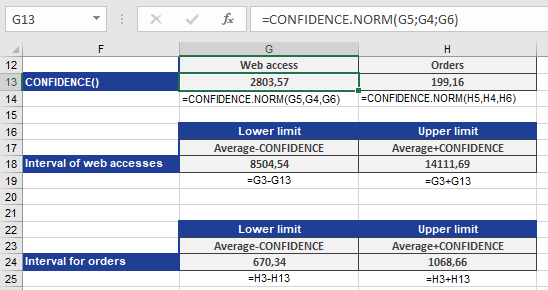
CONFIDENCE.NORM(0.05, 9500, 43) // Returns 2,803.57
Step 2: Construct Confidence Interval
11,308.11±2,803.57=[8,504.54, 14,111.69]11,308.11±2,803.57=[8,504.54, 14,111.69]
Conclusion
- 95% Confidence Interval: [8,504.54, 14,111.69] visits/month.
- Interpretation: We are 95% confident the true population mean of monthly visits lies in this range.
Key Notes
- When to Use:
- Estimating population means when σ is known (rare in practice; consider CONFIDENCE.T() if σ is unknown).
- Quality control, market research, or any scenario requiring precision estimates.
- Limitations:
- Inaccurate for small samples: Requires n≥30n≥30 for reliable results unless data is perfectly normal.
- Misinterpretation Risk: A 95% CI does not mean there’s a 95% chance the true mean is in the interval (it’s fixed).
- Common Errors:
- #NUM! if:
- α≤0α≤0 or ≥1≥1.
- size≤1size≤1.
- #VALUE! if non-numeric inputs are provided.
- #NUM! if:
How to use the CHISQ.INV.RT() function in Excel
This function returns the inverse of the right-tailed chi-square (χ²) distribution, providing the critical value where:
- If probability = CHISQ.DIST.RT(x, df), then CHISQ.INV.RT(probability, df) = x.
Syntax
CHISQ.INV.RT(probability; degrees_freedom)
Purpose
Used in hypothesis testing to:
- Determine critical values for χ² tests (e.g., goodness-of-fit, independence).
- Validate whether observed results significantly deviate from expected results under the null hypothesis.
Arguments
Argument Required? Description probability Yes Right-tailed probability (α) associated with the χ²-distribution (e.g., 0.05 for 5% significance). degrees_freedom Yes Degrees of freedom (positive integer). For contingency tables: (rows – 1) * (columns – 1). Background
- Right-Tailed χ² Distribution:
- Models the sum of squared deviations from expected values.
- Used when testing « greater than » hypotheses (e.g., variance exceeds a threshold).
- Key Concepts:
- Critical Value (x):
- The χ² value beyond which the null hypothesis is rejected.
- Calculated as CHISQ.INV.RT(α, df).
- Degrees of Freedom (df):
- Depends on the test type. For a 2×2 contingency table, df = 1.
- Critical Value (x):
- Inverse Relationship:
- CHISQ.INV.RT(α, df) is the inverse of CHISQ.DIST.RT(x, df).
Example: Vitamin C Efficacy Study
Scenario
- Goal: Test if Vitamin C reduces cold risk (null hypothesis: no effect).
- Data:
- Expected cold cases (no Vitamin C): 22/936.
- Observed cold cases (Vitamin C group): Fewer than 22.
- Significance Level (α): 2.5% (one-tailed test).
Step 1: Calculate Critical Value
CHISQ.INV.RT(0.025; 1) // Returns 5.0239
- Interpretation: If the test statistic (v) > 5.0239, reject the null hypothesis.

Step 2: Compute Test Statistic (v)
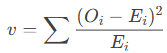
- For each category, calculate:
-
- Oi = Observed frequency.
- Ei = Expected frequency.
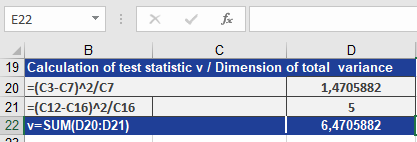
- Result: Suppose v = 6.47 (see Figure below).
Step 3: Compare v to Critical Value
- 6.47 > 5.0239 → Reject the null hypothesis.
- Conclusion: Insufficient evidence to confirm Vitamin C reduces colds at α = 2.5%.
Key Notes
- When to Use:
- Goodness-of-Fit Tests: Compare observed vs. expected frequencies.
- Independence Tests: Check if two categorical variables are related.
- Degrees of Freedom:
- For a contingency table: df = (rows – 1) * (columns – 1).
- For variance tests: df = sample size – 1.
- Common Errors:
- #NUM! if:
- probability ≤ 0 or ≥ 1.
- degrees_freedom < 1.
- #NUM! if:
How to use the CHISQ.TEST() function in Excel
This function performs a chi-square (χ²) test of independence, returning the p-value associated with the test statistic. It compares observed frequencies (actual_range) against expected frequencies (expected_range) to determine if there is a statistically significant association between categorical variables.
Syntax
CHISQ.TEST(actual_range; expected_range)
Arguments
Argument Required? Description actual_range Yes Range of observed frequencies (e.g., survey counts). expected_range Yes Range of expected frequencies under the null hypothesis. Note:
- Ranges must have the same dimensions. If not, #N/A is returned.
- Expected frequencies should ideally be ≥5 for reliable results.
Background
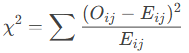
- Chi-Square Test Statistic (χ²):
-
- Oij = Observed frequency in row ii, column jj.
- Eij= Expected frequency (calculated from row/column totals).
- Degrees of Freedom (df):
- For an r×cr×c contingency table:
df=(r−1)(c−1)df=(r−1)(c−1)
- Null Hypothesis (H₀):
- Assumes no association between variables (observed ≈ expected).
- Low p-value (e.g., <0.05): Reject H₀ (significant association).
Example: Vitamin C and Colds Study
Scenario
- Goal: Test if Vitamin C usage affects cold incidence.
- Data:
- Observed (actual_range): 22 colds in 936 Vitamin C users.
- Expected (expected_range): 30 colds (baseline rate without Vitamin C).
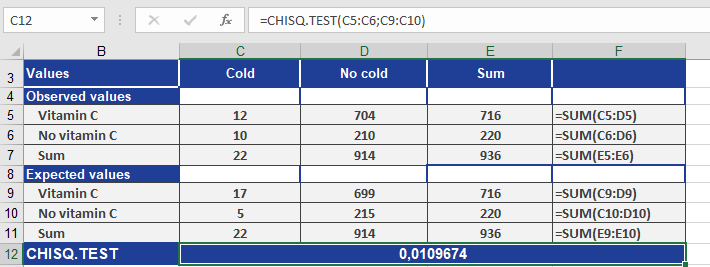
Step 1: Run CHISQ.TEST()
CHISQ.TEST(A2:A3; B2:B3) // Returns p-value = 0.01 (1%)
*(See Figure below for setup.)*
Step 2: Interpret Results
- p-value = 0.01:
- 1% probability that the deviation (observed vs. expected) is due to chance.
- Conclusion: Reject H₀ at 99% confidence (Vitamin C likely reduces colds).
Key Outputs
Metric Value Interpretation χ² Statistic Calculated Higher = greater deviation. Degrees of Freedom 1 (2×2 table: (2-1)(2-1)=1). p-value 0.01 Significant at α=0.05. Key Notes
- When to Use:
- Goodness-of-fit: Compare observed vs. theoretical distributions.
- Independence tests: Check if two categorical variables are related (e.g., gender vs. product preference).
- Limitations:
- Small expected frequencies: May violate test assumptions (use Fisher’s Exact Test if any Eij<5Eij<5).
- Binary outcomes: For 2×2 tables, consider Yates’ correction for continuity.
- Follow-up Analysis:
- If significant, calculate Cramer’s V or Phi coefficient to measure association strength.