Votre panier est actuellement vide !
Catégorie : Excel function
How to use the FLOOR() function in Excel
This function rounds a number down to the nearest multiple of the specified significance value.
Syntax
FLOOR(number; significance)Arguments
- number (required) – The numeric value to be rounded
- significance (required) – The rounding multiple
Key Behavior:
- Positive numbers: Rounds toward zero (down)
- Negative numbers: Rounds away from zero (up)
- Same sign requirement: Both arguments must be positive or both negative
- Exact multiples: Returns unchanged if number is already a multiple of significance
Error Conditions:
- #VALUE! – Non-numeric arguments
- #NUM! – When number and significance have opposite signs
Examples:
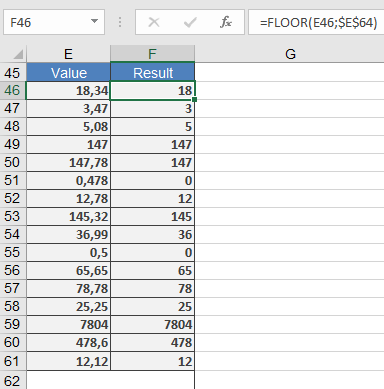
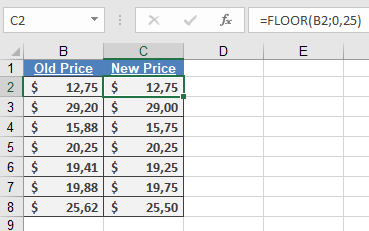
Comparison with Similar Functions:
Function Direction Multiple-Based Handles Negatives FLOOR Down Yes Yes (with same sign) CEILING Up Yes Yes MROUND Nearest Yes Yes ROUNDDOWN Down No Yes Applications:
- Price setting and discount calculations
- Time tracking (15-minute increments)
- Inventory management (case quantities)
- Financial reporting (standardized units)
How to use the FACTDOUBLE() function in Excel
This function returns the double factorial of a specified number, which is the product of all integers with the same parity (odd/even) up to that number.
Syntax
FACTDOUBLE(number)Argument
- number (required) – A non-negative integer (decimal values are truncated)
Key Properties:
- For even numbers:
n!! = n × (n-2) × (n-4) × … × 4 × 2 - For odd numbers:
n!! = n × (n-2) × (n-4) × … × 3 × 1 - Special cases:
0!! = 1 and 1!! = 1 - Maximum computable value in Excel: FACTDOUBLE(297) for odd, FACTDOUBLE(300) for even
Mathematical Background
Double factorials are used in:- Advanced combinatorics
- Special function theory
- Quantum physics calculations
- Trigonometric integral solutions
Example Applications:
- Even Number Example:
=FACTDOUBLE(8) → Returns 384 (8×6×4×2)
- Odd Number Example:
=FACTDOUBLE(7) → Returns 105 (7×5×3×1)
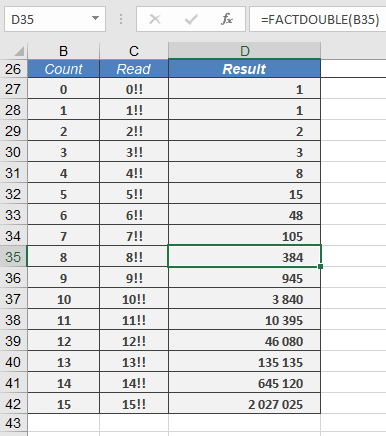
- Special Cases:
Formula Result Notes =FACTDOUBLE(0) 1 By definition =FACTDOUBLE(1) 1 =FACTDOUBLE(5.9) 15 Truncates to 5 =FACTDOUBLE(-1) #NUM! Invalid input Error Conditions:
- #VALUE! – Non-numeric input
- #NUM! – Negative numbers or values exceeding computational limits
Comparison with FACT():
n FACT(n) FACTDOUBLE(n) 5 120 15 6 720 48 7 5040 105 Related Functions:
- FACT(): Standard factorial
- MULTINOMIAL(): Generalized factorial
- COMBIN(): Combinatorial calculations
Note: Particularly useful in physics for:
- Normalization constants in quantum mechanics
- Volume calculations in n-dimensional spheres
- Solutions to certain differential equations
How to use the FACT() function in Excel
This function calculates the factorial of a specified non-negative integer.
Syntax
FACT(number)Argument
- number (required) – A non-negative integer (decimal values are truncated)
Key Properties:
- For any positive integer n:
n! = n × (n-1) × (n-2) × … × 2 × 1 - By definition: 0! = 1
- Maximum computable value in Excel: FACT(170) ≈ 7.26E+306
(Larger values return #NUM! error)
Mathematical Background
Factorials represent:- Permutations of distinct items
- Partial products of natural numbers
- Fundamental in combinatorics and probability
Example Applications:
- Race Placement (Permutations)
=FACT(4) → Returns 24
Interpretation: 4 runners can finish in 24 different orders
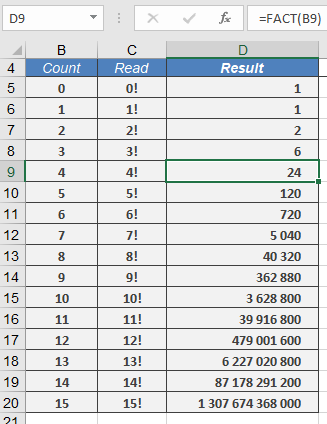
- Committee Arrangements
=FACT(5)/FACT(3) → Returns 20 (5P2 permutations)
- Special Cases:
Formula Result Notes =FACT(0) 1 Definition =FACT(1) 1 =FACT(5.9) 120 Truncates to 5 =FACT(170) 7.26E+306 Excel’s limit Error Conditions:
- #VALUE! – Non-numeric input
- #NUM! – Negative numbers or n > 170
How to use the EXP() function in Excel
This function returns Euler’s number *e* (approximately 2.71828182845904) raised to the power of the specified number.
Syntax
EXP(number)Argument
- number (required) – The exponent applied to base *e*
Background
The EXP() function performs exponential calculations using:- Base *e* (Euler’s number), the fundamental constant for natural logarithms
- An irrational, transcendental number (cannot be expressed as a simple fraction)
- The inverse operation of the natural logarithm function LN()
Key Mathematical Properties:
- Relationship with LN():
EXP(LN(x)) = x and LN(EXP(x)) = x - Special Values:
- EXP(0) = 1
- EXP(1) ≈ 2.71828183 (Euler’s number)
- Growth Characteristics:
- Models continuous growth/decay processes
- Fundamental in calculus (derivative of EXP(x) is EXP(x))
Examples:
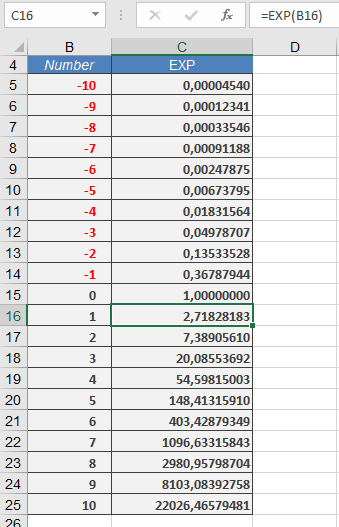
- Basic Calculations:
=EXP(1) → Returns 2.71828183 (e)
=EXP(2) → Returns 7.3890561 (e²)
=EXP(0) → Returns 1
- Scientific Applications:
- Radioactive decay: =EXP(-decay_constant*time)
- Population growth: =initial_population*EXP(growth_rate*time)
- Financial Modeling:
=principal*EXP(rate*years) // Continuous compounding
Comparison with Power Operator (^):
Method Example Result EXP() =EXP(1) e (2.718…) ^ =2.71828182845904^1 e (2.718…) ^ =2^8 256 (different base) Common Uses:
- Continuous growth/decay models
- Probability distributions
- Complex number calculations
- Differential equations solutions
- Financial continuous compounding
Note: For exponents with different bases, use the caret operator (^):
=base^exponent
How to use the EVEN() function in Excel
This function rounds a specified number up to the nearest even integer.
Syntax
EVEN(number)Argument
- number (required) – The numeric value to be rounded
- Must be a numeric expression
- Returns #VALUE! error for non-numeric inputs
Background
The EVEN() function performs rounding differently than standard rounding functions:- Always rounds away from zero to the next even integer
- Maintains the sign of the original number
- Returns the input value unchanged if it is already an even integer
- Follows mathematical definition of even numbers (integers divisible by 2)
Key Characteristics:
- Rounding direction:
- Positive numbers: rounds up to next even integer
- Negative numbers: rounds down to next even integer (more negative)
- Special cases:
- Zero (0) is considered even and returns 0
- Exact even integers return themselves
Examples:
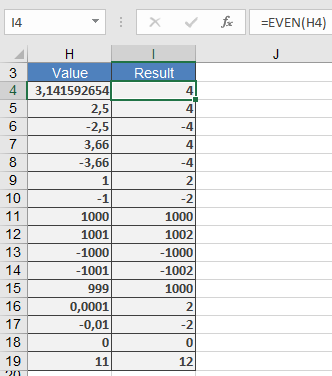
Applications:
- Financial calculations requiring even denominations
- Inventory management for paired items
- Team/group formation requiring even numbers
- Data processing with even-number constraints
Error Conditions:
- #VALUE! – Non-numeric input
- #NUM! – Extremely large numbers (Excel limitation)
Related Functions:
- ODD(): Rounds to nearest odd integer
- CEILING(): Rounds to specified multiple
- FLOOR(): Rounds down to specified multiple
- number (required) – The numeric value to be rounded
How to use the DEGREES() function in Excel
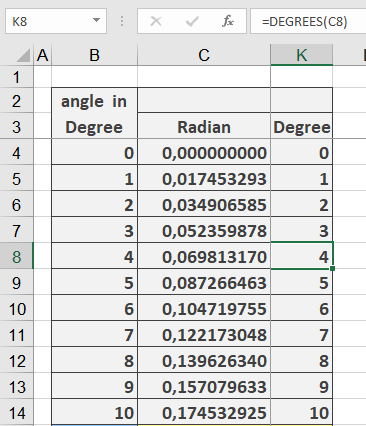
Its converts an angle from radians to degrees.
Syntax
DEGREES(angle)Argument
- angle (required) – The angle in radians to be converted
Background
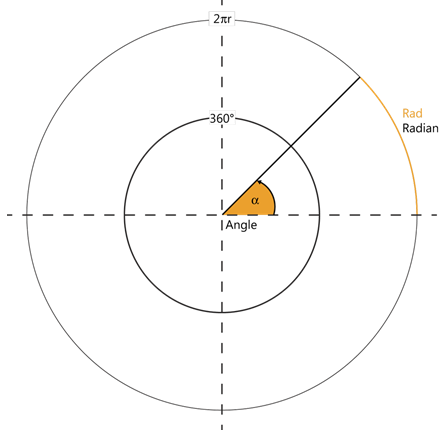
Angular measurements use two primary units:- Degrees (°):
- Full circle = 360°
- 1° = 60 arcminutes (‘)
- 1′ = 60 arcseconds (« )
- Radians:
- Full circle = 2π radians
- π radians = 180°
- 1 radian ≈ 57.2958°
Key Features:
- Essential for interpreting results from Excel’s trigonometric functions (ACOS, ASIN, ATAN, etc.)
- Conversion formula:
degrees=radians×180π
- Inverse function: RADIANS() converts degrees to radians
Examples:
Applications:
- Converting mathematical/engineering calculations to more intuitive degree measurements
- Preparing data for visual presentations/graphs
- Geographic coordinate transformations
- CAD/CAM software inputs
How to use the COSH() function in Excel
This function returns the hyperbolic cosine of a number.
Syntax
COSH(number)Argument
- number (required) – Any real number
Background
The hyperbolic cosine is part of the family of hyperbolic functions, which – like trigonometric functions – are defined for all real and complex numbers (though Excel only supports real-number arguments). The function is mathematically defined as: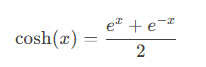
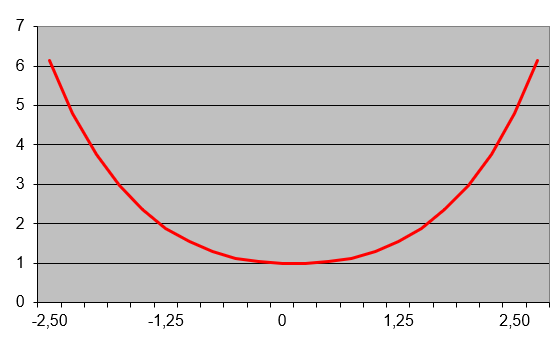
The graph of the hyperbolic cosine (shown in Figure below) displays a characteristic curve.
Example Calculation
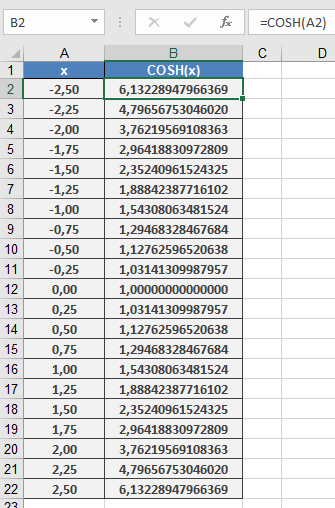
Key Applications
- Catenary Curves
The hyperbolic cosine famously describes the shape of a hanging chain or cable suspended between two points (catenary). The catenary equation is:
y = a * COSH(x/a)
where:
-
- a is the vertical distance from the lowest point to the baseline
- x is the horizontal coordinate
- Scientific Uses
- Engineering analysis (suspension bridges, arches)
- Physics (relativity and wave equations)
- Mathematical modeling
Technical Notes
- Output is always ≥ 1
- Symmetric function: COSH(-x) = COSH(x)
- Grows exponentially as |x| increases
- Fundamental relationship: COSH²x – SINH²x = 1
How to use the COS() function in Excel
This function returns the cosine of the specified angle.
Syntax
COS(number)Argument
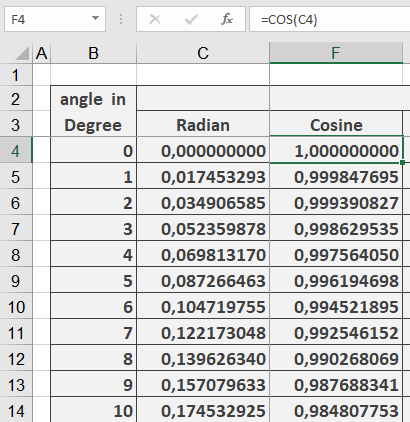
- number (required) – The angle in radians for which you want to calculate the cosine
Background
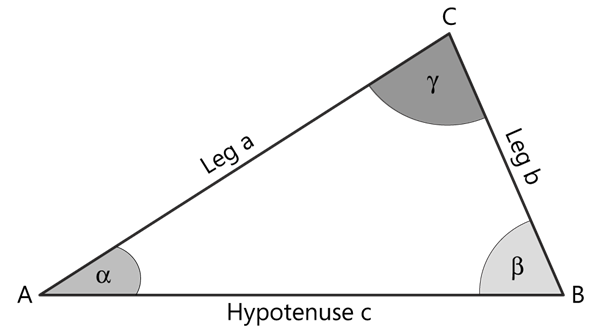
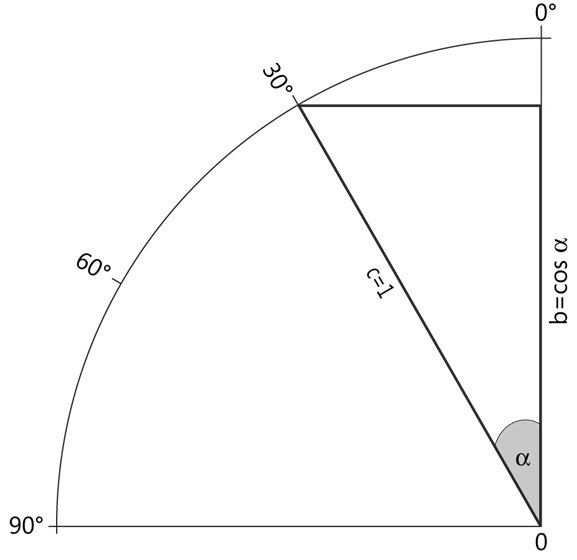
The cosine of an angle in a right triangle represents the ratio of the length of the adjacent side to the hypotenuse (see Figure below):cos(α) = adjacent side / hypotenuse
Key Properties:
- For a unit circle (radius = 1), as angle α increases from 0° to 90°:
- cos(α) decreases from 1 to 0 (see Figure below)
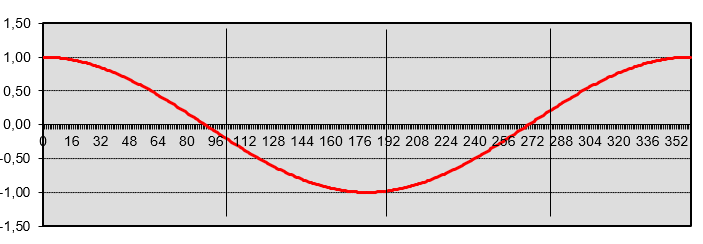
- The cosine function produces a wave-like curve when plotted on a coordinate system (see Figure below)
- The function expects the input angle in radians
- To convert degrees to radians, use the RADIANS() function
Example Application
Additional Notes:
- The cosine function is periodic with a period of 2π radians (360°)
- cos(0) = 1
- cos(π/2) = 0 (90°)
- cos(π) = -1 (180°)
- cos(3π/2) = 0 (270°)
- cos(2π) = 1 (360°)
Common Applications:
- Engineering calculations
- Physics problems involving waves and oscillations
- Computer graphics and game development
- Navigation systems
How to use the COMBIN() function in Excel
This function calculates the number of possible combinations (unordered groups) that can be formed from a given set of items.
Syntax
COMBIN(number; number_chosen)Arguments
- number (required) – Total items in the set (must be ≥ 0)
- number_chosen (required) – Items to select in each combination (must be ≥ 0 and ≤ number)
Key Features:
- Returns the binomial coefficient « n choose k »
- Mathematically represented as:
n! / (k!(n-k)!)
- Truncates decimal inputs to integers
- Combination order doesn’t matter (AB = BA)
Error Conditions:
- #VALUE! – Non-numeric arguments
- #NUM! – If:
- Either argument is negative
- number < number_chosen
- Arguments exceed computation limits
Examples:
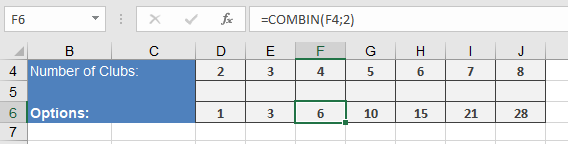
=COMBIN(4;2) → Returns 6 possible matches
Comparison with PERMUT():
Function Order Matters Formula Example (4,2) COMBIN No n!/(k!(n-k)!) 6 PERMUT Yes n!/(n-k)! 12 Applications:
- Probability calculations
- Tournament scheduling
- Statistical analysis
- Combinatorial mathematics
- Quality control sampling
Note: For large numbers (n > 170), consider alternative methods due to Excel’s factorial computation limits.
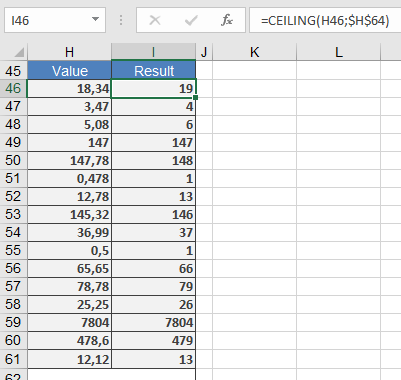
How to use the CEILING() function in Excel
This function rounds a number up to the nearest multiple of the specified significance value.
Syntax
CEILING(number; significance)Arguments
- number (required) – The numeric value you want to round
- significance (required) – The multiple to which you want to round
Key Features:
- Always rounds numbers away from zero
- Handles both positive and negative numbers:
- Positive numbers round up (e.g., 3.2 → 4)
- Negative numbers round down (e.g., -3.2 → -4)
- Returns original value if already an exact multiple
- Returns errors for:
- Non-numeric inputs (#VALUE!)
- Mixed signs between arguments (#NUM!)
Example:
Comparison with Similar Functions:
Function Direction Multiple-Based Handles Negatives CEILING Up (from zero) Yes Yes FLOOR Down (toward zero) Yes Yes MROUND Nearest Yes Yes ROUNDUP Up No Yes